Super Admin
Super admin mode provides elevated access that goes beyond normal company-level administration. While regular admins manage a single company's VCRs and team members, super admins can access and manage resources across all companies and VCRs within the CleverCam platform. This mode is designed for platform-level administrators who need to oversee multiple security companies, troubleshoot cross-company issues, or perform audits.
Activating Super Admin Mode
Super admin mode is available only to accounts that have been granted super admin privileges:
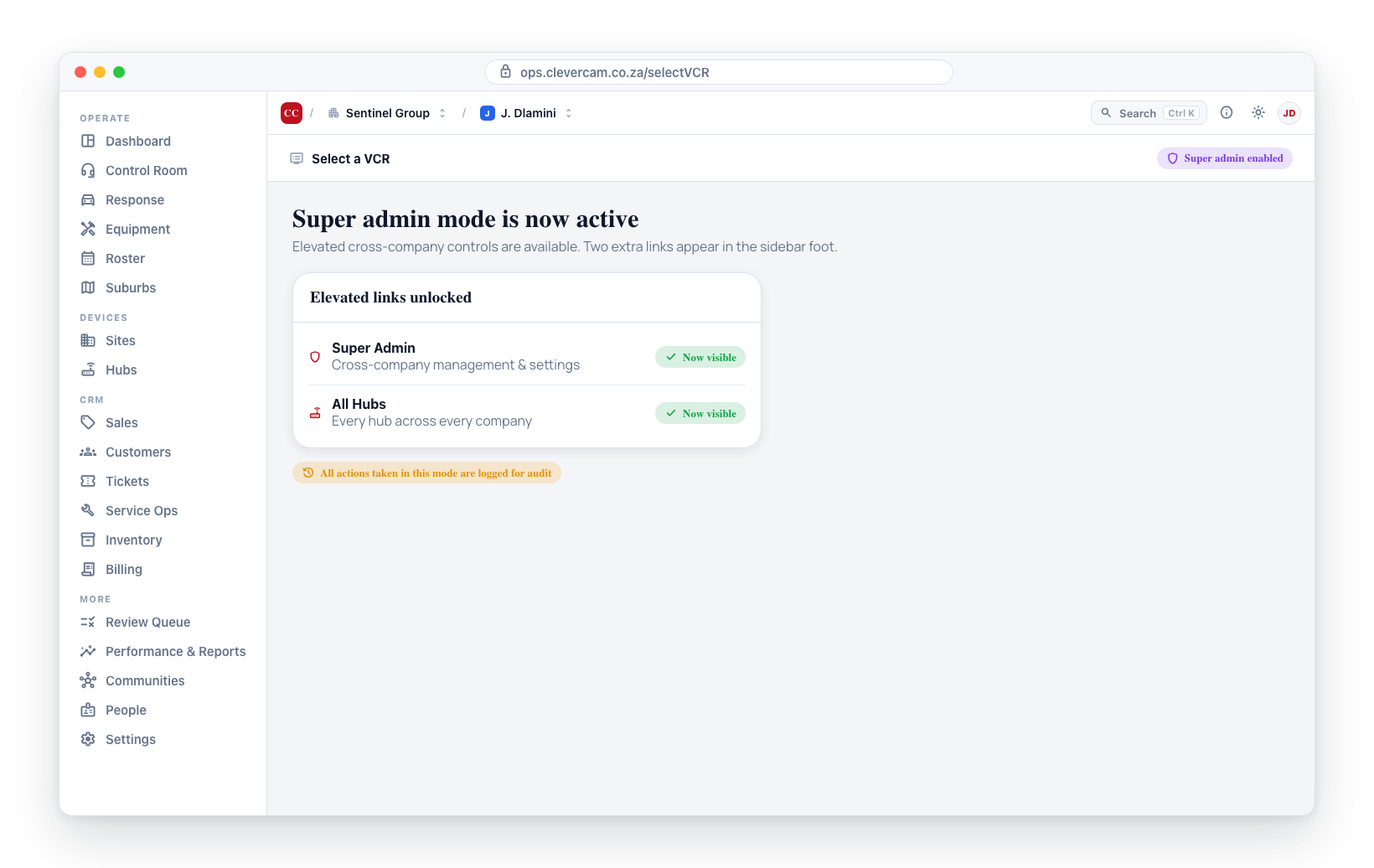
- Sign in to CleverOps with your super admin account.
- In the sidebar, locate the Super Admin toggle.
- Click the toggle to activate super admin mode.
- The interface updates to show the super admin dashboard with expanded access.
Super admin mode grants access to all companies and their data. Use this mode only when needed and always follow your organization's policies for elevated access. Actions taken in super admin mode are logged for audit purposes.
When super admin mode is off, your account behaves exactly like a normal user -- you can only access the companies and VCRs you are actually a member of. Elevated actions only become available while the toggle is on: managing another company's team members, transferring ownership or deleting a company you don't own, deleting a VCR, and opening the Super Admin area. With the toggle off, the Super Admin link is hidden and the Super Admin area returns "Access denied".
One workspace, thirteen tabs
Super Admin is a single workspace reached from one sidebar link. The platform-wide tools live behind a tab bar at the top of the page — one entry point instead of several scattered sidebar links:
| Tab | What it does |
|---|---|
| Overview | The landing dashboard — fleet online counts per hub type, CCUs not connected to a VCR, and third-party receiver traffic grouped by company. See below. |
| All Hubs | The global hub fleet across every VCR — assign, mark rental, flag faulty, spot anomalies. See Global Hubs. |
| Site Recovery | Find any site on the platform — by name, customer or hub serial — and put yourself on it to recover it. |
| Receivers / Gateways | Serial receiver gateways (USR-N520 / Teltonika), their base-station supervision health, and site routers (network edges) with live internet-source and LTE-signal telemetry. See below. |
| Ingestion | The signal-ingestion engine's load and health — in-rates, rejections, dead-letter queues, every pipeline alarm and the cross-tenant quarantine. See below. |
| Trackers | Provision GPS trackers + SIMs and manage CleverCam → VCR fleet billing. See Global Trackers. |
| SIMs | Every data SIM across trackers, hubs and gateways — assignment, per-class policy and integrity. See Global SIMs. |
| Hub Pricing | The standard CleverCam → VCR price list for every hub type, and who last changed it. See Hub Pricing. |
| Internal billing | The monthly sheet of what every control room owes CleverCam, per price point, with Checked and Invoiced. See Internal billing. |
| Messaging | Outbound email / SMS / WhatsApp volumes per VCR, free allowances and overage charges. |
| External spend | What every control room costs CleverCam in third-party APIs — Mapbox, AI, WhatsApp, SMS, email, voice — over 7 / 30 / 90 days, with monthly caps (Mapbox $10 / VCR / month, hard) and alerts. See External Spend. |
| App Reviews | Every in-app CleverAlert review and its NPS, split by the control room behind the reviewer — plus the public review asks (store rating, Google, Facebook) that follow a 9 or 10. See below. |
| Audit Logs | The cross-company configuration audit trail — pick a company to see every change across its control rooms. |
The page opens on the Overview tab (/superAdmin), and switching tabs updates the address bar (/superAdmin/hubs, /superAdmin/recovery, /superAdmin/receivers, /superAdmin/ingestion, /superAdmin/trackers, /superAdmin/sims, /superAdmin/pricing, /superAdmin/billing, /superAdmin/messaging, /superAdmin/spend, /superAdmin/reviews, /superAdmin/audit) so any tab can be bookmarked or shared.
Overview tab
The Overview tab is a platform-health dashboard. One card on it — Platform maintenance — can change platform state; everything else is read-only.
Platform maintenance (below the stat cards) holds two platform-wide switches for planned maintenance windows:
- CleverCommand system banner — free text shown live at the top of every open CleverCommand tab, across all control rooms. Type the announcement and press Set banner; Clear banner hides it again (an empty banner is never shown). Use it to warn operators about a maintenance window before it starts and clear it when the window is done.
- Suppress hub offline/online events — while ticked, the platform stops generating hub offline/online events entirely, so a planned restart does not flood every control room with offline signals for the whole fleet. A warning line stays visible while suppression is on as a reminder to switch it off after maintenance.
Everything else on the tab is read-only, in three sections:
- Online by hub type — one row per hub type showing the number of units online right now next to the highest simultaneous online count seen in the last 24 hours, 7 days, 30 days and 1 year, plus the fleet total and how many are unclaimed. Online counts are sampled every 10 minutes, so windows longer than the sampling history show the maximum since tracking began (the note under the table states the start date).
- CCUs not connected to a VCR — every CCU-category hub with no VCR claim, with its creation date, prepaid status (Active until its expiry date, or Expired — prepaid units are paid privately by the end customer), online/offline state, linked site (if any) and last-seen time. Filter by prepaid-expired / online / offline, or search by serial, label or site.
- Third-party receivers by company — every company that has third-party receivers, with each receiver listed underneath: protocol, owning VCR, signals received in the last 24 hours, the last signal date/time, lifetime signal count, number of linked panels and its active/supervision status. Companies are ordered by 24-hour signal volume. A receiver shows "tracking…" for its 24-hour count until a full day of samples exists.
Four stat cards at the top summarise hubs online now, CCUs without a VCR (with the prepaid-expired count), total third-party receivers and combined signals over the last 24 hours.
Receivers / Gateways tab
The Receivers / Gateways tab shows the serial-receiver estate and the routers that carry it, top to bottom. It reads as the physical nesting — router → gateway → channels:
- Network edges (routers) — one row per site router (e.g. a Teltonika RUT906 providing LTE failover for a control room). Each router reports in every 5 minutes, and the row shows: which gateways sit behind it (and how many channels each carries), the SIMs in the router — one line per slot with its carrier and whether it is active, standby or empty (a dual-SIM router such as the RUT906 lists both; see Two SIMs), online status (derived from report age — online under 15 minutes, late under 45, then offline), the active internet source (wired or mobile, with a failover active warning when the router is running on its backup), the mobile operator, connection type, which SIM slot is carrying it and the mobile IP, LTE signal quality (strong / ok / weak / poor, with the raw RSRP / SINR / RSRQ numbers underneath), device uptime, when the last failover happened and when the router last reported.
- Receiver groups — one card per receiver group, listing its gateways (model, IoT thing name, role, SIM, online state, last seen, and which router it sits behind) and its base-station channels with supervision health (healthy / late / offline from heartbeat age) and a per-channel History view.
- Ungrouped gateways — serial gateways that are not yet in a receiver group, so their ports resolve to no channel and nothing they publish can be routed. The section is hidden when there are none.
A site router belongs in Network edges only. Registering it a second time as a receiver gateway makes the same physical box appear twice — once as a router and once as a peer of the gateway plugged into it — and it then shows up under Ungrouped gateways looking like a broken receiver. A gateway is linked to the router it sits behind, which is what fills the Router column and the Gateways behind it column.
The SIM follows the box it is physically in: a router's SIM shows on its Network edges row, not on the gateway behind it.
A router can be online (reporting telemetry) while its gateway row shows Offline — the gateway status only turns green once alarm traffic or supervision heartbeats flow through it. Use the Network edges section for "is the box up and on which internet", and the gateway/channel rows for "are alarms getting through".
Ingestion tab
The Ingestion tab is the signal-ingestion engine's health summary — the same picture that previously lived only in the AWS CloudWatch console. Everything on it is read-only.
- Six stat cards — signals and heartbeats received in the last 24 hours (with the change against the prior 24 hours), how many ingestion alarms are firing right now, the current dead-letter queue depths (signals and heartbeats), signals rejected in the last 24 hours (split into dropped — permanent rejections, deleted — and deferred — transient failures retried later), and the worst delivery lag (the oldest a queued signal got before processing) alongside the pg/edge divergence count. A red line appears under the cards if there were any spool write failures (the only true signal-loss path) or circuit-breaker openings in the last 24 hours.
- Inbound rate — last 48 hours — signals and heartbeats entering the pipeline per hour, across every receiver and protocol. The daily arm/disarm peaks are clearly visible.
- Ingestion alarms — every CloudWatch alarm on the pipeline with its state (Firing / OK / No data), how long it has been in that state, and a plain-English description of what it means. Firing alarms sort to the top. A standing red here is alarm blindness — fix the condition or retune the alarm.
- Quarantine — signals arriving with nowhere to go — undecided panel identities per control room (from the cross-tenant quarantine, which per-VCR users can never see whole): how many were active in the last 24 hours, how many are undecided or blocked, lifetime signal hits and the last signal time. These signals reach the platform and are recorded, but route to no site until someone links or blocks the identity in that control room's Hubs → Identity & Signals → Losing signals worklist.
The metrics come from CloudWatch through a read-only integration; the footer names the ingestion-prod CloudWatch dashboard for the full engineering view (per-path batches, per-service load, Frontel link, spool).
Editing a company's profile, team members, contact person, billing and module flags is not part of the Super Admin workspace — that is the job of the Company Settings page. With super-admin mode on, every company is listed on the VCR-select screen with a Company Settings button, so you can open and edit any company's settings directly. Keeping that out of Super Admin avoids duplicating the same panel in two places.
App Reviews tab
The App Reviews tab lists every in-app review CleverAlert has collected, with the control room behind each reviewer. The question is the NPS one — "How likely are you to recommend CleverCam to a friend or colleague?" — scored 1–10 in the app and banded 9–10 promoter, 7–8 passive, 1–6 detractor. The app only offers the card to accounts older than 30 days, and then not again for 180 days after an answer, so the figures are a sample, not a census. Everything on the tab is read-only.
A window selector at the top (Last 30 days, Last 90 days, Last 12 months, All time) sets the slice of time every figure describes, except the 12-month trend, which always shows the rolling year. Export CSV downloads the reviews currently listed, and Refresh reloads the tab.
- Headline figures — NPS, responses, average score, promoters, passives and detractors, and how many reviewers are on a control room's subscription versus their own prepaid window.
- Public review asks — what became of the promoters. Straight after a 9 or 10 is saved, CleverAlert asks that person for a public review, one place per ask, in turns. Every app — white-label included — can show the phone's own store rating sheet (App Store or Google Play) for that app, and that is all a white-label app ever asks. The main CleverAlert app also takes turns with CleverCam's Google and Facebook pages, never offering a page that person has already opened. The card shows how many promoters were asked (out of the promoters in the window), how many were sent the store rating sheet, and for Google and for Facebook how many opened the page out of those asked. Opened means they said yes and were sent to the review page — whether they then left a review is between them and Google or Facebook. The stores report nothing back at all: not whether the sheet appeared, not whether a rating was left. See the feedback card in CleverAlert for what the customer sees.
- Last 12 months — responses, NPS, average and the promoter / passive / detractor split per calendar month.
- By control room — the same figures per control room, sortable by responses or by NPS. A reviewer is counted under the control room that holds the primary link on their site; reviewers with no control room land in a final No VCR (prepaid / unlinked) row.
- Reviews — every review, newest first: date, score, Review ask, reviewer, control room, prepaid window, estate (sites and hubs), app platform and version, and the written feedback. The Review ask column reads Google · opened or Facebook · opened (green) when the person said yes and was sent to the page, Google · asked or Facebook · asked (grey) when they were asked and did not open it, App Store · prompted or Play Store · prompted (blue) when they were sent the store rating sheet, and — when they were never asked. Hover the pill for the times.
The Reviews list can be narrowed by band, by rail (on a VCR / prepaid / unlinked), by control room, by platform, and by review ask — Asked, Opened the page, Asked, not opened (both Google / Facebook only), Store rating prompted, or Promoters not asked (a 9 or 10 that was never followed by an ask — an app version from before the ask existed, or a phone that cannot show the store sheet). Tick Written feedback only to hide score-only reviews, or search by name, email or comment. The CSV carries three extra columns for the ask: the place, when they were asked, and when they opened the page.
Audit Logs tab
The Audit Logs tab shows the Audit Trail across companies. A dropdown at the top lists every company on the platform; pick one to load the configuration-change trail for all of that company's control rooms — with the actor, full before/after detail and CSV export. Filter by entity, actor or date range, and click a row to see exactly what changed.
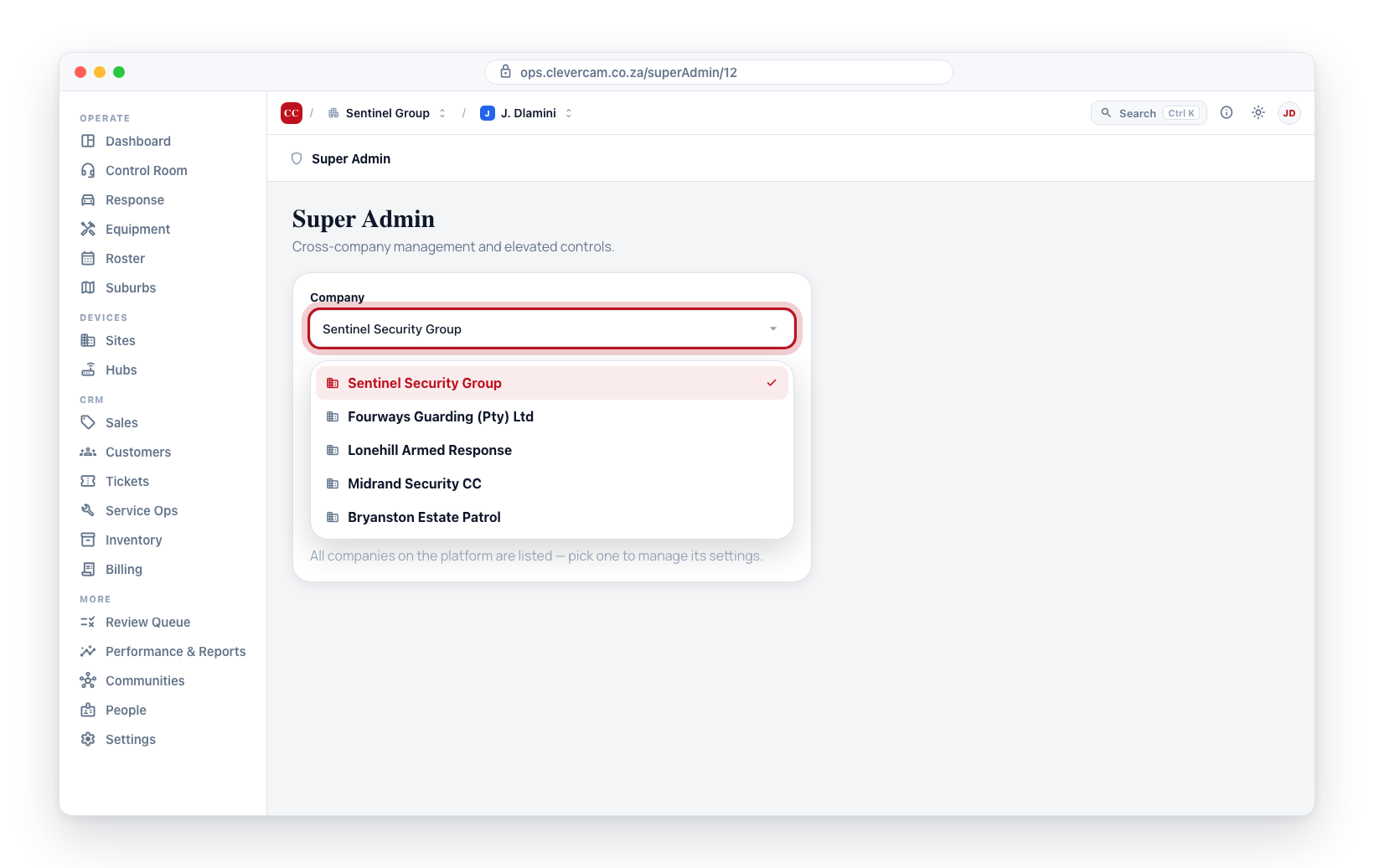
For the complete description (including the per-control-room view reached from the More sidebar), see Audit Trail.
Super Admin Use Cases
| Scenario | How Super Admin Helps |
|---|---|
| A company reports a configuration issue they cannot resolve | Access their VCR directly to diagnose and fix the problem |
| Investigating a security incident that spans multiple companies | Use the Audit Logs tab to trace actions across company boundaries |
| Onboarding a new company and setting up their first VCR | Create the company and configure initial settings |
| Billing dispute requiring account-level investigation | Access billing details for the company in question |
| Platform-wide audit for compliance | Review audit logs filtered by entity, actor or date range |
Deactivating Super Admin Mode
When you are finished with elevated access:
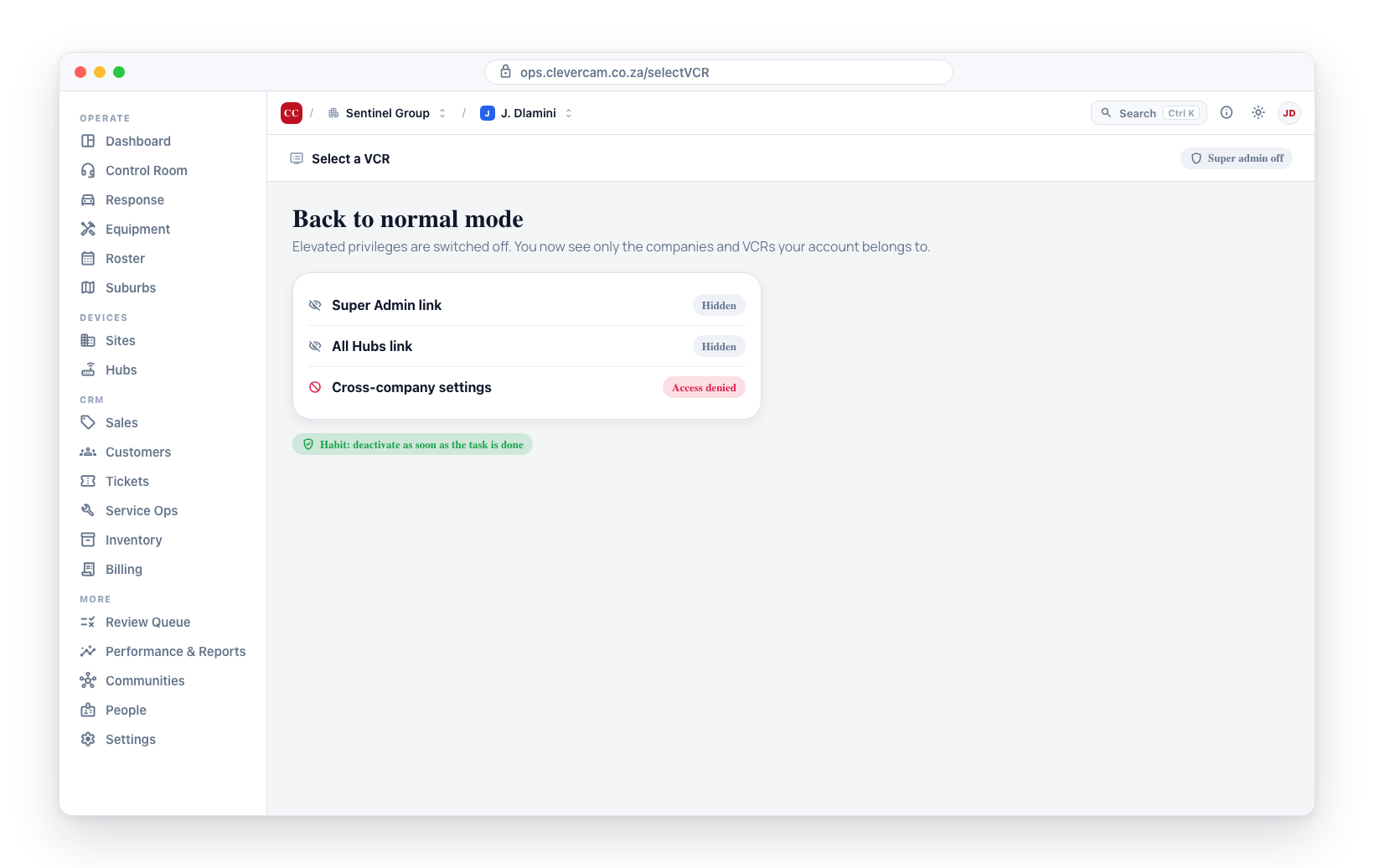
- Click the Super Admin toggle in the sidebar to switch it off.
- The interface returns to normal mode, showing only the companies and VCRs your regular account has access to.
Make it a habit to deactivate super admin mode as soon as you are done with the task that required it. This reduces the risk of accidentally making changes in the wrong company's context.
Security Considerations
- Super admin accounts should be limited -- Only grant super admin access to personnel who genuinely need platform-wide access.
- All actions are audited -- Everything done in super admin mode is recorded in the audit log.
- Use separate accounts -- If possible, use a dedicated super admin account rather than granting super admin to your everyday account.
- Report suspicious activity -- If you see unexpected entries in the audit log, investigate immediately and report to the security team.