Push Notifications
Push notifications are the primary way CleverAlert alerts you to security events, system status changes, and schedule actions. When an event is detected at your site, a push notification is sent to your phone immediately so you can respond even when the app is not open. Keeping notifications properly enabled is essential for effective security coverage.
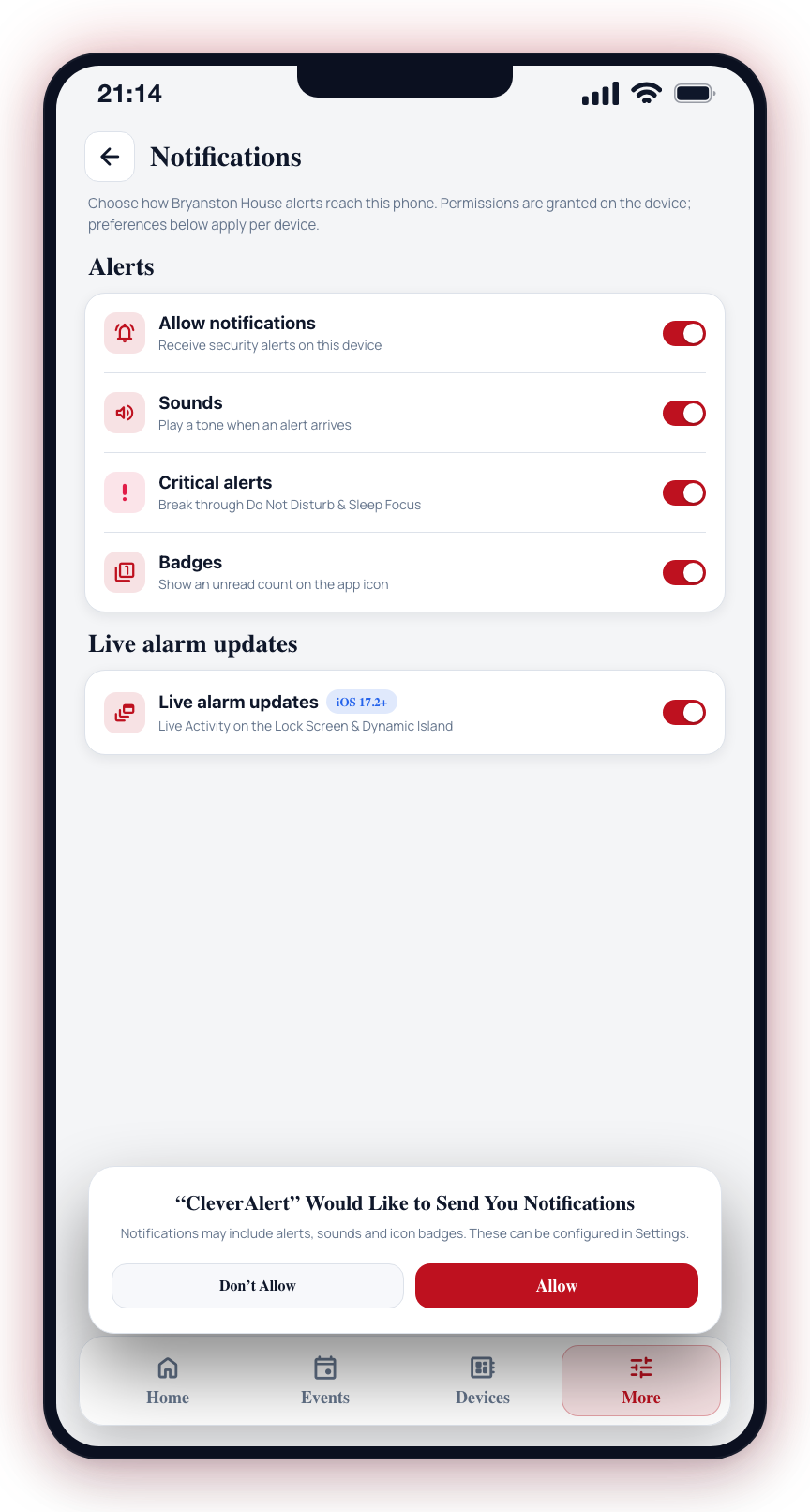
Enabling Push Notifications
When you first launch CleverAlert, the app will prompt you to allow push notifications. This is a permission that must be granted for notifications to work.
On iOS
- When prompted, tap Allow to enable notifications.
- If asked about notification style, select Alerts (not just badges or banners) for the most visible notifications.
- Notifications are now enabled and you will receive alerts.
On Android
- When prompted, tap Allow to enable notifications.
- Android may show additional options for notification categories — allow all categories for full coverage.
- Notifications are now enabled.
Re-Enabling Notifications if Denied
If you accidentally denied notification permission or need to re-enable it after disabling:
On iOS
- Open your device Settings app.
- Scroll down and tap CleverAlert.
- Tap Notifications.
- Toggle Allow Notifications to on.
- Ensure Alerts, Sounds, and Badges are all enabled.
- For critical alerts, enable Critical Alerts if available (this allows notifications even in Do Not Disturb mode).
On Android
- Open your device Settings app.
- Tap Apps or Applications.
- Find and tap CleverAlert.
- Tap Notifications.
- Toggle notifications to on.
- Ensure all notification categories are enabled.
- Check that battery optimization is not blocking notifications (see below).
Battery Optimization (Android)
Some Android devices aggressively manage battery by limiting background activity. This can prevent push notifications from being delivered. To ensure reliable delivery:
- Open Settings > Apps > CleverAlert.
- Tap Battery.
- Select Unrestricted or No restrictions.
- This allows CleverAlert to run in the background and receive push notifications reliably.
Muting a single alarm zone
If one specific alarm zone (a known noisy door contact, a sensor under repair, a smoke detector being tested) is the only source you want to silence, you do not need to disable notifications for the whole site. Open More > Advanced setup > Alarm zones, tap the zone, choose Edit zone, and toggle Mute push notifications.
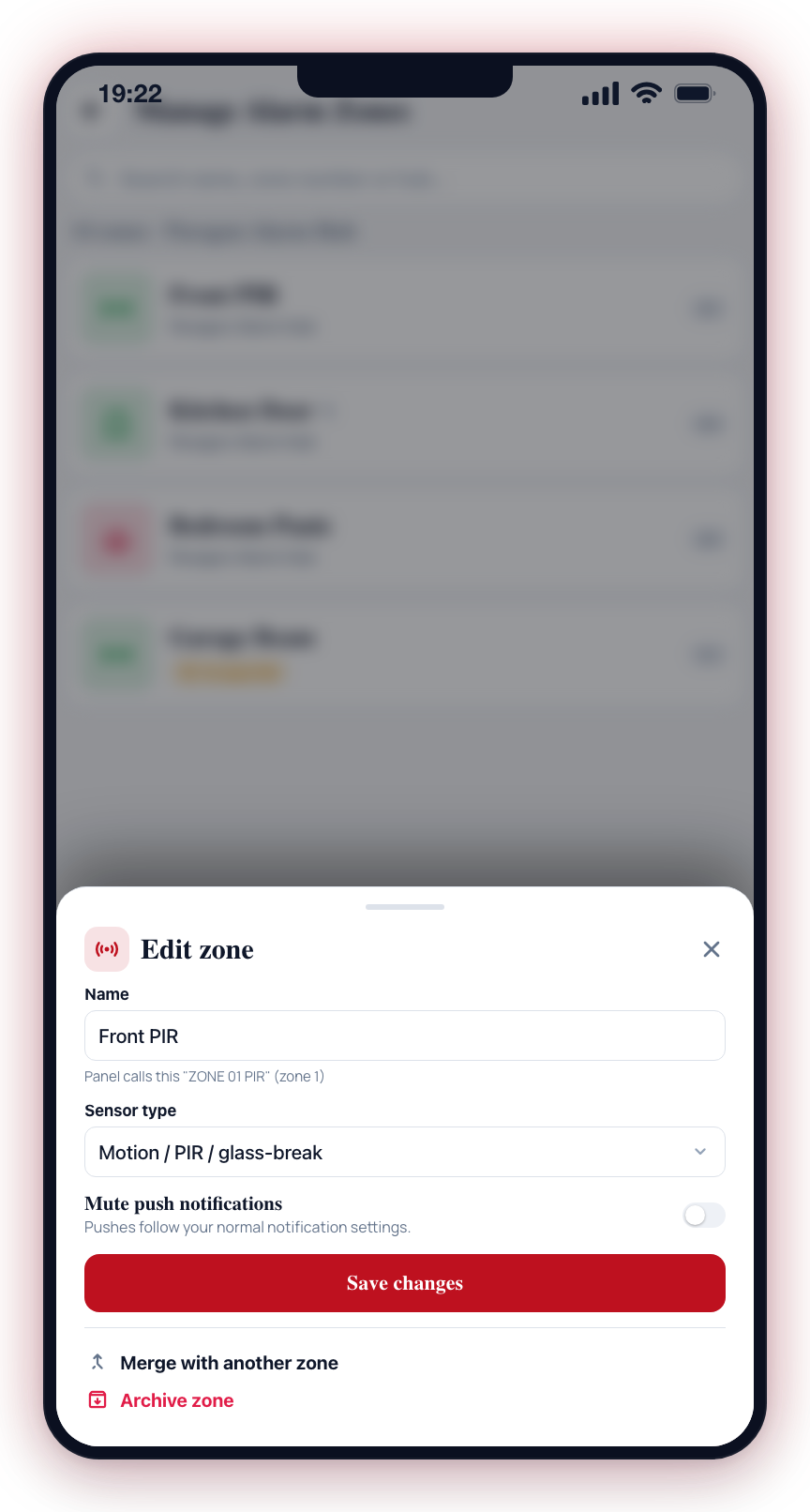
The mute is per-user and per-zone — other devices on the same site continue to alert normally, and the zone's events still appear on the Events tab and reach your control room. Only your phone's push notification is silenced. See Alarm zones for details.
Device connectivity alerts
When a device that CleverCam monitors loses its connection, the push names the exact device (useful when a site has several hubs) and speaks its type's language:
- 📡 Camera hub offline — a camera hub (CCU or CleverMail unit) lost its connection; its cameras aren't monitored until it returns. The restore push is ✅ Camera hub back online.
- 📡 Alarm panel link down — an alarm communicator (Olarm, HYYP, Ajax, and similar) stopped reporting, so alarm signals from that panel may not reach the control room. The restore push is ✅ Alarm panel link restored.
- 🔑 Alarm control paused — the API key that lets CleverCam talk to a connected panel (for example an Olarm) has expired. Arm, disarm and status updates are paused until you renew the key from the hub's page in the app.
- 🕐 No test signal — your alarm system missed its scheduled check-in and may be offline (sent when your security company has this supervision enabled).
These are system notifications: they follow the System logs toggle in More > Account > Notification Preferences, and tapping one opens the matching event.
Service visit reminders
When your security company has a technician visit booked for your site and uses appointment reminders, you'll get a push reminder before the visit (typically the evening before and the morning of). Tapping it opens the site's Home tab, where the upcoming service visit card shows the details.
These are separate from alarm notifications and are on by default. To turn them off for a site, open that site's notification preferences and switch off Service visit reminders under the Service heading — alarm, system, and chime notifications are unaffected.
Late to close notices
When your security company uses Late to close for your site and the premises is still open past its scheduled closing time, you get a push titled "<company> — late to close". Tapping it opens the Late to close response page inside the app, where you can say you're closing within 30 / 60 / 120 minutes, that it's already armed, report a technical fault, ask to be phoned, or send help. The same page is reachable from the Late to close card on Home for as long as the site stays open, so a swiped-away notification is never the only way in.
Live alarm updates (iOS)
On iPhone (iOS 17.2 and later), ongoing alarms can appear as a Live Activity on your lock screen and in the Dynamic Island. While the alarm is active you see its status update in real time — from Verifying detection to Verified alarm to Resolved — along with the site name, the camera involved, a running detection count, an elapsed timer, the latest event snapshot, and the control room's latest feedback as operators work the event.
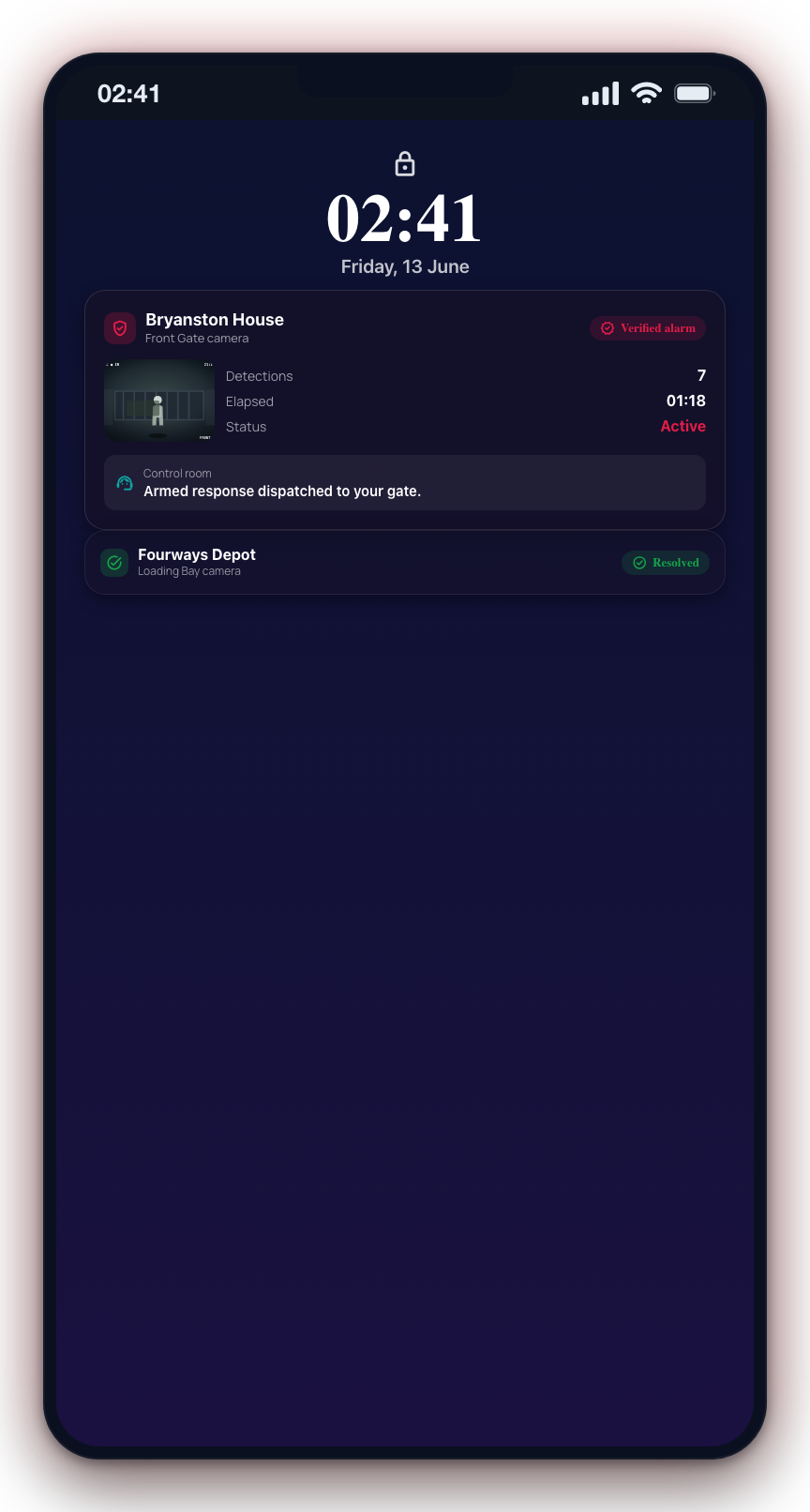
This is controlled by the Live alarm updates toggle in More > Account > Notification Preferences. It is on by default and applies to the device you are holding (not per site). Turning it off stops new alarm Live Activities from starting on that device; an alarm already showing on your lock screen still completes normally.
iOS also has its own switch: device Settings > CleverAlert > Live Activities must be enabled for these to appear. You can dismiss any individual Live Activity by swiping it away on the lock screen.
Live alarm updates are rolling out in stages and may not yet be active for your site.
Verifying Notification Delivery
There is no built-in test notification button in the app. To verify that notifications are working, confirm that device permissions are granted and that your notification preferences are enabled in More > Account > Notification Preferences. If you are still not receiving notifications, review the permission and battery optimization settings above.
Without push notifications enabled, you will not be alerted to security events unless you happen to have the app open. This significantly reduces the effectiveness of your security system. Always ensure notifications are enabled.
On iOS, consider enabling Critical Alerts for CleverAlert. This ensures you receive alarm notifications even when Do Not Disturb or Sleep Focus modes are active.
Tapping a Notification
Tapping a push notification opens the most relevant screen for that alert. What happens depends on the type of notification and whether the site it belongs to is already the site you have selected.
What opens
| Notification type | Where it takes you |
|---|---|
| Event (detection, armed alert) | Active Event screen for that event |
| Tamper alert | Active Event screen (if an event was raised) |
| Chime | Home tab |
| System alert | Home tab |
| Late to close | The Late to close response page, inside the app |
Notifications from a different site
Each notification is tied to the site it came from. If you tap a notification for a site that is not currently selected, CleverAlert reacts based on context:
- You are idle on the Home tab and the notification is for an event — CleverAlert silently switches to the correct site and opens the Active Event screen. No prompt.
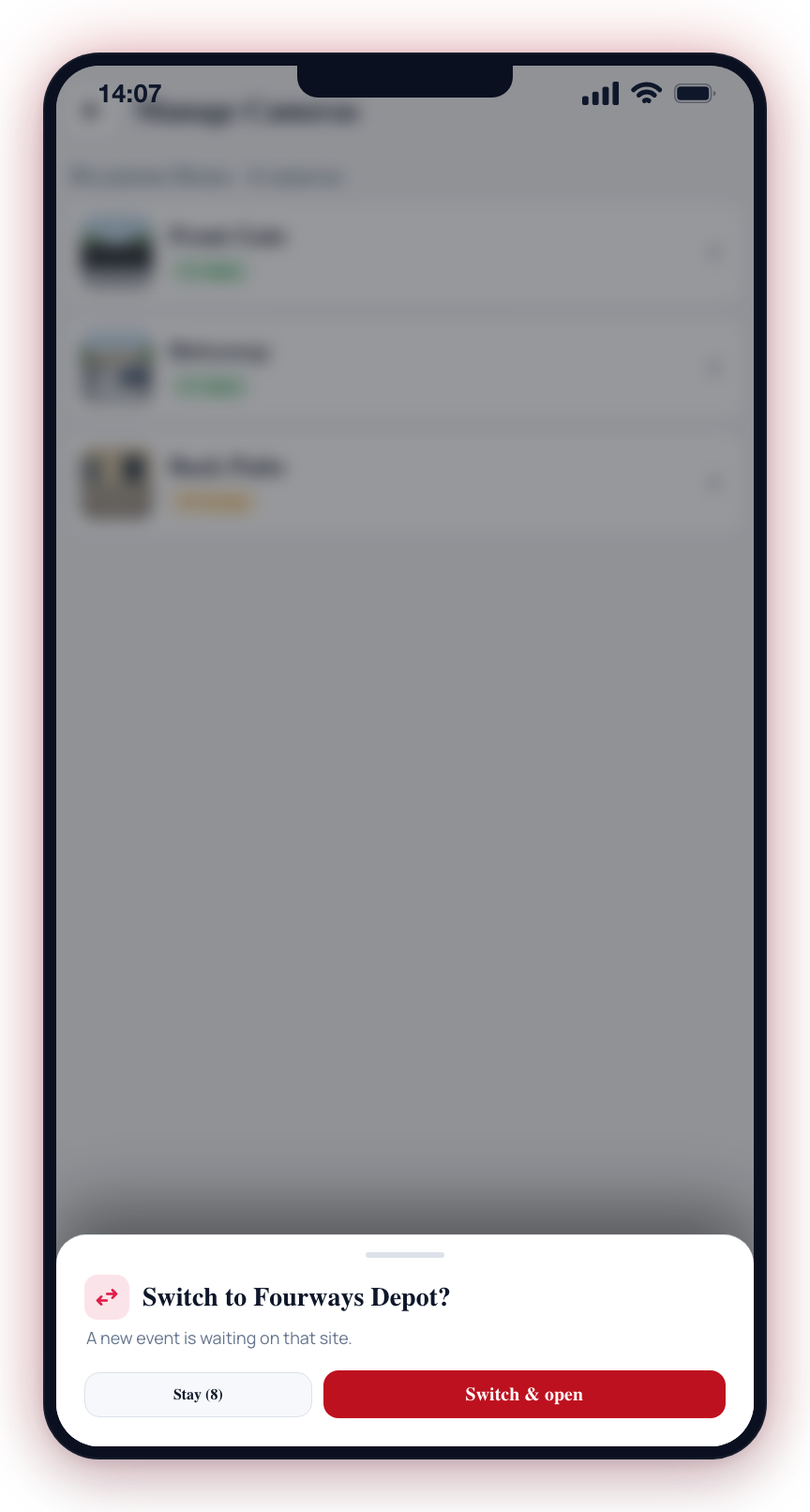
- Anywhere else — a prompt slides up from the bottom showing the site name and alert type, with two choices:
- Stay — cancel the switch and stay where you are. A 10-second countdown dismisses this automatically if you do nothing.
- Switch & open — change the selected site and jump to the relevant screen.
This protects you from unexpected navigation while you are in the middle of a task (for example, configuring a camera on another site), while still getting you straight to an active event as quickly as possible when nothing else is happening.
If your app has not been updated recently, tapping a notification will simply open the app to wherever you left off. There is no disruption from this.