Camera Offline
When a camera shows a red status in CleverAlert, it means the Clever Hub cannot communicate with that camera. The camera will not generate events and its live view will be unavailable. This guide helps you diagnose and fix the most common causes of camera outages.
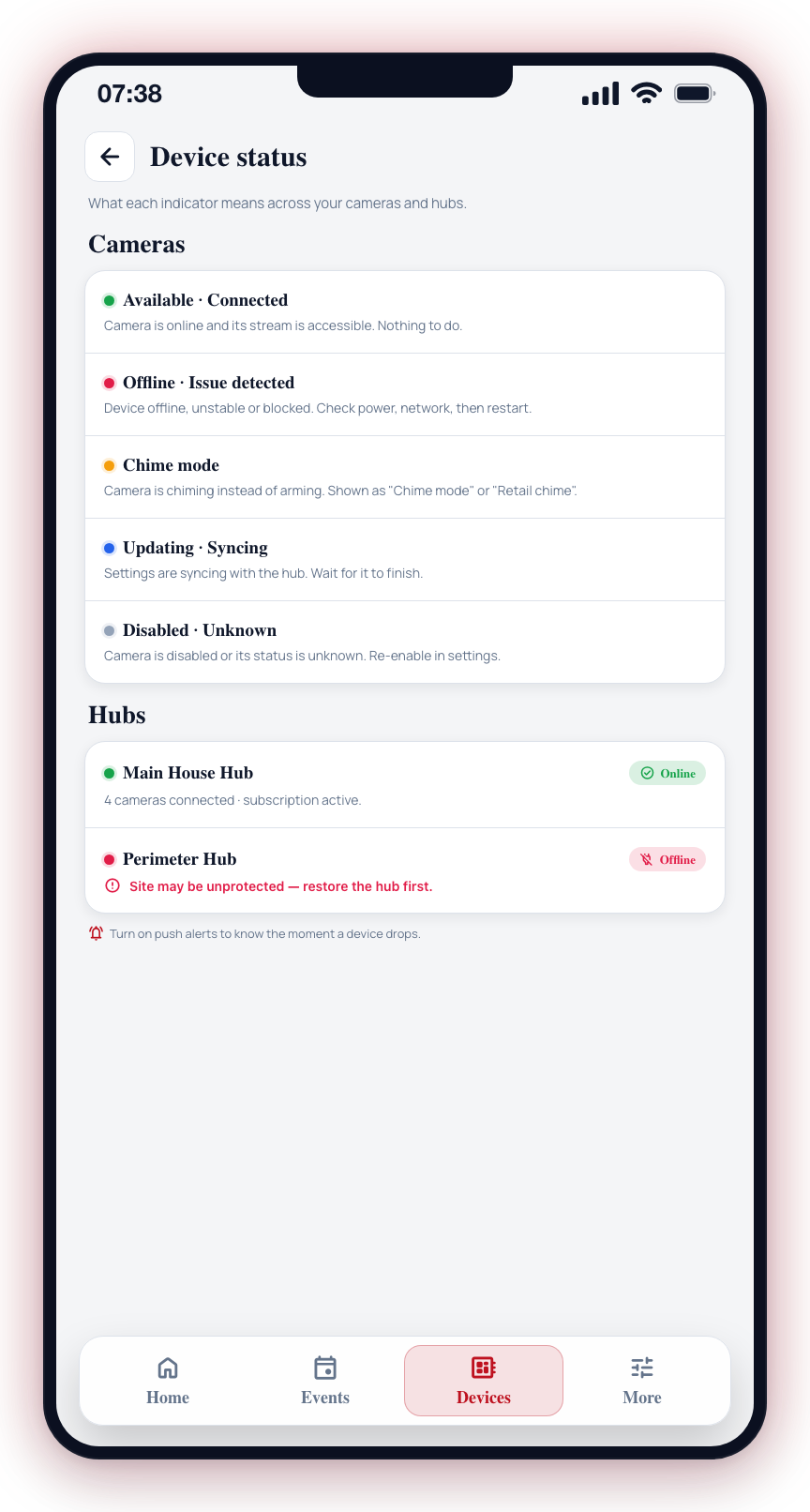
Camera Not Responding
If a camera shows as offline or unreachable:
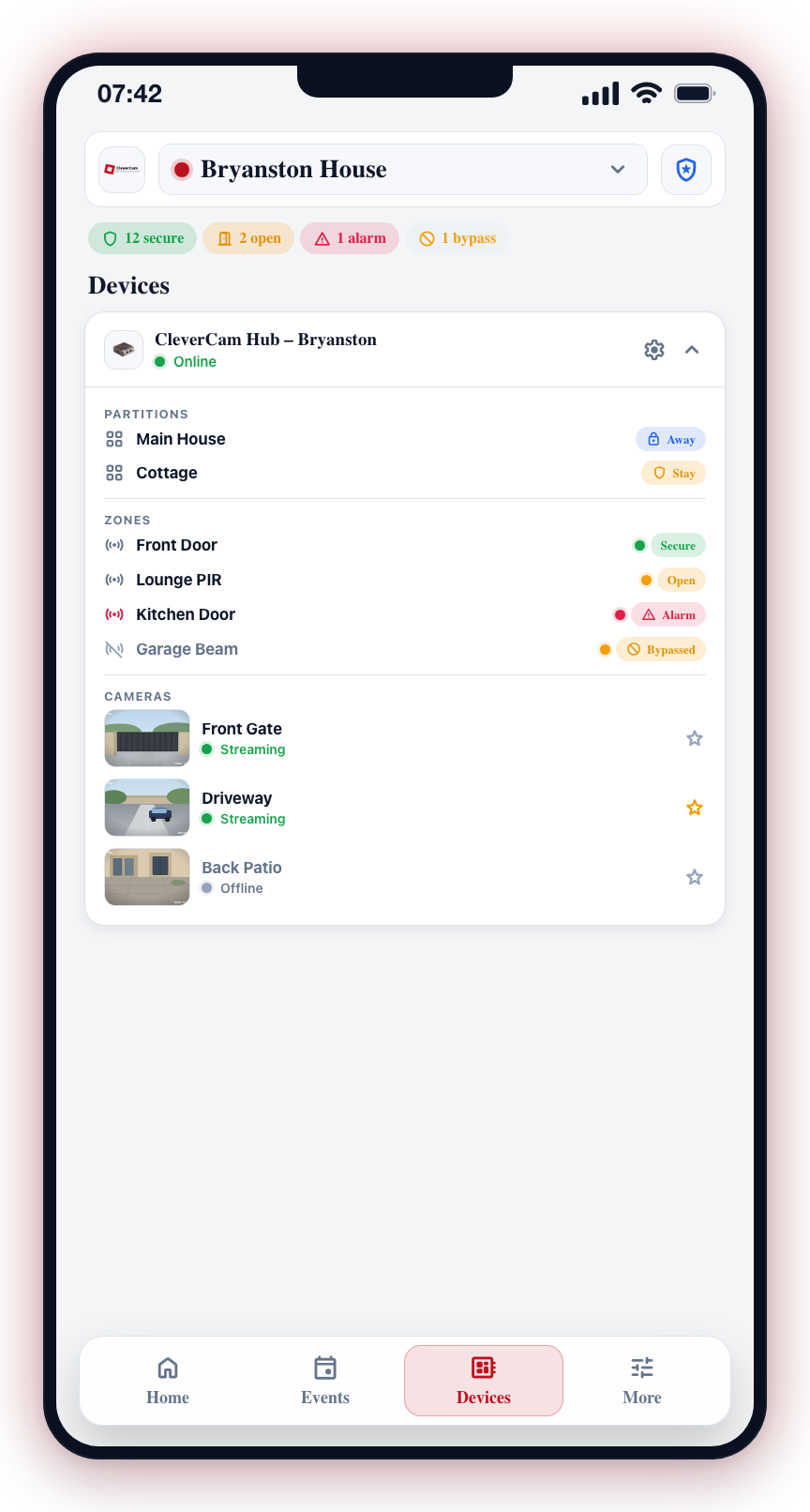
Step 1: Check Power
- Verify the camera has power. Look for indicator lights on the camera itself.
- If the camera is powered over its network cable (PoE), check that the PoE switch or injector is powered on and working.
- If the camera uses a separate power adapter, ensure it is plugged in and the outlet is working.
- Try unplugging and re-plugging the power source.
Step 2: Check the Network Cable
- Verify that the cable between the camera and the network switch is securely connected at both ends.
- Look for any damage to the cable (cuts, kinks, exposed wires).
- Try a different cable to rule out a faulty one.
- If using a PoE switch, check that the port the camera is connected to shows link activity (usually indicated by a small LED on the switch port).
Step 3: Check if the Camera's IP Address Changed
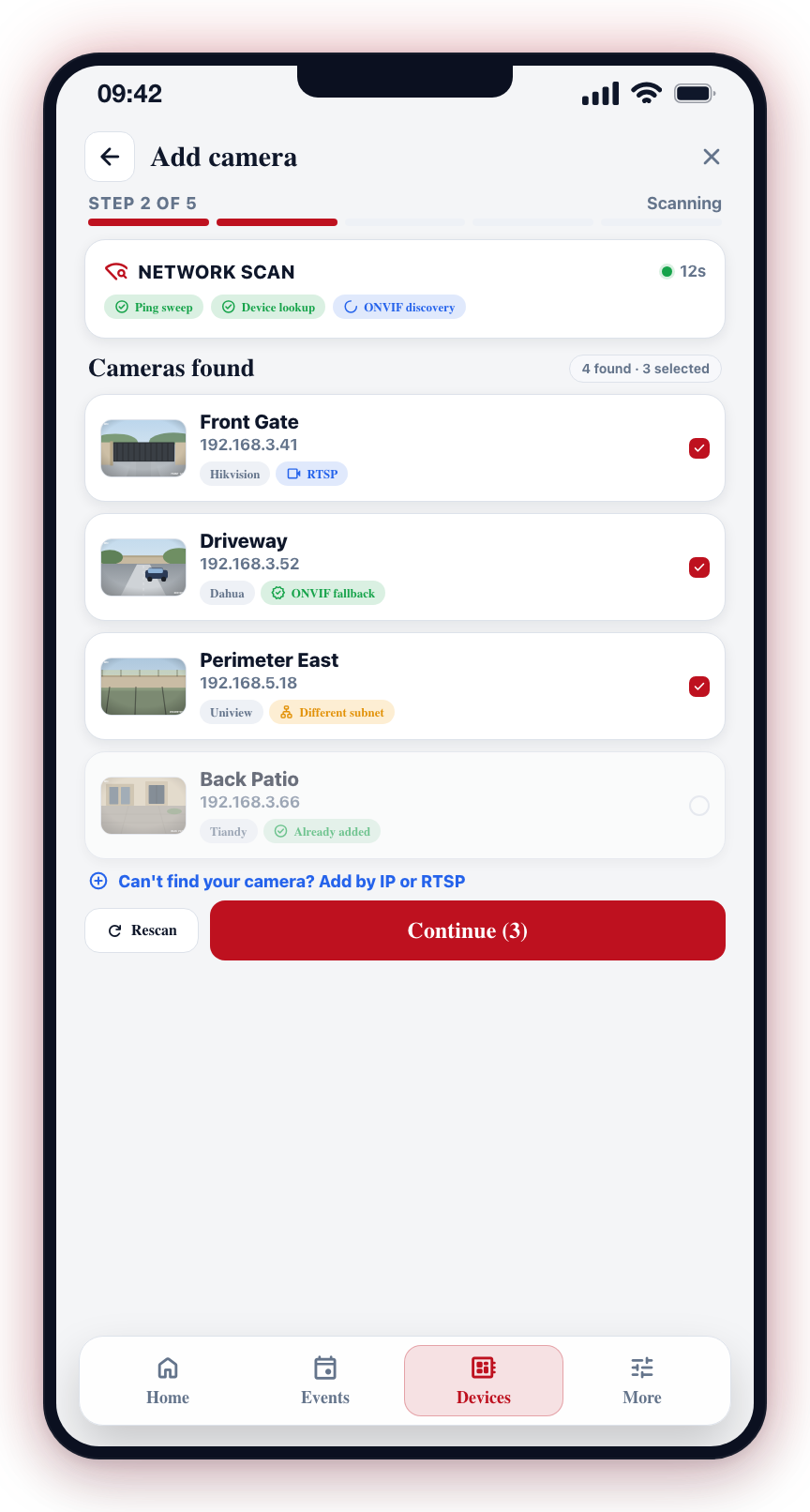
- Cameras can sometimes lose their assigned IP address after a power cycle, especially if they are set to receive an address automatically.
- Log into your router or network switch to check if the camera's IP address has changed.
- If the IP has changed, update the camera's connection details in CleverAlert with the new address.
- To prevent this in the future, assign a fixed IP address to the camera through the camera's own settings page or through your router's reservation feature.
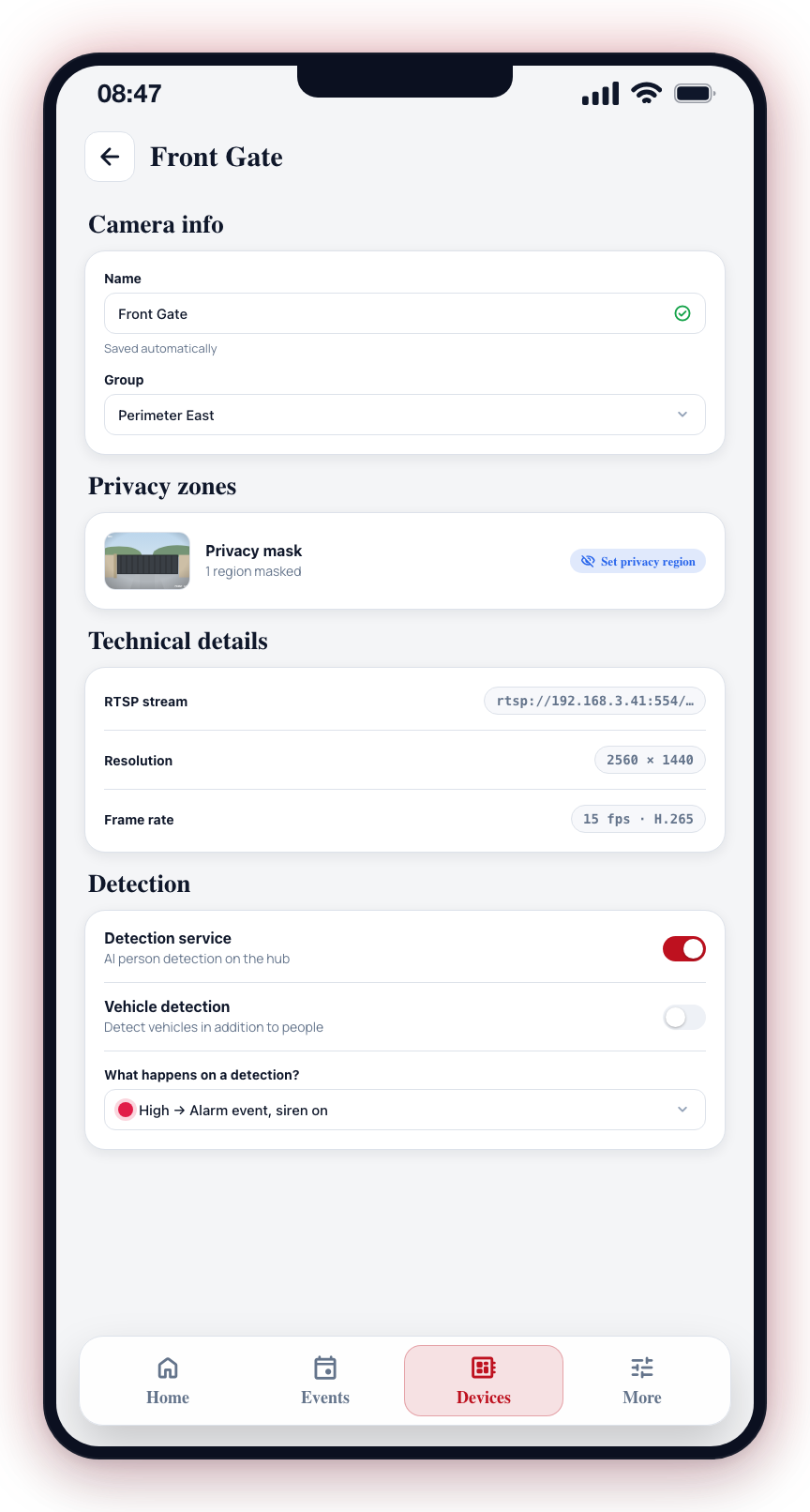
Step 4: Access the Camera Directly
- Try opening the camera's settings page by entering its IP address in a browser on a device connected to the same network.
- If the settings page loads, the camera is working but may have a configuration issue with the Clever Hub.
- If the settings page does not load, the camera itself may have a hardware problem.
Stream Not Loading
If the camera shows as online but the live view does not load:
Check Bandwidth
- The site's internet connection may be overloaded, preventing smooth streaming.
- Check if multiple cameras are streaming simultaneously, which can overwhelm limited bandwidth.
- Try viewing just one camera at a time.
- Consider reducing the camera's resolution through its own settings page to lower bandwidth usage.
Try Lower Resolution
Stream resolution is configured on the camera itself, not in the CleverAlert app.
- Access the camera's settings page (enter the camera's IP address in a browser on the same network).
- Navigate to the camera's stream settings and reduce the resolution (e.g., from 1080p to 720p).
- Save and check if the stream loads in CleverAlert.
- If the lower resolution works, the issue is bandwidth-related.
Verify Camera Connection Details
- Check the camera's connection details in CleverAlert settings.
- Ensure the address, port, username, and password are correct.
- Use the Test Stream feature to verify the connection.
- If the test fails, try viewing the stream using a third-party player (such as VLC) to determine whether the issue is with the camera or with CleverAlert.
Camera Repeatedly Going Offline
If a camera goes offline frequently or cycles between online and offline:
- Check the power source — An unstable power supply can cause the camera to reboot repeatedly. This is common with PoE when the switch is under heavy load.
- Check the network cable — A partially damaged cable can cause intermittent connectivity. Replace it with a known-good cable.
- Check for IP address conflicts — Two devices on the same network sharing the same IP address will cause intermittent problems for both. Ensure each device has a unique address.
- Check camera firmware — Outdated camera firmware can cause stability issues. Update the camera's firmware through its settings page.
- Check Clever Hub health — If the hub is managing many cameras, it may be running low on resources. Check the hub health score in the Devices tab.
A camera that is persistently offline represents a gap in your security coverage. Prioritize fixing offline cameras, especially those monitoring critical areas like entry points and perimeters.
After restoring a camera, monitor it for 24 hours to confirm it stays online consistently. Intermittent issues may not be immediately apparent.