Operator Management
Control room operators are the people who monitor camera feeds, triage events, and dispatch response teams using CleverCommand. The Control Room page in CleverOps is where you add operators to your VCR, view the current team list, assign roles, and manage individual permission settings. Keeping your operator list up to date ensures that only authorized personnel have access to your control room.
This page is the control room slice of People (More → People), the one list of everyone in your operation — responders, guards, office staff and technicians — showing how each signs in and holding their PSIRA and compliance profile.
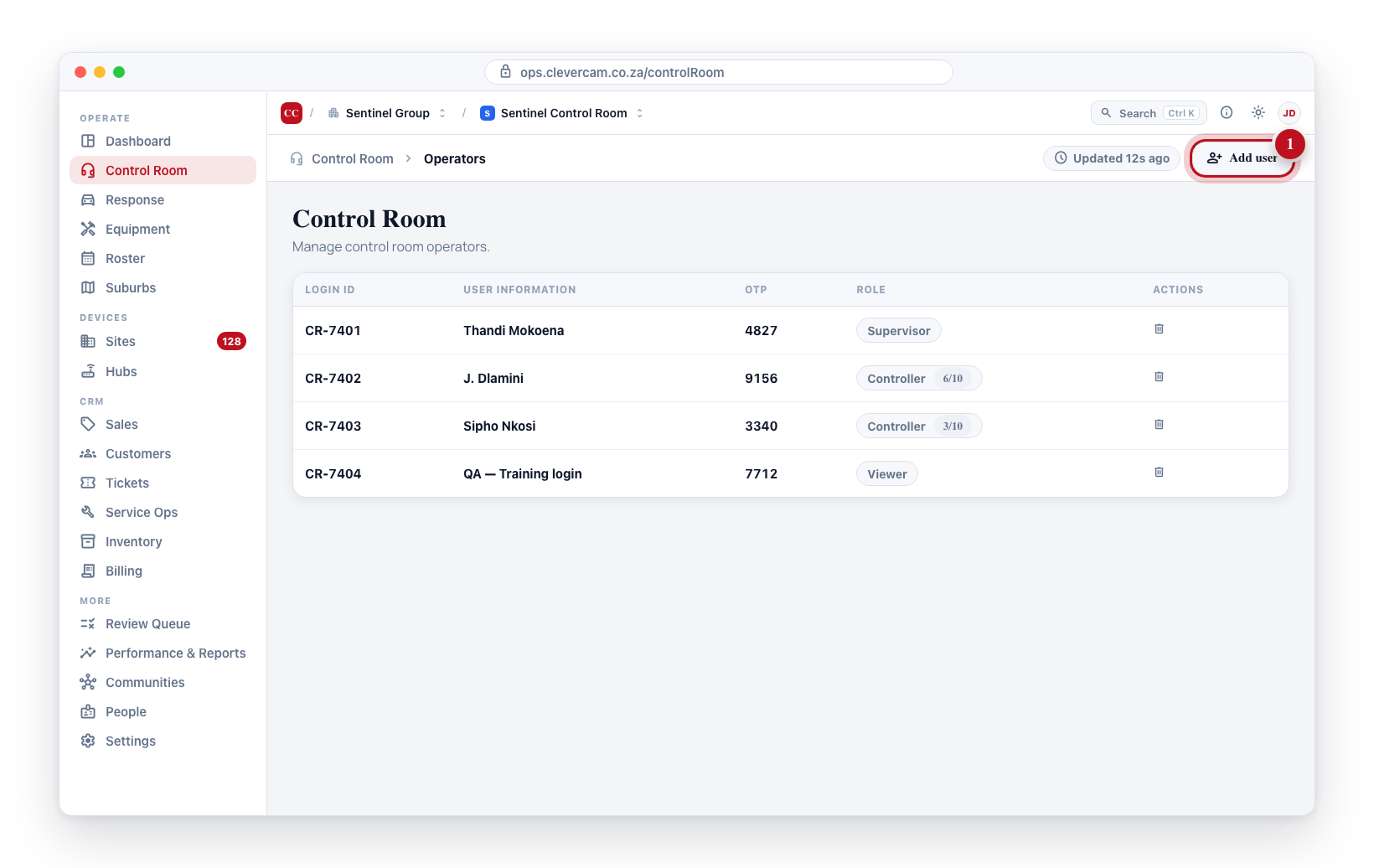
Viewing Operators
- Navigate to Control Room in the sidebar.
- The list shows every control room team member assigned to this VCR.
- Each row displays:
- Login ID -- the auto-generated identifier used to sign into CleverCommand
- User Information -- the operator's label or name (editable inline)
- Login code -- the current one-time password, with a New code button to regenerate it
- Role -- a dropdown to assign Viewer, Controller, Supervisor, or any custom role; for Controller rows the same dropdown also shows the twelve capability toggles
- Desks -- in control rooms that have desks, a second control beside the role: which desks this operator may take in CleverCommand (nothing ticked means any desk) and whether they must hold a desk to work. Supervisors are never restricted. See Desks → Who may take which desk
- Actions -- Open, which opens the person's workspace (for someone who can't open workspaces, a Remove button instead)
Clicking anywhere on an operator's row (outside its inline controls) opens their staff profile (managers only — see below).
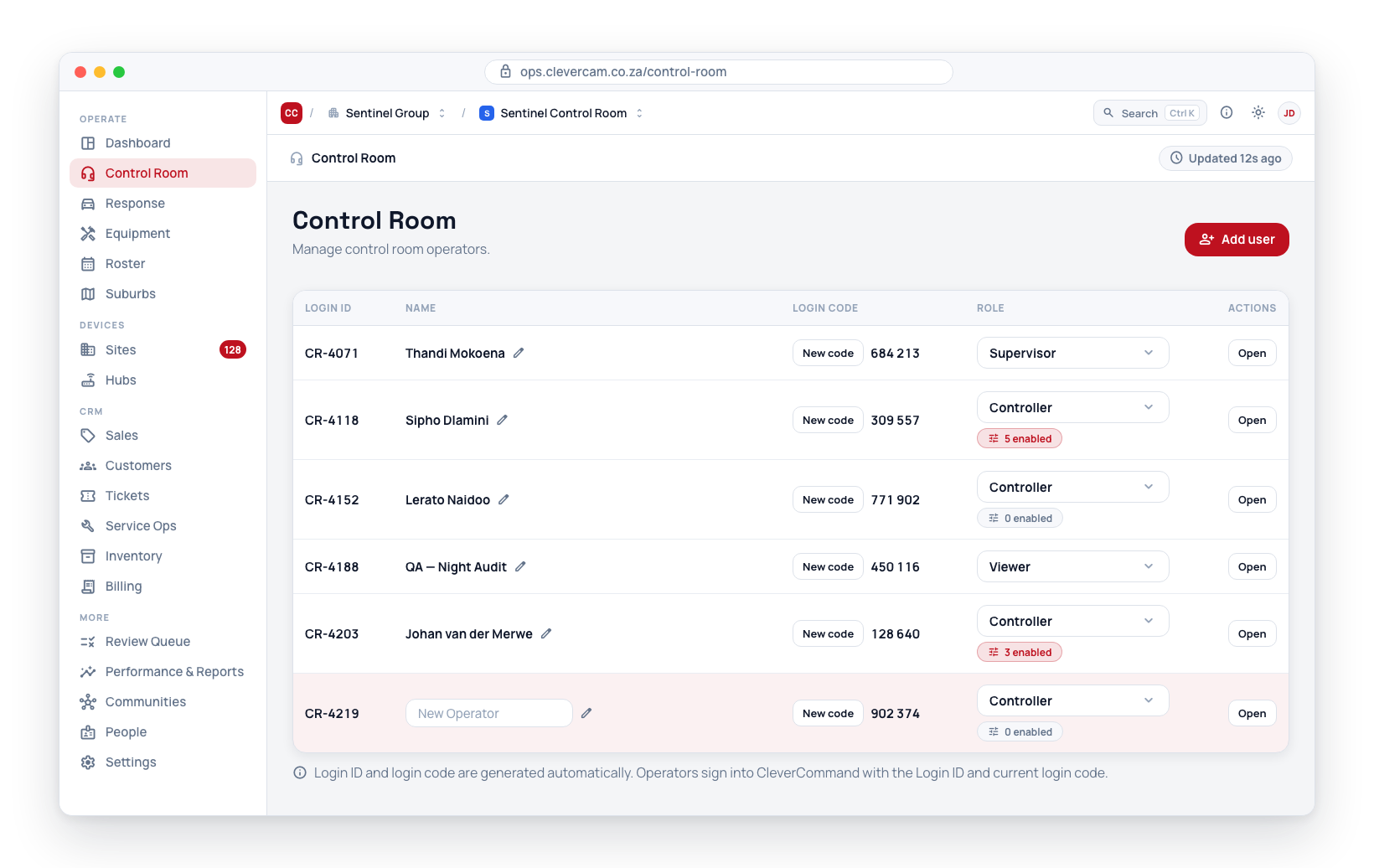
Adding a New Operator
- Click the Add user button. (If the list is still empty, the empty state offers an Add your first operator button that does the same thing.)
- A new row is created immediately with the label "New Operator". The list scrolls the new row into view and the name field is focused, so you can type the operator's name straight away.
- Edit the label inline to set the operator's name.
- The system automatically generates a Login ID and login code for the new operator.
- The new operator is assigned the Controller role by default, with all capability toggles off. Change the role or enable toggles by clicking the Role dropdown.
Editing an Operator
- Name -- click the operator's name, type the new name, then click away to save.
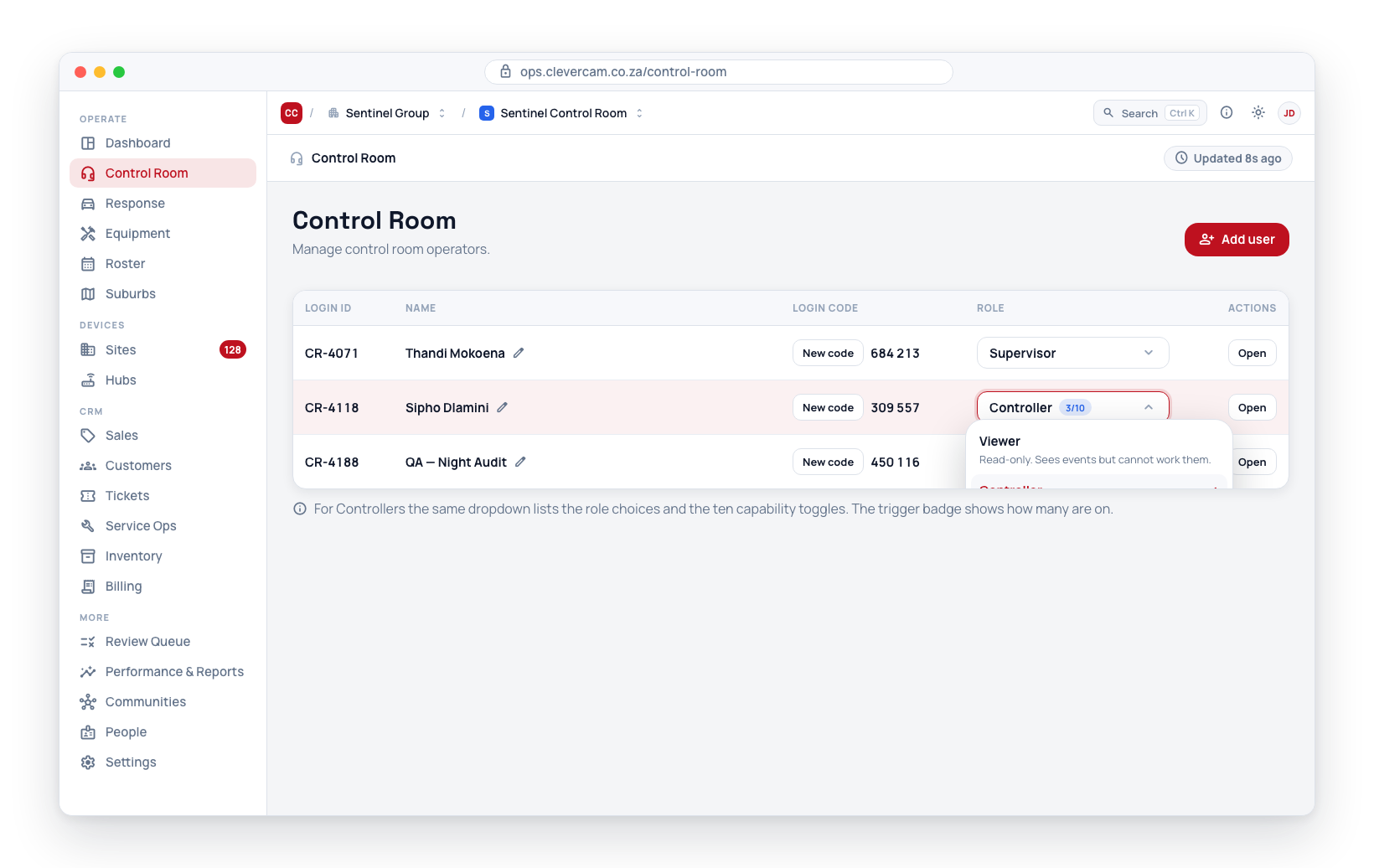
- Role -- click the role dropdown. The panel lists Viewer, Controller, and Supervisor at the top, followed by any custom roles defined for your company. Pick one to change the operator's role.
- Capabilities -- when the role is Controller, the same dropdown shows the eleven capability toggles directly under the role list. Enable the extras this operator needs. The button shows a badge indicating how many are turned on. The eleven toggles are listed under Roles and Permissions below.
Removing an Operator
To remove an operator from the VCR:
- Open the operator — click their row, or Open in the Actions column.
- At the foot of the Person tab, click Remove from this control room in the Danger zone.
- A confirmation dialog appears — "Remove <name>? Their login code will stop working and they'll disappear from the list." — with a Remove button.
- Confirm to remove the operator.
When an operator leaves your company, remove their account immediately. Active credentials for former employees represent a security risk to your control room.
Staff Profile & Compliance
Control room operators carry the same staff profile as responders — the HR and compliance core for companies that run their people admin in CleverOps. Click anywhere on an operator's row (outside its inline controls) to open it. Opening a profile requires the Manage VCR capability; profiles are never visible to, or editable by, the operators themselves.
The profile has four tabs:
- Profile -- personal and company details (full name, employee and ID numbers, contact details, start date, emergency contact, notes), editable in place.
- Compliance -- PSIRA registration, firearm competency, driver's licence, contract, ID document, training and medical. Each is one entry holding the expiry date and its certificate together — either may be left empty, so a date can be captured before the paper arrives, and a contract that never expires simply has no date. Dated entries feed the weekly reminder email. Files are private and open via a short-lived secure link.
Every compliance date — the profile expiries plus any document with an expiry — feeds the weekly fleet & compliance reminder email under Staff compliance, exactly like responder profiles, and renewal applications can be logged under each dated chip. See Responders → Staff Profile & Compliance for the full walkthrough.
Roles and Permissions
Every operator is assigned a role — one of the three built-in roles (Viewer, Controller, Supervisor) or a custom role you've defined. The role determines what they can do in CleverCommand; for Controller operators, individual capability toggles grant optional extras per operator.
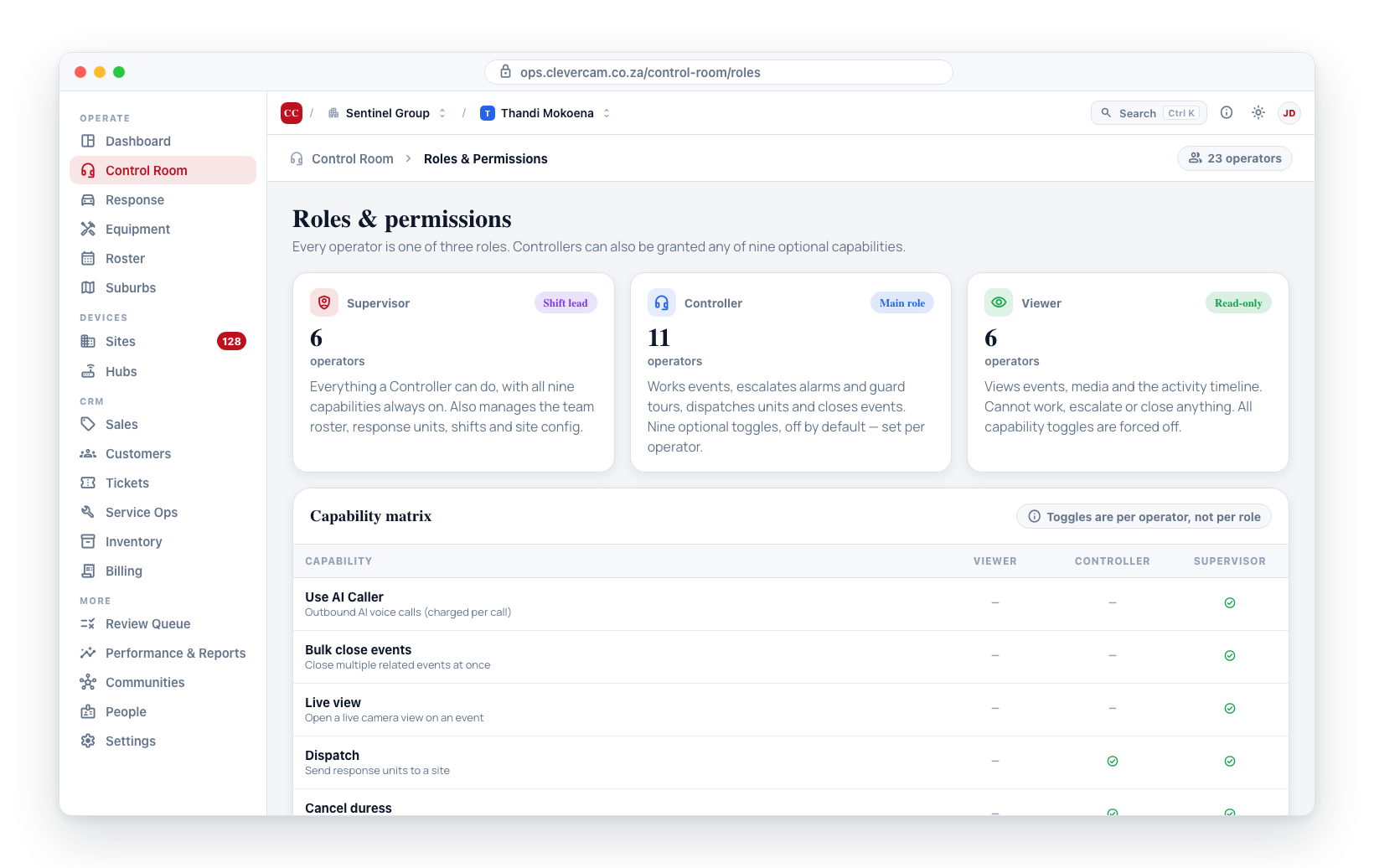
| Role | Intended for |
|---|---|
| Supervisor | Shift leads -- everything a Controller can do, plus team management, unit management, and all capability toggles enabled |
| Controller | Everyday control-room staff -- works events, escalates, dispatches, and closes events. Extra capabilities are granted per operator from the Role dropdown |
| Viewer | Read-only -- trainees, quality assurance, integration accounts |
The twelve Controller capability toggles:
| Toggle | What it grants in CleverCommand |
|---|---|
| Provide site access | Trigger PGM outputs to open gates / provide site access |
| Snooze cameras | Snooze a noisy camera (also covers talk-down deterrence and putting alarm zones on hold) |
| Live view | Open live camera views |
| Create manual event | Raise a manual event on a site |
| Bulk close events | Close many events in one action |
| Reorder call list | Change the order of a site's call list |
| Edit call-list notes | Edit the notes on call-list entries |
| Use AI Caller | Start AI-assisted phone calls |
| Edit site notes | Edit monitoring / responder notes on a site |
| Attest over-limit dispatch consent | Record management consent for an over-limit dispatch |
| Clear mandatory event tasks | Waive a mandatory operator-checklist task that can't be done (a reason is required and logged), or tick a mandatory responder task on their behalf. Without it those buttons are disabled and only a Supervisor can clear the task |
| Issue responder app codes | Generate a responder's 4-digit CleverResponder app login code in CleverCommand -- from Units → Responders or a crew card's menu on the Manage board. Without it the code column is read-only |
Company-member capabilities (Billing, Customers, Fleet, and so on) are separate and are set per member under Roles and Permissions.