Crewing Units
The Manage view is where units get their people and their vehicles. Each column is a unit; you move responders and vehicles between columns to crew them — by clicking the + on a card or by dragging it — and the Unassigned pool holds whoever and whatever is free. Crewing a unit is what puts it on duty: it comes online with its first member and goes off duty when the last one leaves.
The Units page has a toggle across the top with five views — Map, Manage, Plan, Responders and Timeline. This page covers Manage. See GPS Tracking for Map, Plan Board for Plan, Responders Roster for Responders and Timeline for who stood each unit and desk over the shift.
Do not confuse this with the Plan Board: Manage decides who is in a unit, Plan decides which event a unit is sent to.
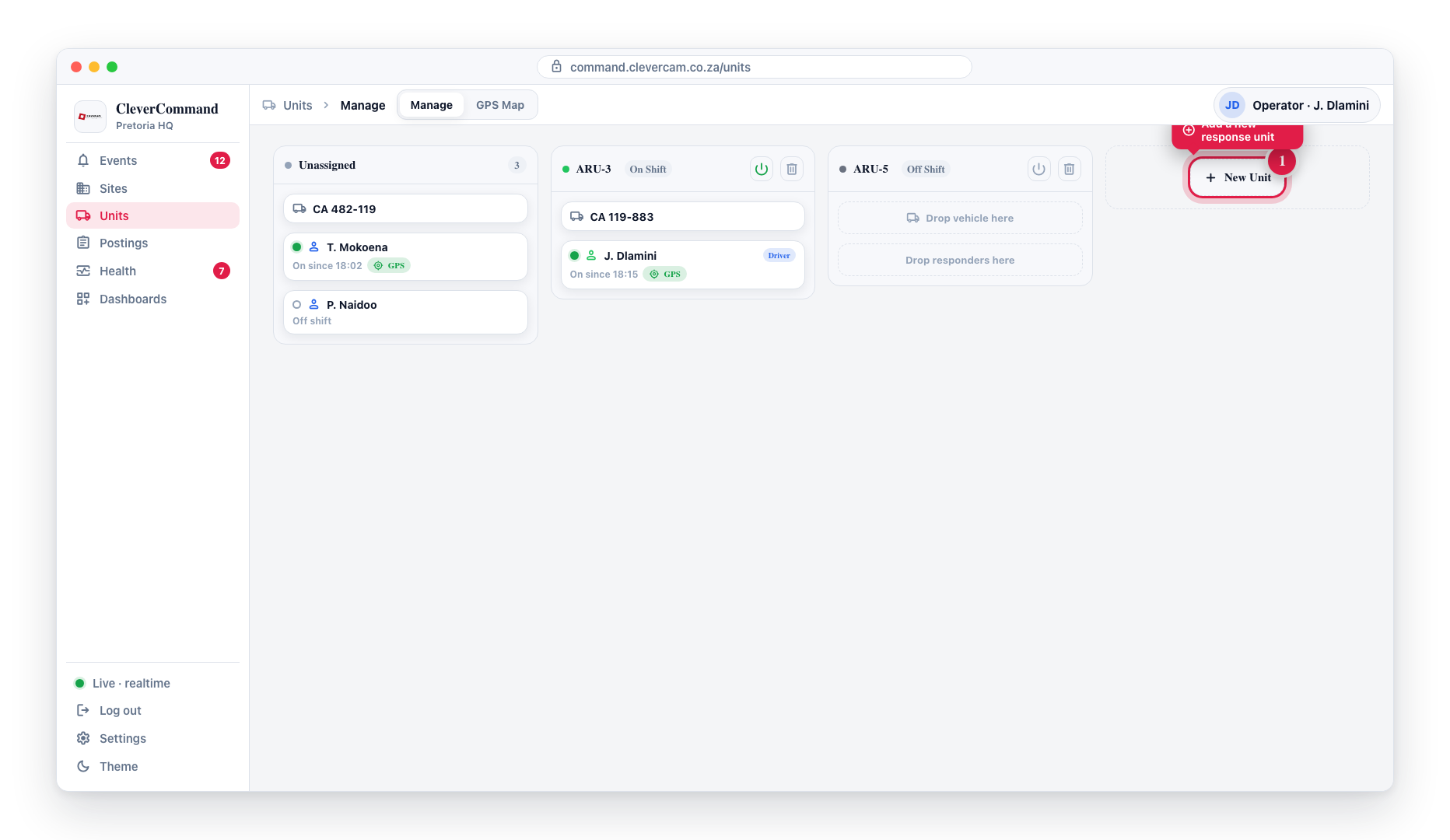
Open Units in the sidebar and switch to the Manage view. Each unit is a column; the Unassigned pool holds free responders and vehicles. The units themselves are made in CleverOps — see Adding and removing units.
Accessing the Kanban Board
- Click Units in the left sidebar
- Switch to the Manage view
- The Kanban board loads showing all units and unassigned resources
Board Layout
The board is organized into columns:
What a card shows. A vehicle card shows the vehicle's name with its registration in brackets, for example Bravo 1 (HTP 223 GP). The bracket is left off when the vehicle has no registration, or when its name already is the registration. A responder card shows the person's name with their company number in brackets, for example P Bosman (BAR398). That is the employee number on the person's staff profile in CleverOps; people without one show only their name. The hand-over list shows the company numbers too.
Unassigned Pool
The leftmost column shows responders and vehicles that are not currently assigned to any unit. Each card carries a + button: click it and pick the unit from the list. Units already on duty come first; the ones below are marked off duty, will start, because putting somebody on one is what begins its shift. Cards can also be dragged into a unit column.
The pool is a rail of its own down the left of the board. It stays in place and scrolls on its own, and the unit columns beside it scroll separately — so however far down the units you go, the pool is still there to drag from.
Search. A search box sits at the top of the pool. It matches a name, a registration or a company number, and ignores case, spaces and dashes, so jjr934 finds JJR 934 GP. Only the pool is searched; the unit columns always stay on screen. While you search, the subtitle reads how many cards are shown, for example 1 of 18 shown. Clear the box to see the whole pool again. The search is not remembered.
Filter and order by tag. Two lists sit under the search box. The first narrows the pool to one people tag or vehicle tag, or to the cards with No tag. The second orders it By name (vehicles first, then people) or By tag, which puts the cards under a heading per tag — a card with several tags sits under its first one, or under the filtered tag while a filter is on. Each card shows its first tag, with any others counted and listed when you hover. While a filter is on, the column subtitle reads how many are shown (for example 4 of 30 shown), and the board remembers your filter and order on this computer.
Tags are made and assigned in CleverOps. When the control room has none, the pool says so in place of the two lists. Vehicle tags only appear for accounts that manage the fleet or the control room; other operators can filter by people tags only.
Vehicles marked registry-only in CleverOps never appear in this pool, so they can't be crewed onto a unit — management cars, technical vans, shift-change transport. This is set in CleverOps on the vehicle's tag (the Units switch under Manage tags), so a whole class of vehicle is excluded in one move. A vehicle hidden after being assigned stays visible on its unit until removed. See Controlling what the control room sees.
Unit Columns
Each remaining column represents a unit. A unit column shows:
- Unit name
- On Shift / Off Shift -- Current shift status
- Status color -- A colored dot indicating the unit's dispatch status (green = available, amber = dispatched/en route, blue = on scene, purple = returning, grey = off duty)
- Area assignments -- Primary and secondary area tags
- Vehicle slot -- The vehicle assigned to the unit (or a placeholder if empty)
- Responder cards -- All responders assigned to the unit (or a placeholder if empty), each with a ⋯ button for hand-over, removing them and their CleverResponder login code
Assigning resources
Every assignment can be made two ways, and they do exactly the same thing.
Click — on an Unassigned card, click + and choose the unit from the list.
Drag — for moving something that is already crewed:
- Click and hold a responder card or vehicle card in any column
- Drag it to a different unit column (or back to the Unassigned pool)
- Release to drop the card in the target column
- The assignment is updated immediately
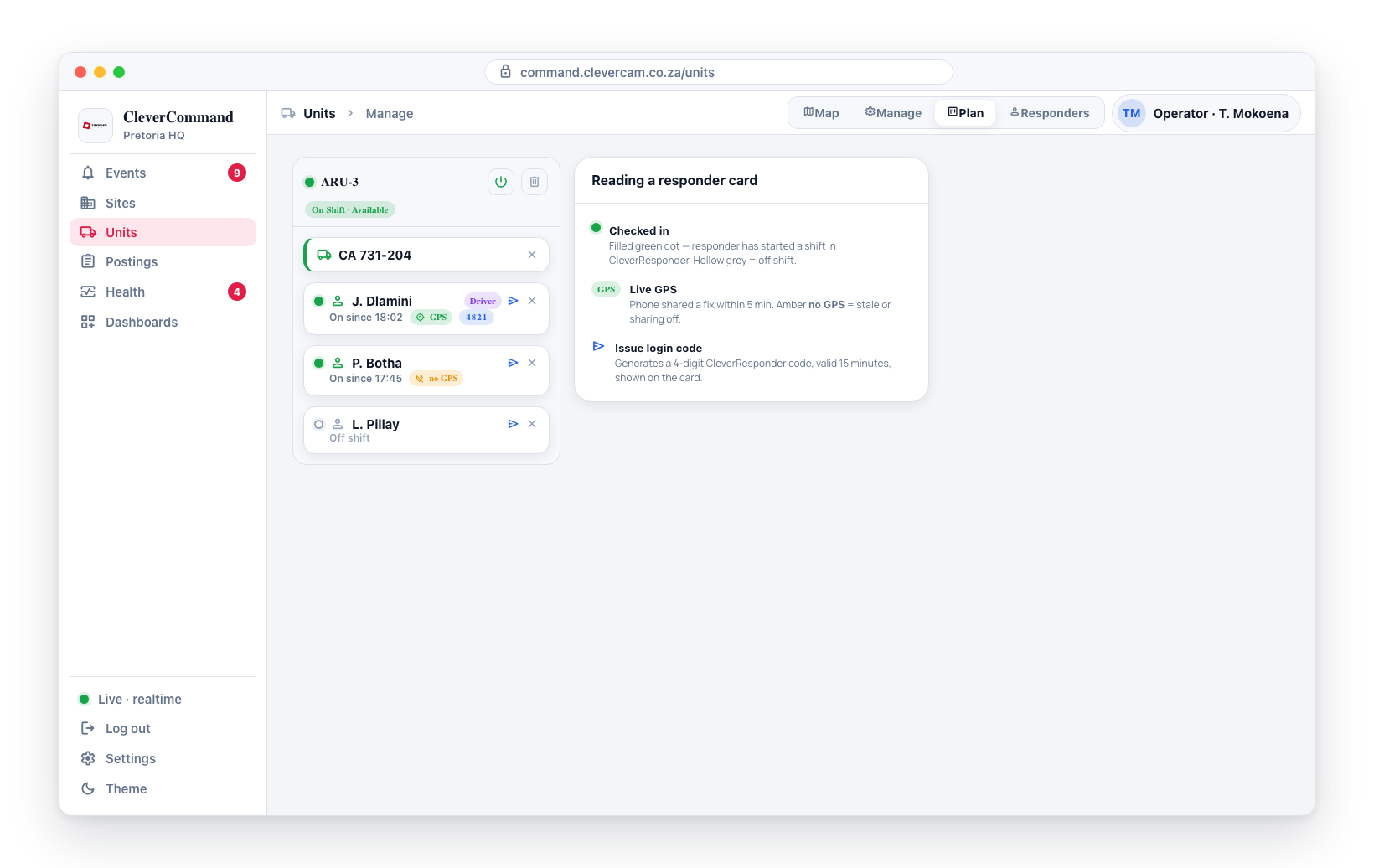
Each responder card shows the responder's name, a "Driver" badge if applicable, a check-in status line, and — on a unit — a ⋯ button for hand-over, removing them and their CleverResponder login code (see Responder check-in and login codes below). Each vehicle card shows the vehicle registration or label.
To take someone off without dragging, open their card's ⋯ menu and choose Remove from unit; a vehicle card has an X that does the same. Either way they go back to the Unassigned pool.
Responder check-in and login codes
Each responder card surfaces whether that responder is actually on shift, and lets the operator hand out the code they use to sign into the CleverResponder mobile app.
Check-in status
- A status dot to the left of the responder's name shows their shift state: a filled green dot means the responder has checked in (started their shift in CleverResponder); a hollow grey dot means they are off shift.
- When on shift, the card shows "On since HH:MM" — the time the responder started their shift.
- When on shift, the card also shows a GPS indicator: green GPS when the responder's phone is sharing a recent location, or amber no GPS when the last fix is stale (older than 5 minutes) or location sharing is off.
This is distinct from the column's On Shift / Off Shift label, which reflects the whole unit: a unit flips to On Shift when its first responder checks in and back to Off Shift when the last one checks out.
Issuing a CleverResponder login code
A crew card's ⋯ menu generates a 4-digit login code for the CleverResponder app:
- Click ⋯ on the responder's card and choose Get code.
- The code appears in the menu, with a Copy button and a countdown to when it expires.
- Give the code to the responder. They enter it on the CleverResponder sign-in screen to log in.
If the responder already has a code that hasn't expired — issued here or in the Responders view — the menu shows it as soon as it opens, so it can be read back, and the item reads New code. Generating a new code replaces the old one. Issuing codes needs the Issue responder app codes permission (every Supervisor, and any Controller it is switched on for in CleverOps); without it the item is locked. For someone still in the Unassigned pool, issue the code from the Responders view.
This is the same code mechanism available in CleverOps under Response — issuing it from the board just saves the operator a trip to CleverOps while dispatching.
Managing Units
Adding and removing units
CleverCommand does not create, rename or delete units — the board crews the units that already exist and tags the areas they cover. Add, rename or delete a unit in CleverOps under Response → Units; a rename is done from the unit's Edit dialog. The change shows on the board the next time you open the Manage view.
Shift status, since-when and hand-over
A unit is on duty while somebody is crewed on it and off duty when the last person leaves — dragging a responder in is the clock-on, dragging them out (or Remove from unit in their card's ⋯ menu) is the clock-off. There is no unit-level shift switch.
Each crew card shows since HH:MM — when that person's stint on the unit started — and turns amber with an Overdue badge once the unit's expected shift end has passed (a nag; nothing is clocked off automatically).
For a shift change open the card's ⋯ menu and choose Hand over… (greyed out while nobody is free in the Unassigned pool): pick who is taking over from the list that opens under the crew, and the outgoing stint closes on the same instant the incoming one opens — no minutes with nobody on the unit, no minutes with both on it, and a driver hands the driving over with the seat. Two drags do the same job but leave a small gap, which the Timeline shows as exactly that.
Assigning Areas
Each unit can be assigned to primary and secondary coverage areas. Click the area tags (or the "+ Area" placeholder) to open a dropdown where you can cycle each area through three states: none, Primary (P), or Secondary (S).
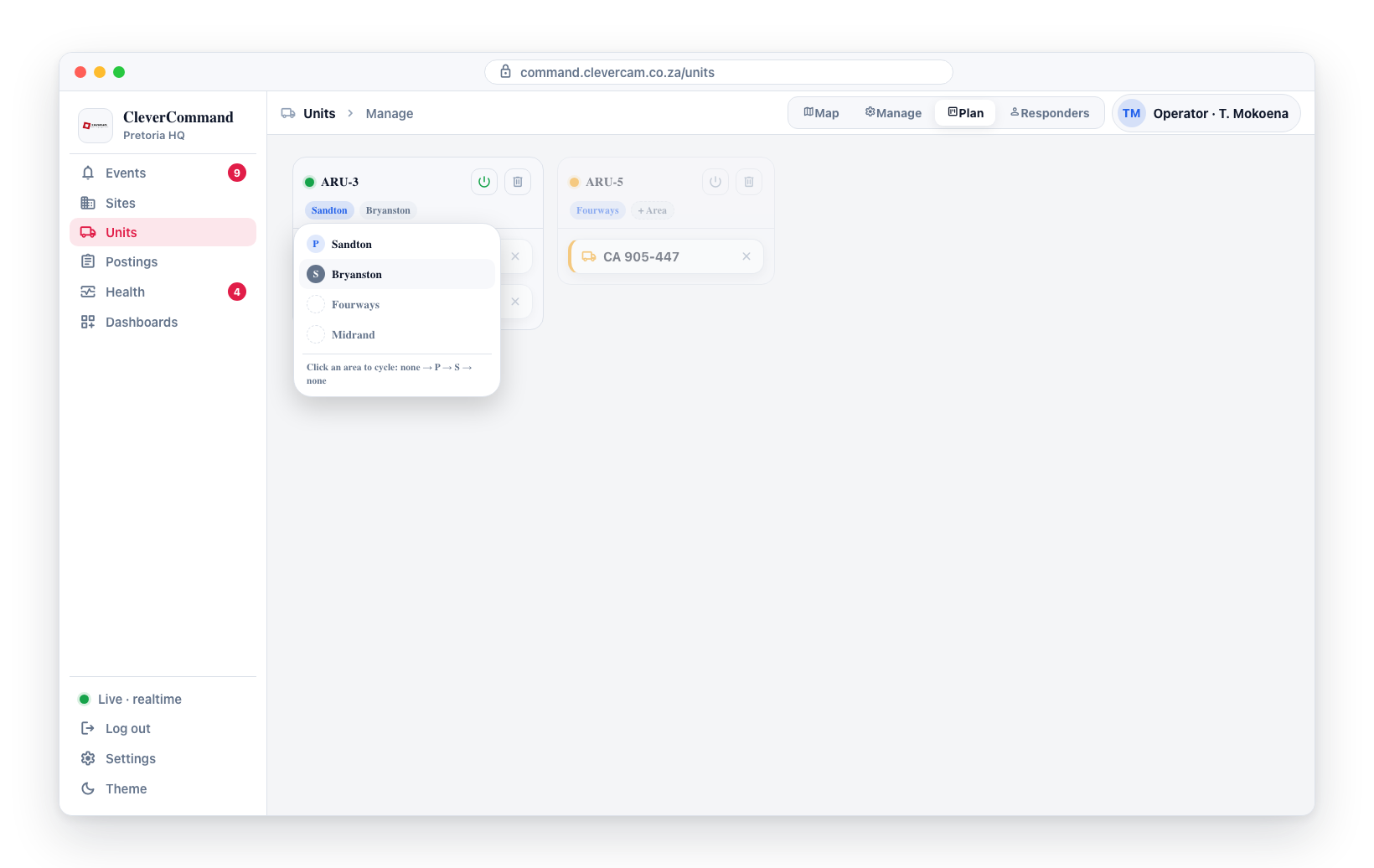
P marks a first-choice patrol area, S a backup. The same assignment is managed in CleverOps (Response → Units, editing a unit) as a single priority-ordered list: the #1 area is the P tag here, and areas from #2 onward appear as S tags in their CleverOps order. Retagging areas on the board never renumbers or removes areas you didn't touch, so a backup ordering set up in CleverOps survives board edits. The dispatch recommender ranks units with primary coverage of an event's area ahead of units with only backup coverage.
Vehicle check bypass requests
When a control room turns on Mandatory shift-start inspection (CleverOps -- Response -- Vehicle checks), the shift-start vehicle check blocks in CleverResponder until the responder finishes it. If a responder genuinely can't finish -- taps Can't finish? on the blocking check page and sends a reason -- the request surfaces here in CleverCommand as a persistent amber banner pinned to the top of every page, for every operator, until it is decided.
| Element | Behaviour |
|---|---|
| Heading | "Vehicle check bypass requested" |
| Detail line | Unit label, responder name, vehicle label/registration, and the responder's typed reason |
| Approve bypass | Immediately unlocks the responder's CleverResponder app for that shift -- no shift-start check is recorded |
| Deny | Expands an optional note field; clicking Deny (or pressing Enter) sends the decision with whatever note was typed, even if left blank |
One strip per pending request; multiple requests stack. The banner is not dismissible without a decision -- it stays up until an operator acts.
Who can decide
Approve/Deny is gated by the Start / stop unit shifts permission -- the same permission that controls the Clock crew off power button on this board (see Shift status, since-when and hand-over above) -- or by a VCR manager. Operators without it see the banner (so they're aware a crew is blocked) but the Approve bypass and Deny buttons are disabled.
First decision wins
If two operators act on the same request at nearly the same time, only the first decision is applied. The operator who was too late sees "Already decided by another operator" and the strip clears from their screen -- CleverCommand does not double-process a request.
A shift that proceeds on an approved bypass has no submitted shift-start check in CleverOps' vehicle inspection history -- approving a bypass does not create a check record, it only clears the block.
Board and GPS Map
The Kanban board complements the GPS map view:
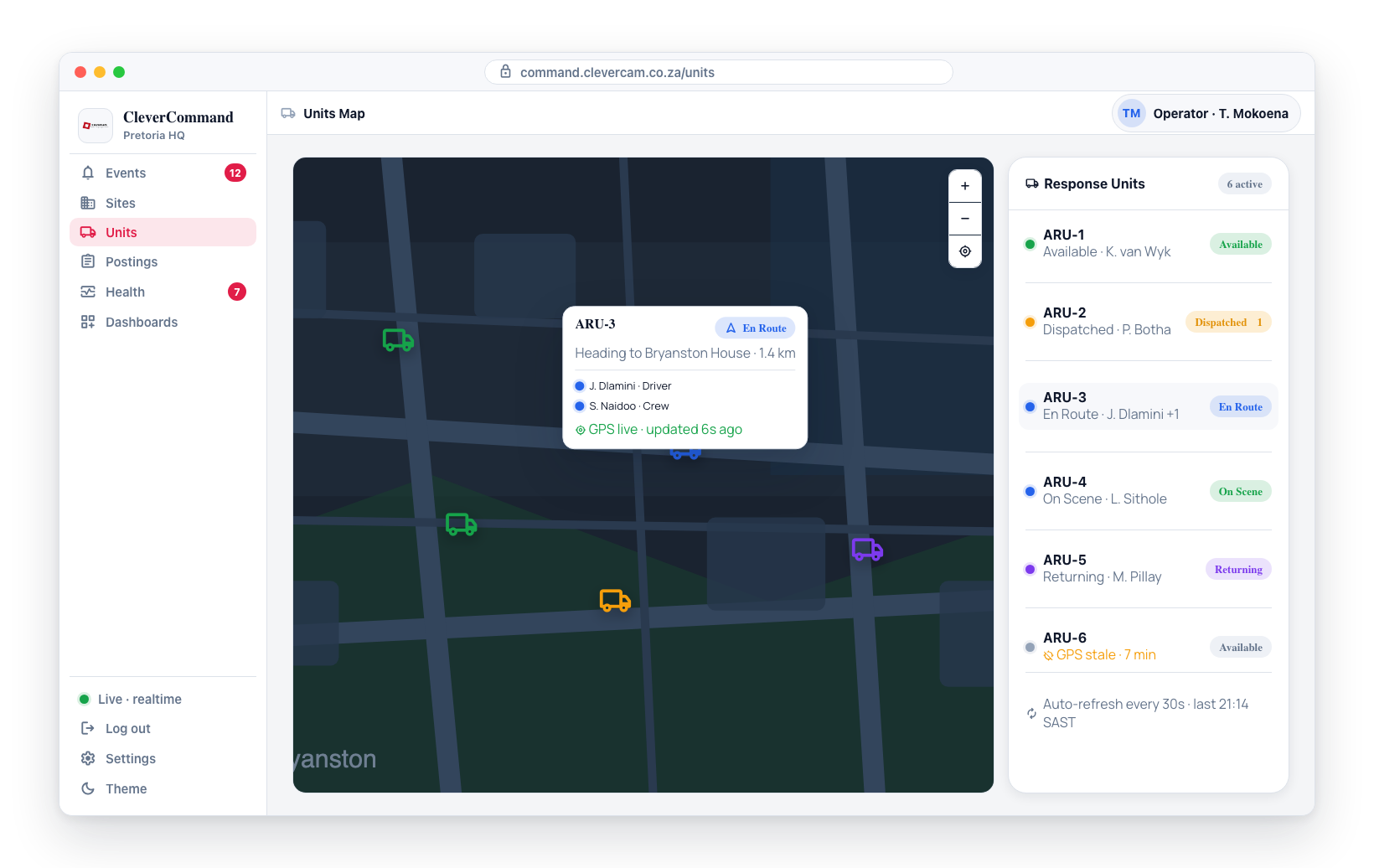
- The board shows the logical assignment of responders and vehicles to units
- The GPS map shows the physical location of each unit
- Together, they provide a complete picture of response resource management
The Kanban Board is part of the Units page, which is only offered to control rooms with the Advanced Alarm Handling module. If Units is not in your sidebar, your control room does not have the module — there is no switch to turn it on.