Credentials
Each control room operator receives a set of login credentials that they use to sign into CleverCommand -- the real-time monitoring interface where events are triaged and response actions are taken. Managing these credentials properly is critical to maintaining a secure control room environment. This page covers how credentials work, how to view and manage them, and best practices for credential security.
How Credentials Work
When you add an operator in CleverOps, the system generates a unique Login ID for that operator, plus a login code (a refreshable one-time password). These, combined with the operator's identity information, are what they use to sign in to CleverCommand. Credentials are tied to the specific VCR -- an operator's credentials only grant access to the VCR they were created under.
Viewing Operator Credentials
- Navigate to Control Room in the sidebar.
- The operator list displays each operator's Login ID and Login code alongside their name and role.
- Click on an operator to see their full credential details.
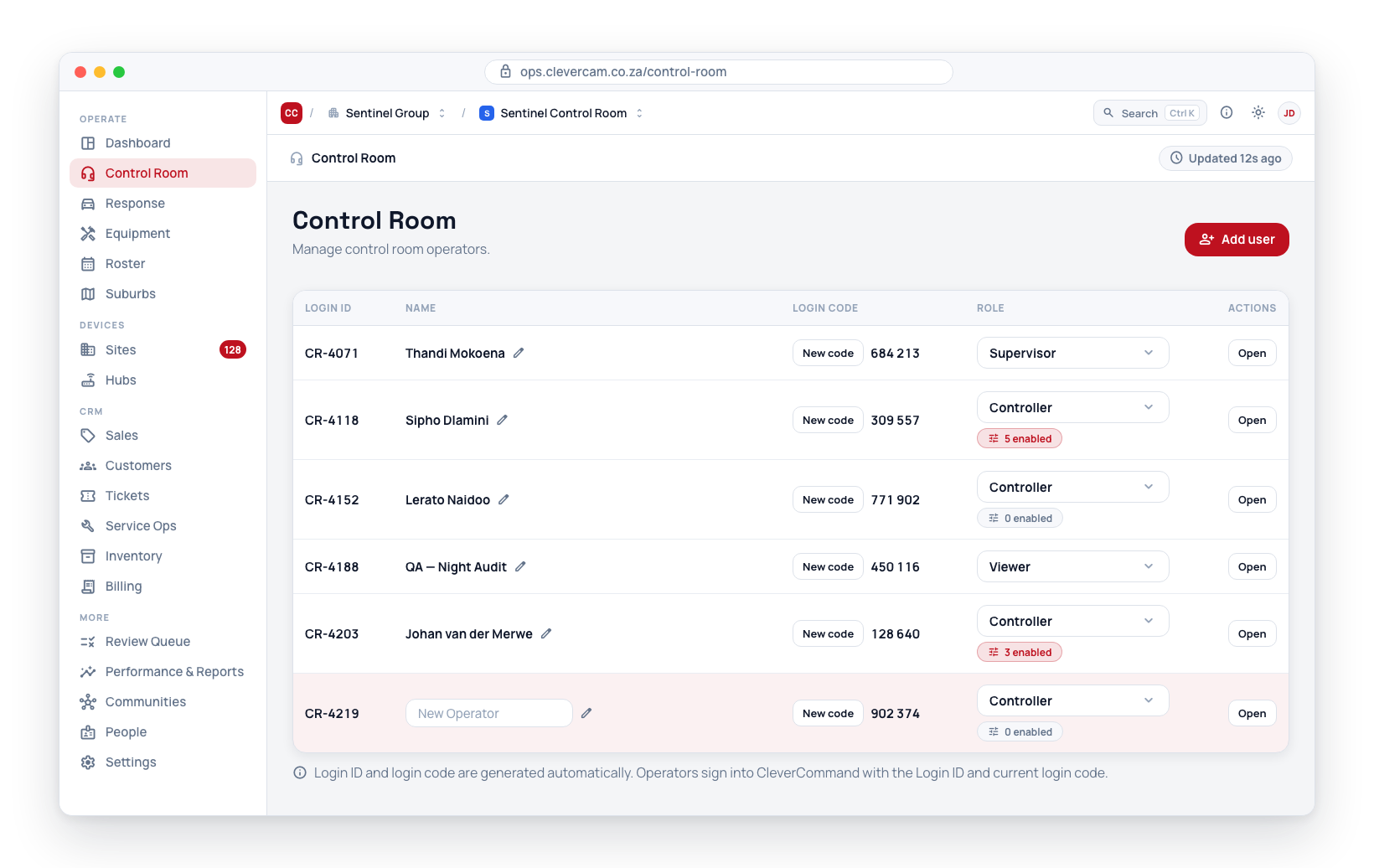
Login IDs and login codes are visible to administrators in CleverOps. Ensure that only authorized personnel (supervisors, admins) have access to the Control Room section of CleverOps.
Refreshing the login code
If an operator needs a new login code:
- Navigate to Control Room in the sidebar.
- Find the operator in the list.
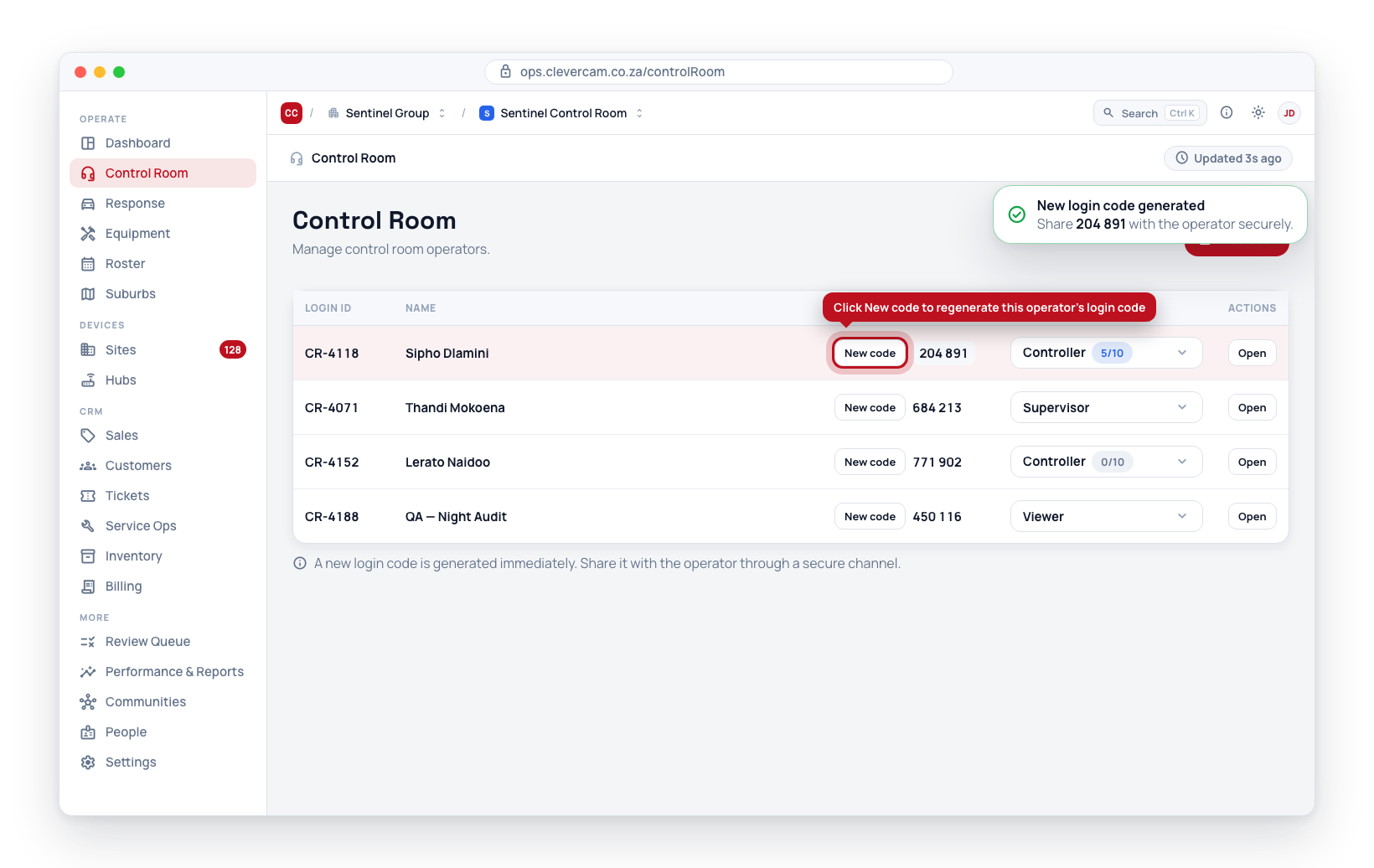
- Click New code next to their code in the Login code column.
- A new login code is generated immediately.
- Share the new login code with the operator through a secure channel.
The Login ID is generated automatically when the operator is created and cannot be manually reset. If credentials are compromised, remove the operator and create a new one to generate a fresh Login ID.
Credential Security Best Practices
Follow these practices to keep your control room secure:
- Never share credentials publicly -- Login IDs and login codes should only be shared directly with the intended operator through secure channels.
- Reset credentials when operators leave -- Deactivate the operator account and reset credentials immediately when someone leaves the team.
- Rotate credentials periodically -- Consider resetting operator credentials on a regular schedule (for example, quarterly) to limit the impact of any undetected compromise.
- Use unique credentials per operator -- Never have multiple operators share the same Login ID. Each operator should have their own credentials for accountability and audit purposes.
- Monitor login activity -- Review the last login timestamps in the operator list to detect unauthorized access attempts.
Operator Login Flow
Here is how an operator uses their credentials to access CleverCommand:
- The operator opens the CleverCommand interface.
- They enter their Login ID and their current login code.
- CleverCommand verifies the credentials against the VCR's operator list.
- On successful authentication, the operator enters the control room and can begin monitoring events.
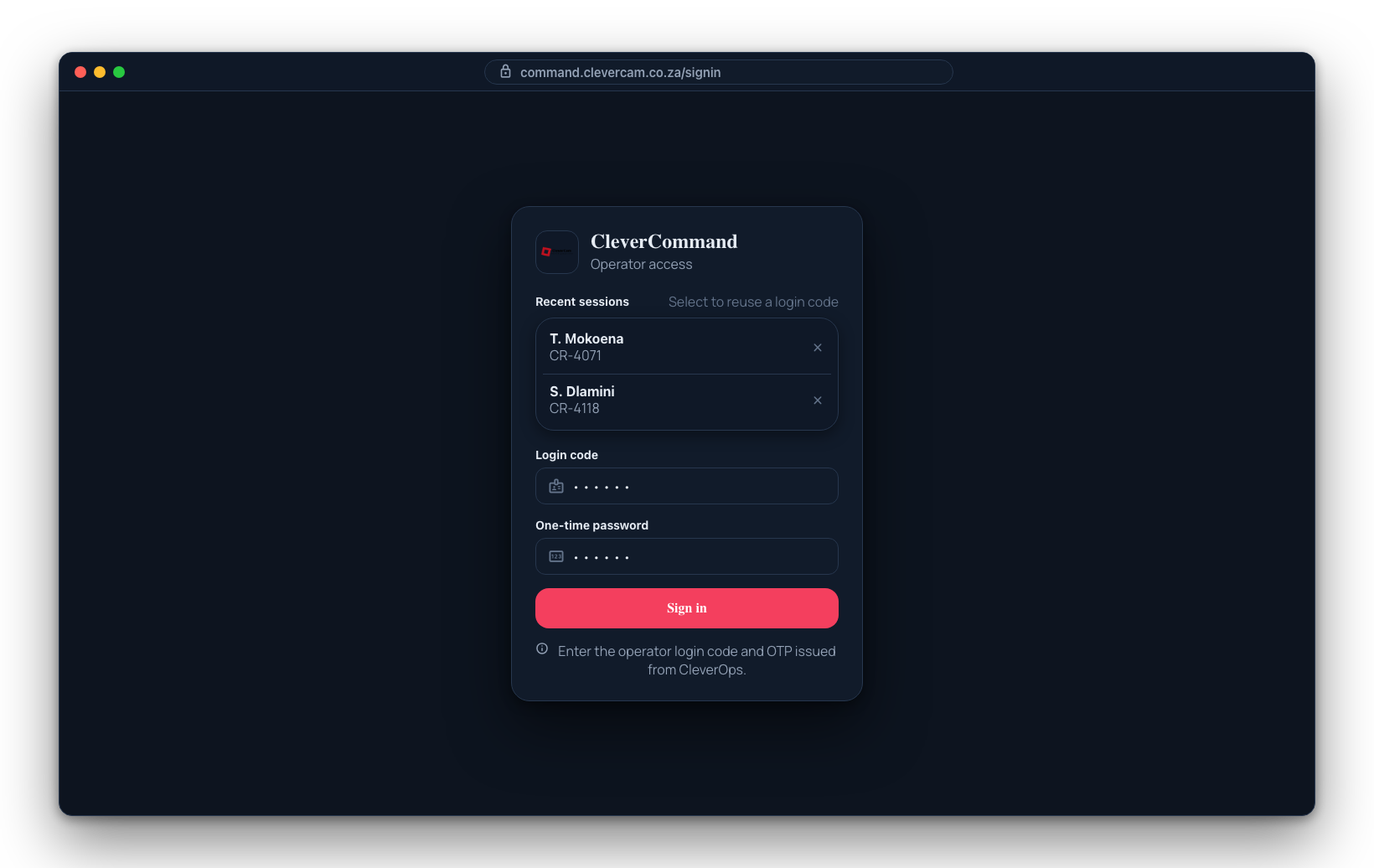
The login code (a one-time password) can be refreshed at any time. See the Login code setup page for instructions.