Login Code Setup
Each control room operator signs in to CleverCommand with their static Login ID plus a refreshable login code (a one-time password). The code is shown in the Login code column of the Control Room page and can be refreshed at any time, adding a layer of security beyond the Login ID alone.
The 4-digit App login code used for mobile app sign-in is a responder feature, not a control room operator one — it only appears on the Response → Responders roster. See Responders to generate and manage app login codes.
The login code
Each operator has a code displayed in the Login code column of the Control Room page. This code is generated by the system and changes whenever it is refreshed.
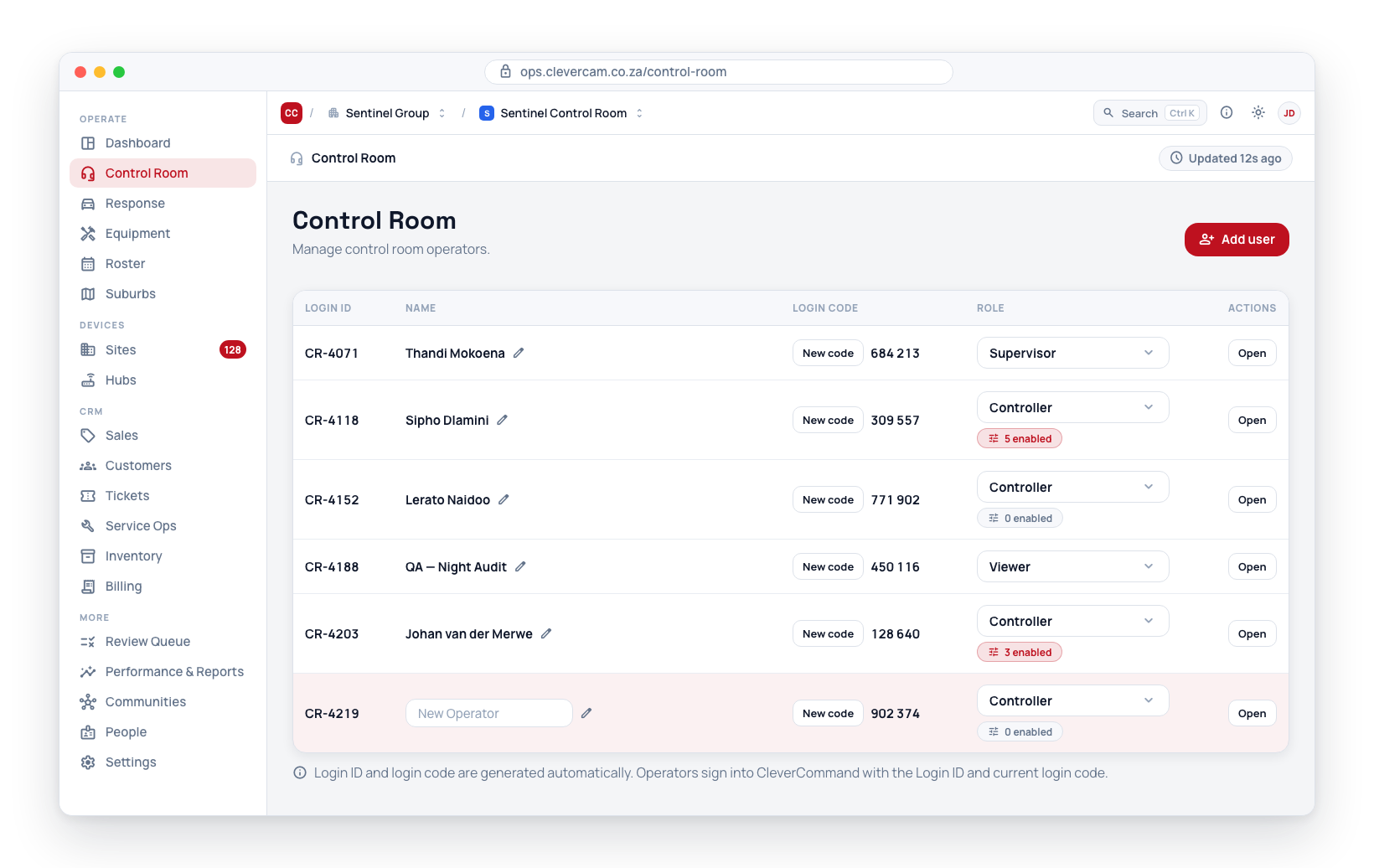
Refreshing a login code
- Navigate to Control Room in the sidebar.
- Find the operator in the list.
- Click New code next to their code in the Login code column.
- A new login code is generated immediately.
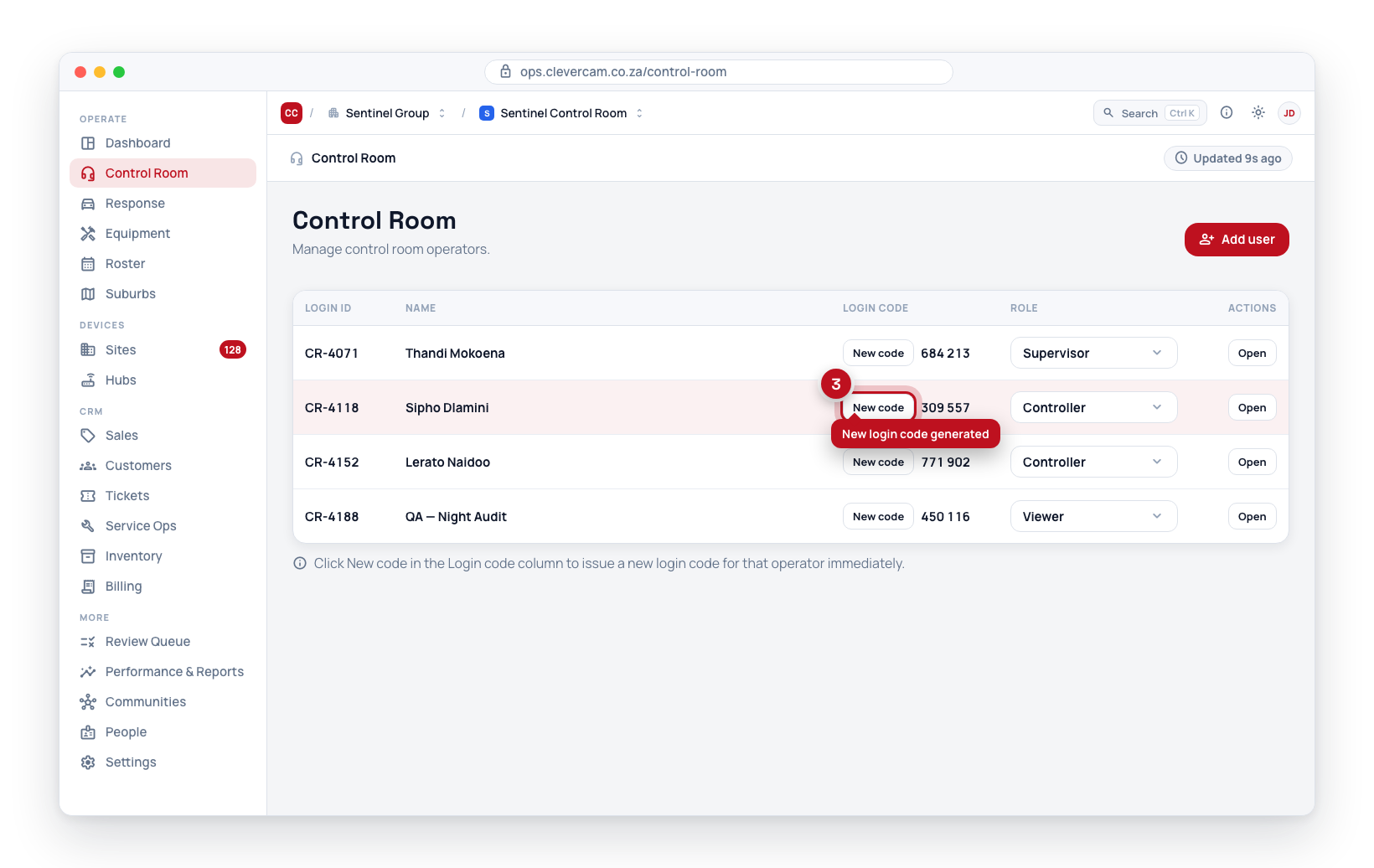
The login code is displayed alongside the operator's Login ID. Both values are visible to administrators in CleverOps so they can be shared with the operator.
Operator Login
The operator uses their Login ID and login code to sign in to CleverCommand:
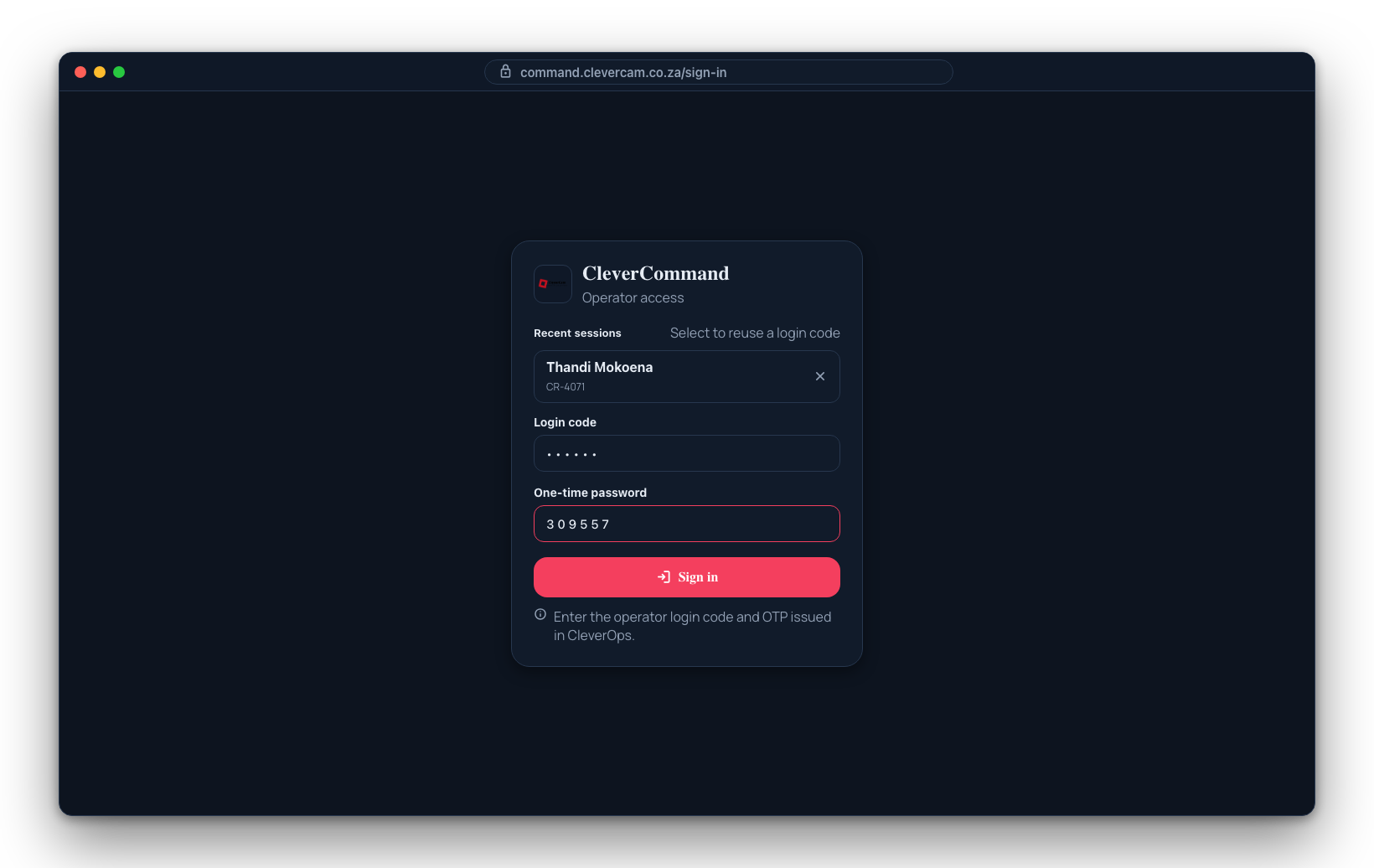
- The operator opens CleverCommand.
- They enter their Login ID.
- They enter the login code provided by a supervisor or visible in CleverOps.
- On successful authentication, the operator enters the control room.