Site Map
The Site Map displays every site linked to your control room on an interactive map. Unlike the Active Events Map which only shows sites with current incidents, the Site Map shows all sites regardless of whether they have active events. This provides a complete geographic overview of your monitoring coverage area.
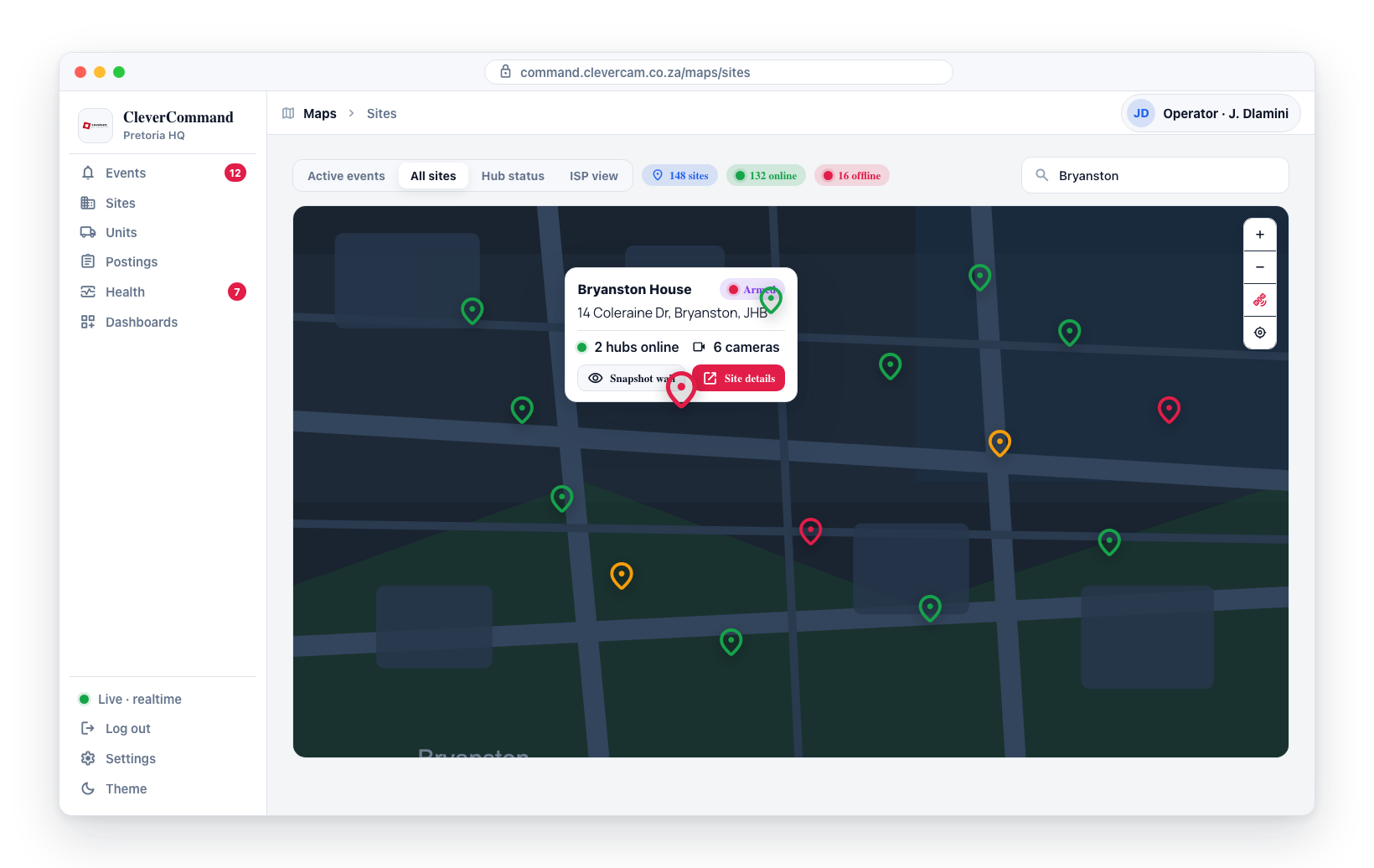
Accessing the Site Map
- Open the supervisor toolbox at /more — it has no sidebar entry, so browse to the address directly (why) — then open the Maps tab
- Switch to the Sites view
- The map loads with markers for every site in your control room
Site Markers
Each site is represented by a marker on the map. Clicking a marker reveals site details:
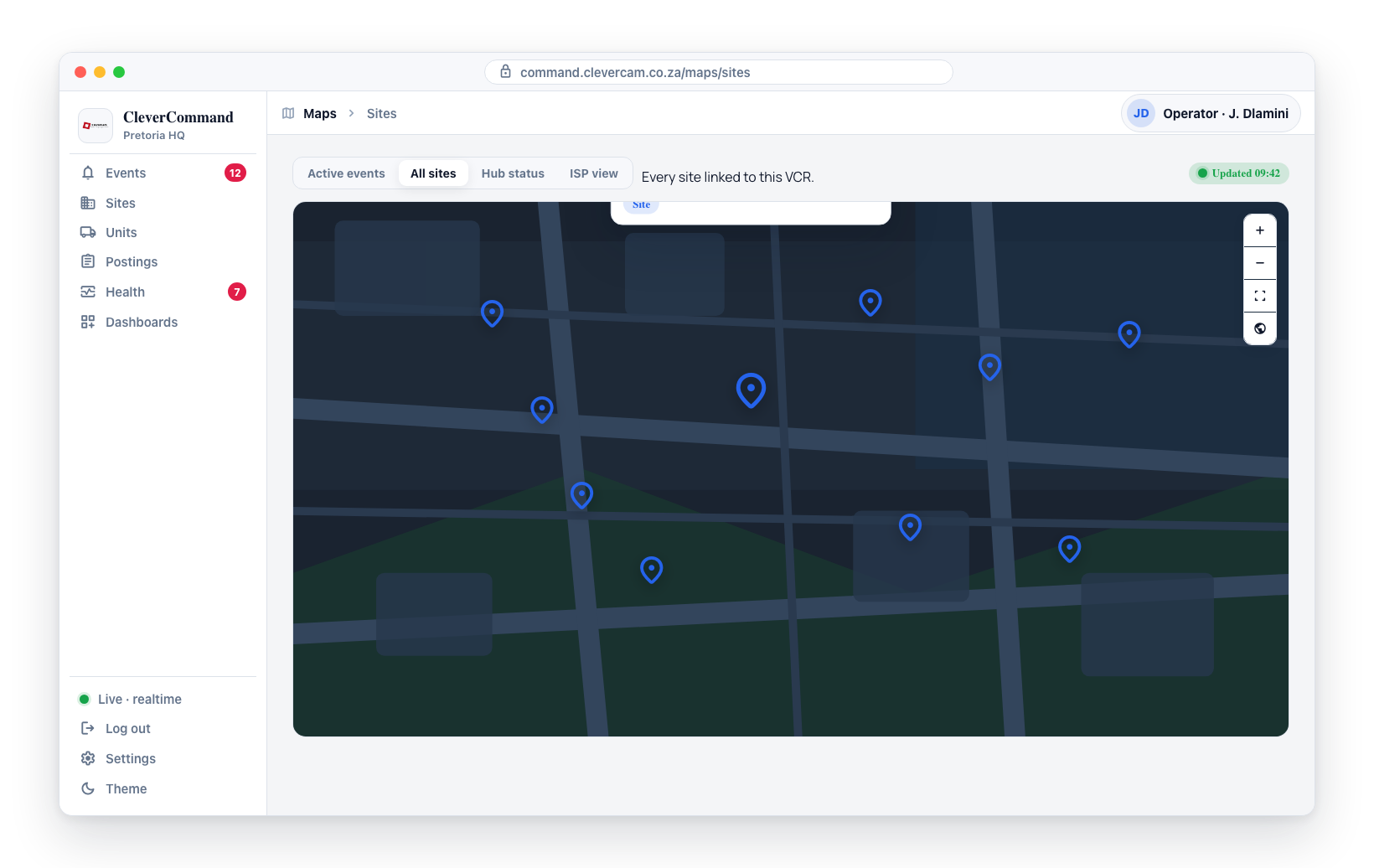
- Site name -- The identifier for the site
- Address -- Physical location
- Status -- Armed/disarmed state and connectivity status
- Location -- GPS coordinates
Searching and Zooming
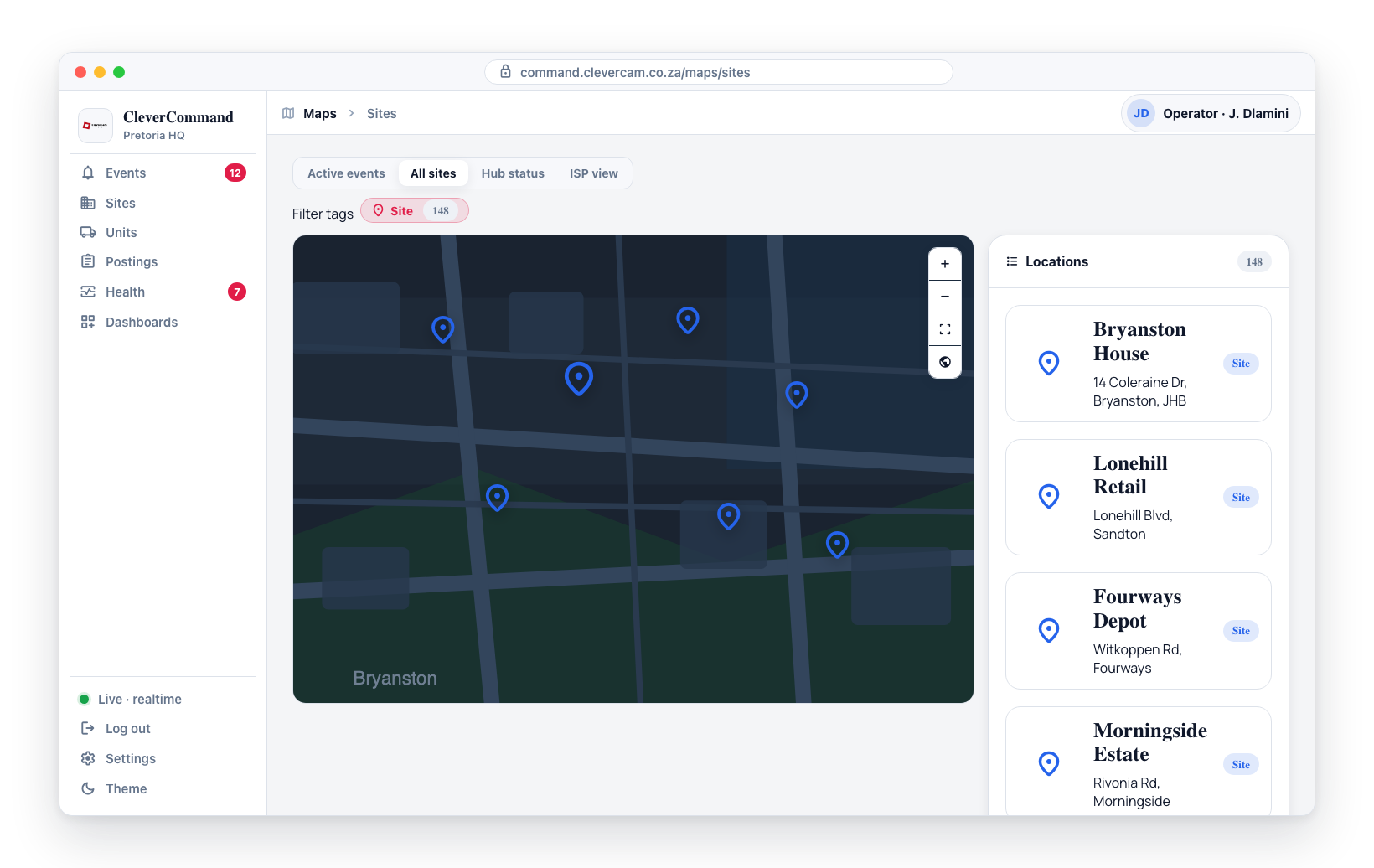
To find a specific site on the map:
- Use the search function to type a site name or address
- The map zooms to the matching site
- The site marker is highlighted for easy identification
You can also manually zoom and pan to explore different areas of your coverage region.
Coverage Overview
The Site Map is valuable for understanding the geographic distribution of your monitored sites:
- Coverage gaps -- Identify areas without monitored sites
- Density analysis -- See where sites are concentrated (urban areas typically have higher density)
- Regional planning -- Understand which areas your control room covers and how they are distributed
Site Details from the Map
Click any site marker to view a summary popup:
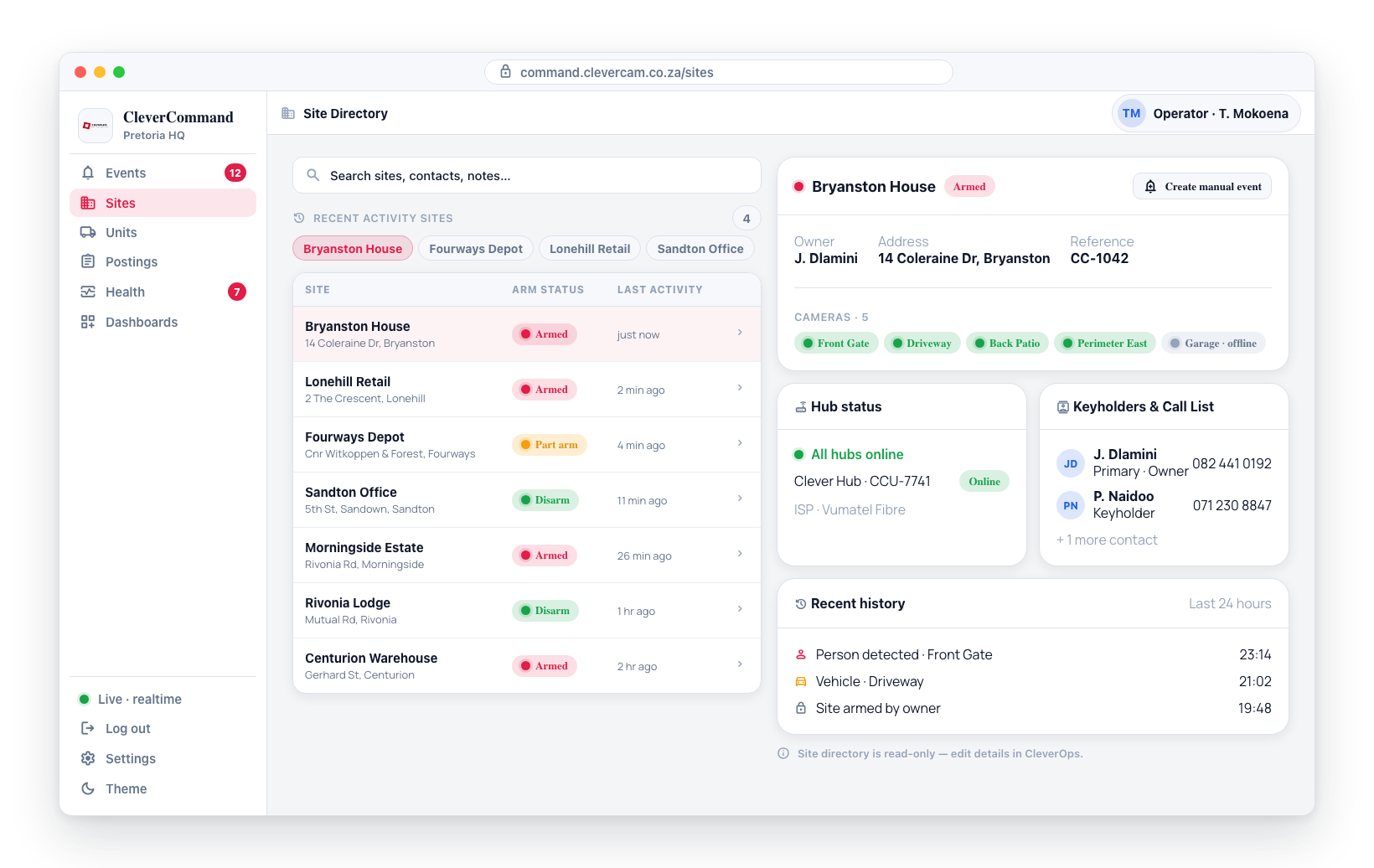
- Site name and address
- Current arm status
- Hub connectivity status
- Number of cameras at the site
From the popup, you can navigate to the full site details in the Site Directory.
The Site Map is useful when a client calls to inquire about their site and you need to quickly locate it geographically. It provides immediate visual context that a text-based directory cannot match.
Relationship to Other Map Views
The Site Map shows all sites at all times, while other map views filter by specific criteria:
| Map View | Shows |
|---|---|
| Active Events | Only sites with current incidents |
| Site Map | All sites, regardless of event status |
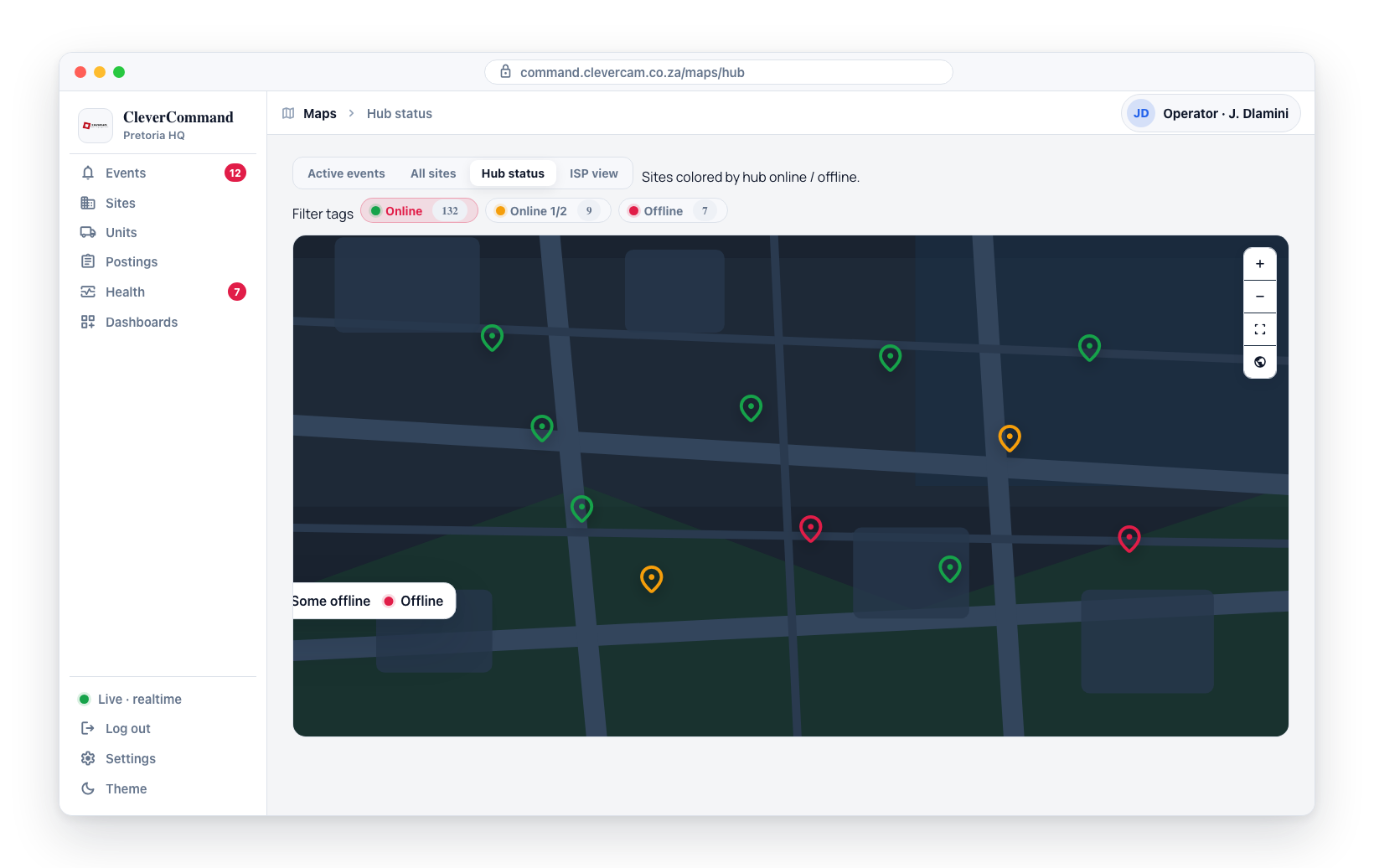
| Hub Status | Sites colored by connectivity status |
| ISP Views | Sites colored by internet service provider |
The Site Map is part of the Maps tab on the supervisor toolbox page at /more, which has no sidebar entry — Supervisors only, in control rooms with the Advanced Alarm Handling module.