Hub Status Map
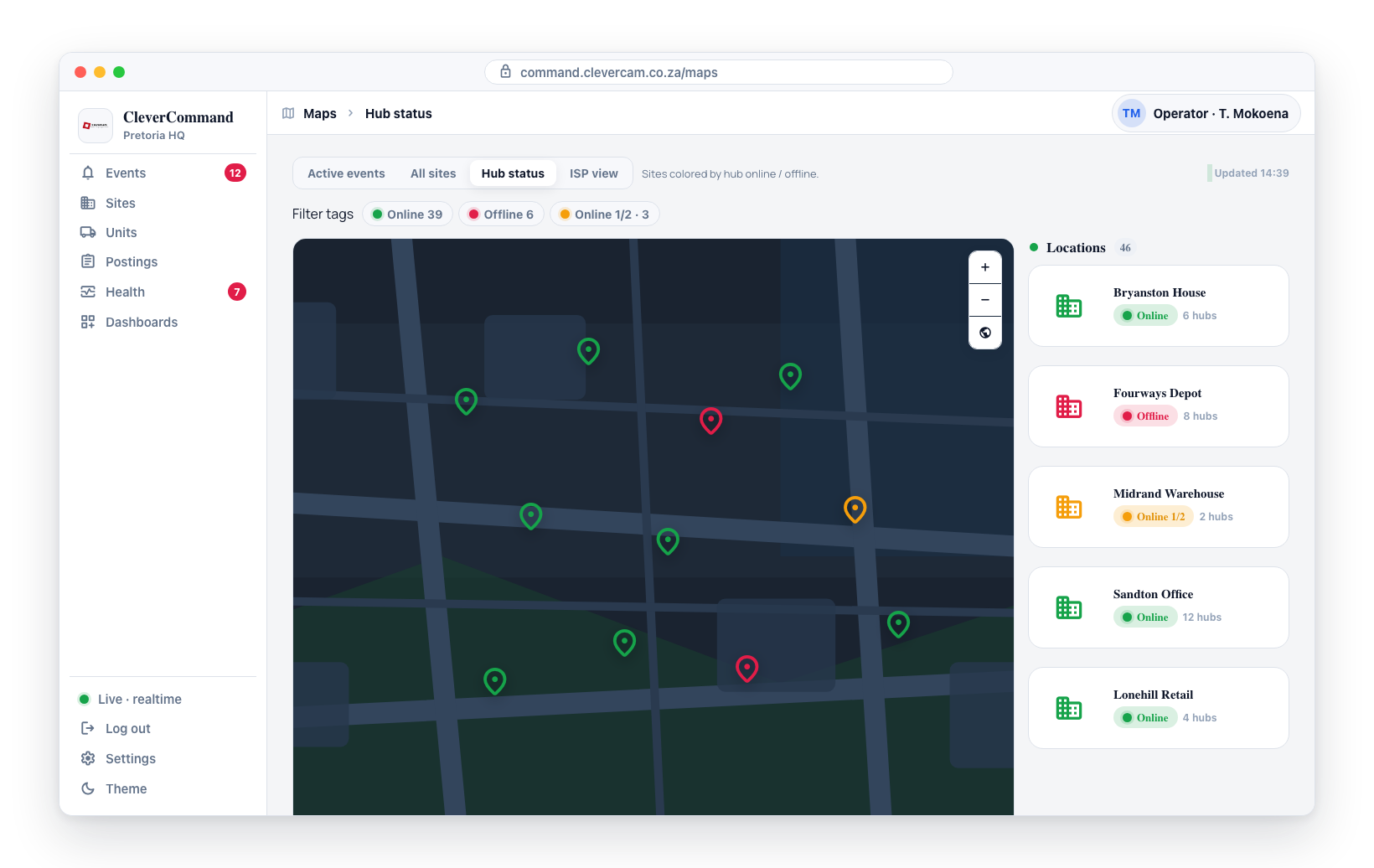
The Hub Status Map provides a geographic view of Clever Hub connectivity across all monitored sites. Each site marker is colored based on the connectivity status of its hub, allowing operators to quickly identify offline sites and spot geographic patterns that may indicate regional network outages.
Accessing the Hub Status Map
- Open the supervisor toolbox at /more — it has no sidebar entry, so browse to the address directly (Supervisors only, in control rooms with the Advanced Alarm Handling module — why) — then open the Maps tab
- Switch to the Hub Status view
- The map loads with all sites colored by hub connectivity status
Color Coding
Sites are colored based on their hub connectivity:
| Color | Status | Description |
|---|---|---|
| Green | Online | Hub is connected and cameras are sending data normally |
| Red | Offline | Hub has lost connectivity -- no events from this site |
| Orange | Partial | Some connectivity issues detected (intermittent connection) |
Identifying Network Outages
The Hub Status Map is most powerful for identifying patterns in connectivity issues:
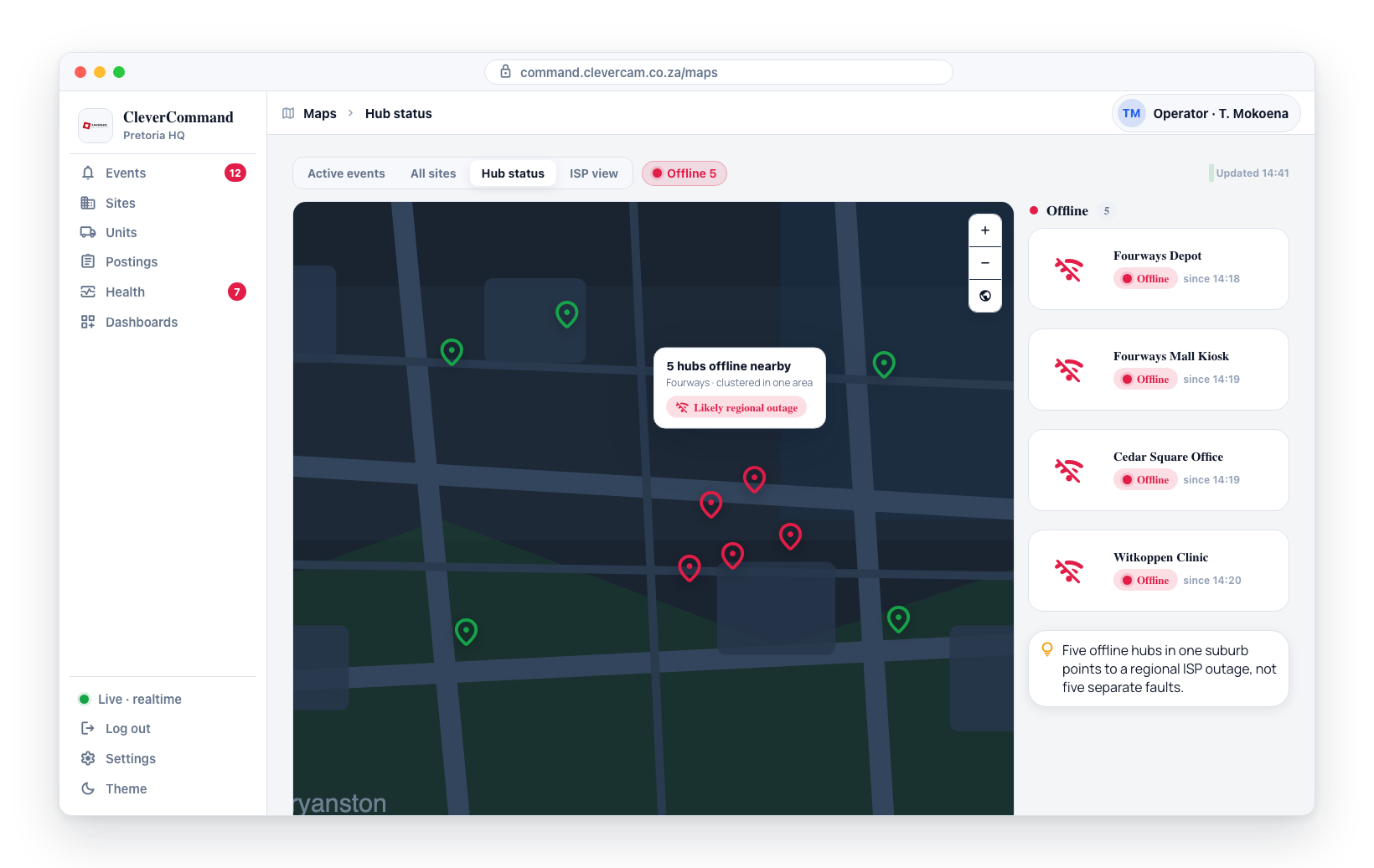
- Isolated offline site -- A single red marker surrounded by green markers suggests a site-specific issue (power outage, local network problem, hub hardware failure)
- Cluster of offline sites -- Multiple red markers in the same geographic area strongly suggests a regional network outage
- Widespread offline markers -- Red markers across a large area may indicate a major network incident
Geographic Pattern Analysis
- Open the Hub Status Map
- Look for clusters of red (offline) markers
- If you see a geographic pattern, cross-reference with the ISP Views map to determine if the affected sites share an internet provider
- Report identified patterns to your supervisor or network operations team
When you see a cluster of offline hubs in the same area, check the ISP Views map. If all the offline sites are on the same internet provider, you have likely identified a service outage rather than individual site issues. This information helps field teams prioritize their response.
Quick Visual Identification
The color-coded map allows for instant assessment:
- A map that is mostly green means the network is healthy
- Any red markers demand attention
- Orange markers indicate sites that should be watched for deterioration
Responding to Hub Status Issues
When you identify offline hubs through the map:
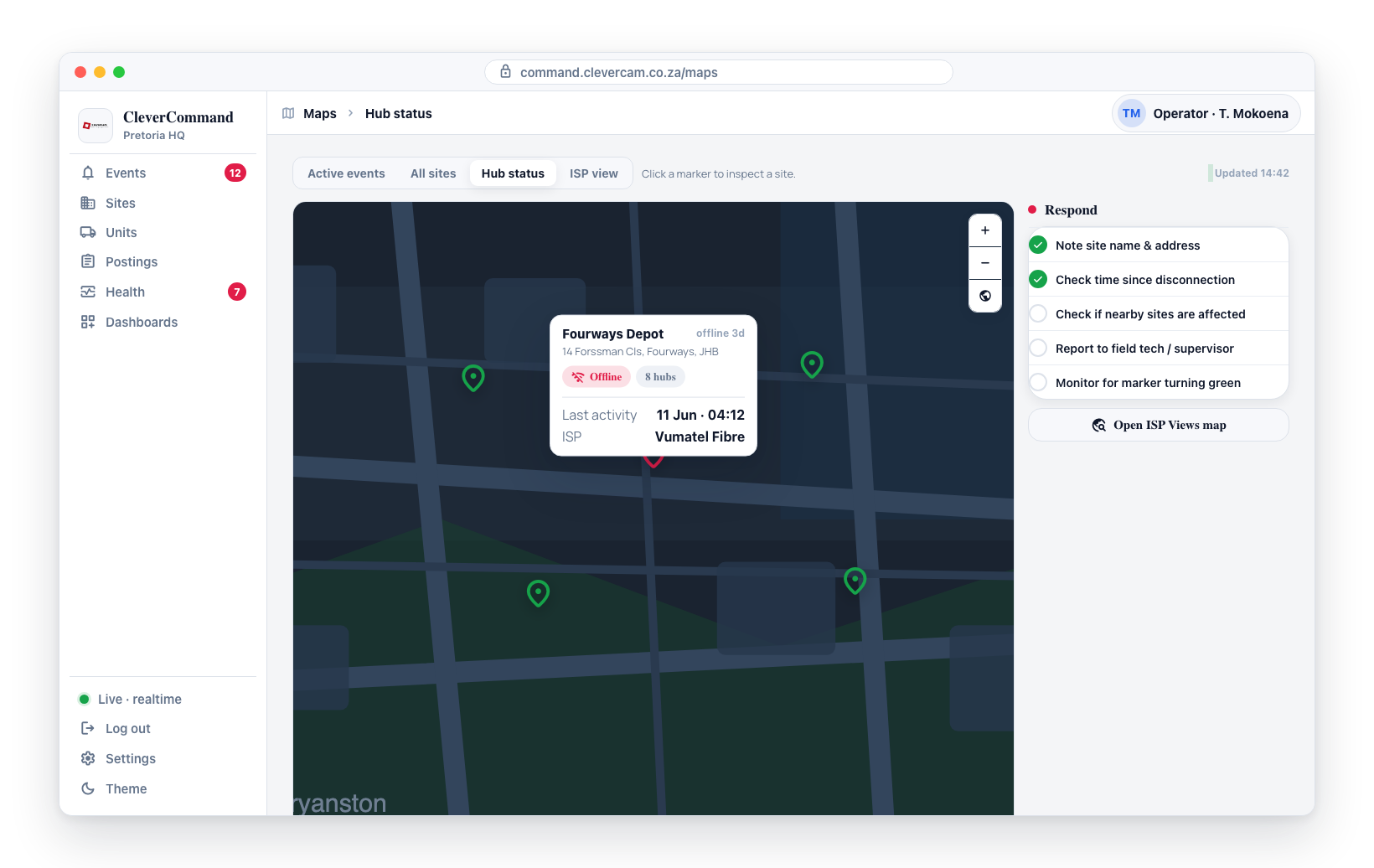
- Click the red marker to see site details
- Note the site name, address, and time since disconnection
- Check if nearby sites are also affected (regional outage)
- Report the issue to field technicians or your supervisor
- Monitor the map for recovery (markers turning green)
Sites with offline hubs are not being monitored. Treat clusters of offline sites as high-priority issues that could affect your ability to detect real security incidents across multiple locations.
Map Refresh
The Hub Status Map updates automatically as hub connectivity changes. When a hub comes back online, its marker transitions from red to green on the next update cycle.