Shift Reports
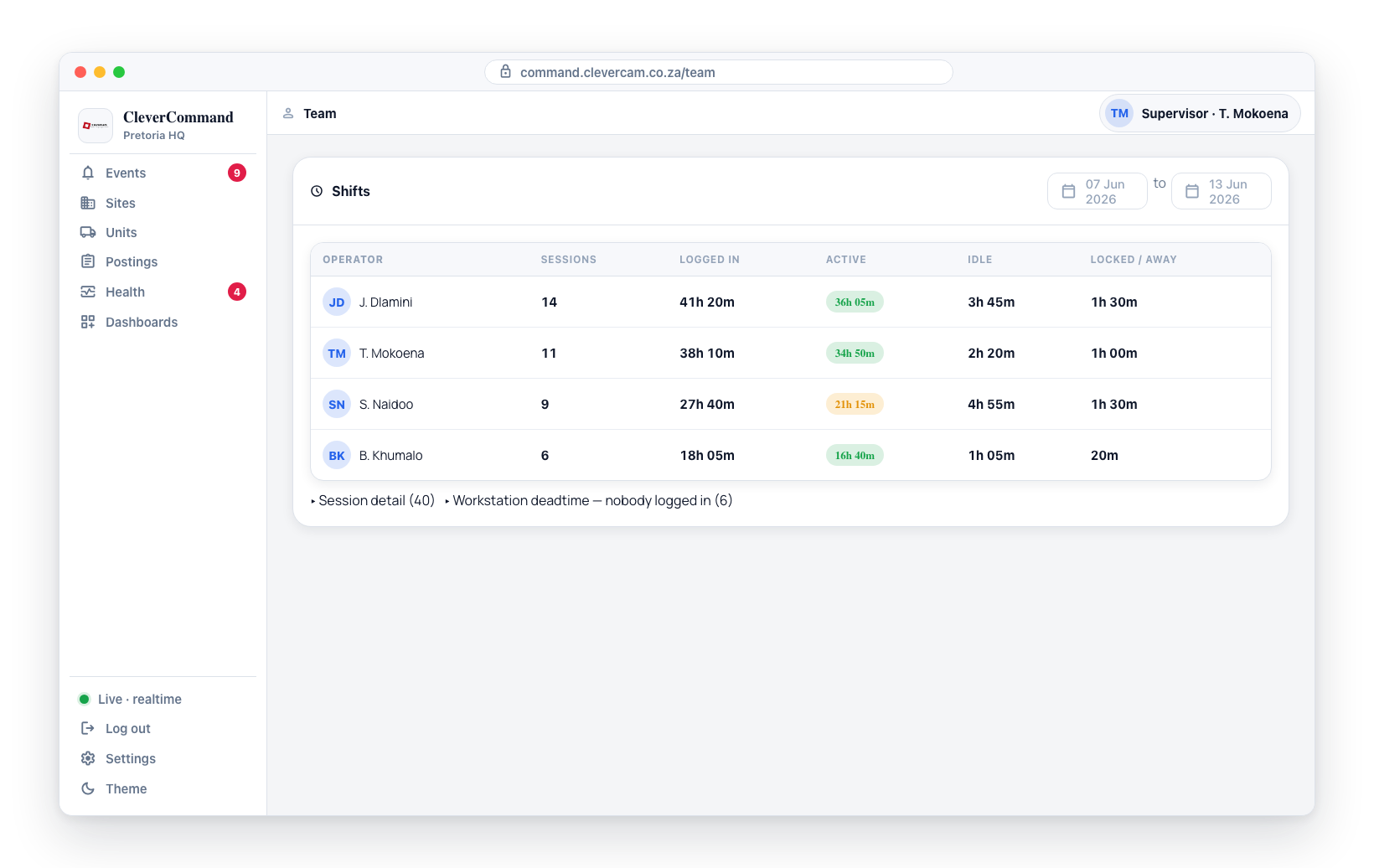
The Shifts panel at the bottom of the Team tab (More page) shows when operators were actually signed in, how active they were, and when workstations sat empty. It requires the Team management permission (supervisors).
Sessions are recorded automatically every time an operator signs in to CleverCommand — from the desktop app or a browser. The desktop app additionally records idle time (no keyboard/mouse input past the configured threshold) and locked/away time (Win+L, system sleep).
Reading the report
Pick a date range at the top of the panel (defaults to the last 7 days).
The summary table shows one row per operator:
| Column | Meaning |
|---|---|
| Sessions | Number of sign-in sessions in the range |
| Logged in | Total time signed in |
| Active | Logged-in time minus idle and locked/away time |
| Idle | Time with no input past the idle threshold |
| Locked / away | Time the workstation was locked or asleep |
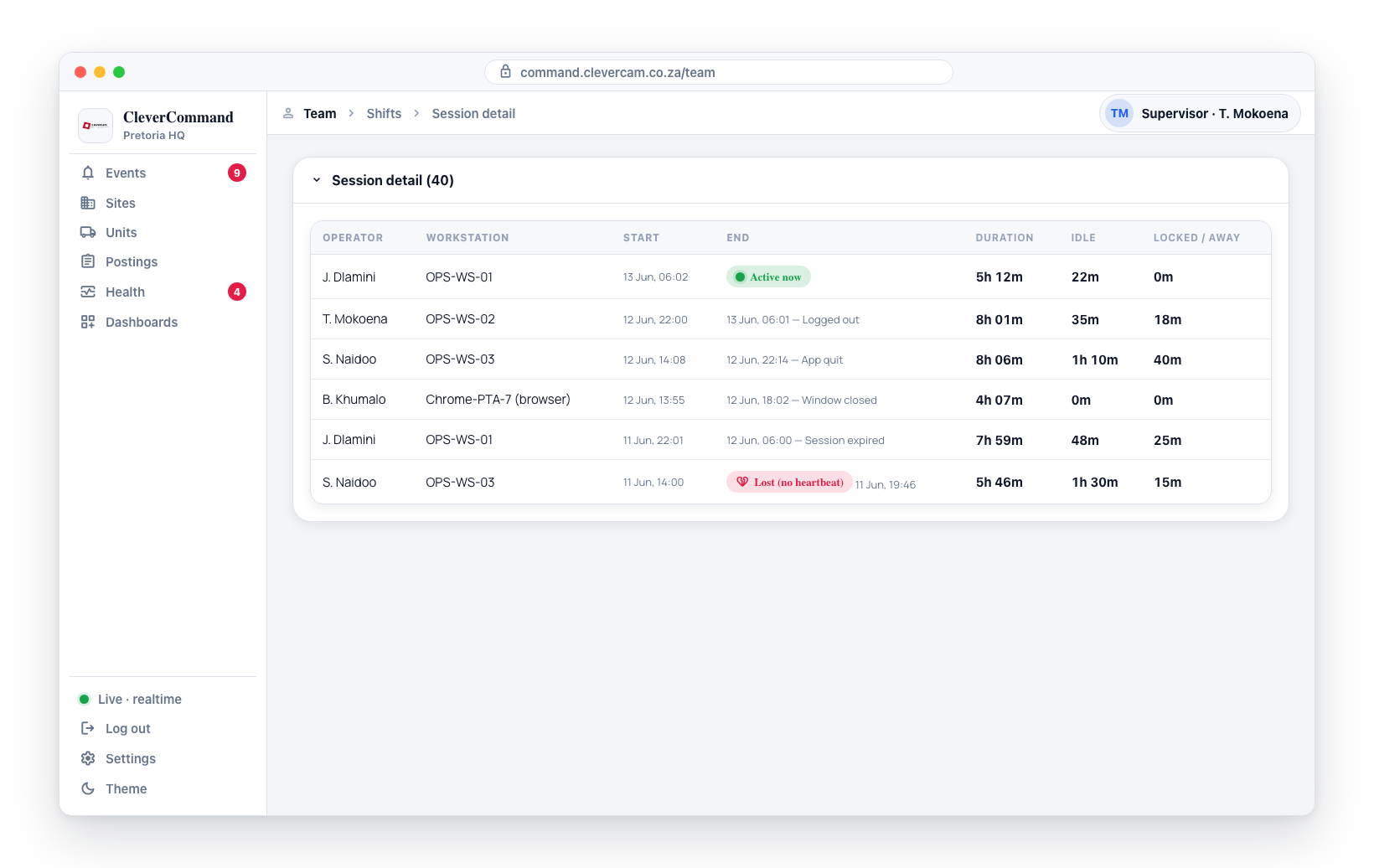
Session detail expands to individual sessions with start/end times, the workstation name, and how each session ended — logged out, app quit, window closed, session expired, or Lost (no heartbeat) when the app stopped without signing out (crash, power cut).
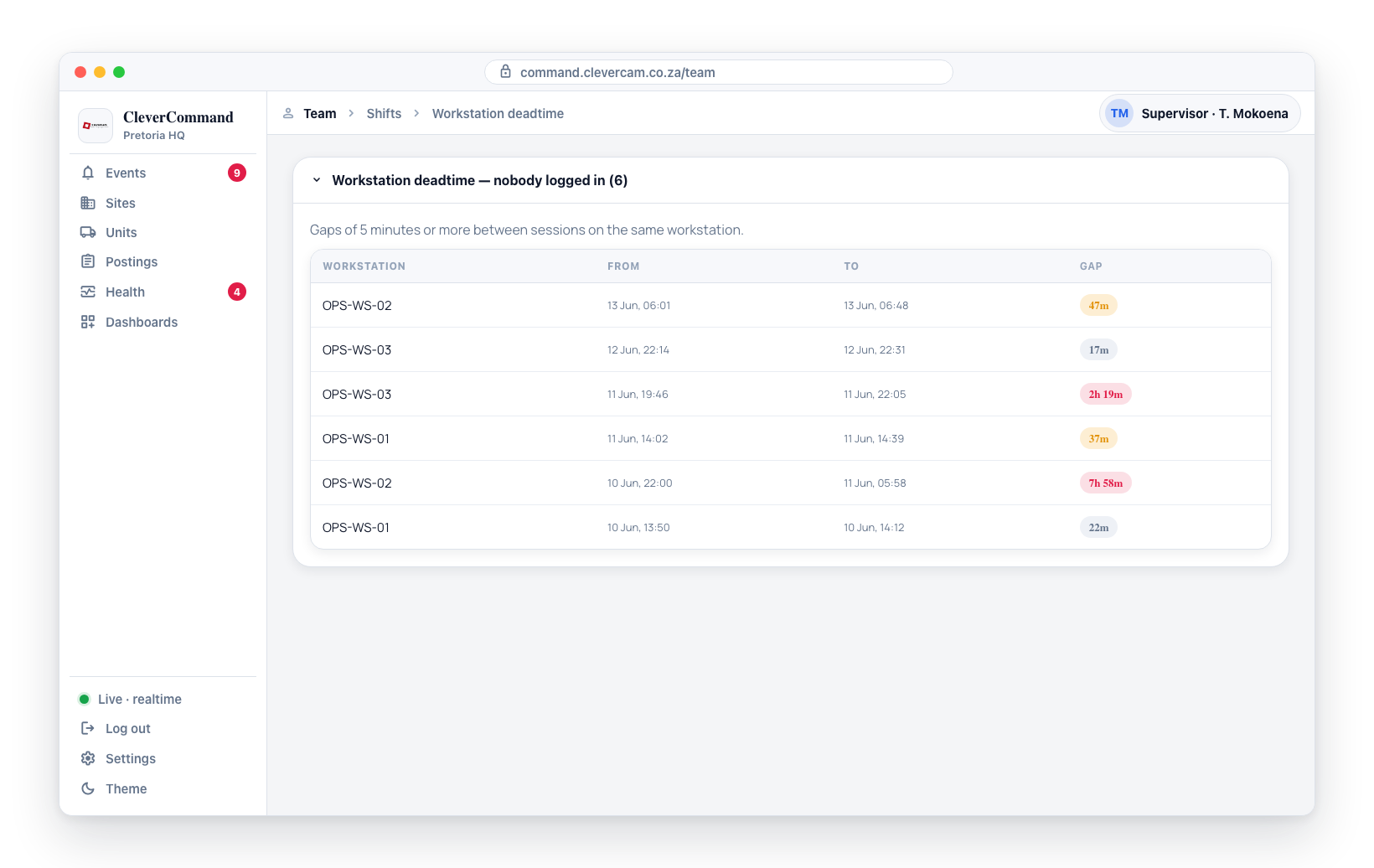
Workstation deadtime lists gaps of 5 minutes or more between sessions on the same workstation — periods where nobody was signed in on that machine.
Browser sessions are marked "(browser)" after the workstation name. Idle and locked time can only be recorded by the desktop app, so browser sessions show those columns as 0.