Site Directory
The Sites page in CleverCommand is a comprehensive directory of every site linked to your control room. Operators use it to look up site information, check arm status, view recent activity, and navigate to detailed site views. The directory supports real-time search so you can locate any site instantly.
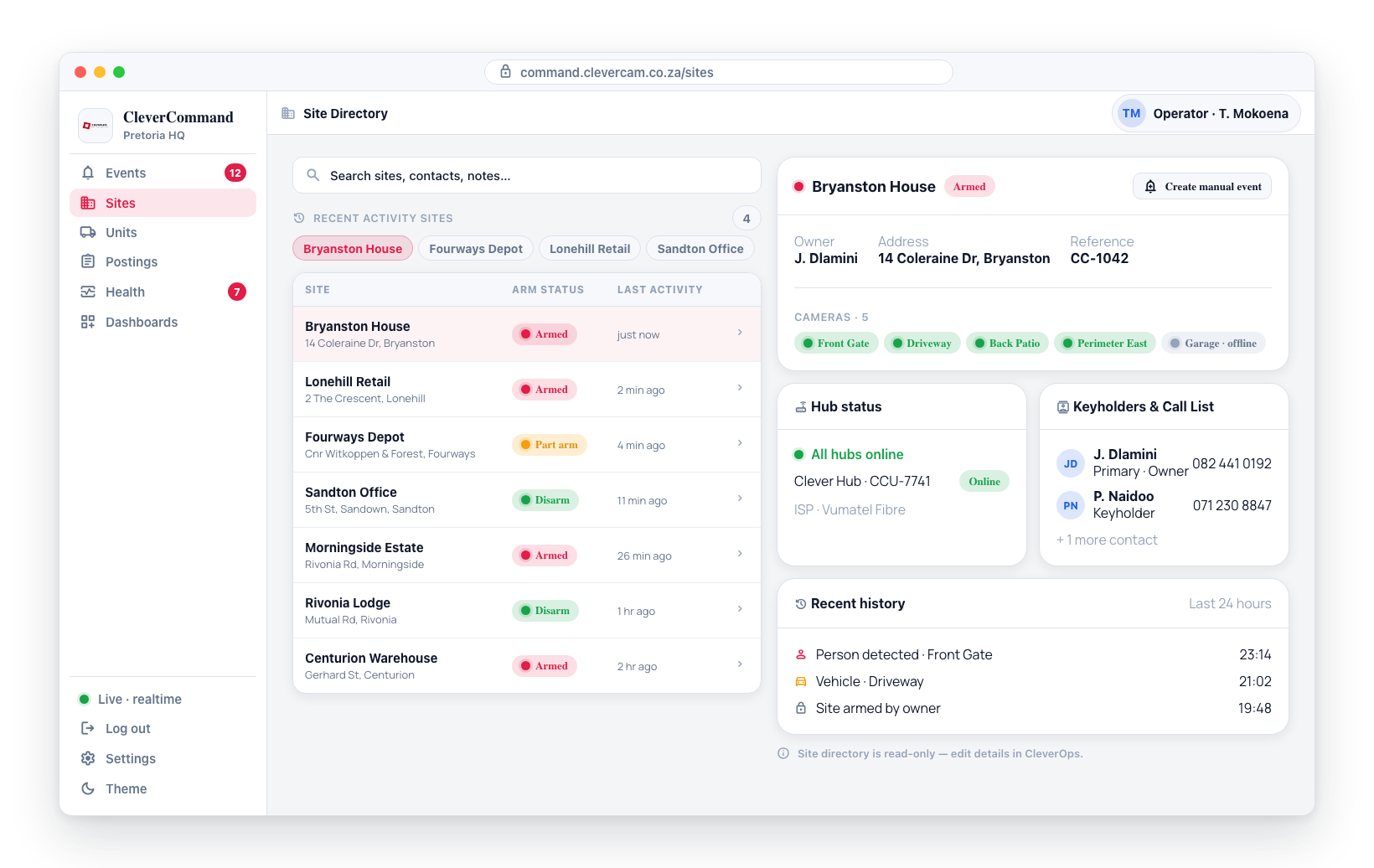
Accessing the Site Directory
- Click Sites in the left sidebar
- The directory loads with all sites linked to your control room
- Use the search bar at the top to find a site by name, address, customer, contact, phone number, account code, serial or note
Site Information
Each entry in the directory shows key details at a glance:
| Field | Description |
|---|---|
| Site name | The name assigned to the site |
| Address | Physical address of the site |
| Arm status | Whether the site is currently armed or disarmed |
| Last activity | When the most recent event was detected at the site |
Searching Sites
The search function filters the directory in real time as you type. It searches everything the control room knows about a site, so you can start from whatever the caller or the signal gives you:
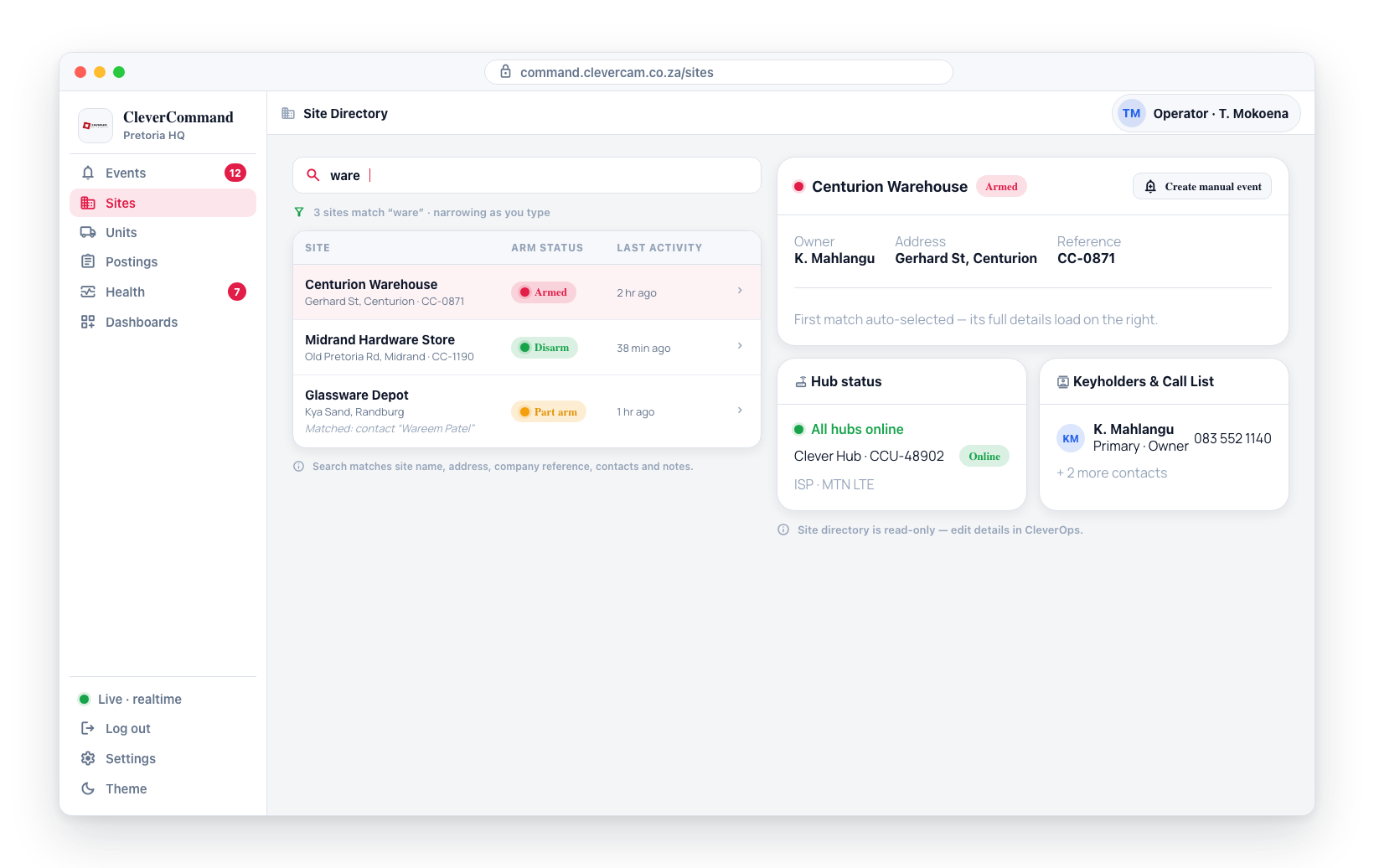
- Click the search bar at the top of the Sites page (placeholder: Search site, address, customer, contact, phone, account code, serial…)
- Start typing any identifying information
- Results narrow down with each keystroke — the line under the bar says how many sites match, and the previous results stay visible (dimmed) while the next set loads, so the list never flickers
- The first result is selected automatically; use ↑ / ↓ to move the selection through the list (the details panel follows), Esc to clear the search, or click any result. The × button at the right of the bar clears it too.
| You can type… | Matches |
|---|---|
| Site name or address | Any part of the name, street, suburb, city, region or country |
| Site number | The site's numeric ID (e.g. 4741) |
| Reference | The company reference on the site link |
| Customer | The customer's name, legal name, account number, legacy code, billing contact or billing email |
| Contact / keyholder | The name of anyone on the site's call list — app users and offline keyholders alike — or a CRM contact |
| Phone number | Any format: 0821234567, +27 82 123 4567 and 82 123 4567 all find the same person; a fragment of 5+ digits also works ("ends in 58785") |
| Radio / panel account code | The alarm account code (e.g. 0170); leading zeros are optional, so 170 also finds 0170 |
| Serial / panel ID | A hub serial, IMEI, Olarm UUID or other device identifier |
| Notes | Monitoring, responder, user, call-list, technical and billing notes, all instruction fields, response instructions and tags |
Every result card says exactly why it is there:
- The typed text is highlighted wherever it appears in the site name, address or reference.
- Anything else that matched shows as a chip under the address — one per field — with the field name, the matched value (highlighted) and who or what it belongs to: PHONE +27821234567 · J. Smith, ACCOUNT CODE 8282, PANEL ID 8667… · panel imei, CUSTOMER J. Smith, CONTACT M. Nkosi, BILLING CONTACT …, REFERENCE M0170, or CALL LIST NOTES with a short snippet of the note around the hit.
- A chip with a red tick is an exact match — the whole account code, serial, site number, reference or customer account you typed, or a phone number matched on its full last nine digits.
Sites whose name matches are listed first, then exact identifier matches (site number, reference, account code, serial), then everything else. If nothing matches, the list says so and suggests what else to try; if the search itself fails, a Retry button appears.
If you know only part of a site name, the search works with partial matches. Typing "ware" will surface sites like "Warehouse A", "Hardware Store", and "Glassware Depot". The same is true for contacts, customers and notes. A single character filters instantly by site name, address and reference only; the full search (contacts, phones, account codes, notes…) runs from two characters. When you type only digits, exact account-code and serial matches are listed first, and phone numbers are only searched for fragments of 5 or more digits — so a 4-digit account code does not drown in phone numbers that happen to contain it.
Searching by contact or phone number also finds offline keyholders — people on the call list who do not use the CleverAlert app. Their name and number are searched exactly like an app user's.
Recent Sites
With the search empty, the Sites page shows the sites whose events you opened most recently, so you can get back to a site you've just been working on:
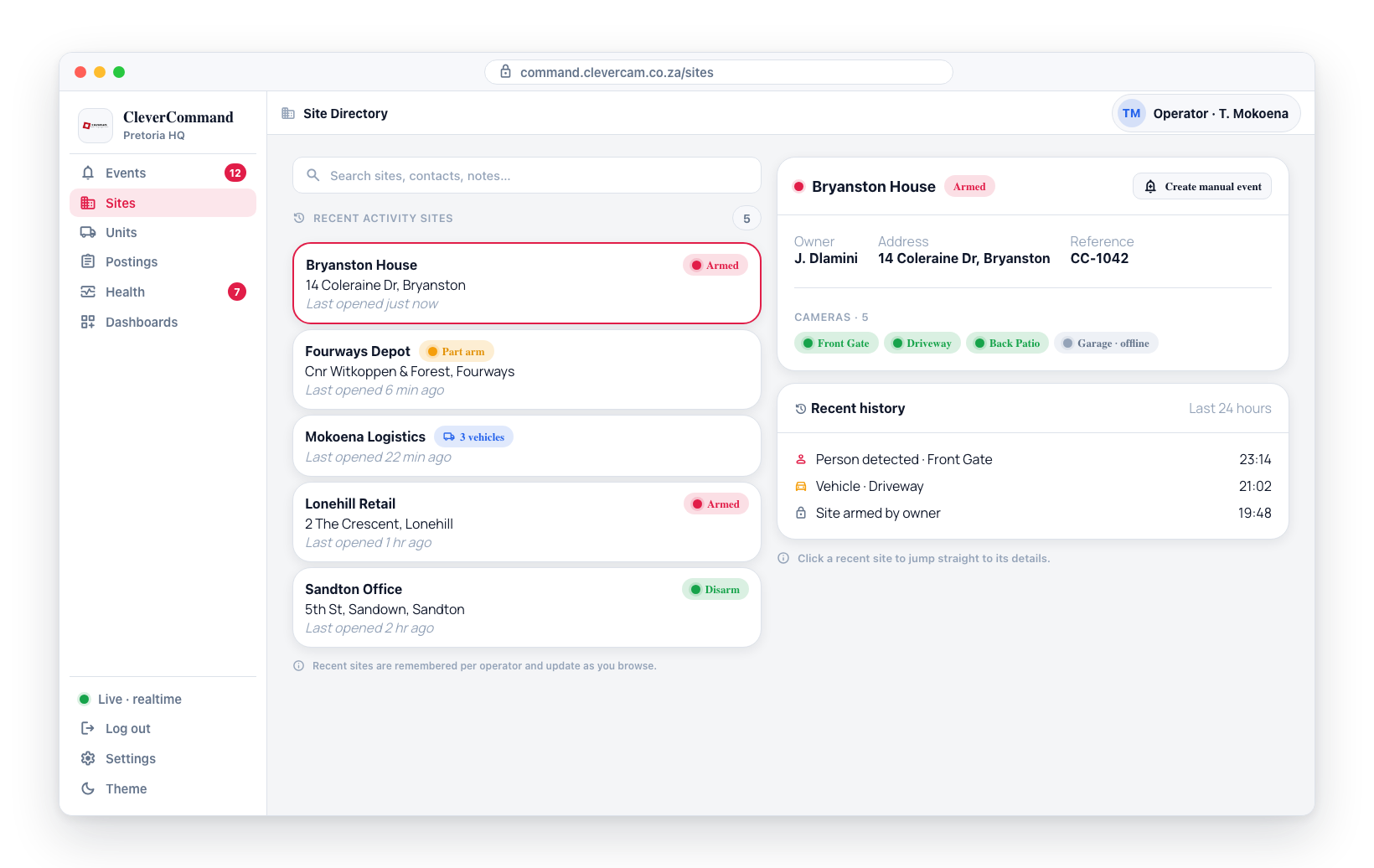
- A site joins the list when you open one of its events, from the events board or in event details. Clicking a site on the Sites page does not add it.
- The site of the event you opened last goes to the top, and the list keeps your six most recent sites
- Click any recent site to jump directly to its details
- The list belongs to your sign-in and your control room. Another person signing in on the same computer, or you signing in to a different control room, starts with an empty list. Sites from the earlier sign-in never show.
Site Details Panel
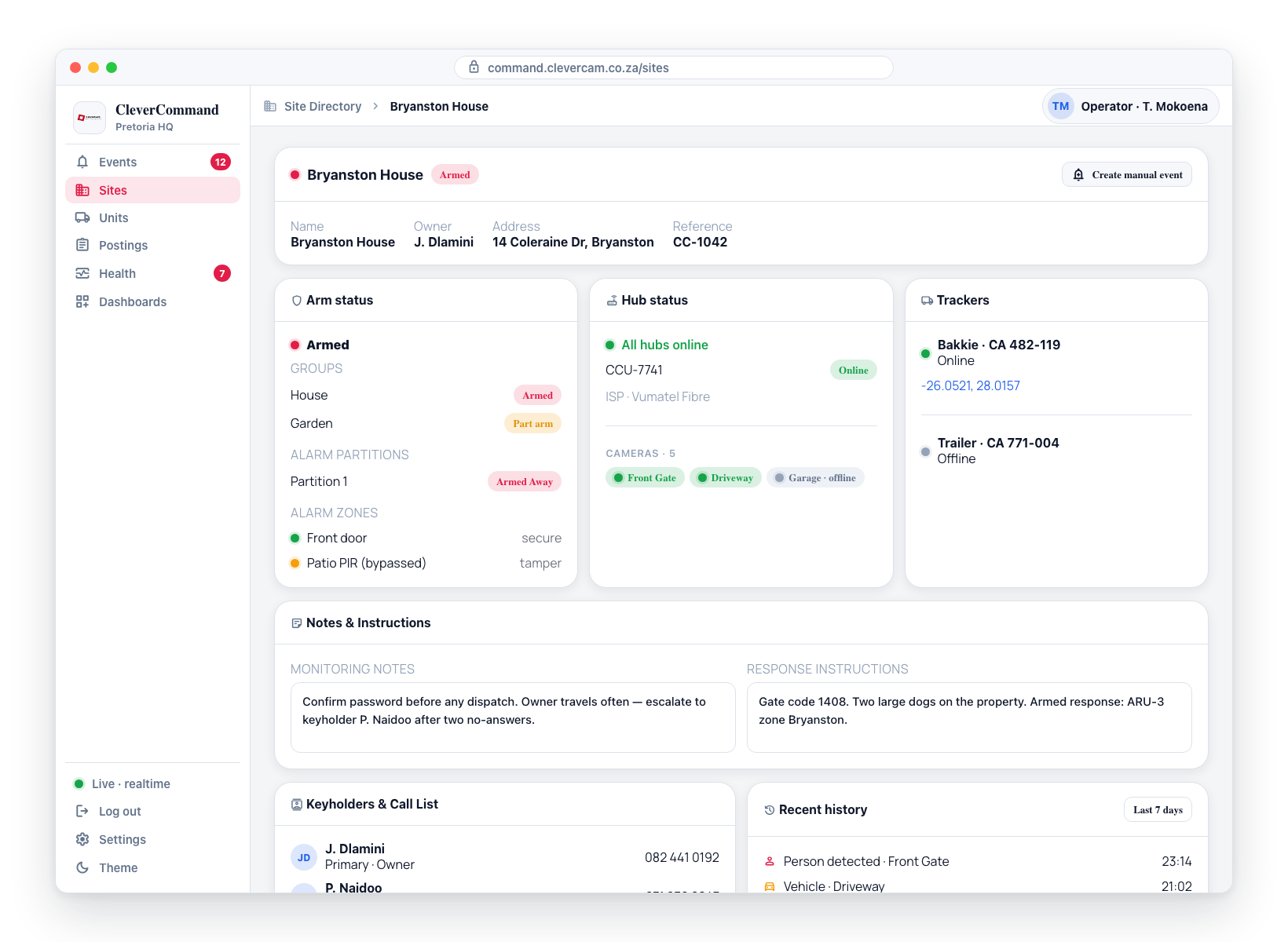
When you select a site from the directory, a details panel opens showing the full site information:
-
Site name and address -- Complete identification
-
Arm status -- Current armed/disarmed state
-
Cameras -- List of cameras at the site with status indicators
-
Hub information -- Connected Clever Hub details and connectivity status
-
Event history -- Recent events detected at this site
-
Call list -- Site contacts with phone numbers and each contact's password and duress word. The block starts with the site password — one word for the whole premises (set in CleverOps), a separate credential from any individual contact's password. A contact without a word of their own shows the site word on their card, tagged site; with no site word either, the last four digits of their cellphone number, tagged last 4 of cell — so you read one thing per contact. None set appears only when there is no word and no usable number. Passwords are free-text words only — the colour tiles some contacts pick in the CleverAlert app are an app-only credential and are never shown in the control room.
-
Trackers -- Any vehicle or asset trackers associated with the site
-
Notes & instructions -- The site's Monitoring notes and Responder notes (both editable once the site's details have loaded — until then, or if they fail to load, the two boxes are read-only), plus the read-only Site Notes and the typed Key, Property, Responder, and Tech instructions set in CleverOps. The typed instructions are shown verbatim so you can brief a responder on keyholder access, property hazards, and the on-scene playbook at a glance.
The two editable boxes go to different audiences. Monitoring notes stay in the control room — they are what the Remember banner shows the next operator. Responder notes are the crew brief: CleverResponder renders them on the responder's phone when a unit is dispatched, so write them for someone arriving at the gate. Site notes is the customer-facing note, set in CleverOps under a site's Site notes field or by the customer in CleverAlert under Response Settings.
Using the Site Directory During Events
Operators frequently visit the site directory during event handling for additional context:
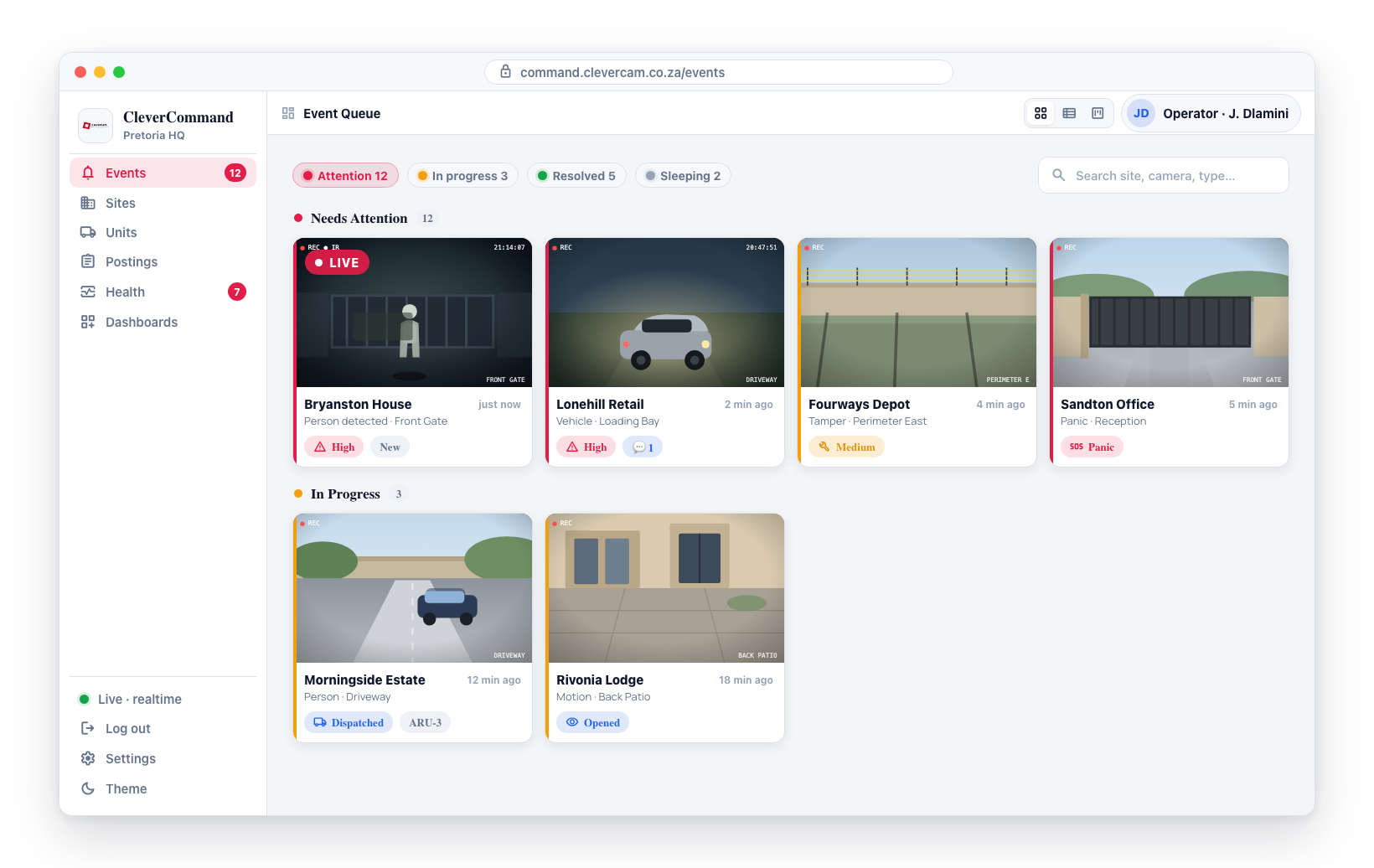
- An event arrives in the queue from an unfamiliar site
- Open the Sites page and search for the site
- Review the site details: arm status, camera layout, contact information
- Return to the event with better context for making verification decisions
The site directory is read-only in CleverCommand. To modify site details, contacts, or camera configurations, your company administrator uses CleverOps.