Pattern Detection
The Pattern detection tab (on the Review Queue page) presents two lenses on the same learned patterns, top to bottom:
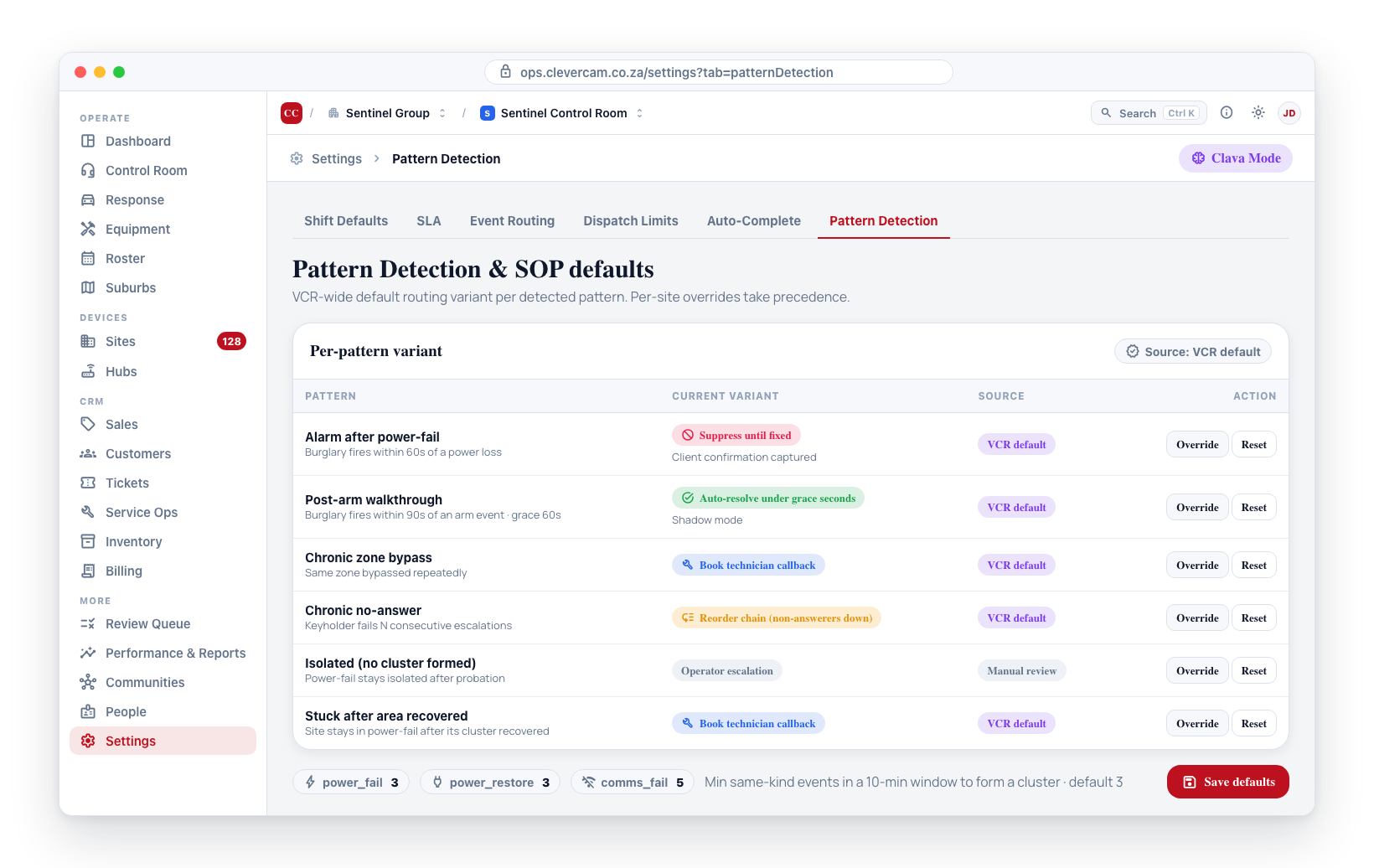
- Clava's detectors — the thresholds and windows that decide when a repeating signal becomes a Review Queue item, per control room. This is the manager-reporting lens: what Clava raises for you, and when. See Detector thresholds & windows below.
- Event handling (control-room SOP) — the operator lens: how the control room handles a matching live event. It carries two things per pattern: the default SOP variant (how CleverCommand routes a matching event when no per-site override is configured) and the cluster size (how many raw same-kind signals must arrive within a 10-minute window before the pattern fires). The cluster-size dial now sits inside each pattern it feeds; signal kinds with no learned pattern (e.g.
comms_fail) fall to a small Other signal clustering block.
The per-event response-SLA timers (Panic, Burglary, Fire, …) used to sit on top of this card. They moved to their own Response SLAs tab on the Review Queue page — they're live-response targets per event type, available to every VCR with no Clava Mode required, not pattern detection. See Per-event response SLA below.
The variant + cluster settings are the VCR default, and today they are the only place these variants can be set. The per-site editor that used to override them — the Smart pattern overrides card on the retired Monitoring SOP sub-tab — was removed on 2026-06-23, so every site now inherits the variant configured here.
Per-site override rows can still be created one other way: resolving a Review Queue item with SOP changed applies a variant to that site. Existing and newly applied overrides are honoured by the resolver and are all visible on the site's SOP History panel (Monitoring → Alarm handling).
Pattern detection only runs when the VCR has Clava Mode enabled (maven_mode = true) AND the emergency kill-switch is off (brain_kill_switch = false). When either condition fails, the tab shows a notice and the form is editable but has no runtime effect.
Accessing Pattern Detection
- Navigate to Review Queue in the sidebar.
- Click the Pattern detection sub-tab. (The tab used to live under Settings; old Settings links redirect here.)
- The cards load the current values for the selected VCR.
Detector thresholds & windows (Clava's detectors)
The first card on the tab tunes when the Brain raises a Review Queue item, per control room. Defaults ship sane — a room that never opens this card gets exactly the behaviour described on the Review Queue overview. Every change applies from the next occurrence or nightly run; nothing needs a restart.
The card has three groups:
- Security & pattern thresholds — the "patterns, not flukes" knobs. Wrong password sets the occurrence counts at which the aggregated item escalates (defaults: warning at 3, urgent at 5 — items are always visible from the first occurrence at info). The four live pattern detectors (alarm after power-fail, alarm after power-restore, post-arm walkthrough, chronic no-answer) each take a Raise at count and a Within N days window (defaults: 3-in-7, 3-in-7, 5-in-7, 3-in-30).
- Cost & contactability (adaptive) — high dispatch cost, vehicles rolled without contact, and unresponsive keyholder compare each site against this control room's own average (mean + 1.5σ), so the statistics are the tuning. They expose only an on/off switch. Weekly scan, Clava-Mode control rooms only.
- Housekeeping — Quiet auto-close: an open, un-snoozed pattern item with no recurrence in N days (default 30, minimum 7) resolves itself as
pattern_stopped. - Delivery — Clava's Monday briefing: the weekly digest email (see the Review Queue overview). Unlike the detectors, this one defaults off — email is opt-in per control room. Its Preview shows the next briefing's headline figures and the address it would go to.
Each detector row has a toggle, its inputs, and two buttons:
- Preview runs the draft settings against this control room's real data without saving — e.g. "2 sites would have an item (7 flags in window)" or "3 open items would close right now" — so you can see the effect of a threshold before committing to it.
- Save stores the override for this control room only. Values are validated server-side (warning ≤ urgent, windows 1–365 days, quiet-close at least 7 days).
Switching a detector off stops new items and pauses escalation for this control room; existing open items stay until resolved or quiet-closed. On shared sites each control room's own setting applies — one room switching a lane off never silences another room's copy of the item.
Per-event response SLA (Response SLAs tab)
The Response SLAs tab — its own tab on the Review Queue page, next to Pattern detection — sets the VCR-wide response timers for each of the twelve event types. Unlike pattern detection, it is not Clava-Mode-gated: these timers feed the control-room OVERDUE counter and per-card SLA badges, which work on every VCR. It has its own Save SLA defaults button.
Each event type has up to three timers (blank = use the built-in baseline shown as the placeholder):
| Timer | What it does |
|---|---|
| Response target (s) | Elapsed time after which an unactioned event of this type counts as OVERDUE in the CleverCommand queue. |
| Reminder (s) | Elapsed time at which the operator gets a follow-up nudge (usually shorter than the response target). |
| Auto-dispatch timeout (s) | Elapsed time after which dispatch is pre-selected on the card (operator still clicks; consent still applies). Shown only for dispatch-class events. |
A collapsible Night-shift overrides row per event type lets you set different values for events arriving outside the control room's day window (set on the Control room clock); each night field defaults to "same as day".
Baselines: life-safety (Panic, Duress, Fire, Medical) 60 s; standard alarm (Burglary, Burglary with image) 180 s; comms/power (AC mains, Hub offline) 900 s; schedule (Open/Close outside hours, Fail-to-arm) 600 s.
Values are written to virtual_control_rooms.default_sop_variants[event_type].payload.timings. Per-site overrides — set in the Site SOP panel → Event handling Override modal — take precedence; the resolution order is site → VCR default → baseline.
Leaving every timer blank keeps the OVERDUE feature invisible in CleverCommand. It activates the moment any VCR default or per-site override is set. Outside-hours Open/Close events are not yet time-matched by the resolver, so their timers are stored for future use.
Per-pattern variant
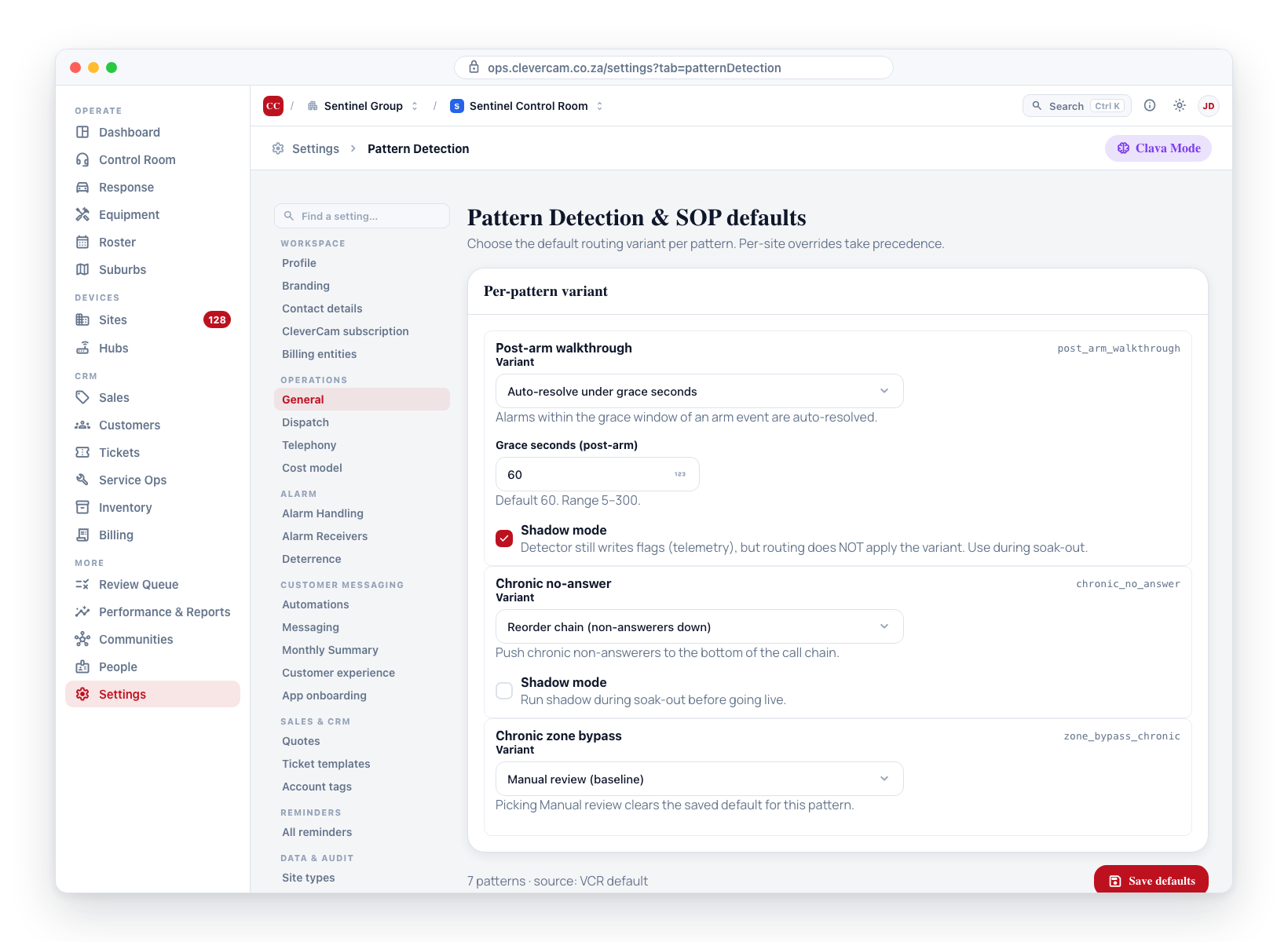
The form lists the four patterns the Brain currently detects, each with its own dropdown of named variants. Picking Manual review clears any saved default (the system reverts to its baseline behaviour for that pattern). Any other choice persists into virtual_control_rooms.default_sop_variants and is consulted by CleverCommand whenever an event matches that pattern.
The four patterns
| Pattern | What it catches | Variant choices (lighter → firmer) |
|---|---|---|
| Alarm after power-fail | Burglary alarm fires within 60s of a power loss at the same site | Manual review / Auto-resolve when delta matches / Notify only / Suppress until fixed |
| Alarm after power-restore | Burglary alarm fires within 60s of a power restore | Same ladder as Alarm after power-fail |
| Post-arm walkthrough | Burglary alarm fires within 90s of an arm event | Manual review / Auto-resolve under grace seconds / Auto-resolve + courtesy ping / Recommend extending exit delay |
| Chronic no-answer | The keyholder call chain runs out with nobody answering | Full call chain / Reorder chain / Skip chronic contact / No dispatch on no-answer / Explicit request only |
Hover any variant in the dropdown to see a tooltip explaining what the routing does.
Chronic zone bypass, Isolated (no cluster formed) and Stuck after area recovered are part of the pattern design and understood by the database and the daily aggregator, but no detector writes them yet, so they are not shown here — a switch that can never fire is worse than no switch. Chronic zone bypass needs bypass signals the panels don't currently send; the other two describe how a site behaves inside a power-fail cluster, and power signals never reach the operator board. They will appear in this form the moment a detector ships.
Variant tunables
Some variants carry per-variant parameters. The form shows the relevant input only when the matching variant is selected.
- Post-arm walkthrough → Auto-resolve under grace seconds (or + courtesy ping) reveals a Grace seconds number input (default 60, range 5–300). Alarms that fire within this many seconds of the arm event are auto-resolved.
Shadow mode
When you pick a non-Manual review variant, a Shadow mode checkbox appears underneath the dropdown. Tick it to keep the detector writing flags (for telemetry) without the routing layer applying the variant. Use shadow mode during soak-out before you flip a pattern to live.
Shadow is a per-pattern toggle — you can run some patterns shadow and others live at the same time.
Client confirmation gate (high-risk variants)
Four variants are flagged as high-risk because they change the customer's service level:
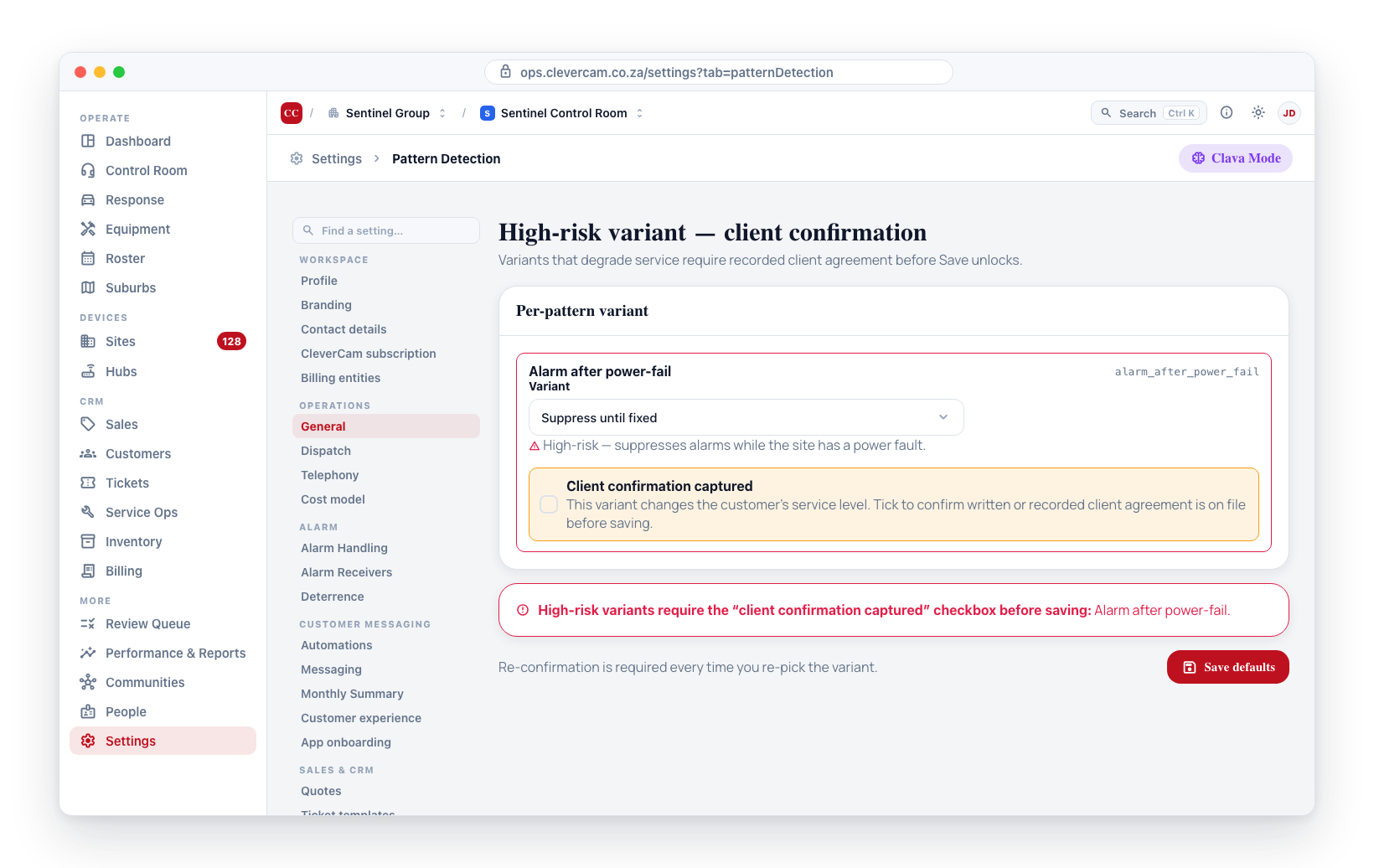
- Chronic no-answer → Explicit request only
- Alarm after power-fail → Suppress until fixed
- Alarm after power-restore → Suppress until fixed
- Isolated (no cluster formed) → Silent resolve until fixed
When you select any of these, a yellow-highlighted "Client confirmation captured" checkbox appears. The Save button refuses to save until this checkbox is ticked, on the basis that the customer must have written or recorded agreement on file before service is degraded. Picking the variant again after the previous save un-ticks the checkbox automatically — re-confirmation is required each time.
The confirmation flag is persisted alongside the variant in default_sop_variants[patternType].payload.clientConfirmed.
Cluster size (per pattern)
Cluster size — the minimum number of same-kind raw signals the sleep handler waits for within a 10-minute window before forming a temporal cluster — is now tuned inside the pattern it feeds, directly under that pattern's variant dropdown:
- Alarm after power-fail carries the
power_failcluster size. - Alarm after power-restore carries the
power_restorecluster size.
Typical value is 3 (default). Raise to 5+ for VCRs with low event density to suppress accidental clusters of unrelated signals. Leave the input blank to use the system default (3); values are clamped between 2 and 50.
Other signal clustering
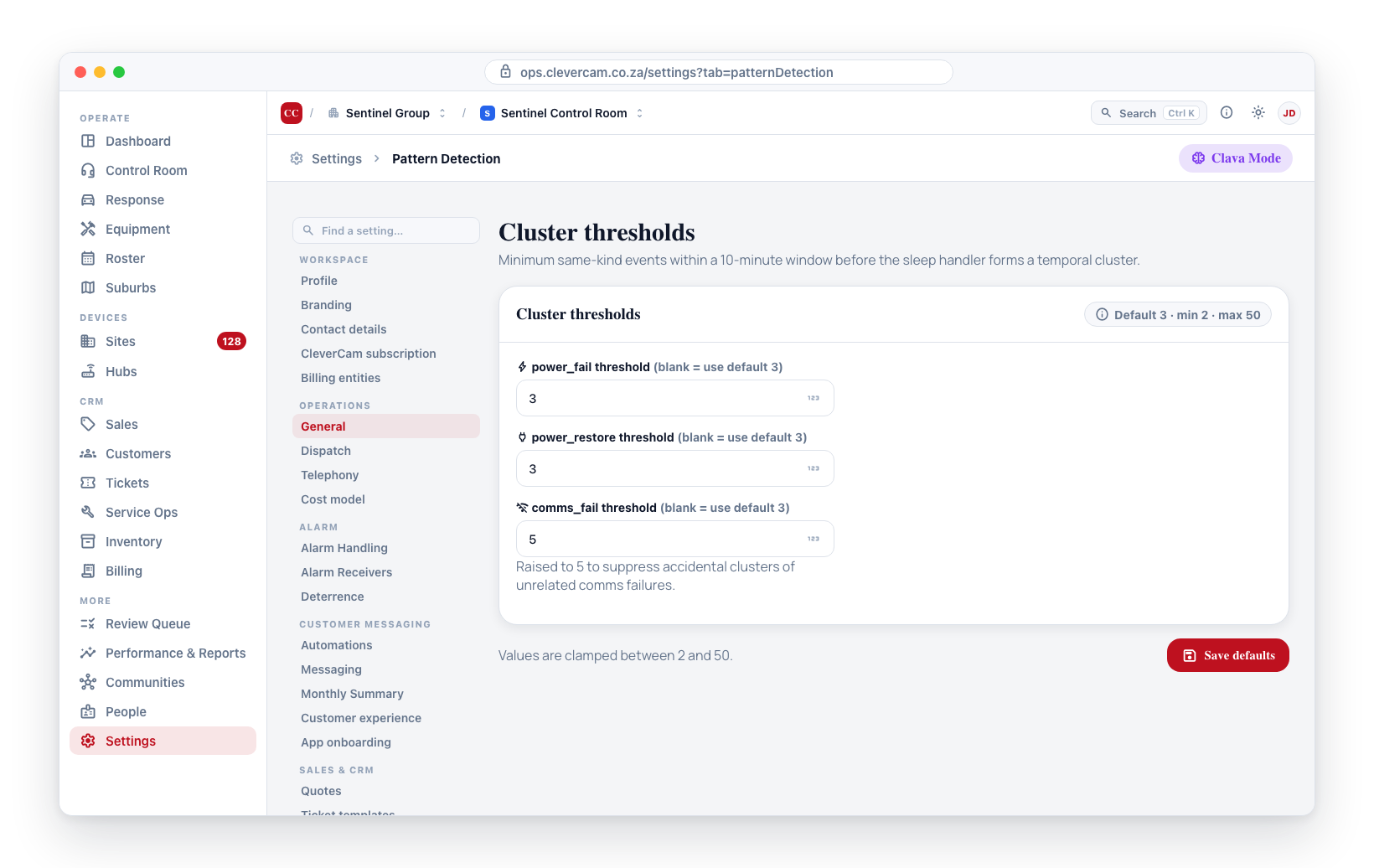
Signal kinds that form temporal clusters but aren't tied to a learned pattern above appear in a small Other signal clustering block at the bottom of Event handling:
- comms_fail — communications-failure clusters. Default 3; same 2–50 clamp.
This block only renders when there is at least one such orphan kind.
Saving
Each surface has its own Save:
- Event handling → Save defaults writes the learned-pattern variant keys of
default_sop_variants(a JSONB column keyed by pattern_type) andcluster_thresholds(a JSONB object) on thevirtual_control_roomsrow. - Response SLAs → Save SLA defaults writes the
event_*timing keys of the samedefault_sop_variantscolumn.
Because the two tabs share the default_sop_variants column, each Save is read-modify-write: it re-reads the column and merges only its own keys, so saving one tab never clobbers the other's values.
Common save errors:
- Permission denied — your account doesn't have the
manage_vcrpermission for this VCR. Ask a company-team-member or supervisor. - High-risk variants require confirmation — at least one high-risk variant is selected without its client-confirmation checkbox ticked. The error message names the affected patterns.
What happens after saving
The new defaults take effect on the next sleep transition for matching events. Existing sleeping events keep their original routing — only newly-sleeping events read the updated default_sop_variants.
Per-site overrides still take precedence: if a site has an active row in site_sop_overrides for a given pattern, that row wins regardless of what you set here.
Related
- Dispatch Limits — companion Clava-Mode setting for the dispatch consent gate.
- Site SOP panel → Smart pattern overrides — per-site override of the variants set here.
- Review Queue (Performance) — surfaces
pattern_recurringmanagement events that this VCR's pattern detectors have flagged.