Trackers
GPS trackers are devices installed in response vehicles (or carried by responders) that report their position in real time. The Trackers page in CleverOps provides two ways to view your tracker fleet — a list view for managing tracker details and a map view for seeing where everything is on a map. Accurate tracker data is essential for efficient dispatch routing, ETA estimates, and operational visibility.
A tracker is owned by either a VCR or a site, and you only ever see trackers that belong to you:
- VCR-owned trackers — your control room's own fleet trackers (for example the response vehicles you run). They are visible only inside that VCR.
- Site-owned trackers — trackers attached to a specific site. They are visible to companies and responders that monitor that site.
Each tracker also carries a category that sets its CleverCam price — Fleet (your control room's own vehicles, VCR-owned) or Resale (sold on to a consumer, attached to that consumer's site).
You will not see, edit, or be able to link another company's VCR fleet trackers. This scoping is enforced both in the page and at the database level.
Dual View Interface
The Trackers page offers two ways to view your tracker fleet:
List View
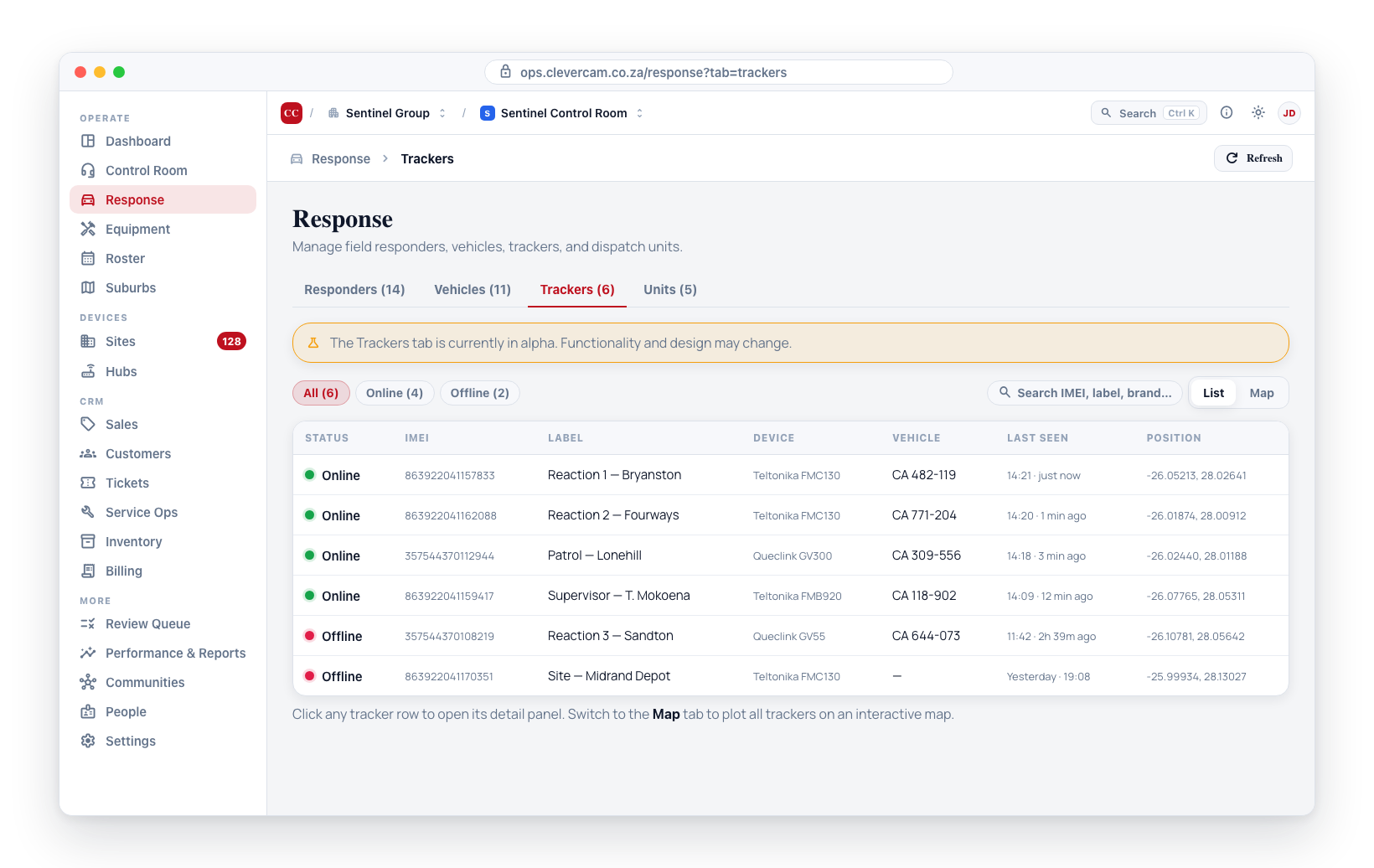
The list view shows all trackers in a table, one line per tracker:
-
Navigate to Equipment in the sidebar and click the Trackers tab.
-
By default, the list view is displayed. The count at the right of the bar — 18 of 23 — is how many trackers match the filters and search, of every tracker on your control room.
-
Every column the list can show is below; Columns ▾ decides which ones you see. Click a row to open the tracker.
The columns you start with:
- Status -- Online or Offline (hover for when it was last heard from)
- IMEI -- The tracker's unique device identifier. This column is always shown.
- Label -- A descriptive name for the tracker
- Device -- The tracker's brand and model
- Vehicle -- The vehicle this tracker is fitted to, or Not fitted
- Last seen -- When the tracker last reported, as Just now / 5m ago / 2h ago / a date (hover for the exact time)
- Position -- The last reported location coordinates
The columns that start switched off — each read from the tracker's last report, so a device that has not sent the reading shows a dash:
- Kind -- Tracker or Dashcam
- Speed -- km/h in the last report
- Ignition -- On or Off in the last report
- Battery -- The backup battery level as the device reports it (for example Extremely high, or Level 4)
- SIM (reported) -- The ICCID the device last reported
- Reg on tracker -- The free-text registration written on the tracker record — a note, not the vehicle link (see the note below)
- Category -- Fleet or Resale, which sets the CleverCam charge
- Armed -- The Armed flag CleverOps stores on the tracker
- Added -- When the tracker record was created
- Tracker ID -- The tracker's record number, for support queries
Choosing your columns
The list does not show all of those at once. Columns ▾, at the right of the bar above the table, is where you decide which ones it shows — tick a column to bring it in, untick it to hide it. The button says how many are currently hidden, so a column somebody switched off is never a mystery. IMEI is listed too, ticked and greyed with always beside it: it cannot go, and the list says so rather than leaving it out.
Put them in the order you read them. The ↑ and ↓ beside each column in Columns ▾ move it one place; a column heading's own menu (the small ▾ that appears when you hover a heading) has Move left and Move right for the same thing. IMEI stays where the list put it, but other columns may move past it.
Your choice is yours alone and it follows you. Columns, their order and the sort are saved against your login, not the browser, so the list looks the same on the control-room machine and on your laptop, and changing it does not touch what your colleagues see. Reset to default view puts everything back.
Sorting the list
Click a column heading to sort by it; click it again to reverse. An arrow marks the column the list is sorted on. The heading's ▾ menu offers the two directions by name — A → Z / Z → A for text, Newest first / Oldest first for dates, Online first / Offline first, Fastest first / Slowest first and the like for readings — so you never have to click twice to get the one you meant.
These headings sort: Label (the default; a tracker with no label sorts by its IMEI), Status (online first / offline first), IMEI, Device, Vehicle, Last seen, Kind, Speed, Ignition (on first / off first), Battery (fullest first / lowest first), Reg on tracker, Category, Armed (armed first / unarmed first), Added and Tracker ID.
Every tracker on your control room is loaded on this page, so a sort orders all of them, not just the ones on screen. A tracker with nothing to sort on — never heard from, not fitted, no speed in its last report — always sits at the bottom, whichever direction you pick. Like your columns, the sort is saved against your login.
Position and SIM (reported) are not sortable; their menu says so.
Filtering from a column
A column's ▾ menu is also where its filter lives. Pick a value and the list (and the Map view) is filtered; the heading's ▾ turns solid while a filter is set, and a chip naming the filter appears in the bar — even if you later hide the column — with × to clear it.
- Vehicle -- Fitted to a vehicle or Not fitted
- Kind -- Tracker or Dashcam
- Category -- Fleet or Resale
The Status column reaches the same All / Online / Offline filter as the chips in the bar, from its heading. Column filters are session-scoped — they clear when you leave the page.
When nothing matches, the list says No trackers match rather than No trackers, so an over-tight filter or search is never mistaken for an empty fleet.
Exporting the list
Export CSV, beside Columns ▾, downloads the trackers that match your filters and search — both buttons belong to the table, so they appear in List view only — in the order the list is sorted, with the columns you have showing — in your order, with IMEI always first. Times are written as 2026-09-11 14:05 so a spreadsheet reads them as dates; Device exports as two columns (brand, model) and Position as two (latitude, longitude). The file is named trackers-<date>.csv.
Map View
The map view plots all trackers on an interactive map:
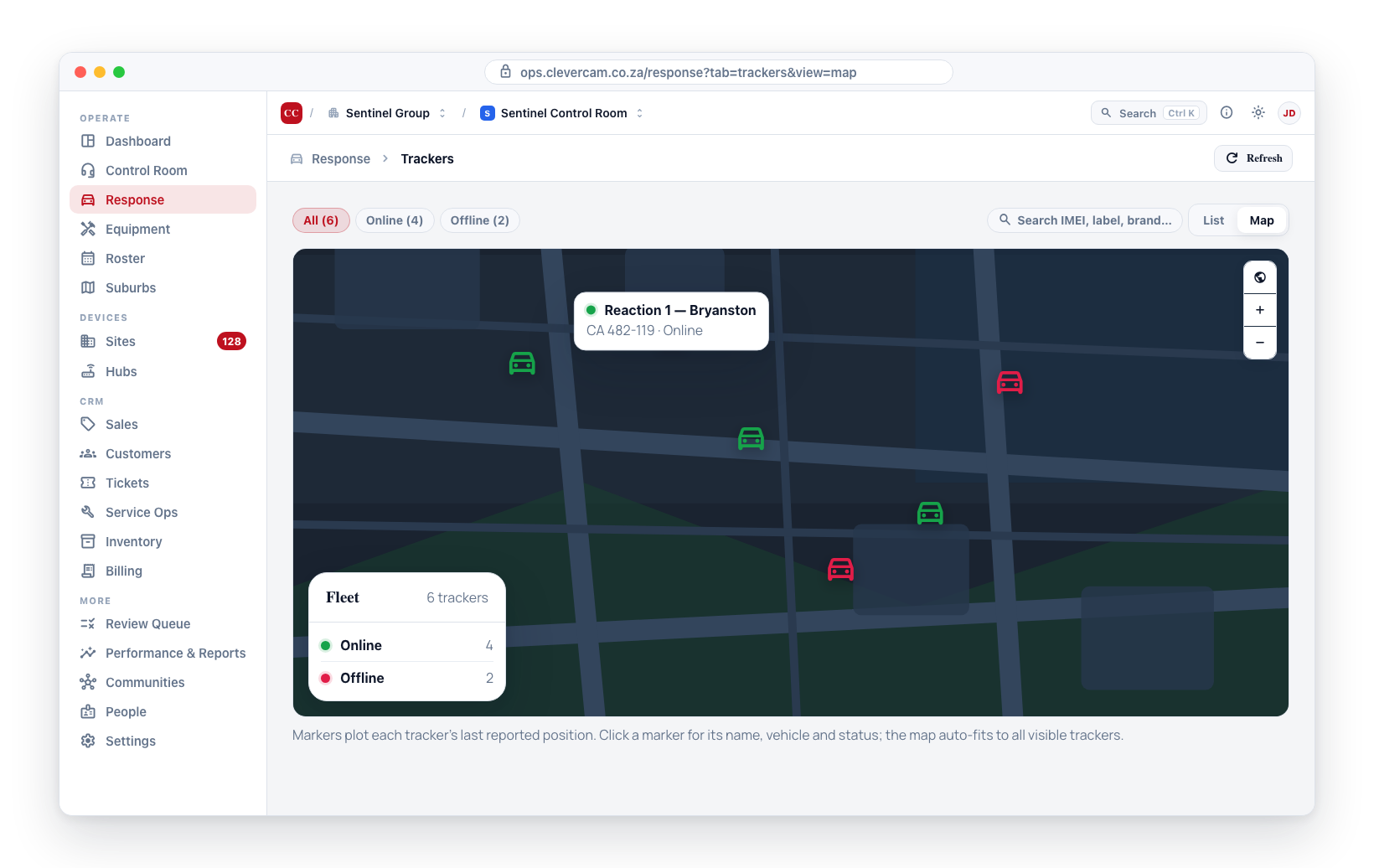
- Click the Map tab to switch from list view to map view.
- Each tracker appears as a marker at its last reported position. Online and offline trackers use different marker colours.
- Click on a marker to see a popup with the tracker's name, vehicle registration, and online status.
- The map automatically zooms to fit all visible tracker markers.
- Use the globe button on the top right of the map to swap between the default street view and satellite imagery — useful for spotting vehicles against landmarks, parking lots, or rural property lines.
The map view is particularly useful during active operations. At a glance, you can see where all your response resources are positioned and identify the nearest unit to a new event.
Filtering Trackers
Use the filter controls to narrow down the tracker list:
- Status filter -- Show only Online trackers, only Offline trackers, or all. The same choice is offered from the Status column heading's ▾ menu, and the Vehicle, Kind and Category headings carry filters of their own — see Filtering from a column.
- Online means the tracker has been heard from recently. The allowance is sized to the device: a GT06 tracker heartbeats every five minutes when parked, so it counts as online until it has been quiet for 11 minutes; a dashcam reports presence every two minutes, so it is offline after 5. A parked vehicle stays online — it is heard from, it just has nothing new to say.
- Offline trackers have stopped communicating — they may have a flat battery, poor signal, or be switched off.
Tracker Details
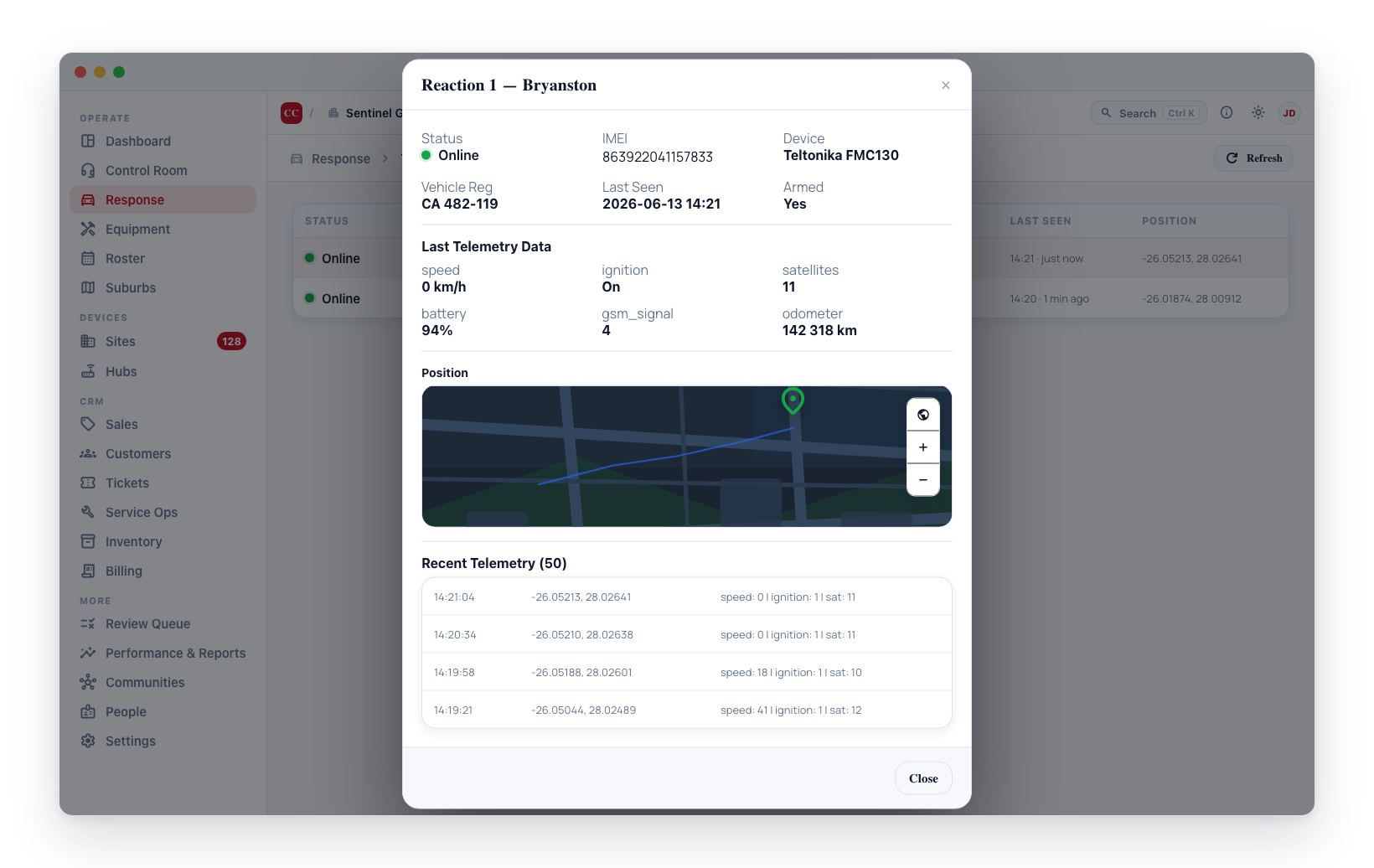
Click on any tracker row in the list to open a detail panel with more information about that tracker.
Editing a tracker
Directly under the summary, a Manage section lets you change the tracker's operational details:
- Label -- The descriptive name shown in the list and on map markers.
- Vehicle reg -- The registration written on the tracker record itself.
- Fitted to vehicle -- The vehicle this tracker is installed in. A tracker is fitted to exactly one vehicle, so the picker only offers vehicles that are free, plus the one already wearing this tracker. Selecting Not fitted to a vehicle releases it. This is the same link you can set from the Vehicles tab — either end works.
- Armed -- Whether the tracker is armed.
- Ignition input permanently powered (EV) -- Tick this for vehicles whose ignition wire is live whenever the vehicle has power, such as electric vehicles or hard-wired installs. The tracker's ignition signal then says nothing about driving, so trips start on movement and end after 5 minutes standing still (see Trips below). Leave it off for a normal key-switched vehicle.
Click Save changes to apply them. The Manage section only appears if you have permission to manage the fleet or the control room; without it the panel is read-only.
Trips
Under the map, the detail panel lists the tracker's recent trips. A trip is one ignition cycle — from the moment the vehicle starts to the moment it is switched off. Each row shows the distance driven, top speed, how long the vehicle was moving versus idling, and how the trip ended.
A vehicle that stops with its engine running is not treated as having finished its trip. Sitting at a site for twenty minutes with the ignition on is normal work, so those periods are recorded as stops within the trip rather than splitting it in two. The exception is a tracker marked Ignition input permanently powered (EV): its ignition signal never switches off, so a trip ends once the vehicle has stood still for 5 minutes.
The way a trip ended is shown because the difference matters:
| Ended | What it means |
|---|---|
| Ignition off | The normal case — the driver switched the vehicle off. |
| Power lost | The tracker was unplugged or lost power. Worth investigating. |
| Stopped moving | The vehicle stood still long enough to call the trip over — 5 minutes on a tracker whose ignition input is permanently powered, 15 minutes as a safety net on a motion-inferred trip. The trip is closed at the last point the vehicle was moving. |
| Device silent | The tracker stopped communicating for 20 minutes. The trip is closed at the last point it reported, not at the moment we noticed, so the distance and duration stay honest. |
| Max duration | The trip ran past 24 hours without ending — usually a device fault. |
Trips marked motion-inferred were started by movement rather than by an ignition signal. This happens when the ignition-on message was missed, or on trackers with no ignition connection at all. They are labelled because they are a slightly different measurement and should not be mixed with ignition-based trips when comparing units.
Recent positions
Below trips, the panel lists the tracker's most recent reported positions with speed, ignition state and satellite count.
Some rows show no GPS fix. This is normal and is deliberately kept rather than hidden: a tracker that has just woken up often reports an event — an ignition-on, a panic, or a tamper — seconds before it has found the satellites to say where it is. Those records are stored with no position rather than being given a guessed one, so an alarm is never silently lost and never shown at coordinates the device did not actually report.
Refreshing Tracker Data
Click the Refresh button at the top of the Trackers tab to reload all tracker data.
Provisioning & managing trackers
Trackers (and their managed SIMs) are bought by CleverCam and issued by a super admin to your control room — you do not add a blank tracker yourself. New devices that report telemetry before they have been issued surface for the super admin to claim on the Global Trackers page; until they are claimed, their telemetry is dropped.
Moving a tracker to a different control room is also a super-admin action — see Reassigning a tracker. The tracker keeps its SIM and history, but it is unfitted from its vehicle on the way out, so the receiving control room re-fits it from their own Vehicles page.
Once a tracker has been issued to your VCR (or to one of your monitored sites), your supervisors and company members manage it here:
- Open the Trackers tab and click a tracker row to open its detail panel.
- The panel shows the tracker's category (Fleet or Resale), its SIM status, position, and recent telemetry.
- Supervisors and company members see a Manage section to edit the label, vehicle registration, fitted to vehicle, and armed state. Click Save changes to apply.
Fitting a tracker to a vehicle
A tracker and a vehicle are one-to-one: a tracker is fitted to at most one vehicle, and a vehicle carries at most one tracker. You can set the link from either end — whichever you happen to have open:
- From the tracker — open the tracker and pick from Fitted to vehicle. Only vehicles that are free (or the one already carrying this tracker) are listed.
- From the vehicle — open Vehicles, edit the vehicle, and choose its tracker.
Moving a tracker to a different vehicle releases the previous one automatically.
The Vehicle reg field in Manage is a free-text note stored on the tracker itself. It does not link anything. The Vehicle row — and the Vehicle column in the list — show the actual vehicle the tracker is fitted to.
Device status
Below Manage, Device status translates the tracker's latest report into plain readings — speed, heading, ignition, GPS fix, satellites, signal, battery, charging, external power, whether the device is armed, and its last alarm. Green is healthy, amber is worth a look, red needs attention.
Ignition is read from every report the tracker sends, including the heartbeats a parked vehicle sends between positions. Once a vehicle has sent no positions for five minutes and its reports say the ignition is off, it is shown standing still at 0 km/h and its trip ends at the last position it reported, even if the tracker never sent a separate ignition-off message. Short stops do not split a trip: a report saying "ignition off" while the vehicle is still moving, or within five minutes of its last position, is ignored. A vehicle that stopped reporting positions while its last position still said "18 km/h" no longer reads as moving for hours.
Two of these are easy to misread:
- GPS fix can be No while the satellite count looks healthy. That means the position shown is the last known one, not a live one.
- Device armed is the tracker hardware's own state, which is separate from the Armed flag CleverOps stores at the top of the panel.
Not every reading appears every time. Trackers send different packet types, and only some carry the full picture — the readings shown are whatever the most recent report contained. Raw telemetry below it expands to the complete, unedited payload.
CleverCam bills your control room a monthly fee per tracker, priced by category (Fleet vs Resale). These charges appear on your Settings → CleverCam subscription breakdown alongside hub charges.
Dashcams
A dashcam is a tracker with cameras. Jimi's AI dashcams (JC270, JC371, JC181/182, JC450/451) report position, speed and driver-safety alarms exactly like any other tracker, so they appear in the same Trackers list, are fitted to a vehicle the same way, carry the same SIM, and are billed on the same per-tracker fee. Everything on this page already applies to them.
What they add is a Camera section inside the tracker's detail panel. It only appears for a dashcam.
What the Camera section tells you
| Row | What it means |
|---|---|
| Camera link | Whether the camera currently holds a connection to CleverCam. This is separate from the tracker's Online/Offline status at the top of the panel — a unit can be reporting position while the camera link is down. |
| Model | The model the device reported when it registered, e.g. JC270. |
| Channels | How many cameras the unit has. On a JC270 this is 2 — one facing the road, one facing the cabin. |
| Firmware | The software version on the device. |
| Protocol | Which version of the camera protocol it speaks. |
| Last authenticated | The last time the camera identified itself to CleverCam. |
The camera count is recorded once and then read back, not asked for again — a unit cannot grow a camera, so there is nothing to re-check. CleverOps prefers the device's own answer; where the device will not give one it is recorded from the model's published specification instead, and the panel says which underneath the camera picker.
A JC270 does not answer that particular question — its firmware simply does not implement it — so its count comes from the specification. It is stored against the device the moment it is added, so CleverResponder shows the same number and the same camera names without asking anything of the unit. If a device ever does answer for itself, its own answer replaces the documented one from then on.
Which lens is which comes from the same place. A dashcam model is a device type with a capability profile, the same as a CCU or a communicator, and that profile names the cameras — which is why a JC270's picker reads 1 — road and 2 — cabin rather than just 1 and 2. A model whose profile does not name its cameras simply shows the numbers.
Because of that, Capability check only appears for a model whose camera count is not already known. On a JC270 it would never return, so the button is not offered.
Asking the camera for something
Supervisors and company members see these actions. Pick the camera first — on a JC270, 1 is the road-facing lens and 2 faces the cabin.
- Take a snapshot — asks for a still from the selected camera. It arrives under Footage.
- Check the camera — asks the unit to report its own state. See Camera health.
- Get n seconds from camera n — fetches a recording off the camera's memory card. See Requesting footage.
- Backup reboot — restarts a camera that has stopped connecting, by text message to its SIM. See Backup reboot.
- Capability check — asks the device what it supports, and fills in Channels. Only shown when the camera count is not already known for that model.
Every one of these is a request, not an instant result. The camera has to be reachable for it to be delivered, so each one appears under Camera requests with its progress:
| Status | Meaning |
|---|---|
| waiting for the device | Queued. Nothing has reached the camera yet. |
| sent to the camera | On its way. |
| camera answered | The camera acknowledged it. |
| failed | It could not be sent or the camera refused it. The reason is printed underneath. |
| expired unsent | The deadline passed and the request never reached the camera at all — the unit did not reconnect in time. |
| no answer from the camera | It did reach the camera, and the camera never replied before the deadline. Usually means the unit dropped its connection between being handed the request and acting on it. |
If you file a request while the camera is offline it is still accepted, and CleverOps tells you it will expire in five minutes if the unit does not reconnect.
Live view streams the selected camera over the vehicle's cellular connection and plays in the browser. Press Live view; it takes a few seconds for the picture to appear while the camera opens its video channel.
The line under the player says exactly where the request is, from the server's own record rather than from whether the picture happens to be moving:
| Under the player | What is happening |
|---|---|
| Asking for camera 1… | The request is being filed. |
| Waiting for the camera to pick up the request (12s)… | It is queued but the camera has not taken it yet — the unit is quiet or between check-ins. If the camera is not connected at all the line says so; the request waits 90 seconds for it to reconnect, then gives up. |
| Sent to the camera, waiting for it to answer… | On its way over the cellular link. |
| Camera 1 accepted — waiting for the first picture (3s)… | The camera said yes and is opening its video channel. Normally one to three seconds. |
| The camera accepted the request but no video has arrived in 21s. | No picture came within 20 seconds of the camera saying yes, so CleverOps closes the channel again rather than leave it costing data, and offers Try again. The seconds are counted on your own screen from the moment it saw the camera answer, so a computer whose clock is wrong does not cut the wait short. |
| Live · 1.1 Mbit/s · 25 fps | Video is flowing, at the rate it is costing the vehicle's data. |
| Video paused — nothing from the camera for 5s… | The picture has stopped arriving although the connection is still open. |
| Camera link stalled — reconnecting (attempt 1 of 2)… | The camera's link stopped carrying video for about five seconds, so the stream was closed and CleverOps is asking for it again. It tries twice on its own; after that the panel says the link is poor and offers Try again. |
You can change the Camera picker while you are watching, and the view follows: CleverOps closes the camera you were on and opens the one you picked. That is another few seconds' wait, because the unit only sends a camera it has been asked for.
Live view has sound: what the camera's microphone picks up in the cab comes with the picture, and the player starts with it on. If the browser starts the player muted — some do until you have clicked on the page — a line under the player says so, and the speaker button on the player turns it on. The microphone is quiet on these units, so a parked, empty vehicle sounds close to silent. Sound adds very little to the data the stream uses.
It costs the vehicle's data — roughly 8 MB per minute, about half a gigabyte an hour, per camera. Stop live view (or closing the panel) tells the camera to close the channel immediately, so leave it running only while somebody is actually watching.
Pressing Live view while a request for that camera is still on its way does nothing extra — the button reads Requesting… until the camera has answered, and however quickly it is pressed the camera is only ever asked once. Opening the panel again while a stream is already running will not restart it either; CleverOps reuses the stream that is already flowing rather than making the camera reconnect.
Because that data is the customer's, no live view is allowed to run indefinitely. Four rules close one for you, and none of them depends on anybody remembering to press Stop live view:
- Nobody is watching. Once every person with the camera open has been gone for about ten seconds — including someone whose browser was closed, whose phone died, or who simply walked away — the camera is told to stop. A stream somebody else is still watching is never cut.
- The tab went into the background. Switching to another tab, minimising the browser or locking the screen stops your live view straight away, and the panel says so when you come back. If you genuinely need it to carry on — a second monitor, say — tick Keep streaming in the background under the player before you switch away.
- The camera's link stalled. If the video stops arriving for about five seconds while the connection is still open, the stream is closed rather than left frozen, the camera is told to stop, and CleverOps retries for you up to twice. If it still cannot get a picture the panel says the link is poor where the vehicle is and leaves it to you to Try again.
- Three minutes. No stream runs longer than three minutes, even while you are watching it. The player counts this down — Stops automatically in 2:41 — so it does not end without warning, and when it does the panel says so and offers Watch again, which starts a fresh three minutes.
All of these are enforced by CleverCam, not by the browser, so they still apply if the page is closed, crashes, or loses its connection — closing the tab or reloading the page also sends the stop on its way out. Three minutes is the platform default and a super administrator can change it.
When a view has ended for any of these reasons the note under the button says which, and the button offers Watch again (the stream ended for a reason of its own) or Try again (the camera or its link failed).
Camera health
A dashcam does not volunteer anything about itself — it has to be asked. CleverCam asks it by itself whenever the last answer is more than six hours old: a minute or two after the camera connects, or in the course of a connection that stays up, so a connected camera's panel keeps itself current. Press Check the camera (or Check again) for an answer from right now. The unit answers in a second or two and the panel fills in:
| Memory card | How much space is free of how much total, or No memory card with when the camera was checked (checked 2 hours ago). This is the one that decides whether asking for footage can work at all — there is nothing to fetch without a card. A nearly-full card is normal and the panel says so: these cameras record in a loop and overwrite the oldest footage. |
| Lenses connected | Which cameras are physically plugged in. A unit that should have two and reports one has a cable off. |
| Recording | Which cameras are actually recording. A lens that is connected but not recording is saving nothing, so there will be no footage to ask for later. |
| Mobile signal | The unit's own description of its signal. A weak one makes footage slow to arrive and live view prone to stalling, which is usually the explanation when either misbehaves. |
| Power | Supply voltage, and whether the ignition is on. |
| Satellites | How many the unit can see. |
| Firmware | The exact build running on the unit. |
| Reporting to | The server the camera believes it belongs to. If this is not CleverCam's receiver the unit will not answer anything you ask of it, and the panel says so in red — the fix is a site visit, because a camera pointed elsewhere cannot be pointed back remotely. |
| Camera clock | The unit's own time and timezone. |
| Trips recorded, Processor, SIM | Reference detail. |
The heading says when the camera last answered. Each automatic ask costs a few hundred bytes of the vehicle's data, and a camera that is switched off or out of coverage is asked the next time it connects.
No memory card is what the camera said when it was asked, and a card fitted since does not show until it is asked again. So:
- Said within the last day, it is shown in red, and Request footage here, Get footage on the vehicle's Day strip, Mark moment in live view and the evidence card's fetch are all unavailable, each saying when the camera was checked.
- Said more than a day ago, it is not trusted. It is shown in plain type with its date and Too old to rely on, and footage can be requested as normal — if the card really is missing, the request fails at the camera.
Just fitted a card? Press Check again and the answer changes straight away.
It is the cheapest call on the panel and it answers the two questions that decide whether a footage request can succeed: is there a card in the unit, and was that camera recording at the time you care about.
Requesting footage
Request footage fetches a recording off the camera's own memory card and saves it under Footage. This is not live view: it is the footage the camera already recorded, at full quality, and it is kept.
- Pick the camera in the Camera picker above.
- Set From to the moment you want. It defaults to five minutes ago.
- Choose a Length. Each option shows what it will cost in data.
- Press Get n seconds from camera n.
If the camera reported No memory card within the last day, the button is unavailable and the line above it says so, with when it was checked. Fit a card, press Check again under Camera health, and the button comes back.
The camera takes a few seconds to answer and then sends the clip at roughly the speed it was recorded, so a twenty-second request usually lands within a minute. It appears under Footage once it is safely stored, and the request itself shows its progress under Camera requests like any other.
Clips have sound when the camera recorded it — the unit's microphone records alongside the picture unless it has been switched off on that camera. Clips fetched before 23 September 2026 are silent: until then the camera was only ever asked for the picture.
If you are not sure there is a recording covering the moment you want, press What is on the card around then. The camera lists what it holds for the hour either side, with the length of each, and Use this start fills the From field in from whichever one you pick. A vehicle that was parked and shut down has gaps: these units only record while they are powered.
The memory card holds the camera's full-quality recording — far better than the live view, and about 30 MB a minute. That is why the length you pick is shown in megabytes on the button itself, and why the longest single request is one minute.
Ask for the shortest window that covers what you need. If you need more, ask again for the next stretch rather than pulling a long clip you will not watch.
A camera serves one footage request at a time. Asking for a second while one is still coming tells you to wait for the first — two at once would only spend twice the data.
The clip stops at the length you asked for, and that limit is enforced by CleverCam rather than by the camera: left alone, these units play on past the end of the window. So the figure on the button is what will actually be spent, not a best case.
A clip cut short — a vehicle that drives out of coverage halfway through — still arrives and still plays. You get the part that made it.
Backup reboot
Every other action on the panel travels over the camera's own connection to CleverCam, so none of them can reach a camera that has lost that connection. Backup reboot can: it sends a text message saying REBOOT to the SIM in the camera, and a camera that receives it restarts and reconnects, usually within a minute.
Use it when Camera link reads Not connected and stays that way although the vehicle is powered. In CleverResponder the vehicle shows as No signal. If someone is with the vehicle, the camera's orange network light tells you whether it is the right tool:
| Orange network light | What it means | Backup reboot? |
|---|---|---|
| Slow flash | The camera has mobile signal but cannot reach CleverCam. | Yes — this is what it is for. |
| Fast flash | The camera has no mobile network: poor coverage, or a SIM problem. | Unlikely to help until it has signal. |
| Off | The camera is switched off or asleep. | No — nothing is there to receive the text. |
- Press Backup reboot and confirm.
- The attempt is listed underneath and follows the text: Sending the text…, then Sent — waiting for the network to confirm delivery, then Delivered to the SIM at the time the network confirmed it.
- Watch Camera link. Delivered only means the text reached the SIM; the camera being back is Camera link reading Connected again.
A backup reboot can be sent once every 10 minutes, and no more than 3 times in 48 hours for the same camera. While a limit applies the button is unavailable and the panel says when the next one is allowed. A text that could not be sent does not count. The limits are enforced by CleverCam, so they hold however many people have the camera open.
A restart drops any live view and pauses recording while the camera starts up, so it is not for a camera that is connected and working. It needs a SIM with a phone number linked to the tracker; without one the button is unavailable and the panel says why.
Footage
Footage lists every file the camera has delivered, newest first — clips you asked for, stills you asked for, and clips or images the camera uploaded by itself when it raised an event such as a collision. Each row shows when it was taken, which camera, its size, and an Open link.
Footage is stored privately. The Open link is a temporary signed link that works for an hour and only for people who can already see that tracker; it is not a public address you can share.
A camera that has not been added to CleverOps is recorded as an unprovisioned device and its uploads are refused, not stored. Claim the device first and its footage will start arriving. Anything it recorded in the meantime stays on its own memory card.
Alarms
Dashcam alarms — collision, rollover, fatigue, harsh driving, tampering, power loss — are recorded against the tracker like any other tracker alarm, and the most recent one appears under Device status as Last alarm.
These are driver-safety and vehicle events for the back office. They are not intrusion signals: they do not raise a control-room card, do not dispatch a unit, and do not reach CleverCommand.
When the map doesn't appear
Both the Map view and the position map inside a tracker's detail panel need WebGL — the browser feature that draws hardware-accelerated graphics — and they need to reach Mapbox. When either is missing they now say so in place of the map instead of leaving you on an empty panel:
| What you see | What it means | What to do |
|---|---|---|
| This browser can't draw the map | The browser isn't providing WebGL. Most often hardware acceleration is switched off, or the session is running over remote desktop. | Turn hardware acceleration on in the browser's settings and reload. |
| Couldn't reach the map service | The map data didn't download. | Check the connection and reload. On a locked-down machine, ask IT whether api.mapbox.com is blocked. |
| The map service rejected this request | Mapbox turned the request down — the map key needs renewing, or the account is over its monthly limit. | Report it; this one is for CleverCam to fix. |
| Map unavailable | No map key is configured for this environment. | Report it; this one is for CleverCam to fix. |
Nothing else on the page is lost. The List view still shows every tracker with its last seen time and its last reported position, and the Online/Offline filter still works. A tracker's detail panel still opens in full — status, device readings, raw telemetry, trips, and the Manage fields — and where the map would have been it prints the tracker's last known coordinates, so the position can still be read off and looked up elsewhere.