Create a Community
Communities are neighbourhood or suburb-based security networks that connect residents, businesses, and security providers in a shared alert system. Members of a community can view BOLO Board posts, submit their own (subject to role and approval), and — when geo-panic is enabled for them — raise a panic alert to the control room. As a security company, creating communities lets you extend your reach, engage with the neighbourhoods you serve, and provide added value beyond traditional monitoring.
The Overview dashboard
The Communities page opens on an Overview dashboard, with an All communities tab beside it for the searchable list. The Overview reads engagement and moderation across every community in one glance.
- KPIs — Communities (and how many are enabled), total Members, Pending approvals (members awaiting a decision), messages To moderate, Chimes raised in the last 15 minutes, and Active invites.
- Members by community — your largest communities, so you can see where engagement sits; click one to open it.
- Chime activity — a live view of community chimes (camera motion detections shared with the community) raised in the last 15 minutes. Chimes are short-lived and are cleared automatically after 15 minutes, so this is a rolling live window rather than a long-term history.
- Snapshot — active chimes right now, shared cameras, blocked members, and public vs disabled communities.
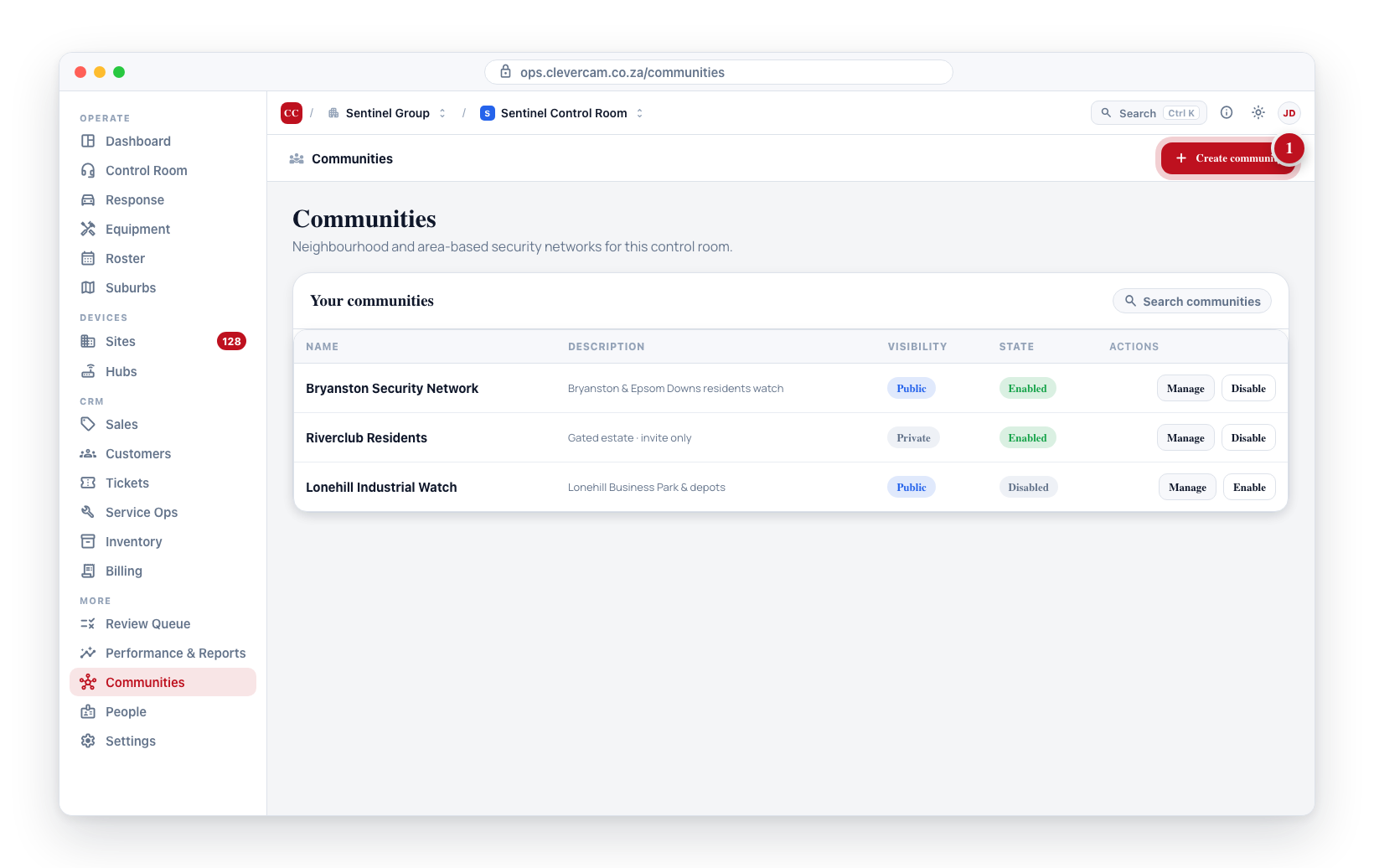
In Communities, click Create community.
What Is a Community?
A community in CleverOps is a group of people connected around a shared geographic suburb or interest. Depending on their role, members can:
- Read the BOLO Board — See approved BOLO ("Be On the Look Out") posts published within the community
- Submit BOLOs — Submit posts for admin review; approved posts appear on the BOLO Board
- Moderate BOLOs — Approve or reject pending posts (moderators and community admins)
- Manage members — Approve, block, remove, or change the role of members (community admins only)
- Receive geo-panic alerts — Get notified when another member triggers a panic event nearby
- Access geo-reports — View aggregated security reports for the community's suburb
Communities can be public (anyone can find and request to join) or private (invitation only).
Step-by-Step Community Creation
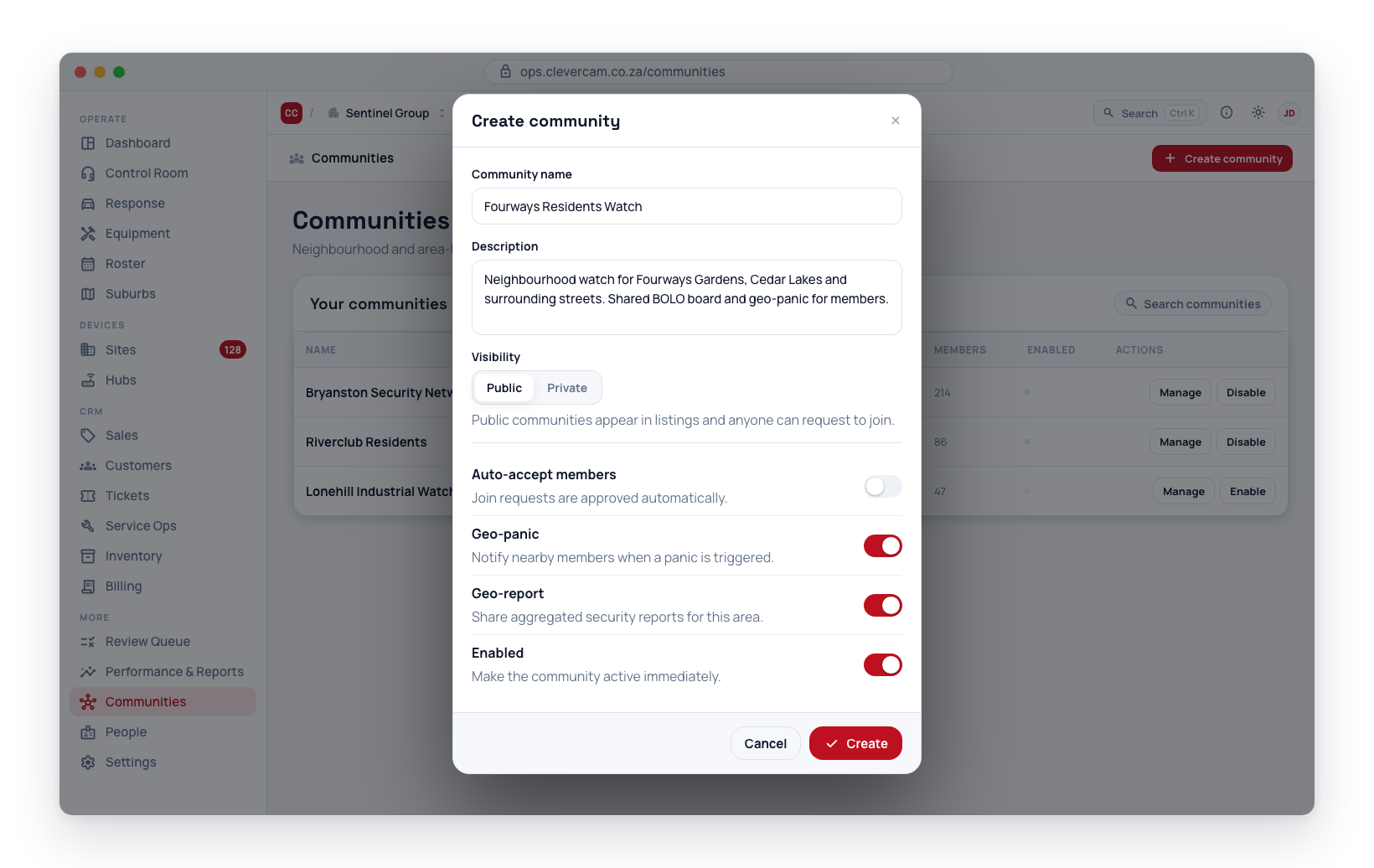
- Navigate to Communities in the CleverOps sidebar.
- Click the Create Community button.
- Enter the community details:
- Community name — Choose a clear, descriptive name (e.g., "Bryanston Security Network", "Industrial Park Watch", "Riverclub Residents").
- Description — Add a brief description of the community's purpose and geographic suburb.
- Set the visibility:
- Public — The community appears in public listings and anyone can request to join.
- Private — The community is hidden from public listings and members can only join via invitation.
- Set Enabled to make the community active immediately.
- Click Save to create the community.
Geo-panic and geo-report access are configured per member or per invite, not at the community level. When adding members or creating invites, you can enable or disable these features individually.
Use names that residents will recognise — suburb names, estate names, or well-known local landmarks. This makes it easier for people to find and join the right community.
After Creating a Community
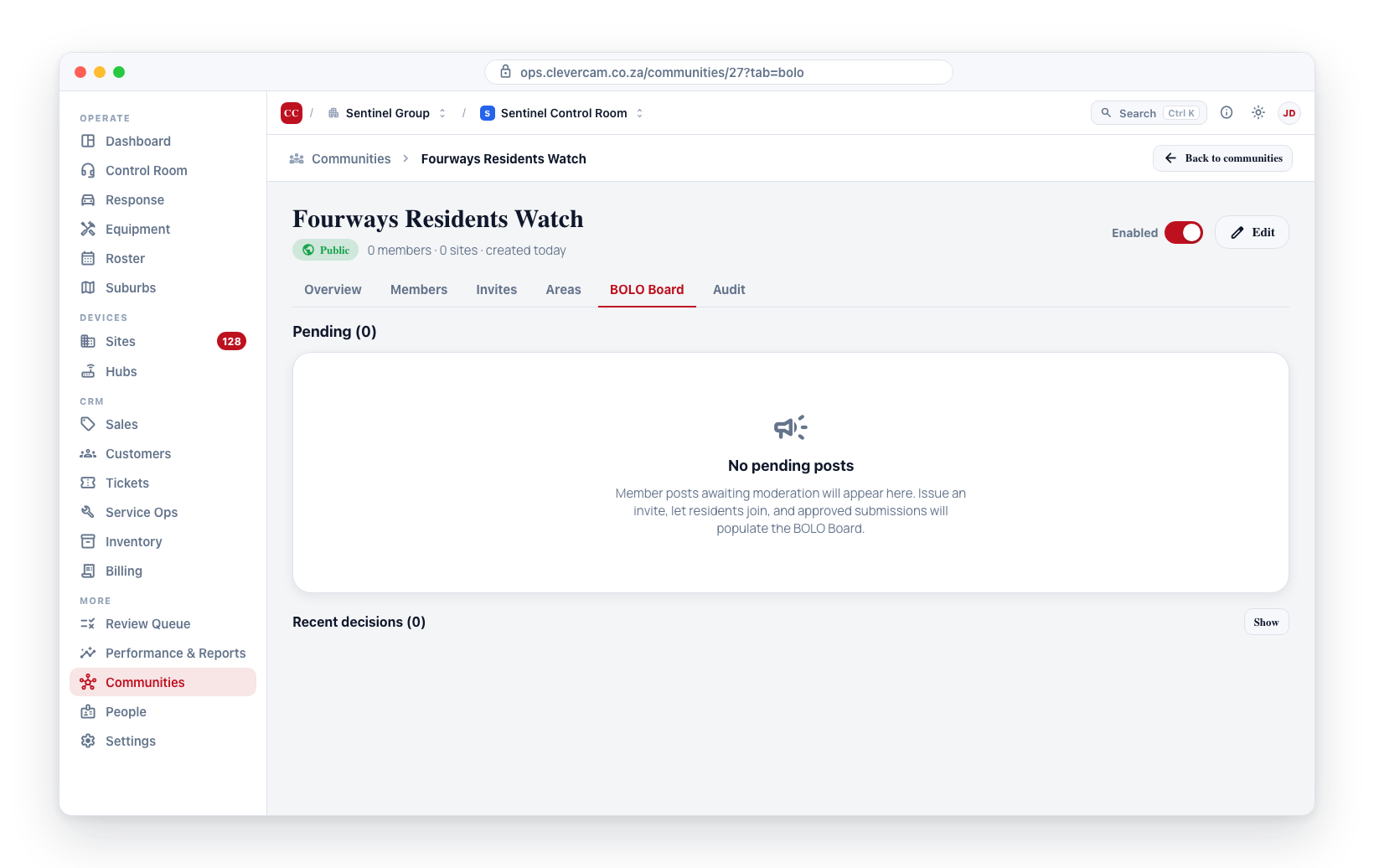
A brand-new community starts with an empty BOLO Board. No posts will appear until invites are issued, members join, and submissions are approved. To get the community active:
- Invite members — Use invite links or QR codes to bring people into the community. See Roles & Invitations for details.
- Assign moderators and community admins — Promote trusted members so you are not the only one reviewing BOLOs or approving members. See Roles & Invitations.
- Share the QR code — Print and distribute QR codes in the neighbourhood for easy joining. See Community QR Codes.
- Set expectations — Let members know BOLOs are reviewed before they go public, so their first submission will not appear instantly.
Public vs. Private Communities
| Feature | Public | Private |
|---|---|---|
| Discoverable in listings | Yes | No |
| Join method | Anyone can request | Invitation only |
| Best for | Open neighbourhoods, large suburbs | Gated estates, corporate campuses, exclusive networks |
| Moderation needs | Higher (more join requests and BOLOs) | Lower (controlled membership) |
Public communities tend to grow faster because people can discover and join them on their own. Private communities give you more control over who participates. Choose based on the community's needs and your moderation capacity.
Community Settings Summary
| Setting | Options | Description |
|---|---|---|
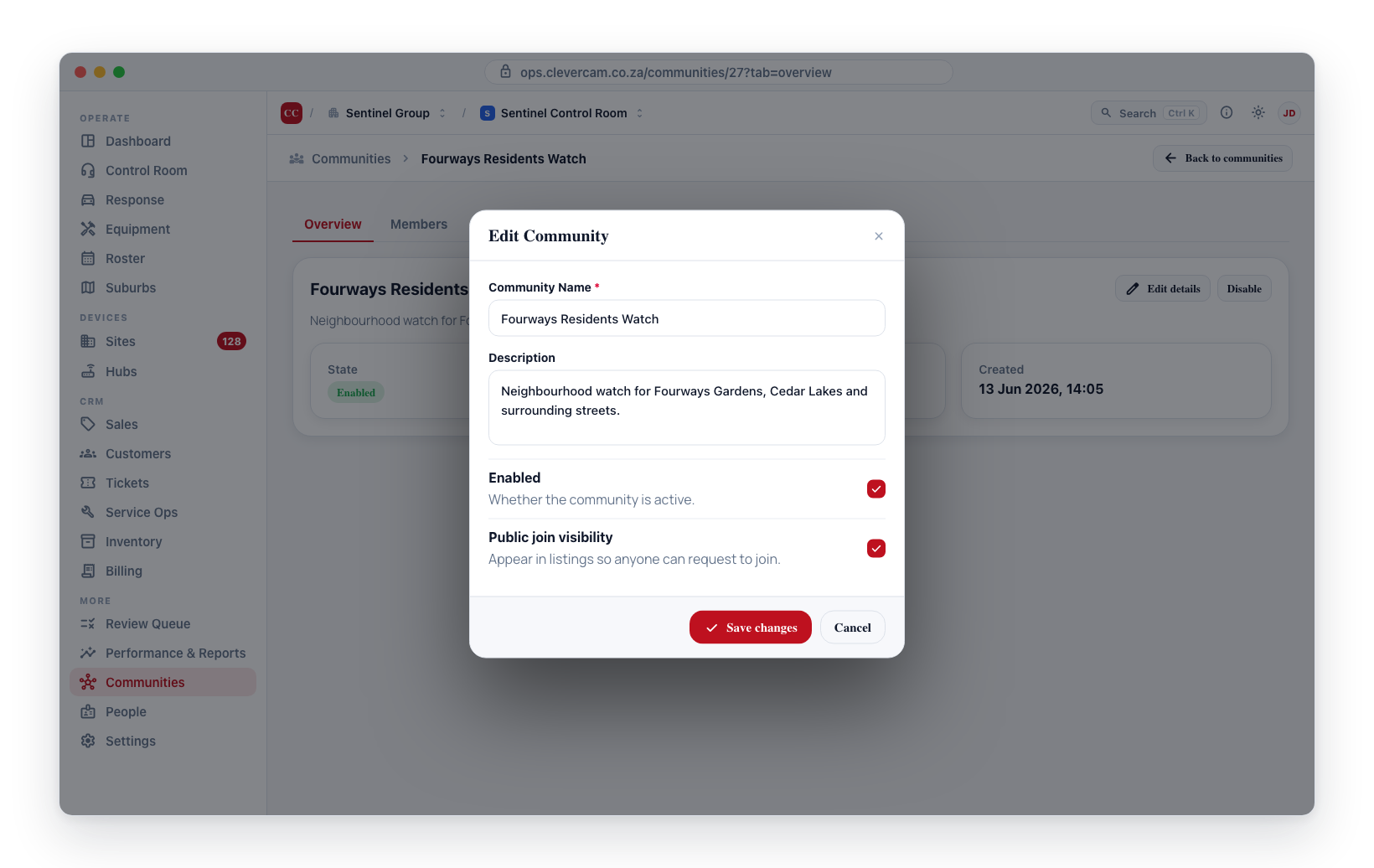
| Name | Free text | The display name of the community |
| Description | Free text | What the community is about |
| Visibility | Public / Private | Whether the community is discoverable |
| Enabled | On / Off | Whether the community is active |