Community QR Codes
QR codes provide a frictionless way for people to join your community. Instead of sharing a link that members need to type or copy, a QR code can be scanned instantly with a phone camera. This makes QR codes ideal for physical distribution — printed on flyers, posted on community notice boards, included in welcome packets, or displayed at neighbourhood events.
Generating a QR Code
- Navigate to Communities in the CleverOps sidebar.
- Click on the community you want to generate a QR code for.
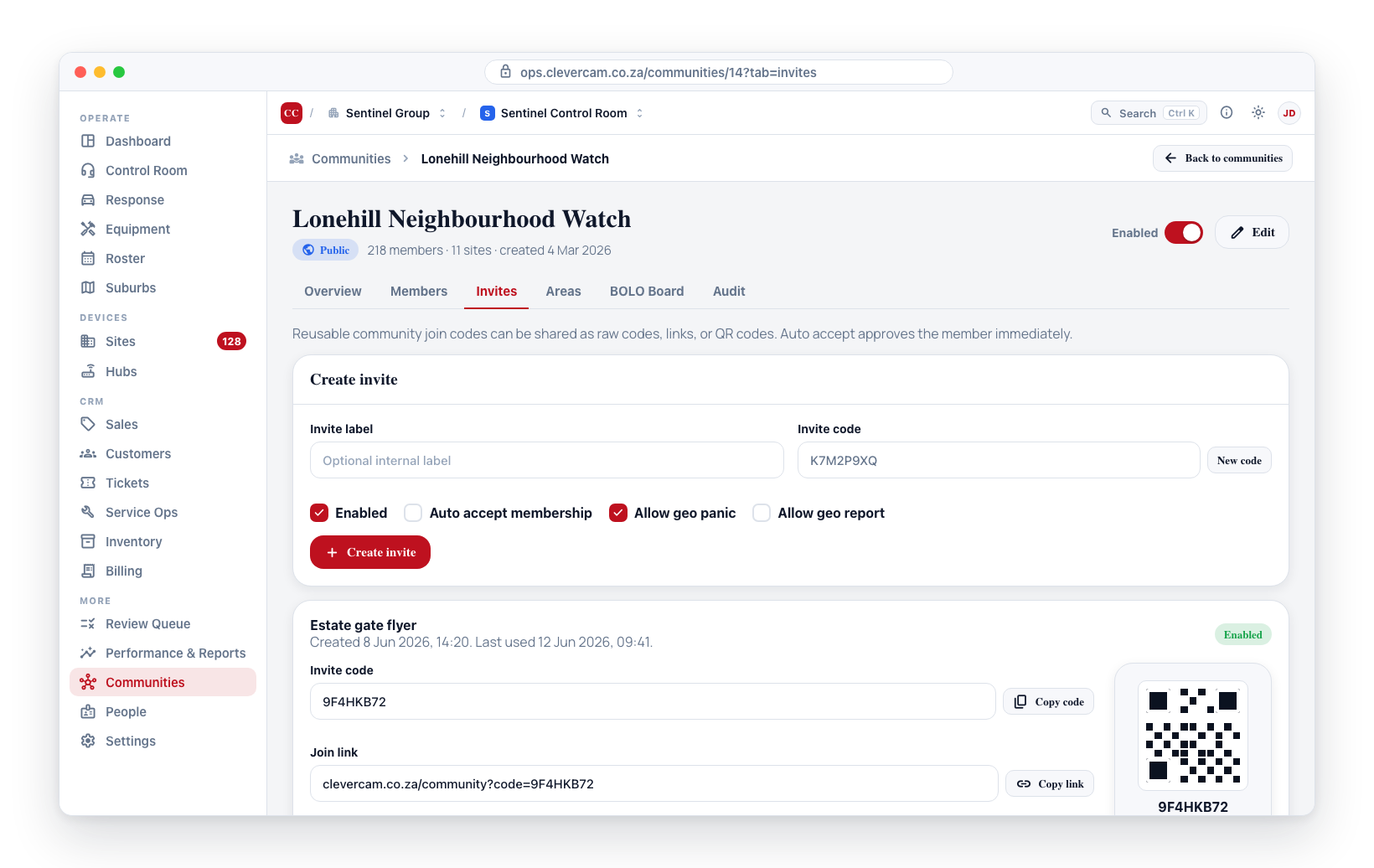
- Open the Invites tab. Create an invite if there isn't one yet (see Roles & Invitations).
- Each invite in the list shows its own QR code on screen, ready to scan, save, or print.
Using the QR Code
Scanning
When someone scans the QR code with their phone:
- They open their phone camera and point it at the QR code.
- The phone recognises the code and presents a link.
- Tapping the link opens the CleverCommunity app (if installed) or directs them to the app store.
- The app opens the community join page for the specific community.
- The person confirms they want to join.
- If auto-accept is enabled and they are a new member, they are immediately added. Otherwise their request goes to the pending queue for a community admin to approve. Members who were previously removed always re-enter via the pending queue, regardless of the auto-accept setting.
Sharing Digitally
You can also share the QR code as a digital image:
- Save or download the QR code image from the generation page.
- Share it via WhatsApp, email, or social media.
- Recipients can scan the image from their gallery using their phone camera or the CleverCommunity app.
Printing QR Codes for Physical Distribution
QR codes are most effective when physically distributed in the community's geographic area. Here are recommended approaches:
Flyers and Pamphlets
- Download or save the QR code image at high resolution.
- Design a flyer that includes:
- The community name
- A brief description of what the community offers
- Instructions: "Scan this code to join"
- The QR code printed large enough to scan easily (at least 3 cm x 3 cm)
- Print the flyers and distribute door-to-door in the neighbourhood.
Notice Boards and Common Areas
- Print a poster-sized version of the QR code.
- Post it on community notice boards, at estate gate houses, in apartment building lobbies, or at local shops.
- Include your security company's branding and contact information.
Business Cards
- Print small QR codes on business cards.
- Hand them out during neighbourhood meetings, security briefings, or community events.
Ensure the QR code is printed clearly with sufficient contrast (black on white background). Poor print quality or low contrast can make the code unscannable. Always test a printed QR code by scanning it yourself before mass distribution.
QR Code Best Practices
- Test before distributing — Always scan the QR code yourself to verify it leads to the correct community.
- Include context — Never post a QR code without an explanation of what it is for. People need to know they are joining a security community before scanning.
- Keep it visible — Place QR codes where people can easily scan them — at eye level, in well-lit areas, and away from obstructions.
- Track effectiveness — Monitor join request spikes after distributing QR codes to measure their impact.
- Refresh if needed — If you regenerate a QR code (creating a new invite link), the previously printed codes will still work as long as the old link remains valid.
Managing Invite Links
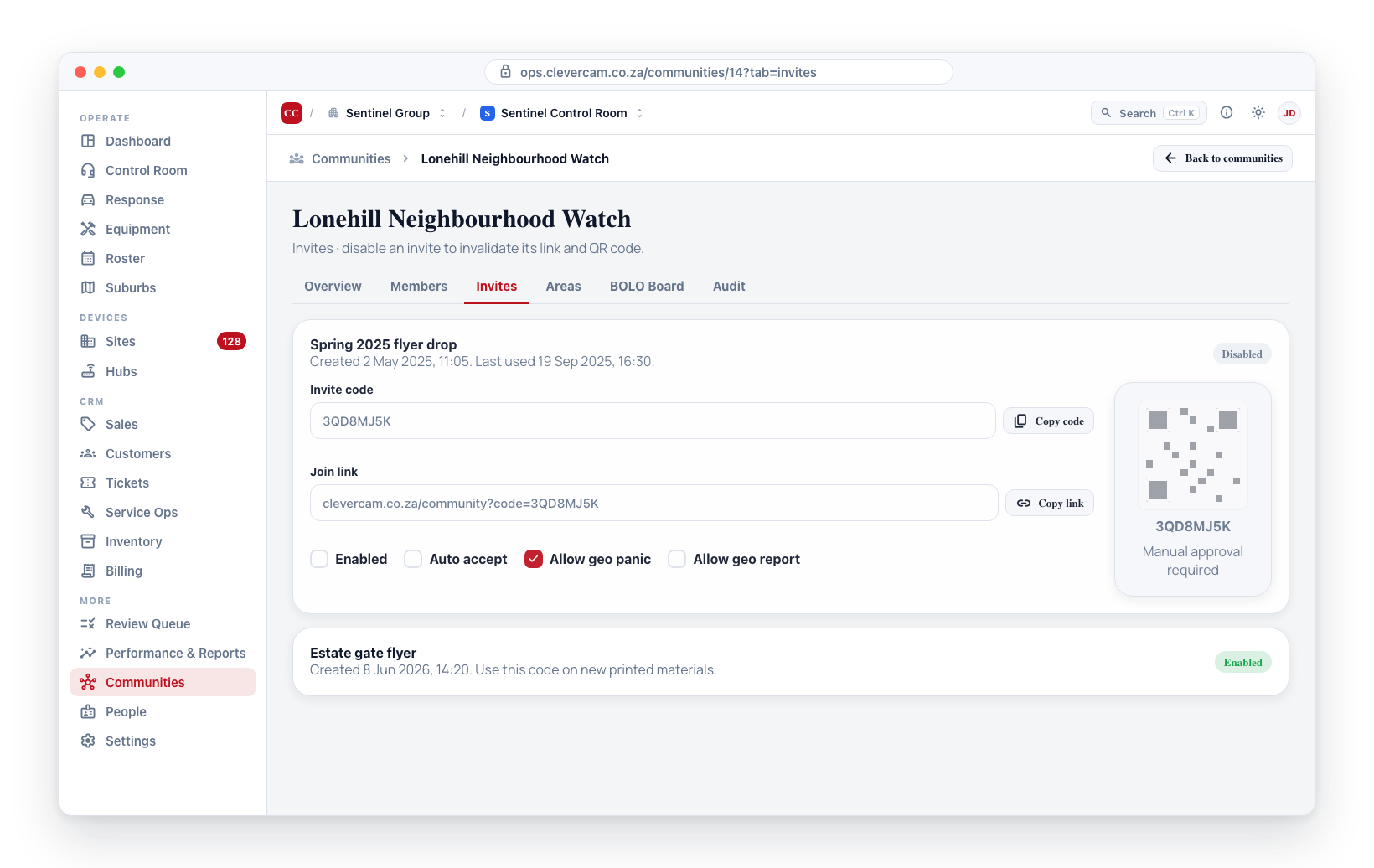
The QR code is tied to an invite link. If you need to invalidate an existing QR code:
- Open the community and go to the Invites tab.
- Switch the invite's Enabled toggle off to disable it (or create a fresh invite to replace it).
- The disabled invite's QR code will no longer work.
- Use the QR code on the new invite instead.
Revoking an invite link invalidates all QR codes that use that link. If you have printed materials in circulation, they will stop working. Only revoke links when necessary, and plan to redistribute new materials.