Event Details
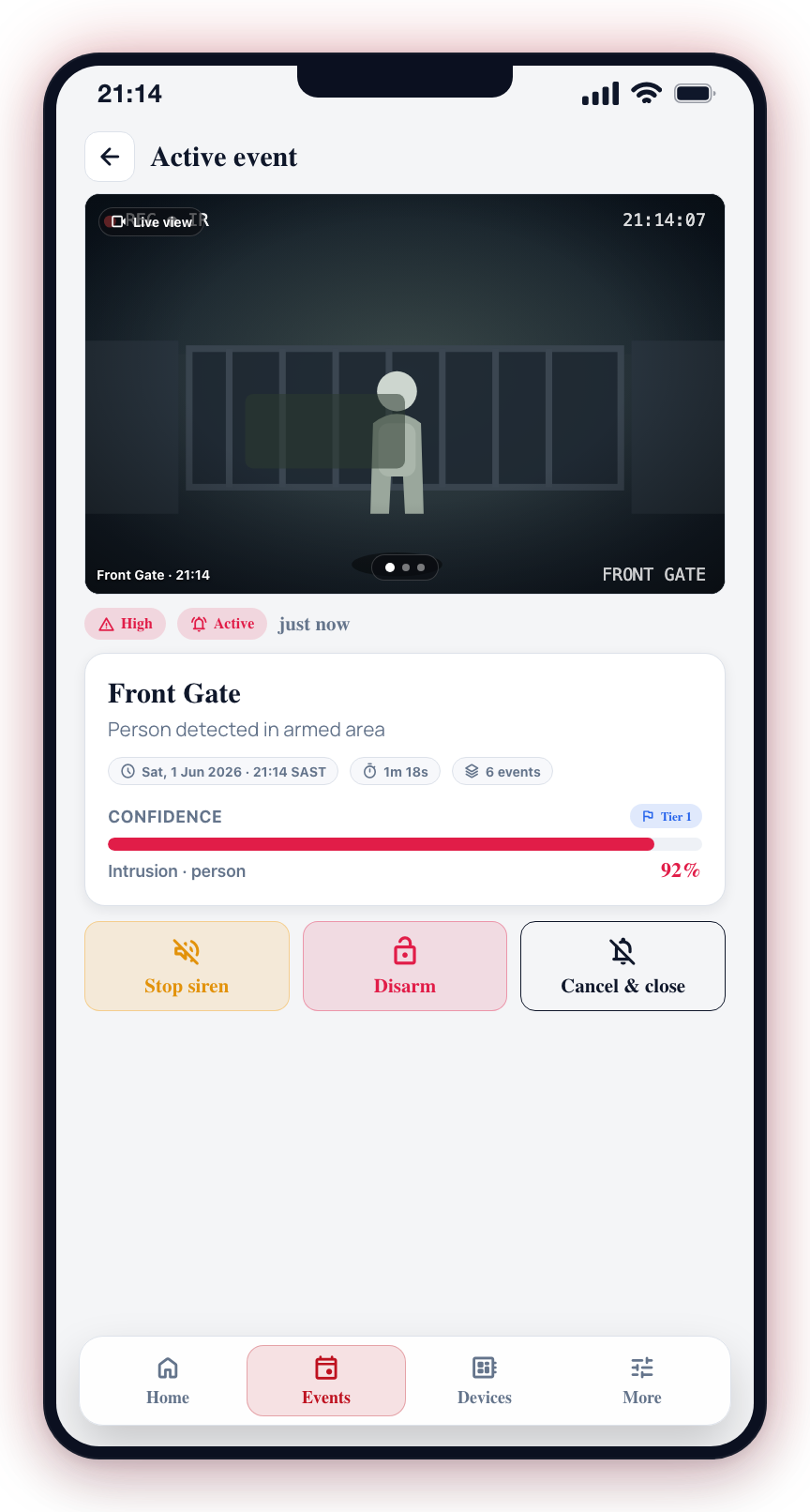
Tapping any event in the event list or on the Home screen opens the full event details view. This screen gives you everything you need to understand what happened: the detection photos, timestamps, confidence scores, detection type, camera information, and the current response status.
Accessing Event Details
- Navigate to the Events tab or find an active event on the Home screen.
- Tap the event card you want to investigate.
- The event details screen opens with all available information.
What the Event Details Screen Shows
Detection Photos
At the top of the screen, you will see the photos captured during the detection:
- Primary Photo -- The main image that triggered the AI detection. This typically shows the detected object or person highlighted.
- Secondary Photo -- An additional image captured moments after the primary, providing context for the detection.
Swipe horizontally to move between photos. Pinch to zoom in on details. Tap a photo to view it in full screen.
Event Information
Below the photos, the following information is displayed:
| Field | Description |
|---|---|
| Severity & Status | The event's severity level and current status (Active, Closed, Cancelled) |
| Relative time | A concise "just now / 5 min ago / 3 hr ago" label shown in the card header |
| Absolute date & time | The exact date and time the detection occurred, shown in your device's local timezone with the timezone name and offset (for example, "Sat, 18 Apr 2026 · 18:08 SAST (UTC+2)"). This removes any ambiguity when you are travelling or reviewing an event from a different timezone. |
| Duration | How long the event was active (for example, "2m 5s" or "58s"). Events still in progress show ongoing. |
| Event count | When several detections are grouped under a single event, a count chip shows how many detections fired together. Single events do not show this chip. |
| Detection Type | The type of detection assigned by the AI (intrusion, motion, gesture, thermal, pose) |
| Confidence Level | A percentage score showing how confident the AI is in the detection (0–100%) |
| Tier | The priority tier assigned to this event (Tier 1 through Tier 5) |
Camera Information
- Camera Name -- The name of the camera that captured the event
- Camera Location -- The area or zone the camera is monitoring
- Group -- Which camera group this camera belongs to
Response Status
If a response unit has been dispatched for this event, you will see:
- Responder Name -- The name of the assigned responder
- Unit -- The response unit identifier
- Status -- Current status: Dispatched, En Route, On Scene, or Completed
- ETA -- Estimated time of arrival (if en route)
See Response Tracking for more information on following a response.
Description with entity chips
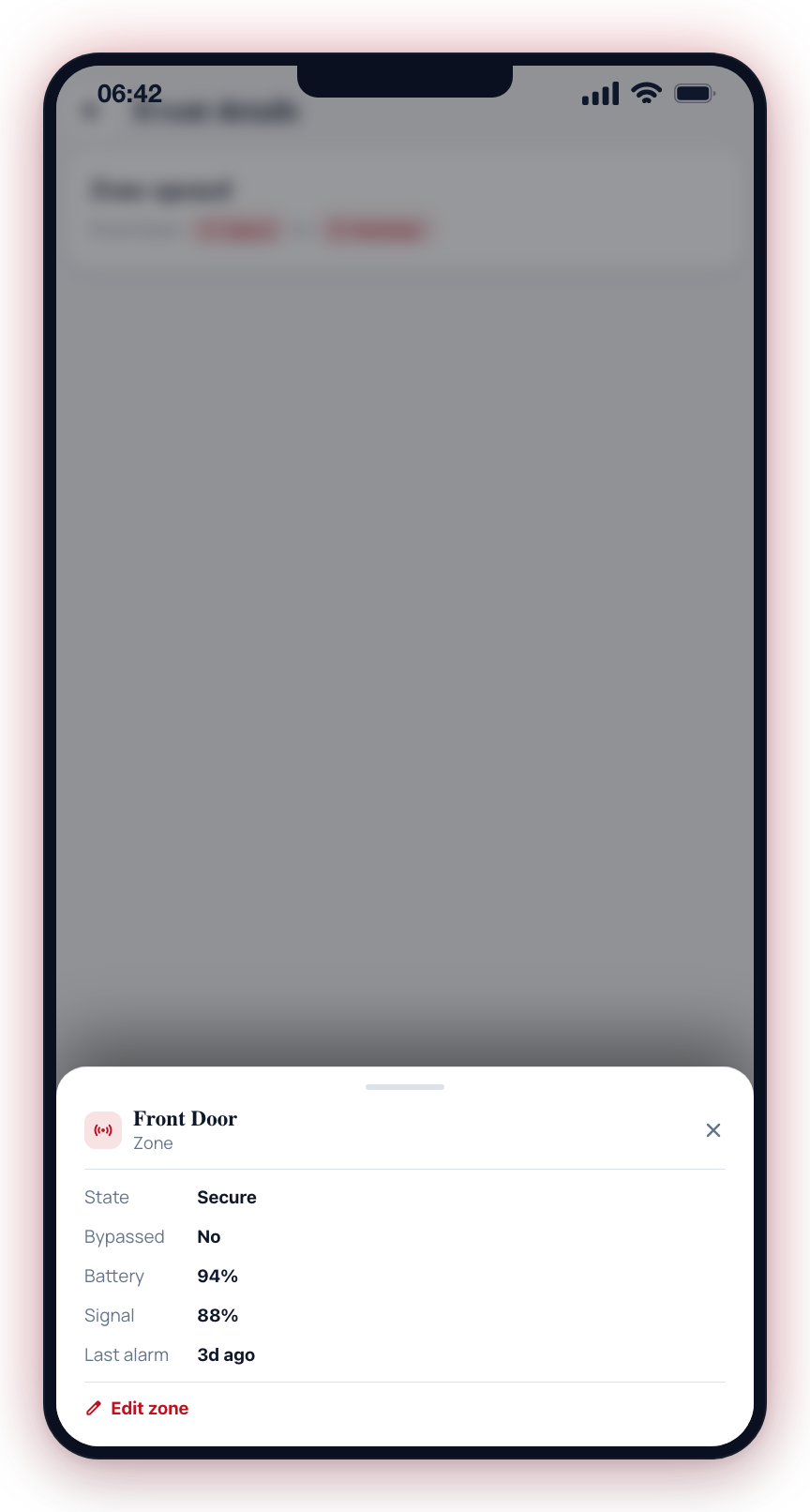
For alarm panel events, the description line under the event title includes tappable chips for the items the event refers to (the group, user, zone, sensor, or hub). Each chip has a small icon and a short label, and tapping one opens a quick-detail panel for that item:
- Group chip → group arm state, last event, last user who armed or disarmed
- User chip → user's name, phone, and email
- Zone / Sensor chip → zone state, bypass status, battery, signal strength, and last alarm time
- Hub chip → hub online or offline status, serial number, last check-in
- Site chip → site name and address
The panel is read-only — it is there to answer "what is this?" at a glance without leaving the event you are looking at. For actions such as arming a group or bypassing a zone, use the dedicated screens under Devices.
Older events keep showing their description as plain text, so your history remains fully readable.
Arm / disarm events
Arm and disarm events open a dedicated, calm detail screen — separate from the alarm-style event view above — because they are status changes, not incidents. Tapping a "System armed", "Site disarmed", "Scheduled arm", "Scheduled disarm", or "Group armed/disarmed" event in the feed (or a related notification) opens this view.
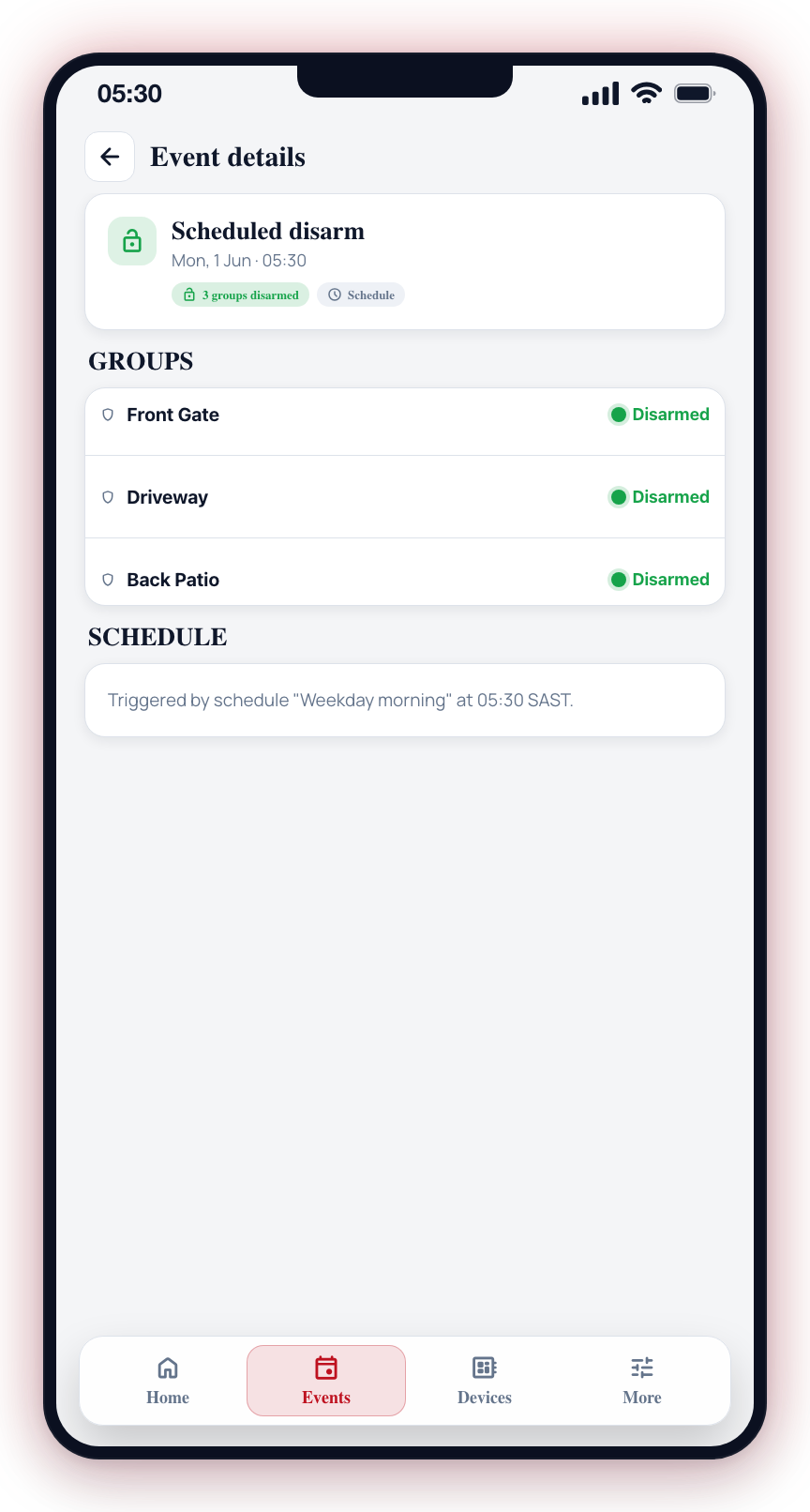
The screen shows:
- Header — a lock (armed) or unlock (disarmed) icon, the action title (for example "Scheduled disarm" or "Site armed"), and the date and time it happened.
- Summary pill — a short summary such as "3 groups disarmed", and a source pill showing whether the change came from a Schedule or was done Manually.
- Groups — a list of every group the action covered, each with its own Armed or Disarmed status. When a schedule or a "disarm everything" action touches several groups at once, they are gathered into this single event so you see one entry in your feed with the full per-group breakdown, rather than a separate event for each group.
- Details — the full description of what happened (for example the schedule name that triggered it, or the user who armed or disarmed).
A single-group arm or disarm simply shows that one group. There are no photos, verification, or response actions on this screen — it is purely a record of what was armed or disarmed and when.
Actions from Event Details
From the event details screen, you can:
- Verify the event to confirm it is a genuine security incident (see Verification)
- Send messages to the response team to provide context visible to control room operators (see Messages)
- View Photos in the full gallery (see Photo Gallery)
Alarm controls appear only on alarm events
The Stop siren, Disarm, and Cancel & close action tiles — and the red SOS button in the top app bar — are shown only on alarm-class events: emergency events, verified events, and panic/duress events. System events such as comms trouble, restores, and malfunctions keep the full timeline and chat, but show no alarm controls — a "Stop siren" button on a hub-offline notice would suggest an alarm that isn't there.
When someone pressed panic
A panic opens the same screen as any other event — the same timeline, the same chat with the control room, the same history — but the action tiles change, because the alarm controls answer questions nobody asked when a person is the one raising the alarm:
- I'm safe stands the panic down. It goes through the same response-word sheet as any other close, which is deliberate: it keeps the duress option available to someone being forced to call their panic off. The timeline records it as Stood down — Marked safe by <name>, not as a generic close.
- Call control room dials the number on file for the control room watching the site. It appears only when a number is on file.
- Stop siren appears only while a siren is actually sounding.
- Disarm is never shown on a panic.
Everyone on the site sees a panic raised at that site, with the full trail, exactly as they would any other alarm — a panic is dispatched, called, and closed through the same audit trail as everything else.
When reviewing an event, start with the photos to get visual context, then check the confidence level. Events above 80% confidence are highly likely to be genuine detections.
Event details are read-only for the detection data. You cannot edit the timestamp, confidence, or detection type. However, you can add verification status and messages to provide additional context.