Filter Events
The Events tab is narrowed with a row of filter chips at the top of the list. The chips replace the old search bar — instead of typing, you tap the kind of event you want to see, and the list filters instantly.
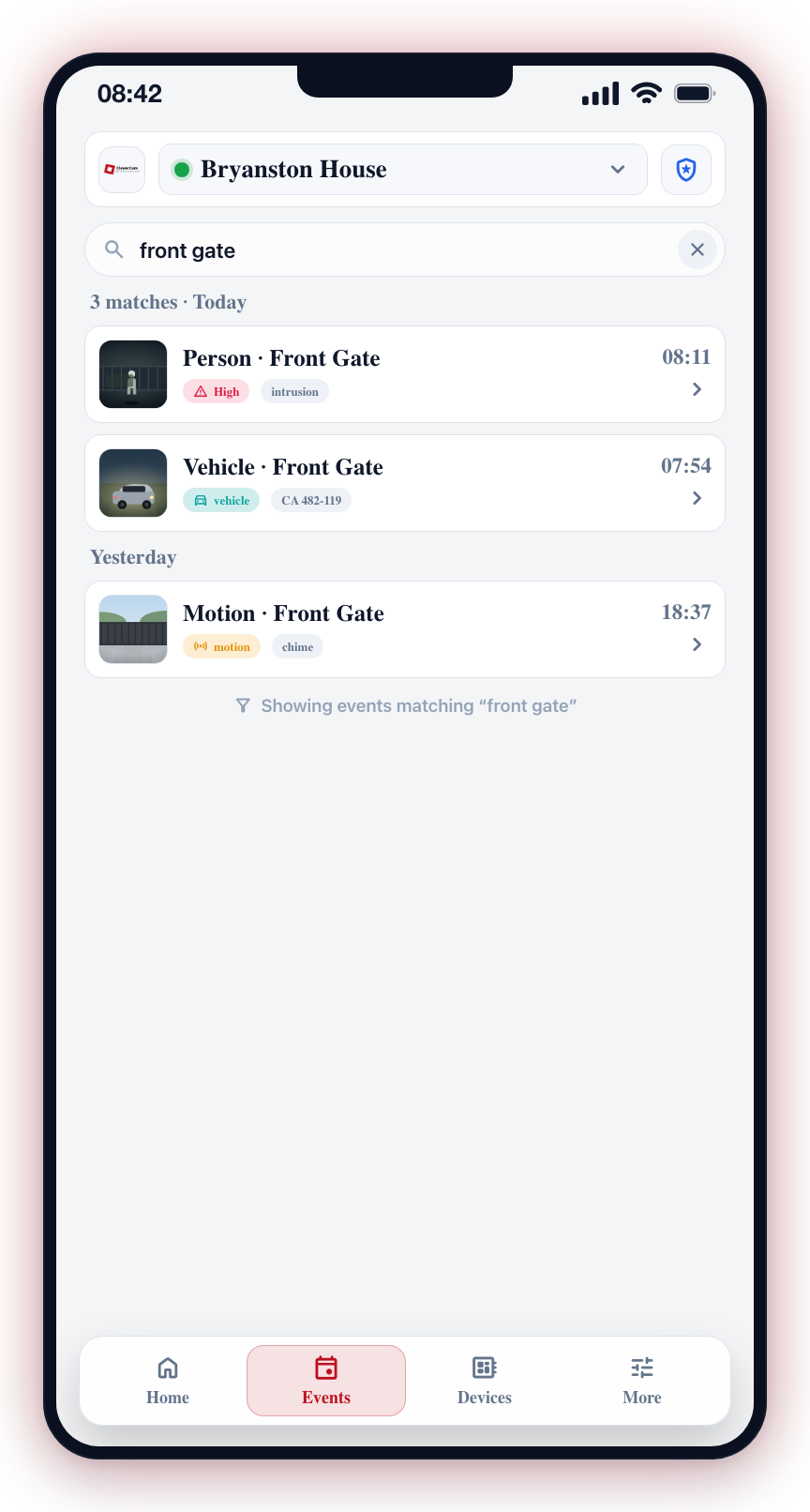
The Filter Chips
A horizontal row of chips sits where the search bar used to be:
- All -- every event (the default).
- Alarms -- alarm events: detections, verified alarms, sirens, and other alarm-class activity.
- Arm & disarm -- arming and disarming activity, whether from the app, a schedule, or the panel keypad.
- System -- system events such as comms trouble, restores, and malfunctions.
- Panic -- panic and duress events.
Tap a chip to apply it; the selected chip is highlighted. Tap All to return to the full list.
How Filtering Works
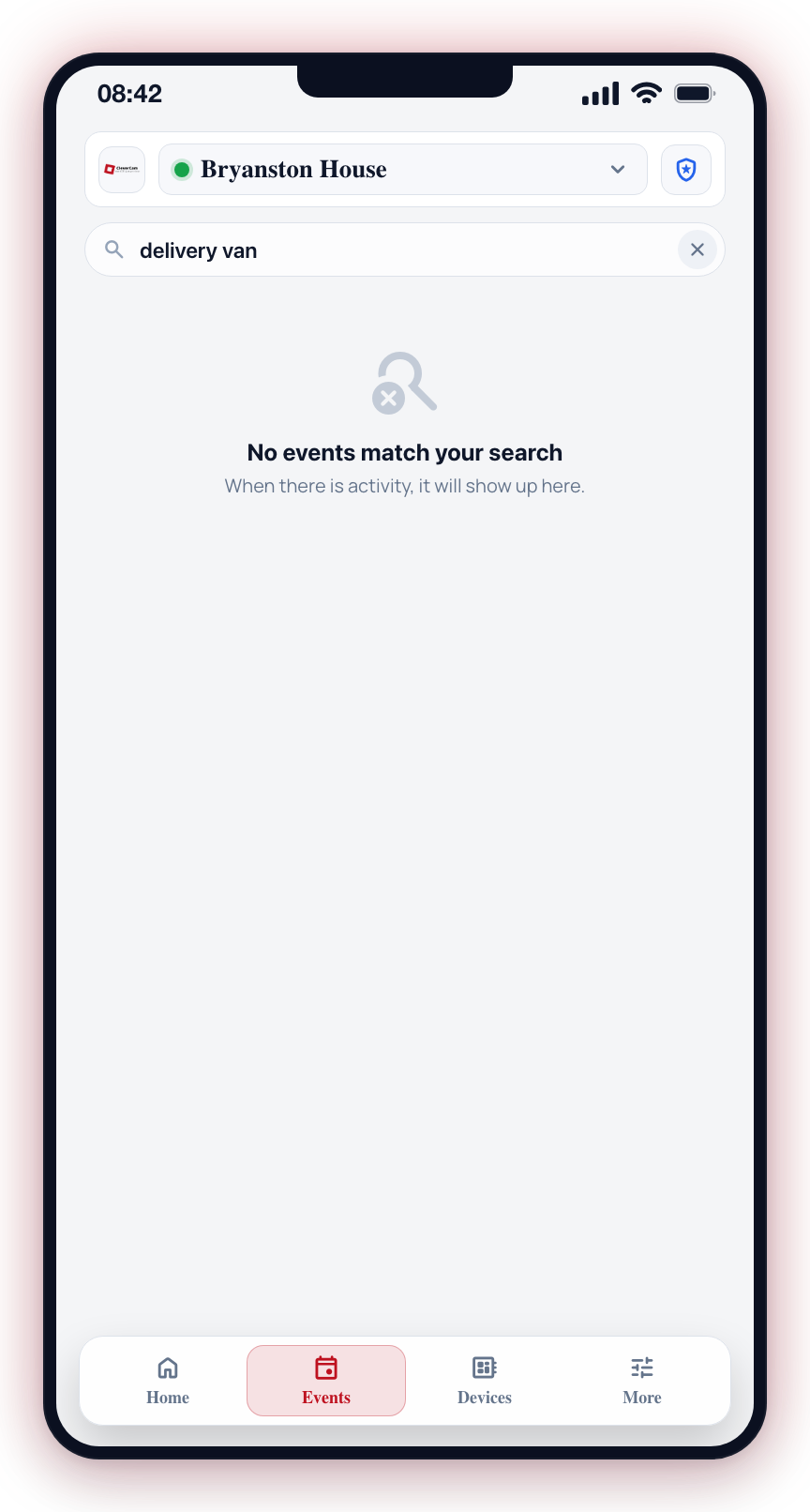
- Open the Events tab.
- Tap the chip for the type of event you want.
- The single chronological list filters immediately — day groups that end up empty disappear.
Filtering happens on your phone, over the events already loaded from the last 7 days for the selected site. It does not run a new server query, so it is instant.
Event Time Range
The Events tab only displays events from the last 7 days. Events older than 7 days are not loaded in the app and cannot be filtered from this tab.
No Text Search on This Tab
The Events tab no longer has a search bar or search icon — the chips above are the way to narrow the list. (The Devices tab still has text search, and there it also matches area, zone, and camera names.)
Triaging a busy day? Tap Alarms to hide the routine arm/disarm and system rows and see only the events that might need action.