Verification
Event verification is one of the most important actions you can take in CleverAlert. When an event is detected, you have the ability to confirm it as a genuine security incident. Your verification is shared with the control room in real time, helping operators prioritise their response and allocate resources effectively.
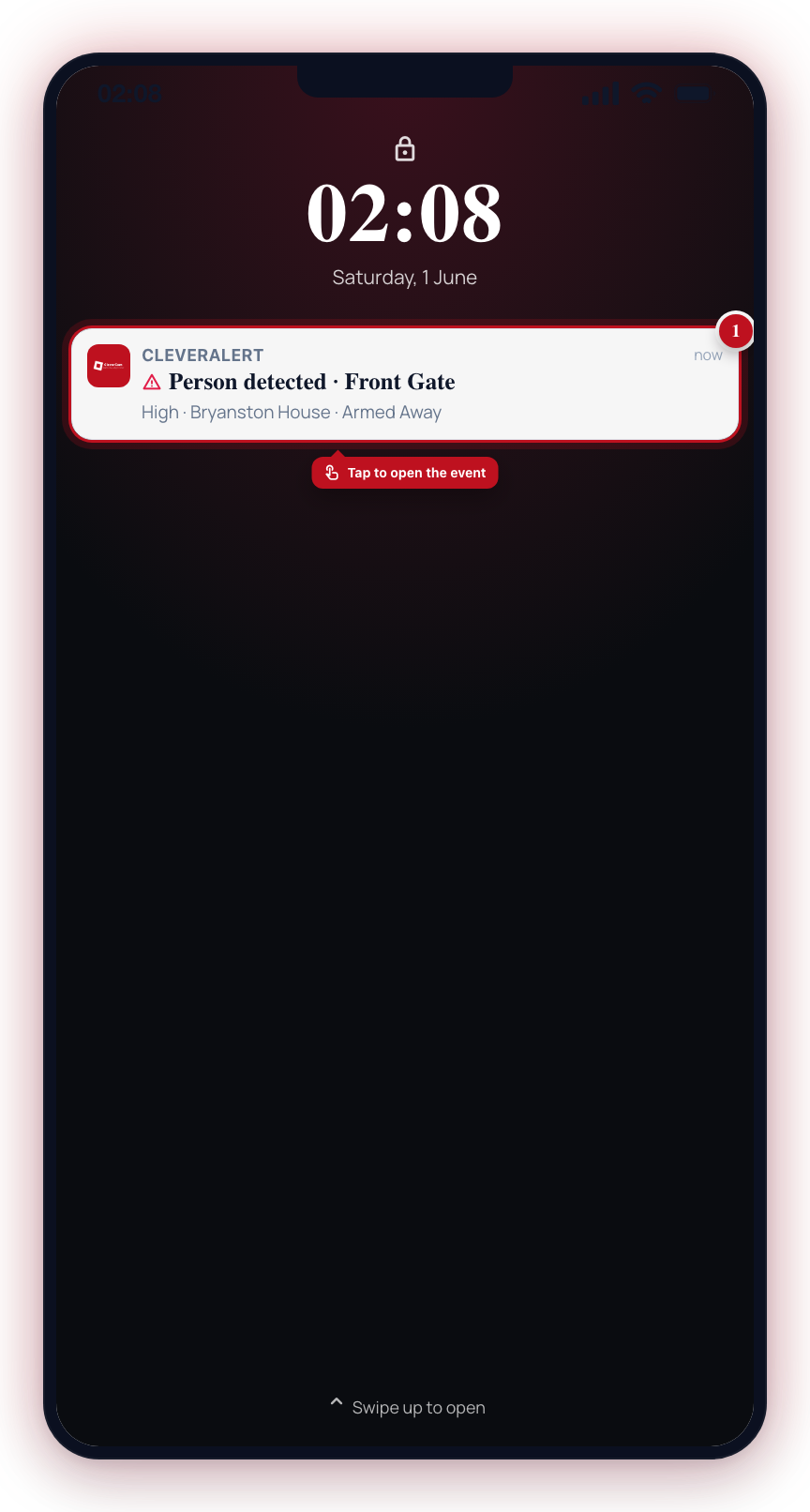
When an alarm fires you get a push notification — tap it to open the event.
Why Verification Matters
When the AI detects an event, it assigns a confidence level, but it cannot determine intent. A person walking through your yard at 2 AM might be an intruder — or it might be a family member coming home late. By verifying events, you:
- Help the control room focus on real threats
- Reduce unnecessary response dispatches
- Improve the overall accuracy of your security system over time
- Keep your event history clean with clear genuine or false designations
How to Verify an Event
- Open an active event from the Home screen or the Events tab.
- Review the detection photos and event details to assess the situation.
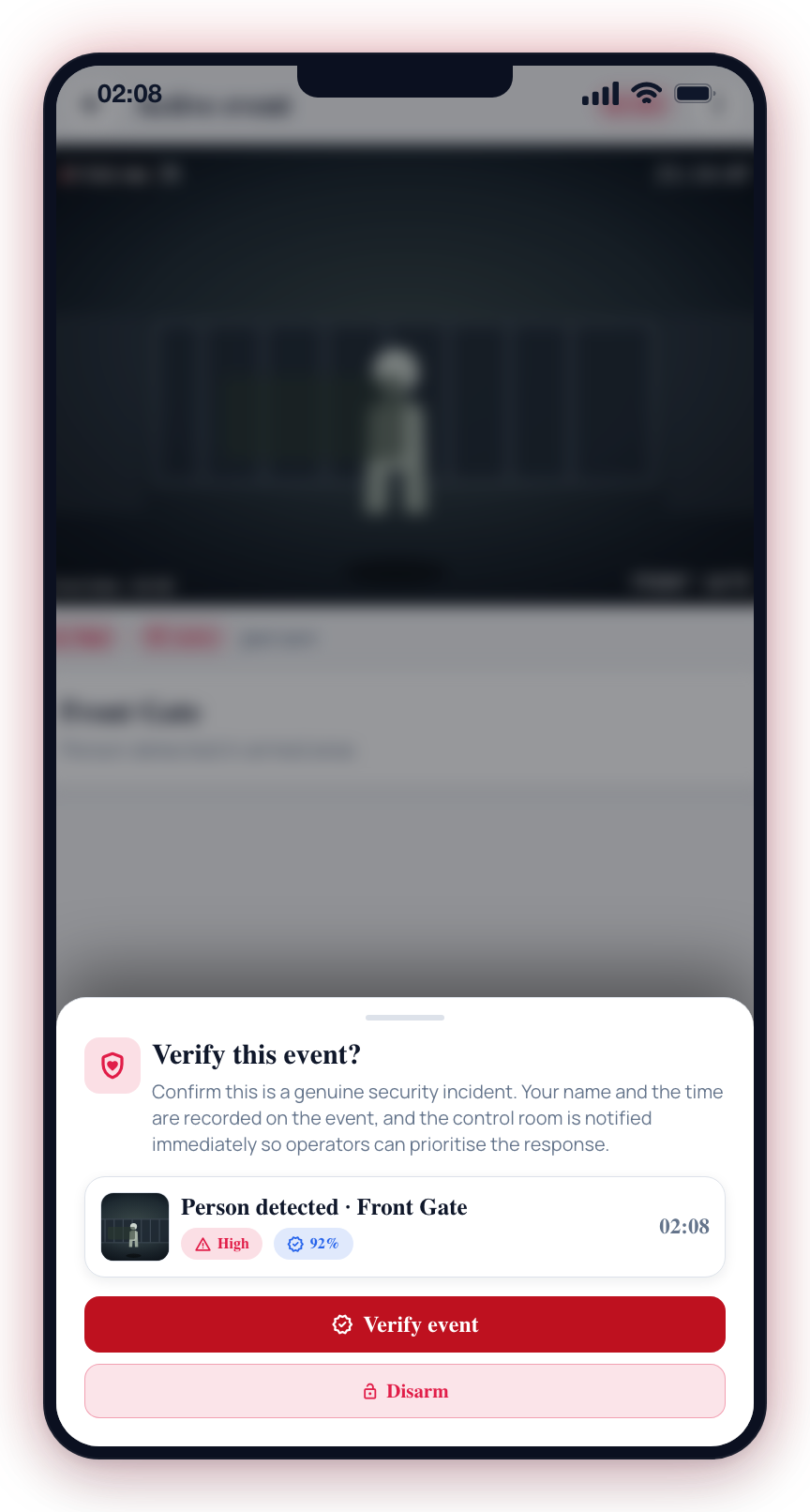
- Tap the verification button. A panel opens titled "Verify intrusion" (or "Verify emergency" for emergency events).
- Tap Verify to confirm the event as a genuine security incident. Your name and the time of verification are recorded on the event.
- You can also tap Disarm to disarm the system directly from the verification panel.
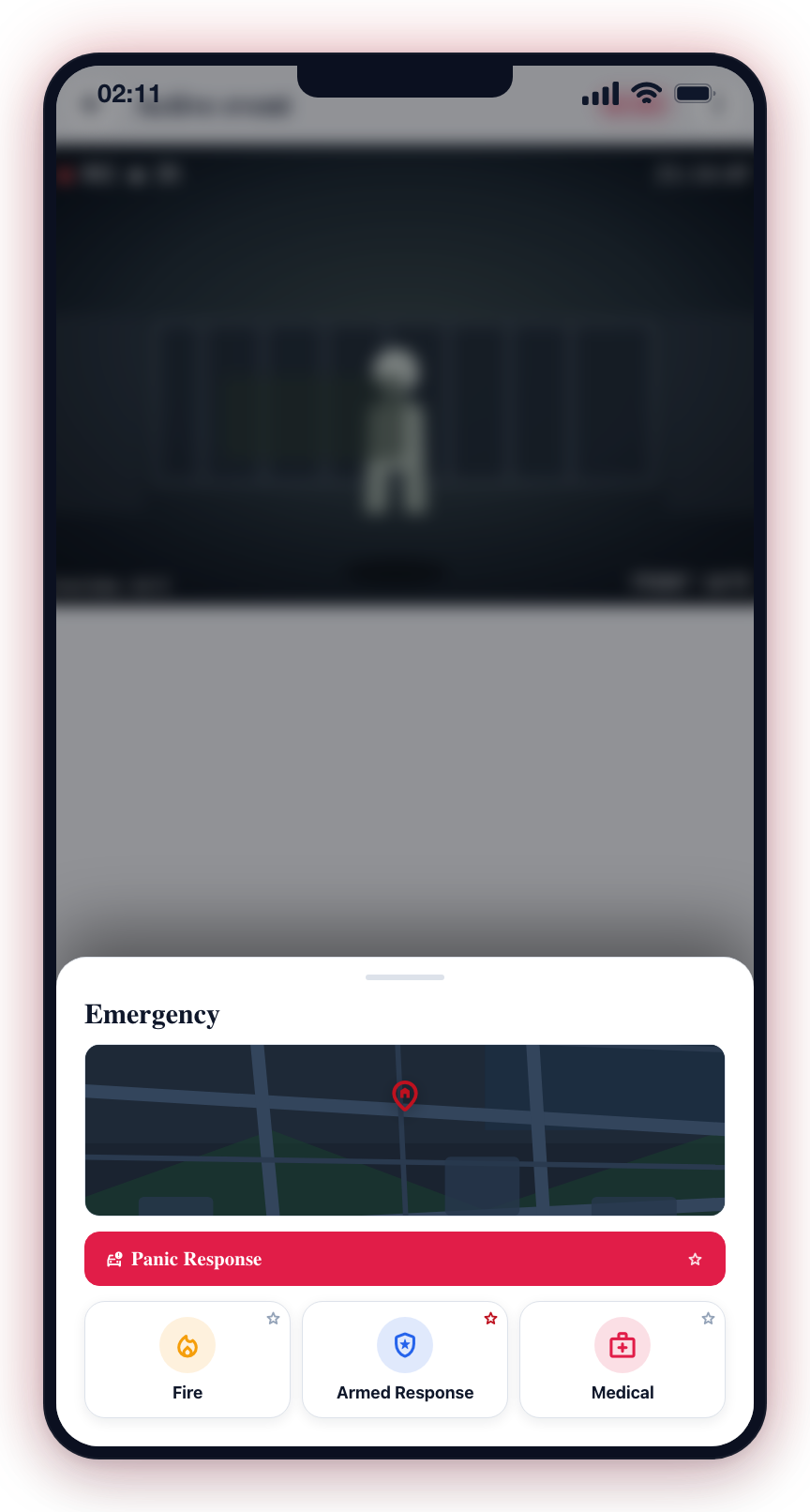
Emergency Button
The active event screen has a red SOS button in the top app bar, next to the event options menu. Tapping it opens the Emergency panel — the same one available from the Home screen — so you can request armed response, report a fire, or call for medical help without leaving the event. It appears only on alarm-class events (emergency, verified, or panic/duress events) — system events such as comms trouble or restores do not show it.
Control Buttons on the Active Event Screen
The active event screen shows action buttons below the event photos — but only on alarm-class events (emergency, verified, or panic/duress). System events such as comms trouble, restores, and malfunctions keep the timeline and chat and show no action tiles at all. On alarm-class events, which buttons appear depends on the capabilities of the hub that generated the event:
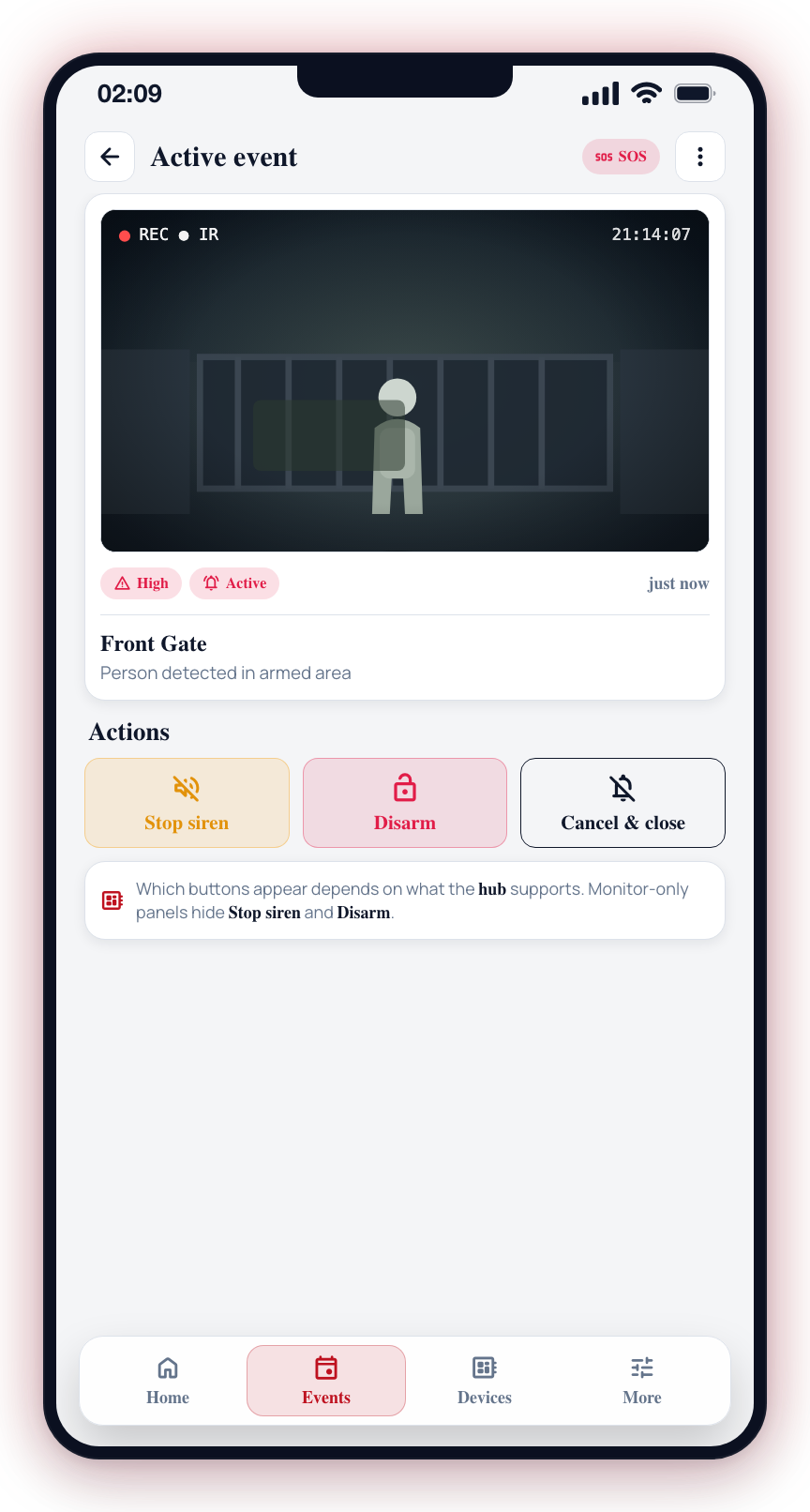
- Stop Siren -- Appears only when the hub that produced the event can control physical outputs such as sirens. If the hub does not support siren control, this button is hidden rather than shown in a disabled state.
- Disarm -- Appears only when the hub supports arm/disarm commands. For third-party alarm panels (such as Olarm) that are monitor-only, this button is hidden.
- Cancel & close -- A neutral stand-down action that dismisses the event. Like the other two tiles, it appears only when the action is available for the event; it is not shown for read-only events.
When none of Stop Siren, Disarm, or Cancel & close is available for an event, the whole control area collapses and no action tiles are shown. This keeps the screen uncluttered and avoids confusion from buttons that cannot complete the action.
If you expect to see a Stop Siren or Disarm button but it is not there, the event was generated by a device that does not support remote control from CleverAlert. Use the alarm panel's own keypad or the panel's native app to disarm or silence the siren.
Verification States
| State | Description |
|---|---|
| Unverified | The event has not yet been reviewed. This is the default state for all new events. |
| Verified | You have confirmed this event is a genuine security incident. The control room will treat it as a confirmed alarm. |
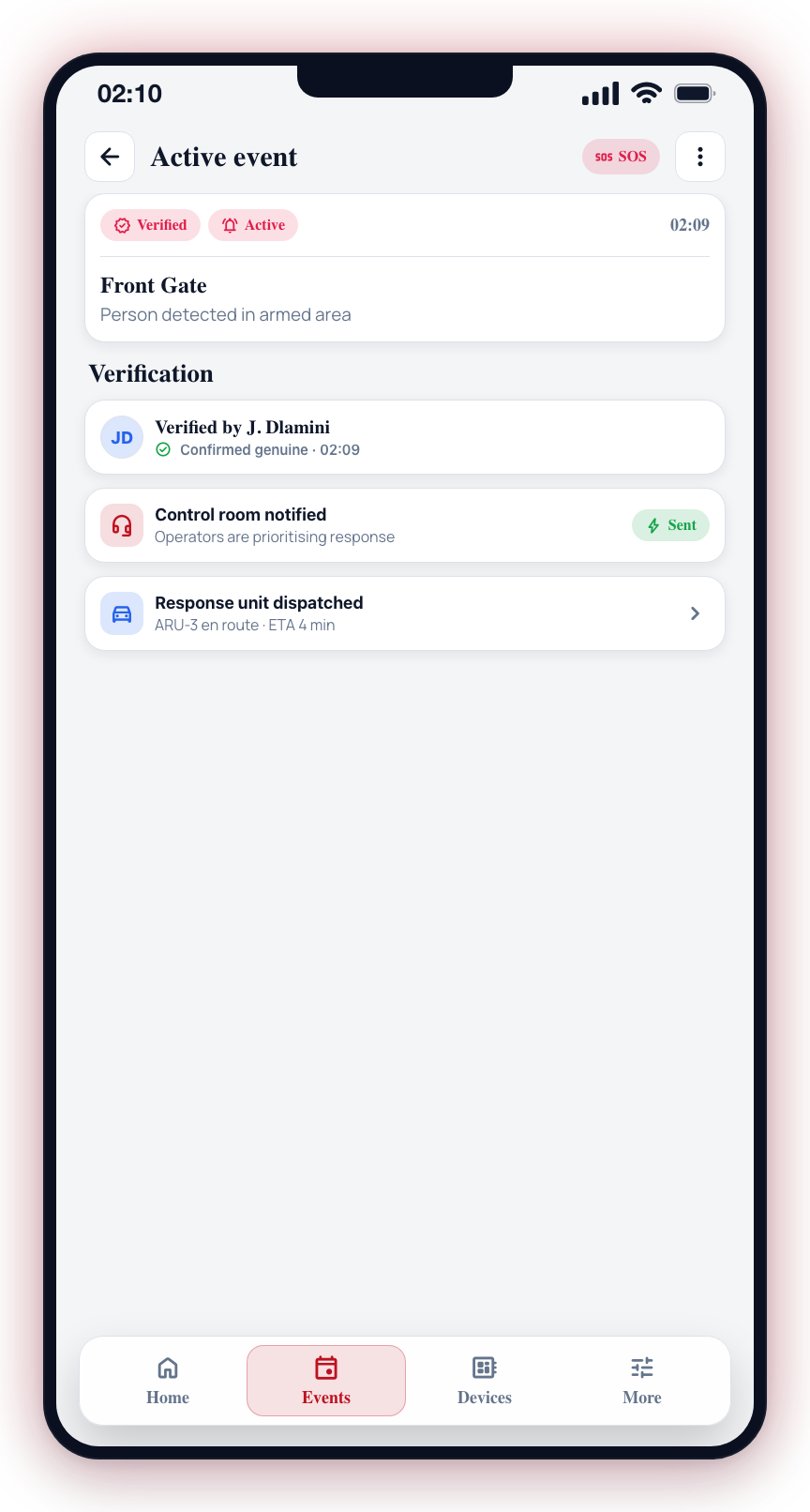
What Happens After Verification
When you verify an event:
- A record is created showing who verified it and when.
- The control room is immediately notified of the confirmation.
- If a response unit has not already been dispatched, the control room may dispatch one based on your confirmation.
- The event remains active until the response is completed.
Verifying an event signals to the control room that this is a genuine incident. Only verify if you believe the event is real. If you are unsure, leave the event unverified and let the control room handle the assessment.
Quick verification helps everyone. Confirming a genuine incident lets the control room prioritise response and allocate resources immediately.