Messages
Messages allow you to add useful context to any event in CleverAlert. Whether you want to describe what you see in the photos, explain the situation, or leave instructions for the response team, messages give you a direct communication channel attached to the event itself.
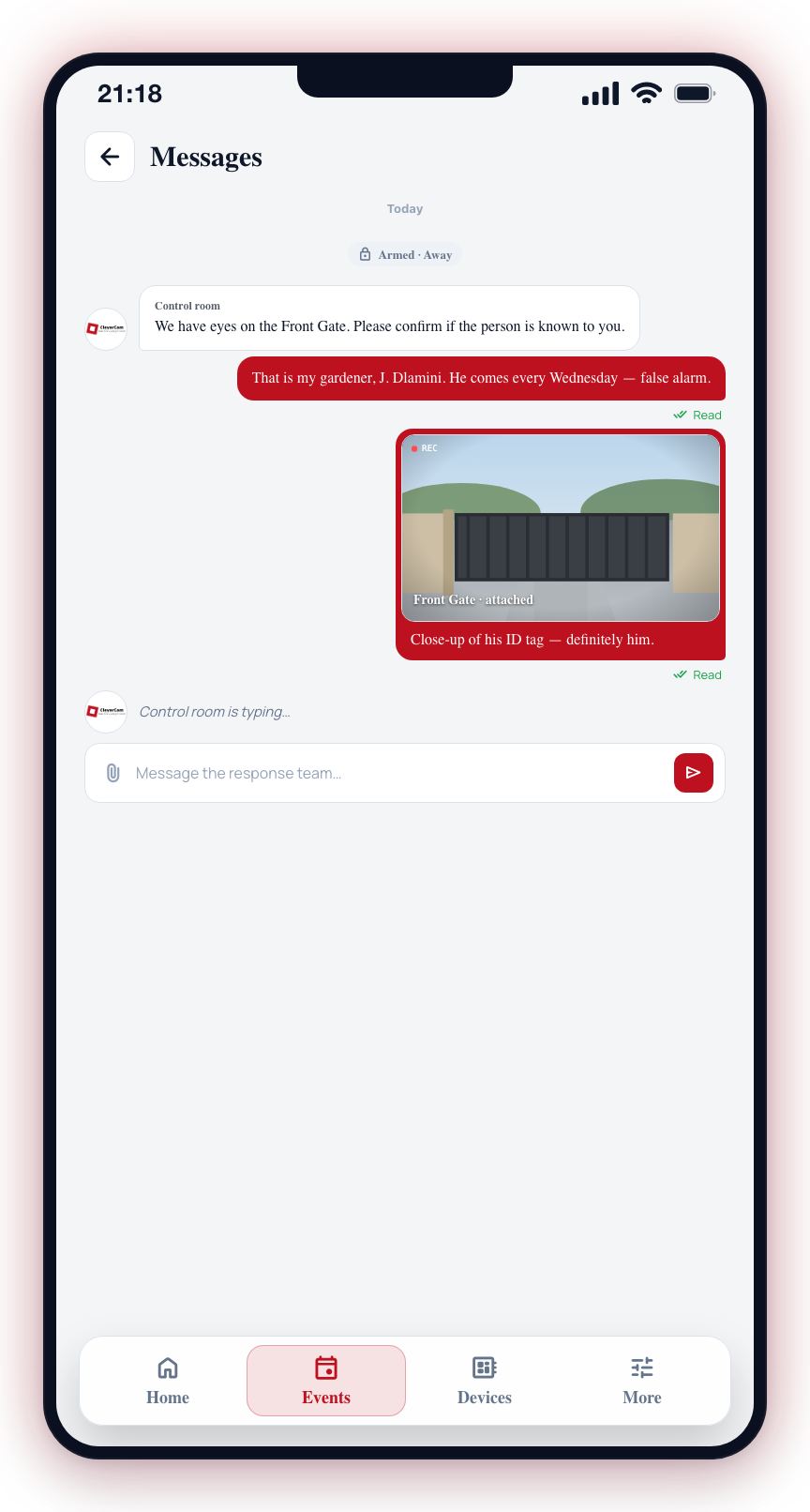
The message timeline is a full chat surface — you can send text, attach photos, see when others are typing, and see which team members have read each message.
Why Send Messages?
Messages serve several important purposes:
- Context for the response team -- Operators and responders can see your messages in real time, helping them make better decisions about how to respond.
- Documentation -- Messages create a written record of what you observed and when, which can be valuable for incident reports or insurance claims.
- Coordination -- If multiple users have access to the same site, messages keep everyone informed about event assessments and actions taken.
Sending a Text Message
- Open an active event from the Home screen or the Events tab.
- Scroll to the message area at the bottom of the event details. The placeholder reads "Send message to response team...".
- Type your message in the text field. Be clear and concise.
- Tap the circular send button to submit the message.
- Your message appears in the timeline on the right side of the screen.
Attaching Photos to a Message
You can attach photos to any message.
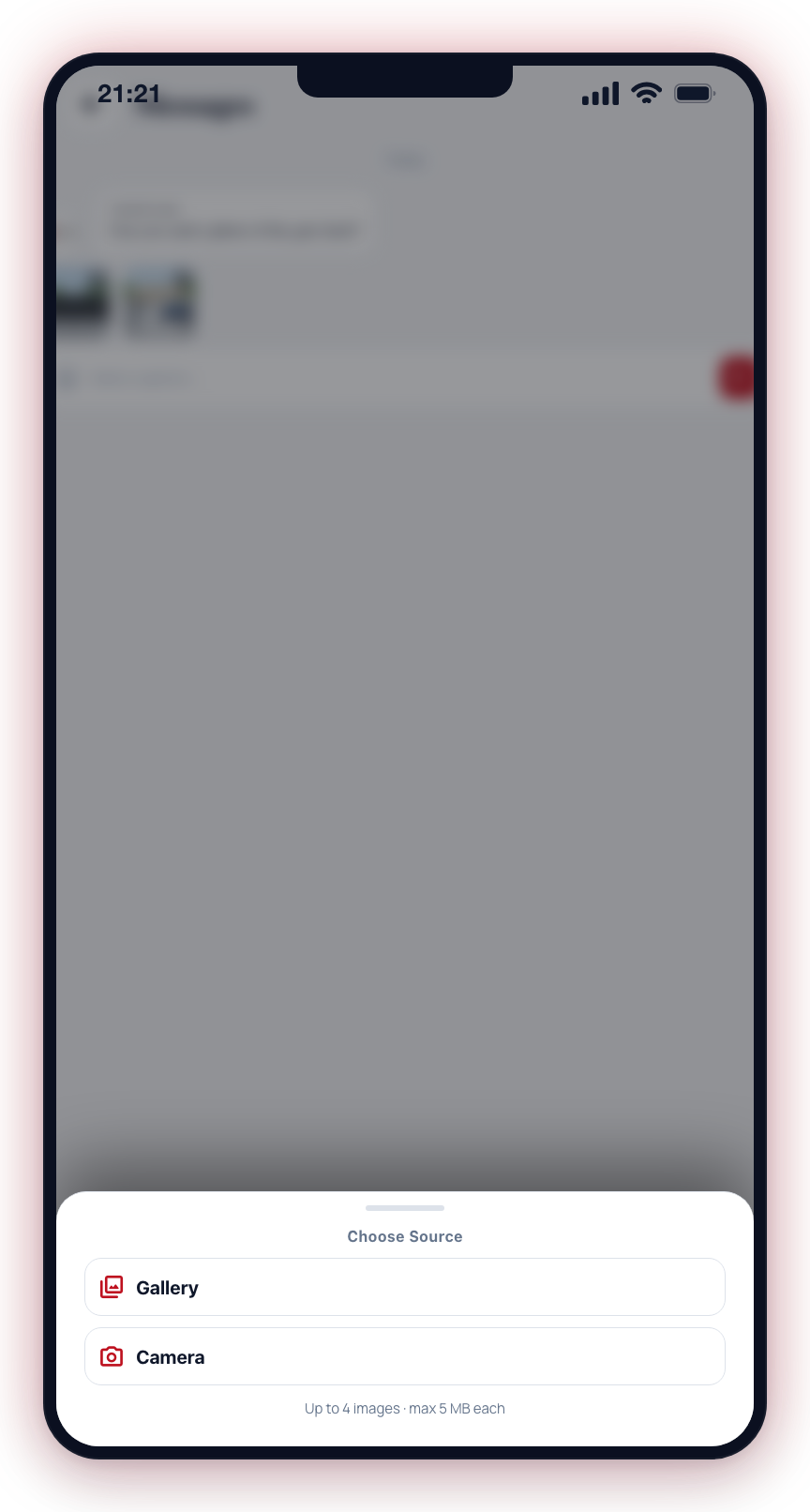
- Tap the paperclip icon on the left of the message area.
- Choose Camera to capture a new photo or Gallery to pick an existing one.
- Selected photos appear as thumbnails above the message area. Tap the × on a thumbnail to remove it before sending.
- You can add a caption in the text field alongside the photos, or send the photos on their own.
- Tap the send button. Photos are uploaded securely and appear inline in the message timeline.
- Tap any photo in the timeline to open it full-screen with pinch-to-zoom. Swipe down or tap × to exit.
Attached photos are stored with the same security and privacy guarantees as AI-detected event photos. Only users with access to the site, the control room, and dispatched responders can see them.
Typing Indicators
When another person with access to the event is composing a message, a small indicator appears above the message area showing their name and animated dots ("Jane is typing..."). If several people are typing at once, the indicator summarises the group ("Jane and 2 others are typing...").
Typing activity is temporary — it disappears automatically a few seconds after the person stops typing. You will never see your own typing indicator reflected back at you.
Read Receipts
Every message you send shows a tick indicator in its footer:
- Single tick (✓) -- The message has been delivered but nobody else has opened the event yet.
- Double tick (✓✓) -- At least one other person with access has opened the event since your message was sent. Long-press the ticks to see how many people have read the message.
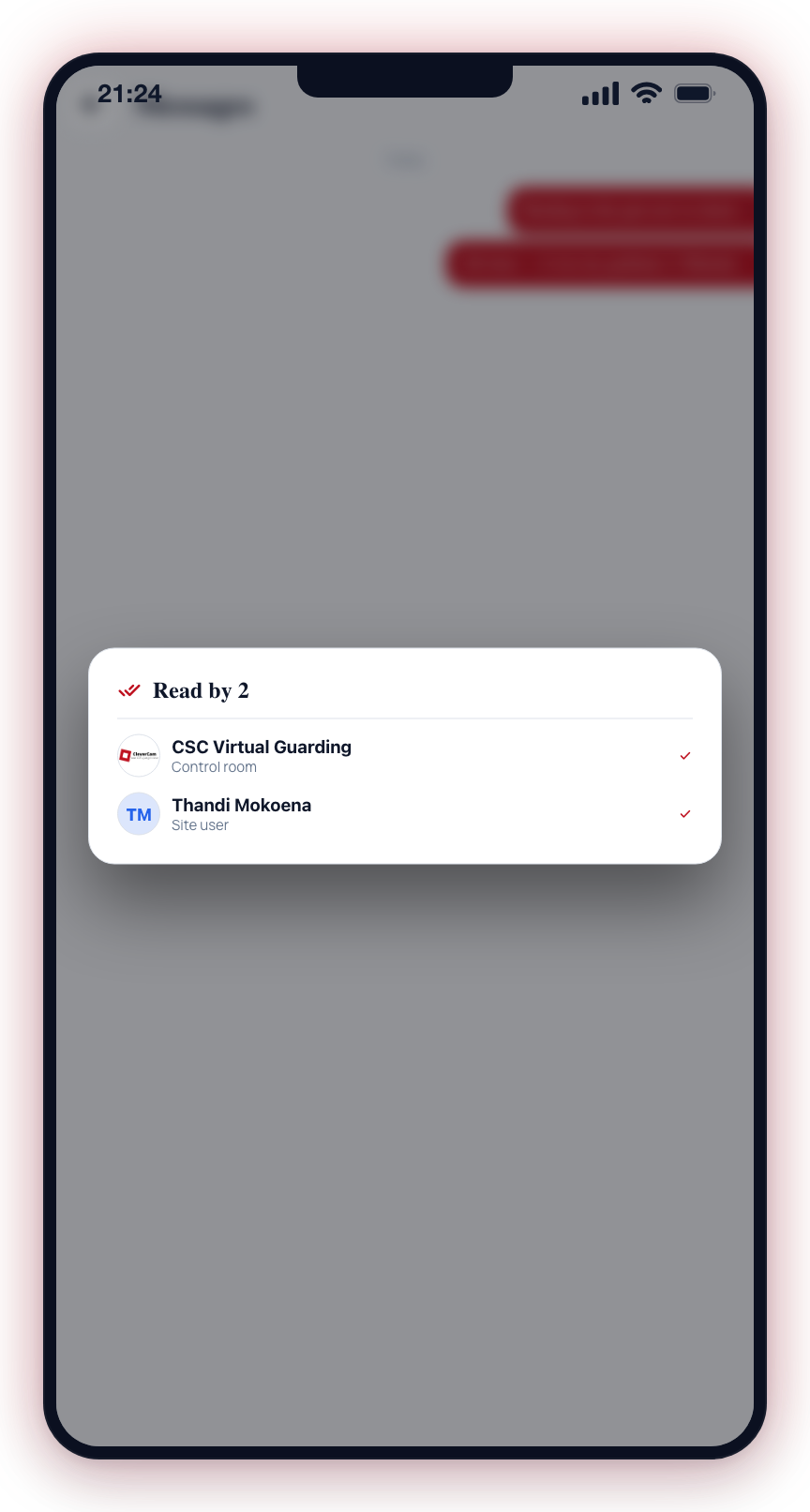
When you open an event, your read position is recorded automatically, so your teammates' ticks update in real time.
Read receipts apply only to messages in the event timeline. Receiving a push notification for an event does not count as reading it — a person must actually open the event for their read position to advance.
What to Include in Messages
Here are some examples of useful messages:
- "I can see this is my gardener -- false alarm. He comes every Wednesday morning."
- "This looks like the same person from the event at 10:15 PM. Please check both events."
- "I am not on site but my neighbor confirmed they saw someone at the back fence."
- "The camera angle seems to have shifted. Please flag for maintenance."
- "Response unit please check the side gate -- it should be locked."
Attach a photo when a picture is faster than describing something in words — for example, a photo of a damaged lock, or a close-up of a number plate you want the control room to double-check.
Viewing Messages
All messages on an event are displayed in chronological order in the event timeline. Day separators break the timeline into "Today", "Yesterday", or a dated label when the conversation spans multiple days.
Each message shows:
- Sender avatar -- Shown once per run of consecutive messages from the same person. For messages sent by a control room, the control room's logo is shown in place of a user avatar so you can tell at a glance which team responded.
- Author name -- Shown above the first message in a run from any sender other than you. Control room messages display the control room's name (for example, "CSC Virtual Guarding") rather than the individual operator.
- Day separators -- Messages are grouped by day with "Today", "Yesterday", or a dated chip. Individual message timestamps are intentionally hidden to protect control room response time details.
- Content -- The message text and any attached photos.
- Read ticks -- Shown only on your own outgoing messages.
Messages from all users with access to the site are visible, including messages added by control room operators where applicable. System entries such as "Armed", "Disarmed", "Siren deactivated", and "Completed" appear as centered pills, distinct from chat bubbles, so the conversation history stays easy to scan.
Internal control-room working entries — call-handling mechanics, verification outcomes, operator workflow notes, and similar records — are kept on the control-room side and never appear in the app timeline. You only see entries that are relevant to you and your site.
Who Can See Messages?
Messages, attached photos, typing activity, and read receipts are visible to:
- All users who have access to the site in CleverAlert
- Control room operators monitoring your site
- Response units dispatched to the event (if applicable)
Messages and attached photos are a permanent part of the event record. Once sent, a message cannot be deleted. Write messages as if they will be reviewed by security professionals and keep the content factual and relevant.
Send messages as soon as you have useful information about an event. The sooner the response team sees your context, the faster they can make the right call on response and escalation.