This page reflects the refreshed Events tab shipping in v1.2.0. Screenshots elsewhere on this site may still show the previous look.
Event List
The Events tab gives you a scrollable history of every detection and system event captured at the selected site, plus any panic you raised away from a site. The list is one chronological feed grouped by day: important events — anything active, emergency, verified, or panic — get a full card with a thumbnail and chips, while routine events render as compact one-line rows so the feed stays scannable. A row of filter chips at the top (All · Alarms · Arm & disarm · System · Panic) narrows the list by type — see Filter Events.
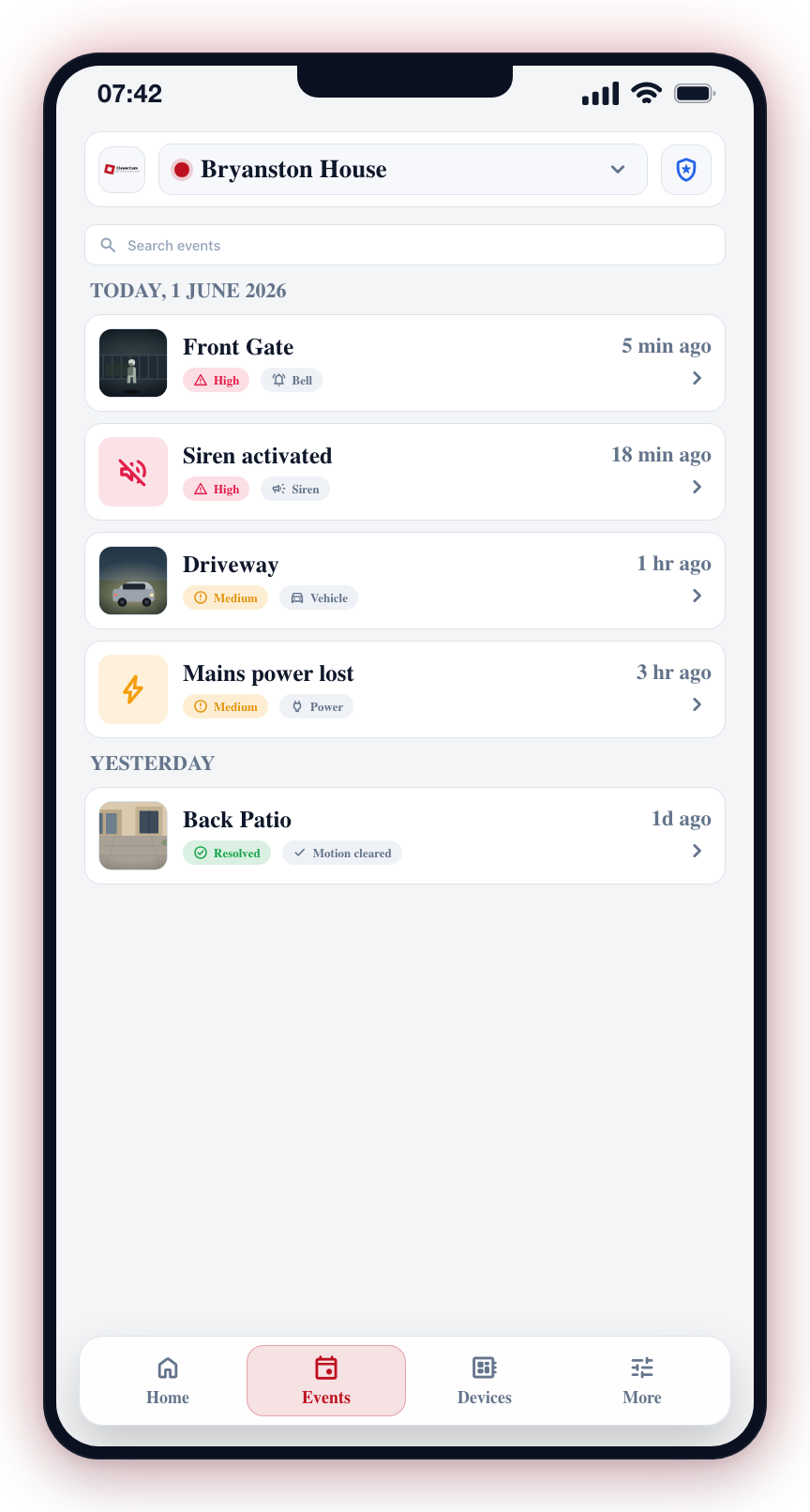
Accessing the Event List
- Tap the Events tab in the bottom navigation bar.
- The event list loads with the most recent events first, grouped by day.
Full Cards vs Compact Rows
Not every event gets a full card any more:
- Full cards appear only for events that matter most — active, emergency, verified, or panic events. These keep the thumbnail, description, and chips described below.
- Away from site marks a panic you raised somewhere other than one of your sites. It has no site of its own, so it appears in the list you are looking at rather than under a site heading. These are visible only to you and the control room — nobody else on your sites can see them, because a panic raised away from a site can be raised anywhere, including somewhere private.
- Compact rows are used for everything routine: a small icon, the label, and — where the event knows it — a second line that answers the common question right in the list (for example "Away armed · by Jaco Kruger"). Tapping a compact row expands it in place rather than opening a screen: the expansion shows the full description with its tappable entity chips, the exact time, a "View details" button when the event's detail page actually has more to show, and a "What does this mean?" link for alarm codes with a plain-English explanation.
Two kinds of routine events also collapse into a single row per day:
- A day's arm and disarm events fold into one row like "Armed & disarmed ×6 · 06:12 → 18:40". Tap it to expand the individual entries inline — each shows who performed it ("Arm away · by Marie"); tapping an expanded entry opens that arm/disarm's detail page.
- Repeated hub offline/online pairs (comms trouble and restore) fold into one amber-styled row like "Front Gate Hub offline ×4 · currently online" (or currently offline), expanding inline the same way.
Event Card Layout
Each full-card event is presented as a self-contained card. Reading a card from left to right:
- Thumbnail (left) -- A preview image from the detection. When an event has no image available, the thumbnail area is hidden entirely — the card simply tightens up rather than showing a grey placeholder.
- Title -- The camera name or the event label (for example, a camera name for a detection, or an informational label for a system event).
- Description -- A single-line summary of what was detected or what happened. For alarm panel events, the description includes tappable chips for the group, user, zone, sensor, or hub involved. Tap a chip to open a quick-detail panel for that item — see Entity chips below.
- Severity indicator -- A small color-coded chip showing how serious the event is:
- High -- red
- Medium -- amber
- Low -- cyan
- Resolved -- green The chip shows an icon plus the severity label so it is readable in both light and dark themes.
- Event-type indicator -- A second chip, icon-led, describing what kind of event it is. Common types include:
- Bell -- alarm event
- Siren -- siren fired
- Fire -- fire event
- Power / Online / Offline -- power and connectivity
- Duress -- panic or duress trigger
- Lock / Unlock -- arming, disarming, or lock state
- Info / Warning / Check / Trigger -- informational and system events
- Relative timestamp (bottom-right) -- A compact, human-friendly time like "just now", "5 min ago", "3 hr ago", "2d ago", or a short date such as "14 Apr" for older items.
Tap anywhere on the card to expand it in place — the same gesture as compact rows, so the whole feed behaves one way: tap reveals more right here, and the "View details" button inside the expansion is what opens the full event screen. The button only appears when the detail screen has something worth the trip (an active event, verification, linked events, or operator feedback).
Long-press the relative timestamp to toggle the full date and time for that event. Long-press again to switch back to the relative view.
Severity vs. Event Type vs. Status
The refreshed cards separate three concepts that are often confused:
| Concept | What it answers | Where it appears |
|---|---|---|
| Severity | How bad is it? | Severity chip on every card |
| Event type | What kind of event is it? | Event-type chip on every card |
| Status | Is it still active? (Active / Cancelled / Closed) | Inside the event details screen, not on every list row |
Day Grouping and Date Separators
Events are grouped by day with pill-shaped date dividers between groups, for example Today, Yesterday, or a short date like 12 Apr. Events within each day are sorted newest first.
See Day Grouping for more detail.
Filter Chips
A row of filter chips sits at the top of the Events tab:
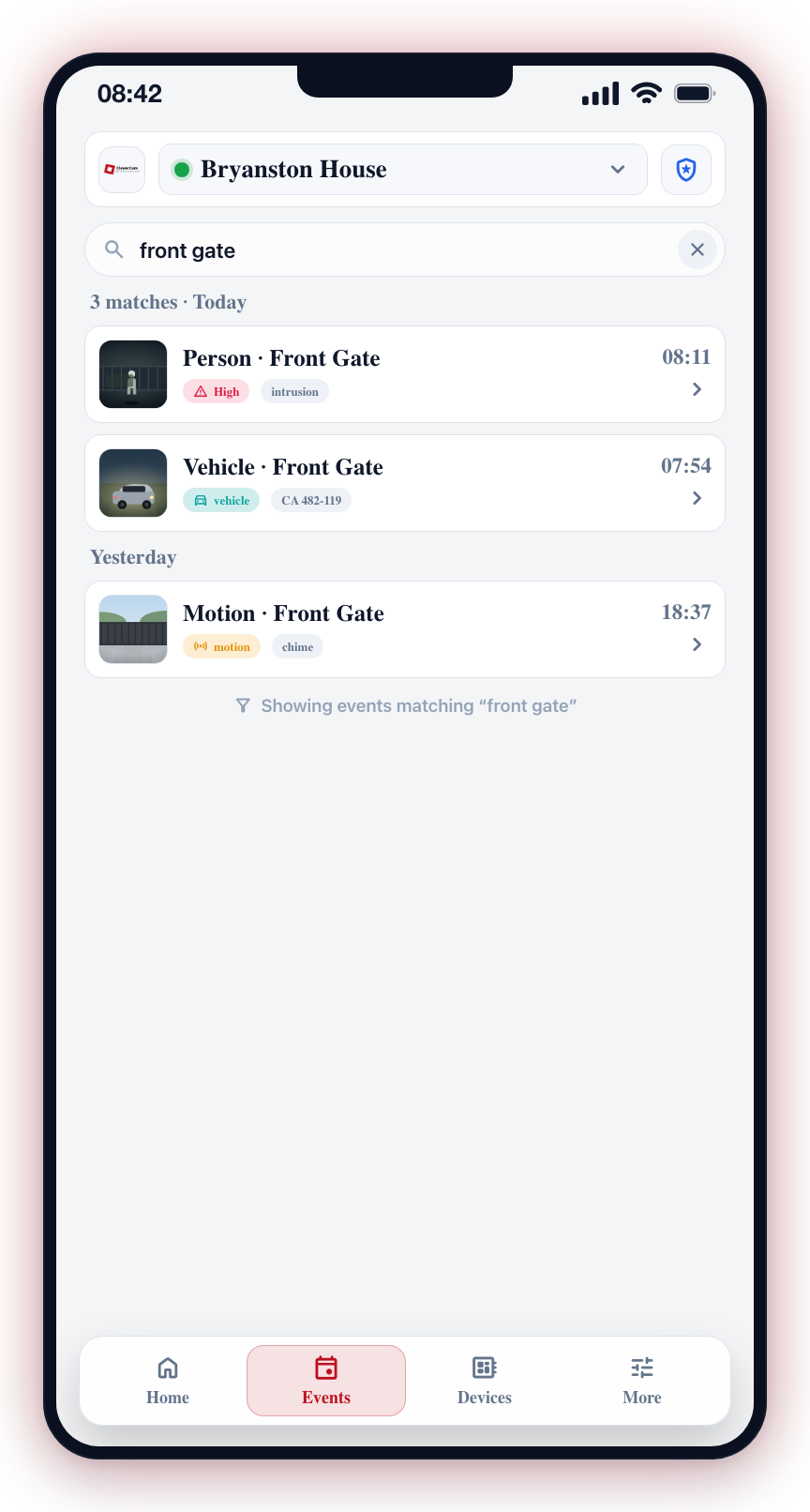
- All · Alarms · Arm & disarm · System · Panic — tap one to filter the single list to that event type. Panic covers every panic raised from the app — including a site panic, which shares its alarm code with a panel-reported break-in and is told apart by the fact that it carries the person who raised it.
- Filtering is instant and happens on your phone, over the already-loaded 7-day window.
- There is no longer a search bar or search icon on this tab.
See Filter Events for what each chip covers.
Unread Control-Room Messages
When a control room operator sends a message on one of your events and you have not opened it yet, the event's card shows a "Message from your control room" band with a red dot at the card's foot. Tapping the band opens the event straight to the conversation. The band (and the red dot on the Events tab icon in the bottom bar) clears once you open the event.
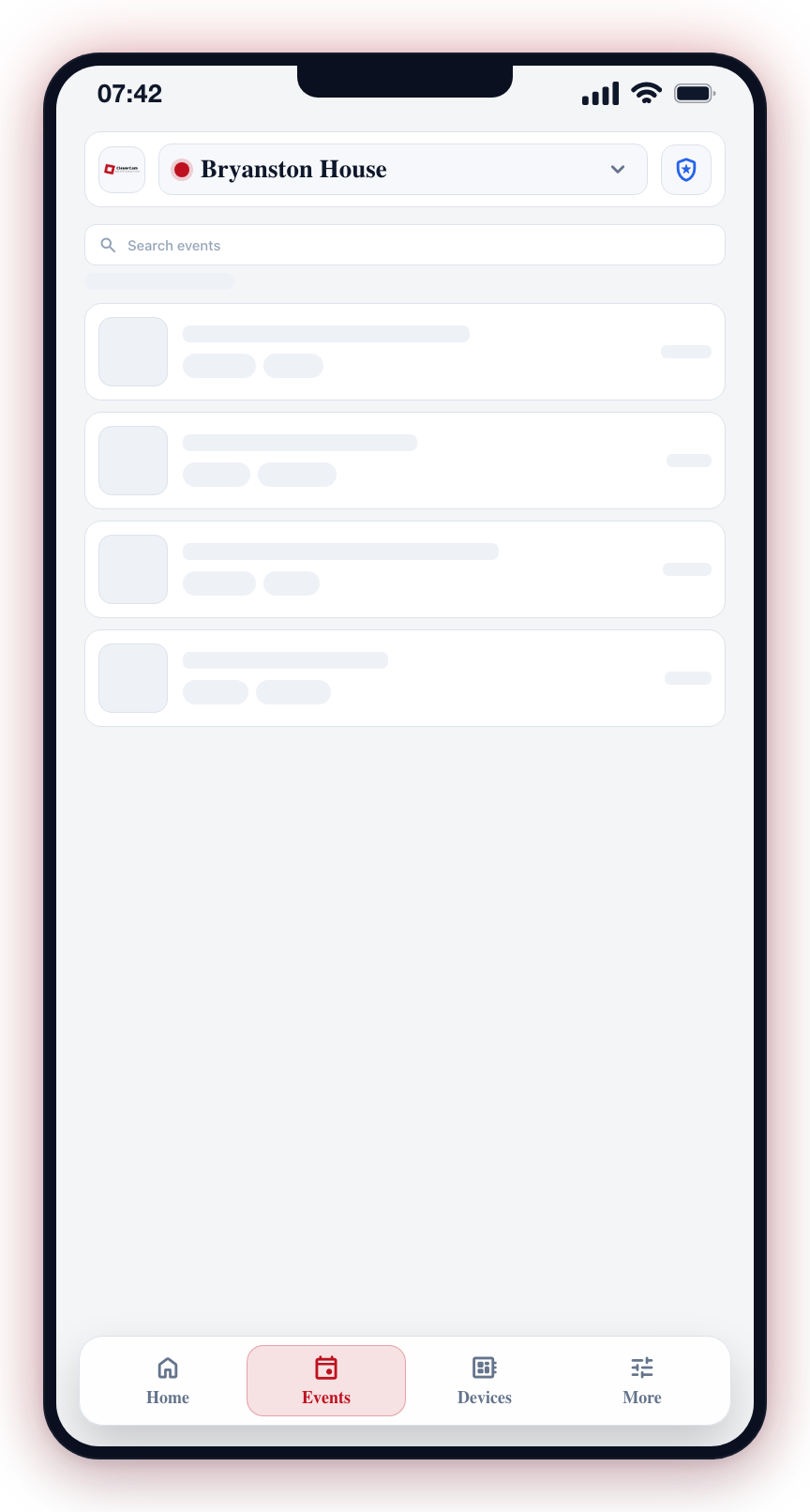
Loading State
While events are being fetched, the list shows placeholder cards with the same shape as a real event card (thumbnail block, title line, description line, chips). This keeps the layout stable so content does not jump in when the data arrives.
Empty State
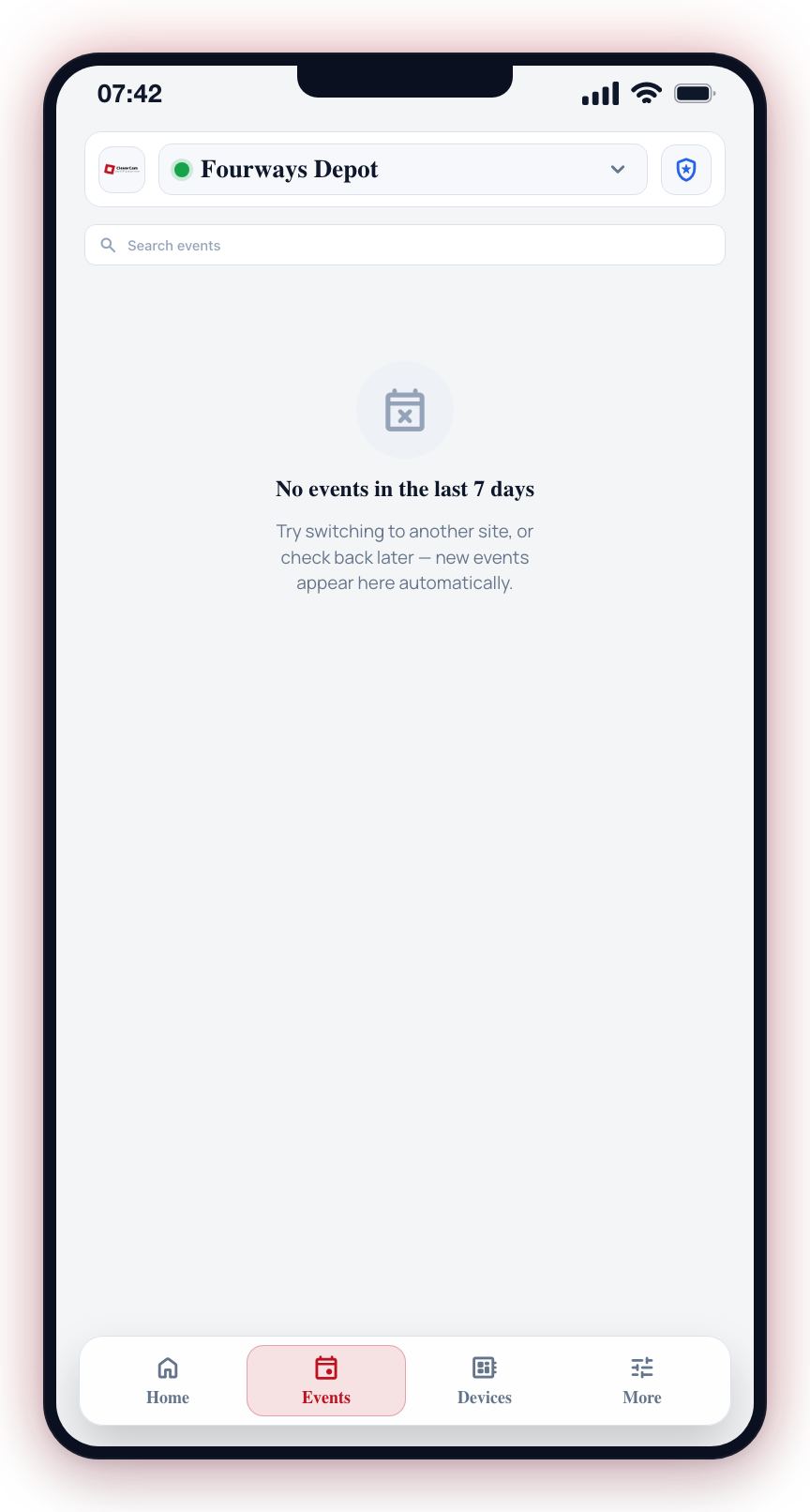
If the selected site has no events in the last 7 days, the list shows a muted icon with the heading "No events in the last 7 days" and a one-line suggestion to switch site or check back later.
Time Range
The Events tab only loads events from the last 7 days for the selected site. Anything older is not shown in the app.
Pagination and Infinite Scroll
The list loads in batches as you scroll:
- 25 events per page load initially.
- As you approach the bottom of the list (around 80% scroll), the next 25 load automatically.
- Placeholder cards briefly appear at the bottom while the next batch is fetched.
- Pull down at the top of the list to force a refresh.
Opening an Event
Tap a row or card to expand it, then tap View details in the expansion to open the full event screen — full-resolution photos, event details, response status, and actions like verifying the event or messaging the response team. See Event Details for the full walkthrough.
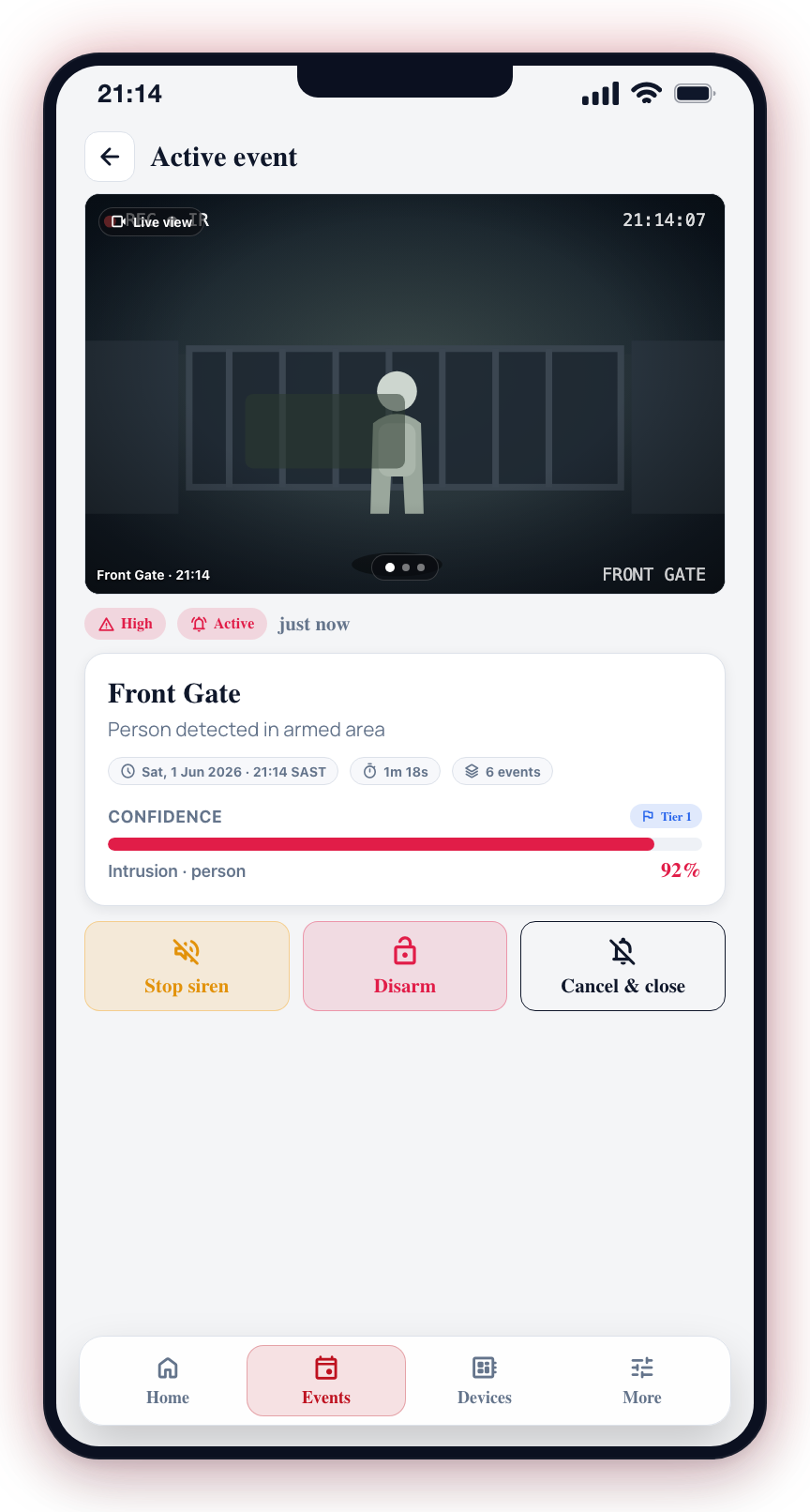
New events appear live — you do not need to refresh manually for incoming events to show at the top of the list.
Entity chips in descriptions
Alarm panel events (arm, disarm, sensor alerts, power events, hub troubles) show clickable entity chips inline in the description instead of plain text. Each chip shows a small icon, a short label, and opens a quick-detail panel when tapped.
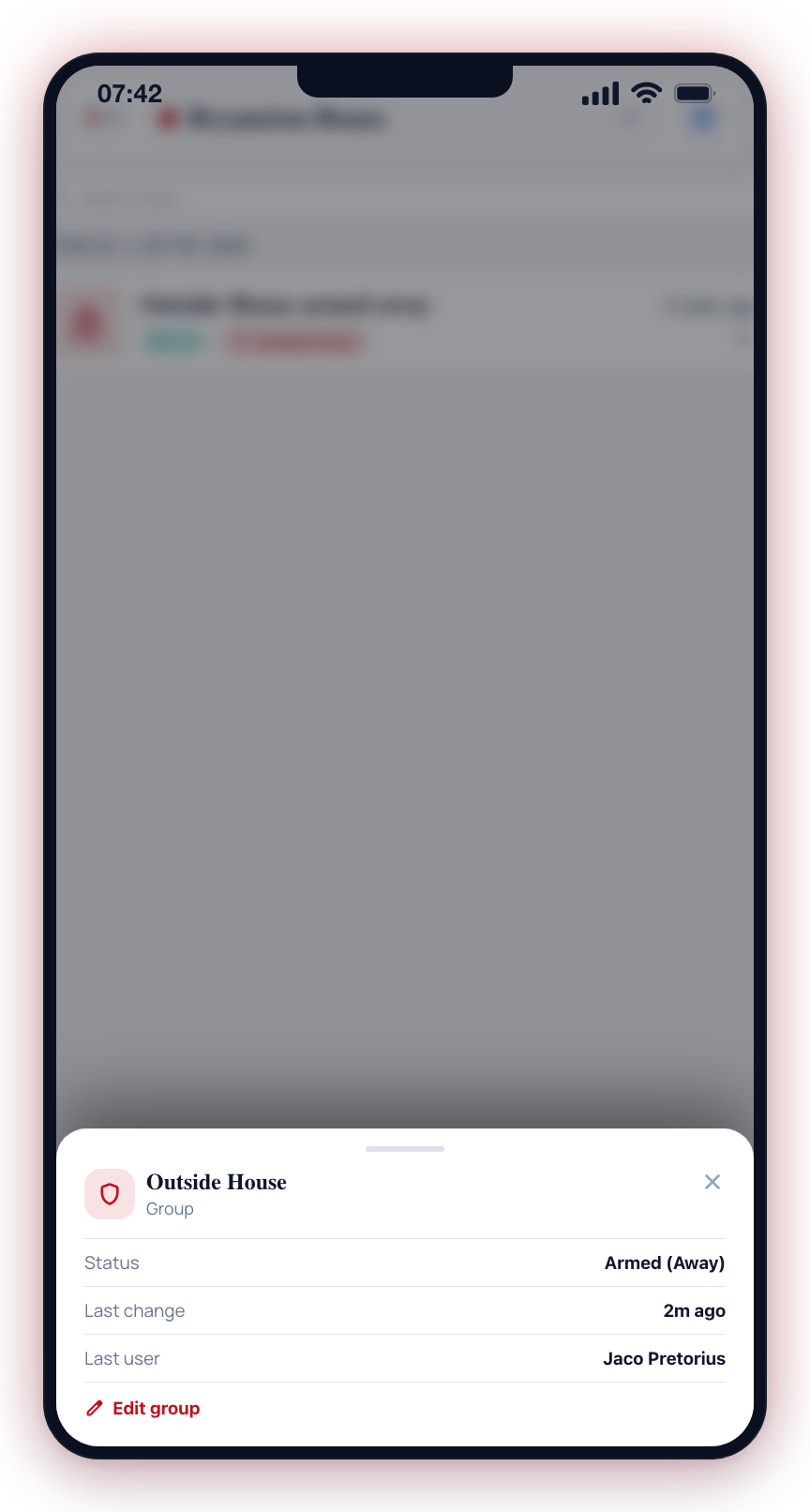
Chips you may see:
| Chip | Icon | Tap opens |
|---|---|---|
| Group | shield | Group arm state, last event, last user who armed or disarmed |
| User | person | User's name, phone, and email |
| Zone / Sensor | sensors | Zone state, bypass status, battery, signal, last alarm |
| Hub | router | Hub status (online or offline), serial number, last check-in |
| Site | home | Site name and address |
Not every chip opens a panel. When the app cannot find the referenced item (for example, a signal came from a panel user that is not yet linked to an app contact), the chip appears as plain bold text with no tap action — the name is still shown, but there is nothing further to open.
Older events keep showing their plain description text, so you can still read your full history.
The chips show the same item the event is about, so tapping Outside House on an "Outside House armed away by Jaco Pretorius" event jumps straight to that group's current arm state — useful when you just want to confirm the house is armed without opening the event itself.