Response Tracking
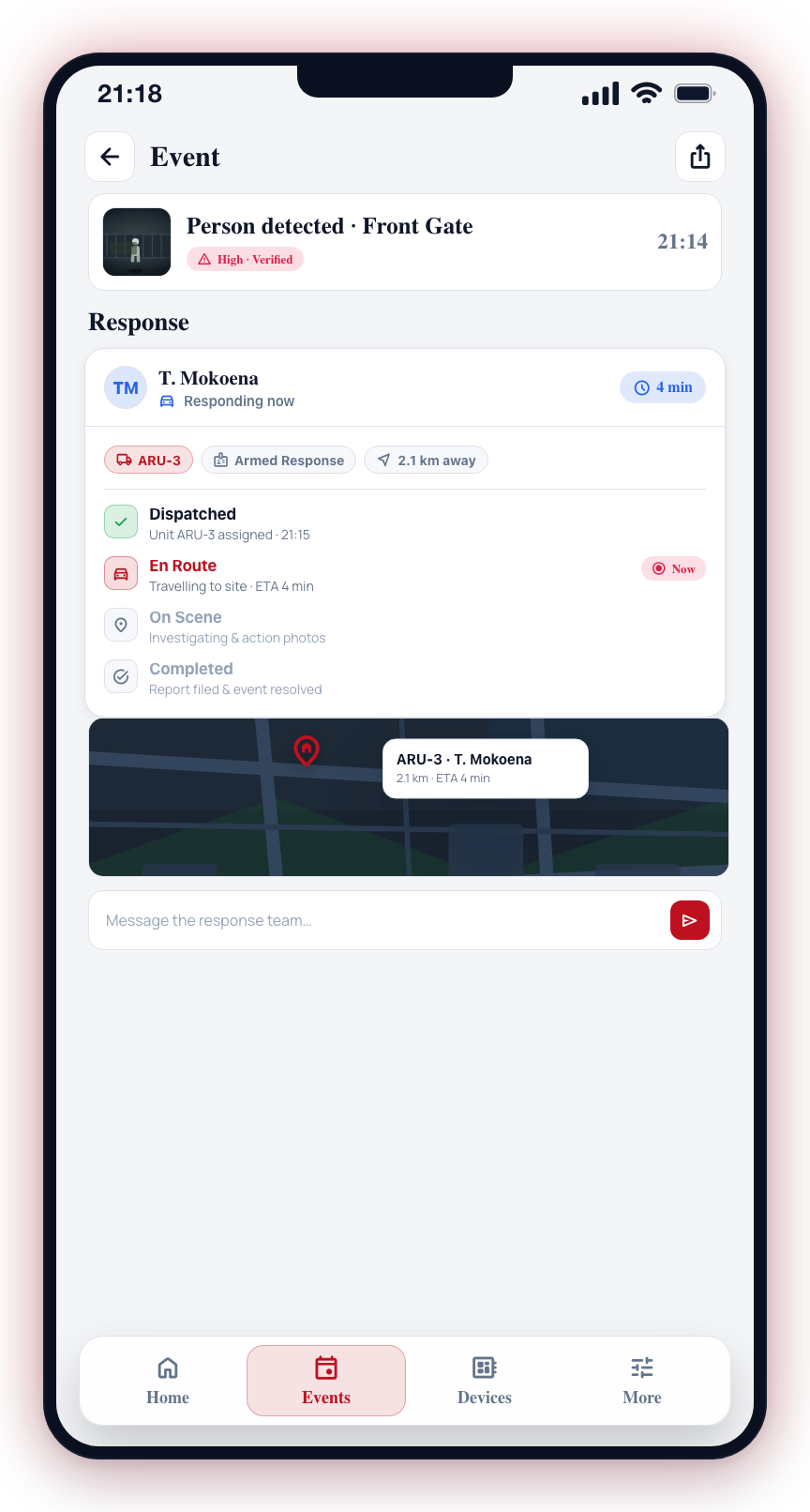
When a security event is confirmed and a response unit is dispatched to your site, CleverAlert lets you follow the response in real time. You can see who has been sent, which unit they belong to, their estimated time of arrival, and their current status as they travel to and arrive at your site.
When is a Responder Dispatched?
A response unit is dispatched when:
- The control room determines an event requires an on-site investigation.
- You verify an event as a real alarm and the control room decides to send a responder.
- An event meets automatic dispatch criteria based on your site's configuration (for example, high-priority verified events may trigger automatic dispatch).
Not all events will result in a dispatch. The decision is made by the control room based on the event details, your verification, and the service level agreement for your site.
Viewing Response Status
- Open an active event that has a response in progress.
- Scroll down to the Response section of the event details.
- The following information is displayed:
| Field | Description |
|---|---|
| Responder Name | The name of the person responding to your event |
| Unit | The response unit or team identifier |
| ETA | Estimated time of arrival at your site |
| Status | Current status of the response (see below) |
Response Status Stages
A response goes through the following stages:
1. Dispatched
The control room has assigned a response unit to your event. The responder has been notified and is preparing to head to your site.
2. En Route
The response unit is actively traveling to your site. The ETA field will display the estimated arrival time, which updates as the responder moves.
3. On Scene
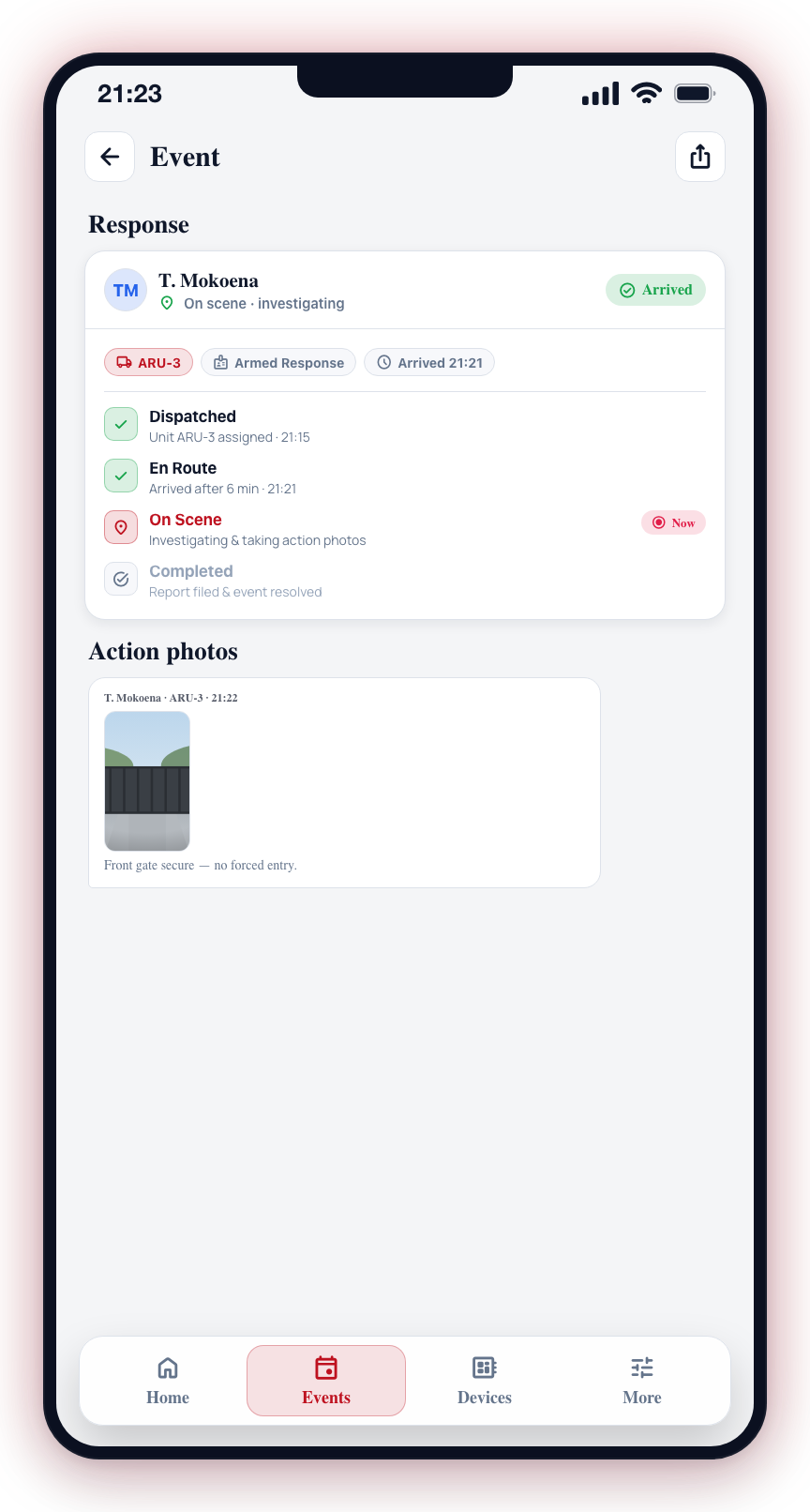
The response unit has arrived at your site and is conducting an investigation.
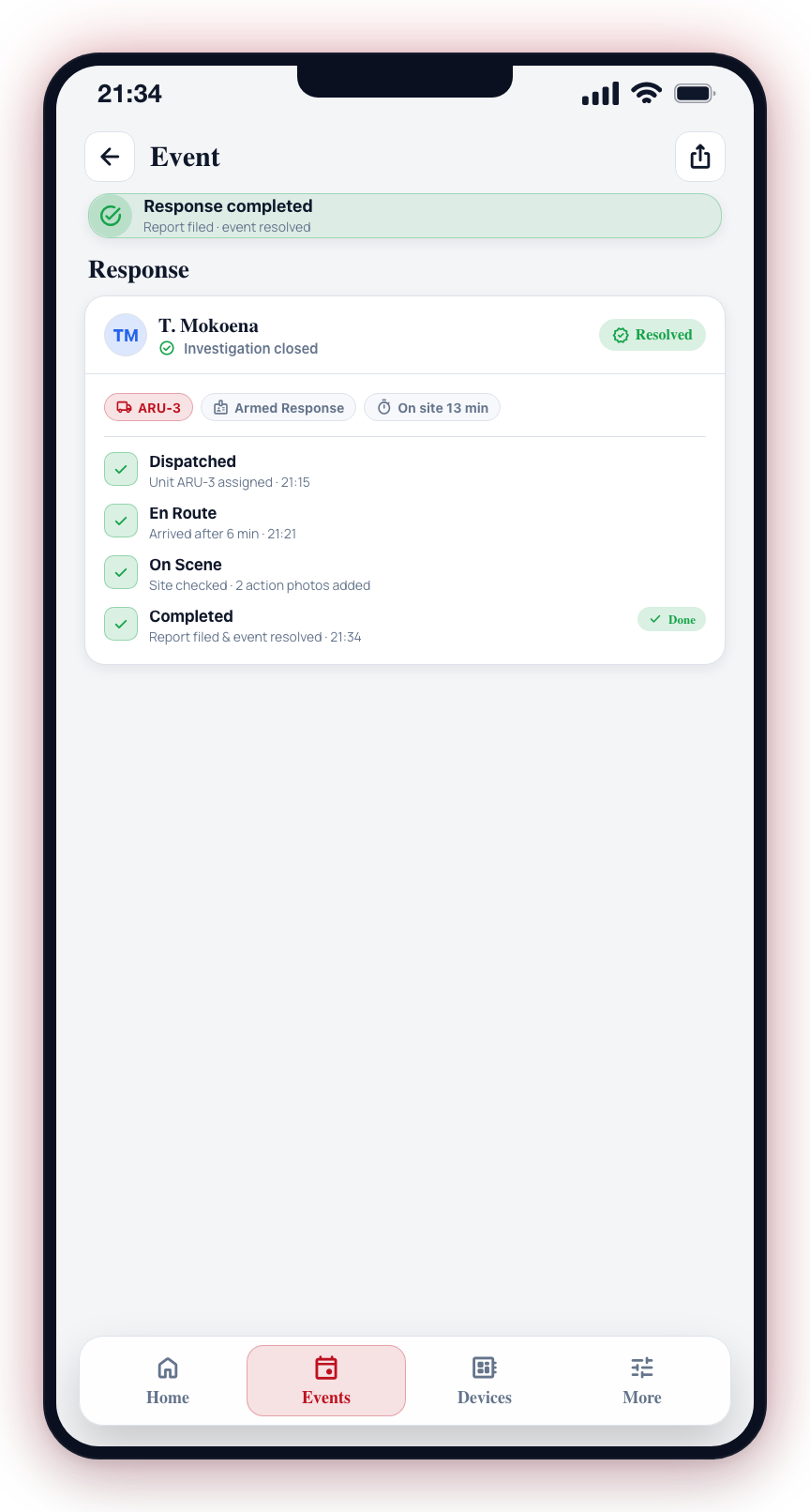
4. Completed
The response unit has finished their on-site investigation and filed their report. The event is now resolved from the response perspective.
The Responder's Report on the Timeline
The event's timeline also follows the response. When the responder presses the buttons in their app, the timeline gains Responder on the way, Responder arrived and Responder finished entries (the last one ends with All in order. or Problem found.).
If your security provider shares responder reports with customers, the report the responder files on scene appears on the timeline as well:
- Responder report — what the responder found (for example "No damage or forced entry reported." or "Forced entry found.") followed by their note.
- Responder photo — one entry for every photo the responder took, placed at the time it was taken. Tap a photo to view it full size.
Whether reports and photos are shared is your provider's choice. If they stop sharing, the entries disappear from your timeline and the photos no longer open.
Real-Time Updates
Response status updates are pushed to your app in real time. You do not need to refresh the screen or reopen the event. As the responder's status changes, the event details screen updates automatically to reflect the new status and ETA.
Response times and availability depend on your security service provider and the response service included in your subscription. Contact your provider for details about your specific response coverage.
If a response unit has been dispatched to your site and you have additional context, send a message to the response team right away using the message input on the event details screen. The control room can use your message to adjust the response accordingly.