Telegram Integration
CleverOps can forward event notifications to a Telegram channel, giving you and your team an additional real-time communication channel for security events. This integration uses a Telegram bot that posts event details -- including snapshots, event type, and site information -- directly into a designated Telegram group or channel. It is especially useful for teams that already use Telegram for day-to-day communication.
How It Works
- A security event is detected at a site monitored by your control room.
- CleverOps processes the event through the normal workflow (control room, dispatch, etc.).
- Simultaneously, the event details are sent to your configured Telegram bot.
- The bot posts the event notification into the linked Telegram channel or group.
- Team members in the Telegram channel see the notification in real time.
Prerequisites
Before configuring the integration, you need:
- A Telegram account
- A Telegram bot created through Telegram's BotFather
- A Telegram channel or group where the bot will post notifications
- The bot's token (provided by BotFather when you create the bot)
Setting Up a Telegram Bot
If you do not already have a Telegram bot:
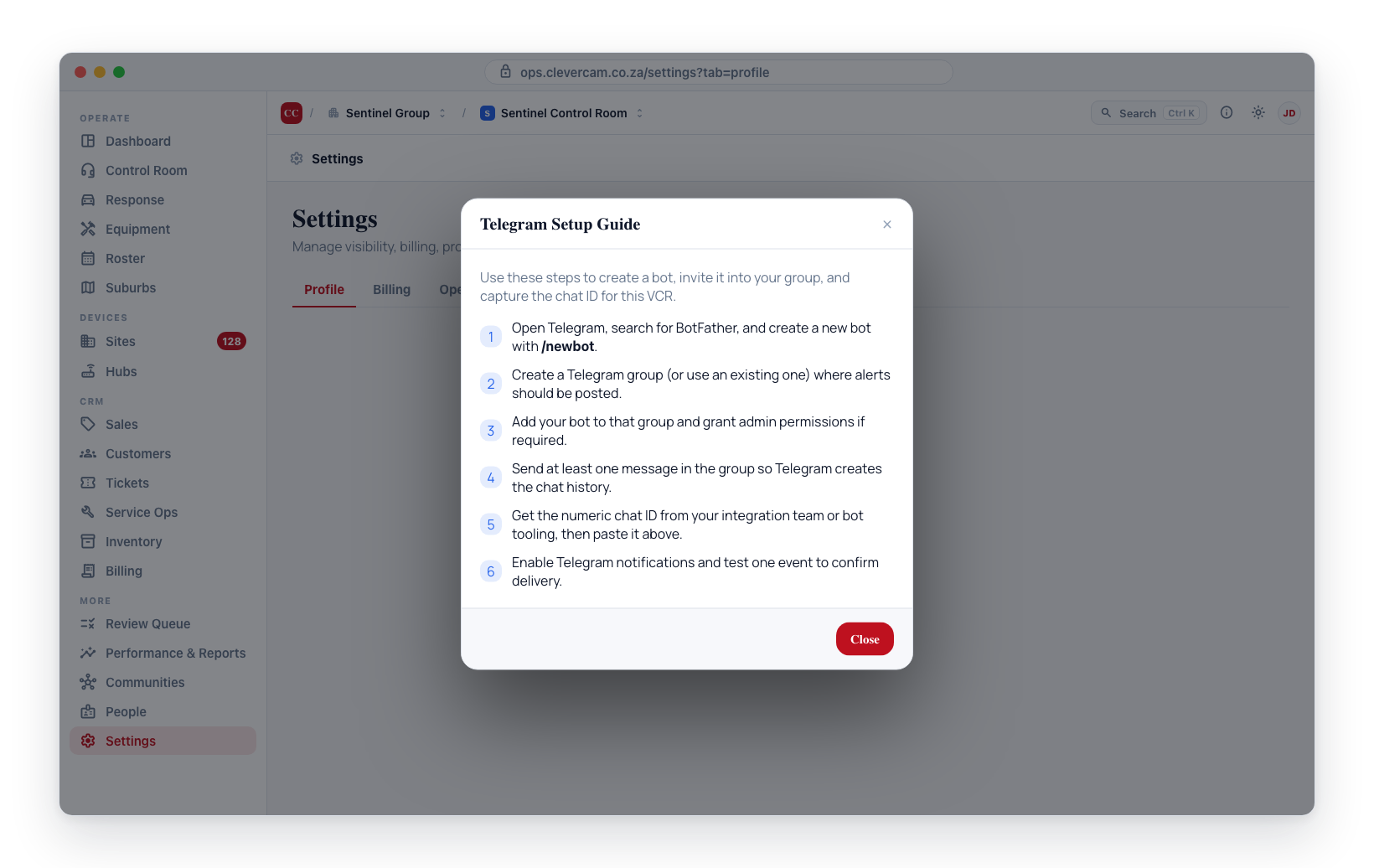
- Open Telegram and search for @BotFather.
- Start a conversation with BotFather.
- Send the command
/newbot. - Follow the prompts:
- Enter a name for your bot (e.g., "CleverOps Alerts").
- Enter a username for your bot (must end in "bot", e.g., "clevercam_alerts_bot").
- BotFather responds with your bot's token. Save this token -- you will need it for the CleverOps configuration.
- Add the bot to your Telegram channel or group:
- Open the channel or group settings.
- Go to Administrators or Members.
- Add your bot as a member (and grant admin rights if posting to a channel).
Your bot token grants full control of the bot. Never share it publicly or include it in screenshots. If the token is compromised, revoke it via BotFather and generate a new one.
Configuring Telegram in CleverOps
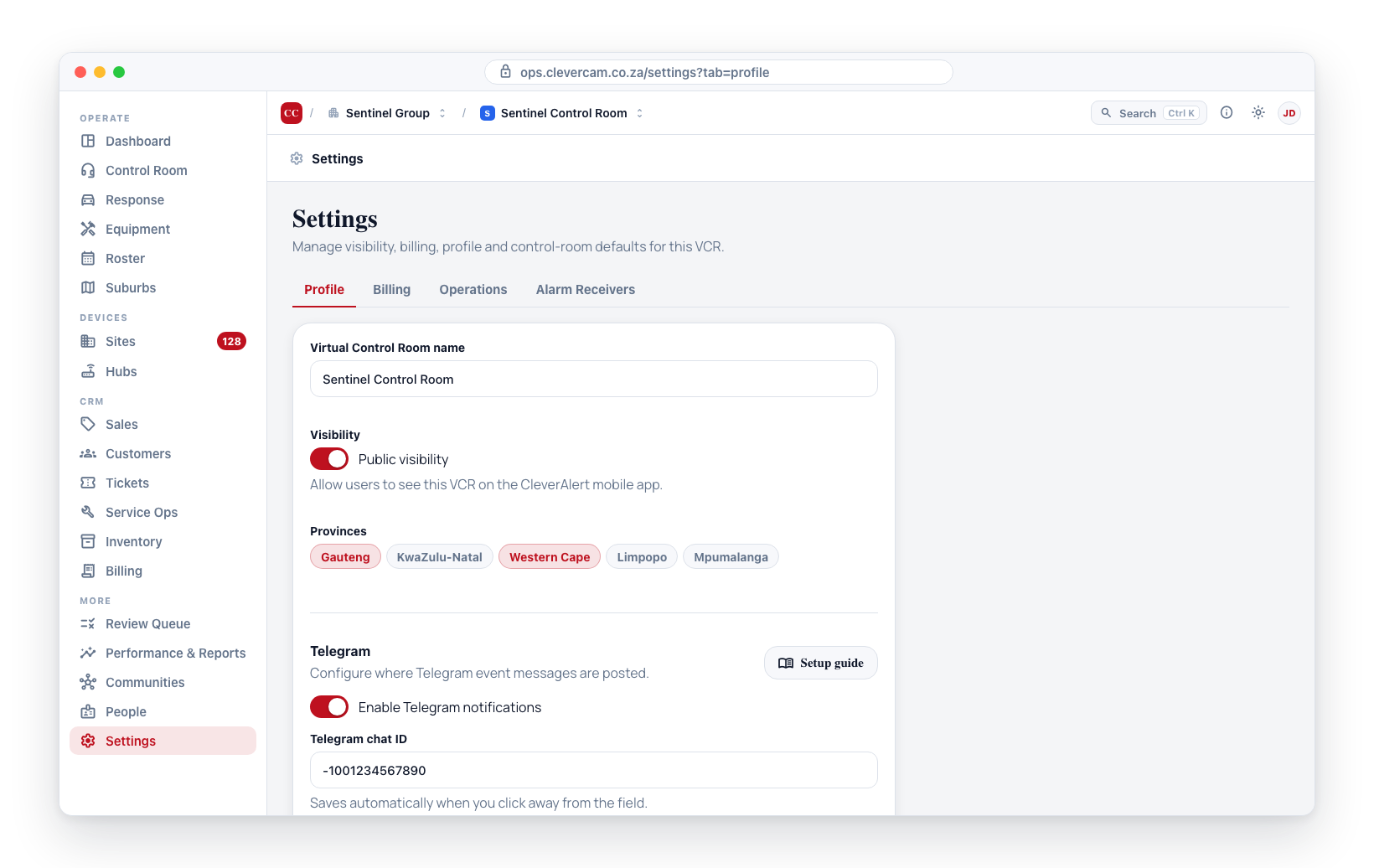
- Navigate to Settings in the sidebar.
- Select Contact details under the Workspace heading.
- Scroll down to the Telegram section.
- Toggle the Enable Telegram switch to activate the integration.
- Enter the Telegram Chat ID for the group or channel where notifications should be posted.
- Changes save automatically when you toggle the switch or click away from the field.
Click the Setup guide button for step-by-step instructions within CleverOps.
Testing the Integration
After configuration:
- Trigger a test event at one of your sites (or wait for a real event).
- Check your Telegram channel or group for the notification.
- Verify that the notification includes:
- Event type
- Site name
- Timestamp
- Snapshot image (if available)
If no notification appears, review the troubleshooting section below.
Enabling and Disabling
You can turn the Telegram integration on and off without losing your configuration:
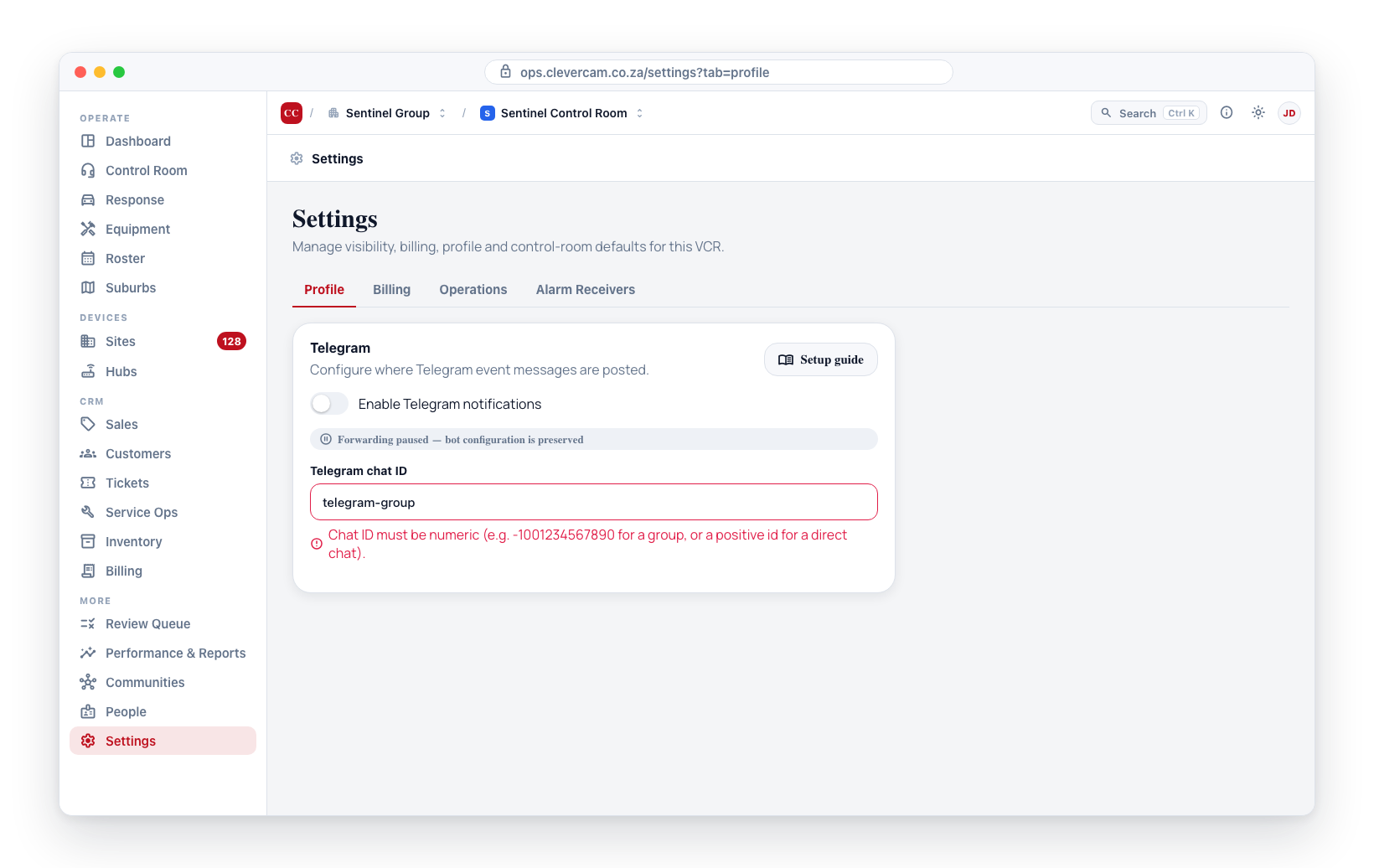
- Enable -- Toggle on to start forwarding events to Telegram.
- Disable -- Toggle off to stop forwarding. The bot configuration is preserved for when you re-enable.
What Gets Sent to Telegram
Each notification typically includes:
- Event type -- The type of security event (intrusion, motion, tamper, etc.)
- Site name -- Which site the event occurred at
- Timestamp -- When the event was detected
- Snapshot -- A camera image from the time of the event (if available)
- Status -- Current event status (new, acknowledged, dispatched, etc.)
Delivery, retries and photos
Every notification is queued and then sent, so a hiccup at Telegram does not lose it:
- Retries. If Telegram is busy (it limits how fast a bot may post into one group) or cannot be reached, CleverOps waits as long as Telegram asks and tries again.
- Fifteen-minute cut-off. A notification that still has not gone out 15 minutes after the event is dropped instead of posted late, so the group never sees an old alarm as if it were happening now.
- Late notifications say so. One that reaches Telegram more than two minutes after the event starts with a line such as
⏱ Delayed — raised at 14:05(South African time). - Photos. Some cameras, SpotBot and AVLytics among them, deliver their snapshot a few seconds after the alarm. CleverOps waits up to about 45 seconds for it. If it has still not arrived, the notification is posted without it and ends with (No photo: the camera image was not available.)
- Keyholders. When the site's keyholders are listed, people whose access to the site has expired are left out.
Not the only Telegram stream
Everything on this page is the event stream: alarms from sites, forwarded as they happen, addressed by the chat ID set here under Settings → General → Telegram.
There is a second, separate stream for your own infrastructure — a receiver going quiet, a serial gateway losing its link, a control-room router dropping off or falling back to LTE. It is configured under Settings → Alarm Receivers → Alerts, has its own destination and its own severity filter, and does not use the chat ID on this page. See Alarm Receivers → Alerts.
The two can point at the same group or at different ones. Keeping them apart is usually better: the event stream is busy, and a dead receiver should not scroll past unread.
Troubleshooting
| Issue | Solution |
|---|---|
| No notifications in Telegram | Verify the bot token is correct and the bot has been added to the channel |
| Bot added but not posting | Ensure the bot has admin or posting permissions in the channel |
| Notifications delayed | Check your internet connection and Telegram service status |
| Snapshots not appearing | Verify that cameras at the site are online and generating snapshots |
| Notification ends with (No photo: the camera image was not available.) | The camera's snapshot did not reach CleverCam within about 45 seconds. The alarm itself was delivered; if the image arrives later it shows on the event in the control room |
Notification starts with ⏱ Delayed | Telegram was busy or unreachable and the notification was retried. Nothing is posted more than 15 minutes after the event |
| Bot was removed from channel | Re-add the bot to the channel and verify admin permissions |
If you want to send different event types to different Telegram channels, you may need to set up multiple bots or use Telegram's topic feature in groups. The CleverOps integration sends all events to a single configured channel.