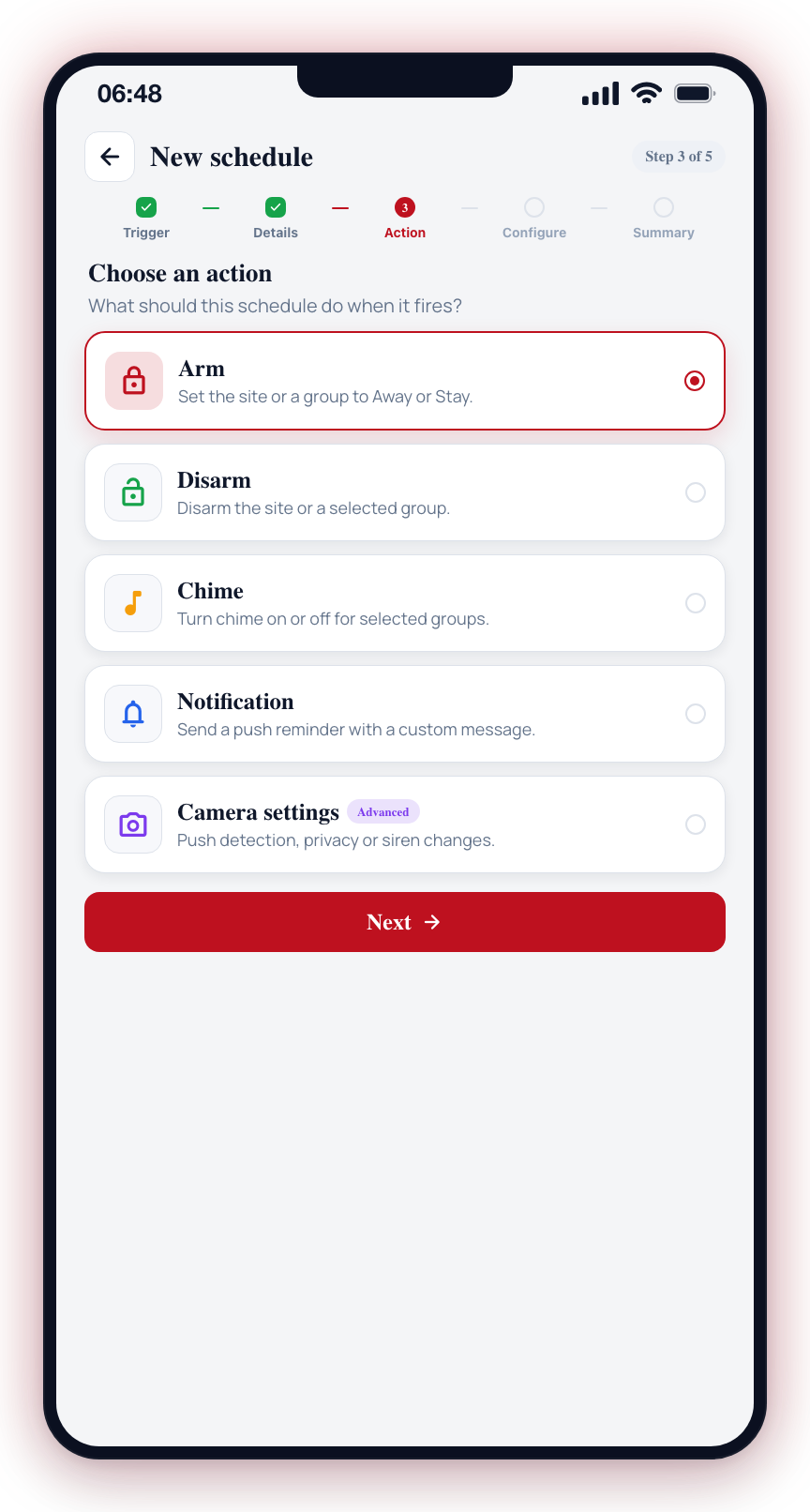
Schedules Overview
Schedules are managed from the More tab: under My site, tap Schedules. This screen lists all schedules for the current site and lets you create new schedules, enable or disable existing ones, and tap into any schedule to edit it.
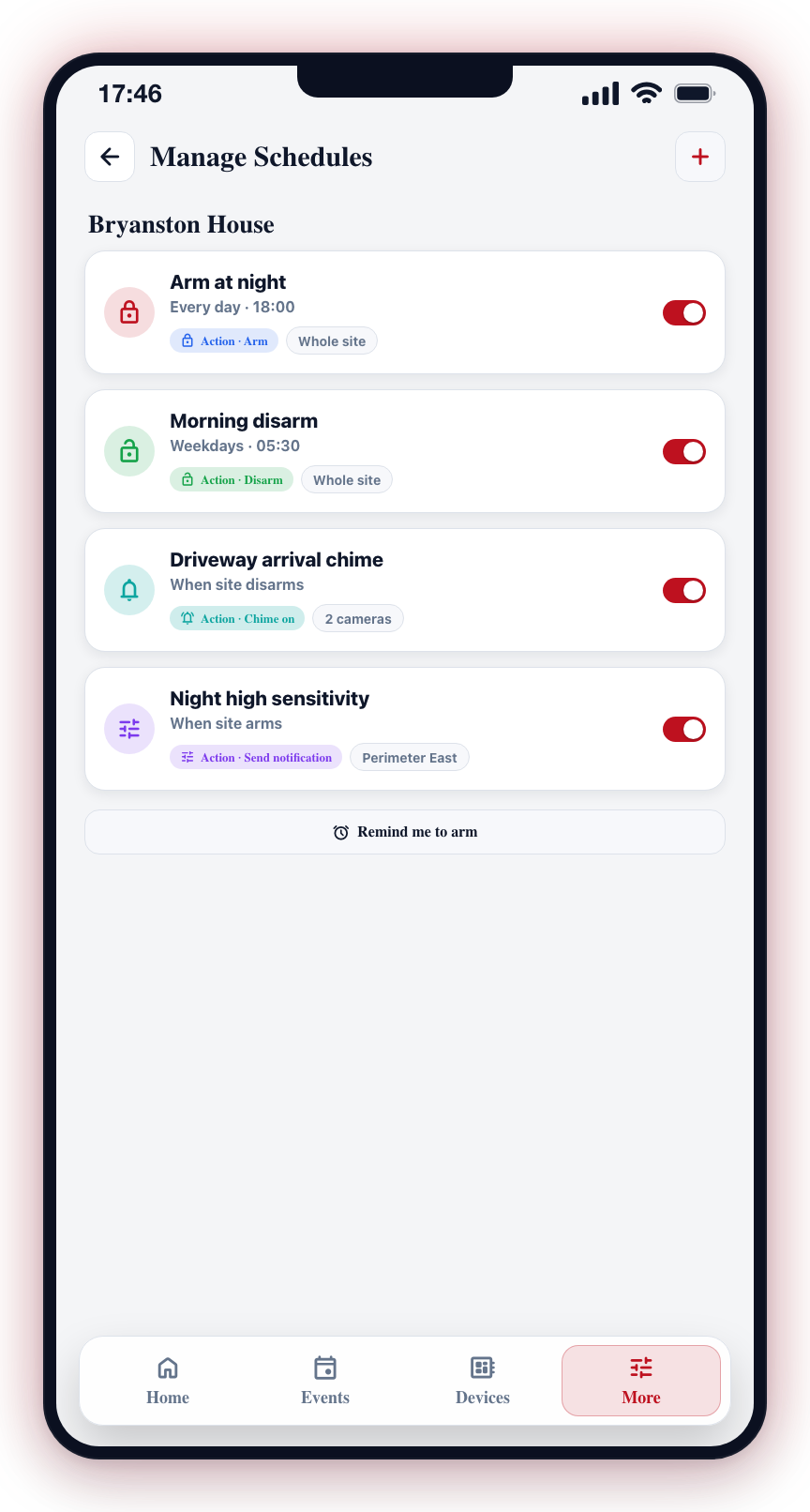
Schedule List
The Schedules screen displays all schedules for the selected site. Each schedule card shows:
- Schedule name -- An auto-generated or custom label.
- Action icon -- A lock icon for arm/disarm, bell icon for chime or notifications, tune icon for camera settings.
- Trigger summary -- For time-based schedules: the repeat pattern and time, separated by a middle dot (e.g., "Every day · 18:00"). For alarm-state-change schedules: the trigger condition (e.g., "When Site Arms").
- Action label -- The action type (e.g., "Action - Arm", "Action - Chime on", "Action - Send notification").
- Scope -- Whether the action applies to the whole site, specific groups, or specific cameras.
- Enable/disable toggle -- Turn the schedule on or off without deleting it.
Managing Schedules
To create new schedules, edit existing ones, or configure recurring rules, go to More > My site > Schedules. See the Create Schedule page for the full setup walkthrough.