Camera Stream Addresses
Most of the time you will never need this page: the hub finds your cameras and works their addresses out for you (see Finding Cameras Automatically). This is for the camera it cannot find, where you type the address in yourself.
A stream address is the exact location of a camera's video, the way a web
address is the location of a page. They start with rtsp:// — RTSP (Real Time
Streaming Protocol) is the standard IP cameras use to send video.
What one looks like
An address tells the hub exactly how to reach a camera's video. A typical one:
rtsp://username:password@192.168.1.100:554/stream1
The components are:
| Component | Description | Example |
|---|---|---|
| Protocol | Always rtsp:// | rtsp:// |
| Username | Camera login username | admin |
| Password | Camera login password | password123 |
| IP Address | The camera's local network address | 192.168.1.100 |
| Port | The streaming port (default is 554) | 554 |
| Path | The stream path, varies by manufacturer | /stream1 |
Configuring the Stream Address
- Navigate to the Devices tab.
- Tap Add Camera, then scroll to the Manual connect section.
- In Step 1, select your camera brand from the list or choose RTSP url for a custom address.
- In Step 2, enter the camera's username and password.
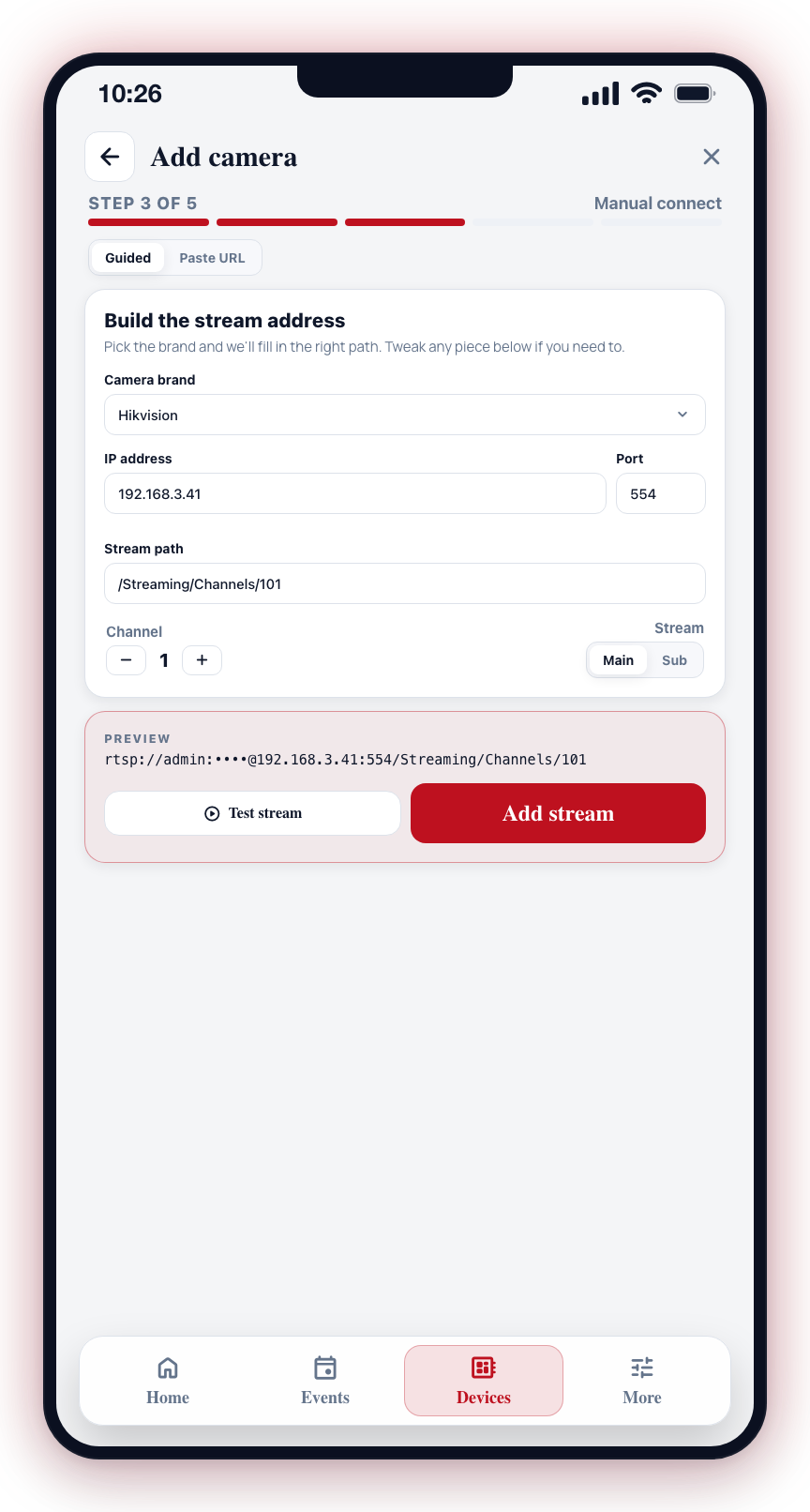
- In Step 3, enter or confirm the full stream address.
- Assign a camera name and group, then tap Add camera.
In Guided mode, pick the brand and the app fills in the correct stream path — adjust the IP, port, channel, or stream type and the preview updates live. Tap Test stream to confirm it plays, then Add stream. Switch to Paste URL if you already have the full rtsp:// address.
Setting a Stream Password
For security, your camera should require a username and password for video access. To configure this:
- Log into your camera's web interface (typically by typing the camera's IP address into a web browser).
- Navigate to Network > RTSP or Streaming settings.
- Enable authentication.
- Set a strong username and password.
- Save the settings on the camera.
- Update the stream address in CleverAlert with the new credentials.
Common Stream Address Formats
Below are typical stream address formats for popular camera brands. Replace IP, user, and pass with your camera's actual values.
Hikvision
rtsp://user:pass@IP:554/Streaming/Channels/101    (Main stream)
rtsp://user:pass@IP:554/Streaming/Channels/102    (Sub stream)
Dahua
rtsp://user:pass@IP:554/cam/realmonitor?channel=1&subtype=0    (Main stream)
rtsp://user:pass@IP:554/cam/realmonitor?channel=1&subtype=1    (Sub stream)
Axis
rtsp://user:pass@IP:554/axis-media/media.amp
rtsp://user:pass@IP:554/axis-media/media.amp?streamprofile=Quality
Uniview
rtsp://user:pass@IP:554/unicast/c1/s0/live    (Main stream)
rtsp://user:pass@IP:554/unicast/c1/s1/live    (Sub stream)
Hanwha (Samsung)
rtsp://user:pass@IP:554/profile2/media.smp
rtsp://user:pass@IP:554/profile1/media.smp
Provision-ISR
rtsp://user:pass@IP:554/profile1    (IP camera — main)
rtsp://user:pass@IP:554/profile2    (IP camera — sub)
rtsp://user:pass@IP:554/chID=1&streamType=sub    (DVR/NVR — channel 1, sub)
Tiandy
rtsp://user:pass@IP:554/1/1    (channel 1 — main)
rtsp://user:pass@IP:554/1/2    (channel 1 — sub)
TVT (and TVT-built recorders)
rtsp://user:pass@IP:554/chID=1&streamType=main    (channel 1 — main)
rtsp://user:pass@IP:554/chID=1&streamType=sub     (channel 1 — sub)
TP-Link (VIGI)
rtsp://user:pass@IP:554/stream1    (main)
rtsp://user:pass@IP:554/stream2    (sub)
Suzhou Keda
rtsp://user:pass@IP:554/realtime?id=1
Swann
rtsp://user:pass@IP:554/ch01/0 (channel 1 — main; channel is zero-padded)
AVTech
rtsp://user:pass@IP:554/live/h264/ch1 (channel 1)
Generic ONVIF
rtsp://user:pass@IP:554/onvif1
rtsp://user:pass@IP:554/MediaInput/h264
Verifying Your Stream
After adding a camera, check that it is working correctly:
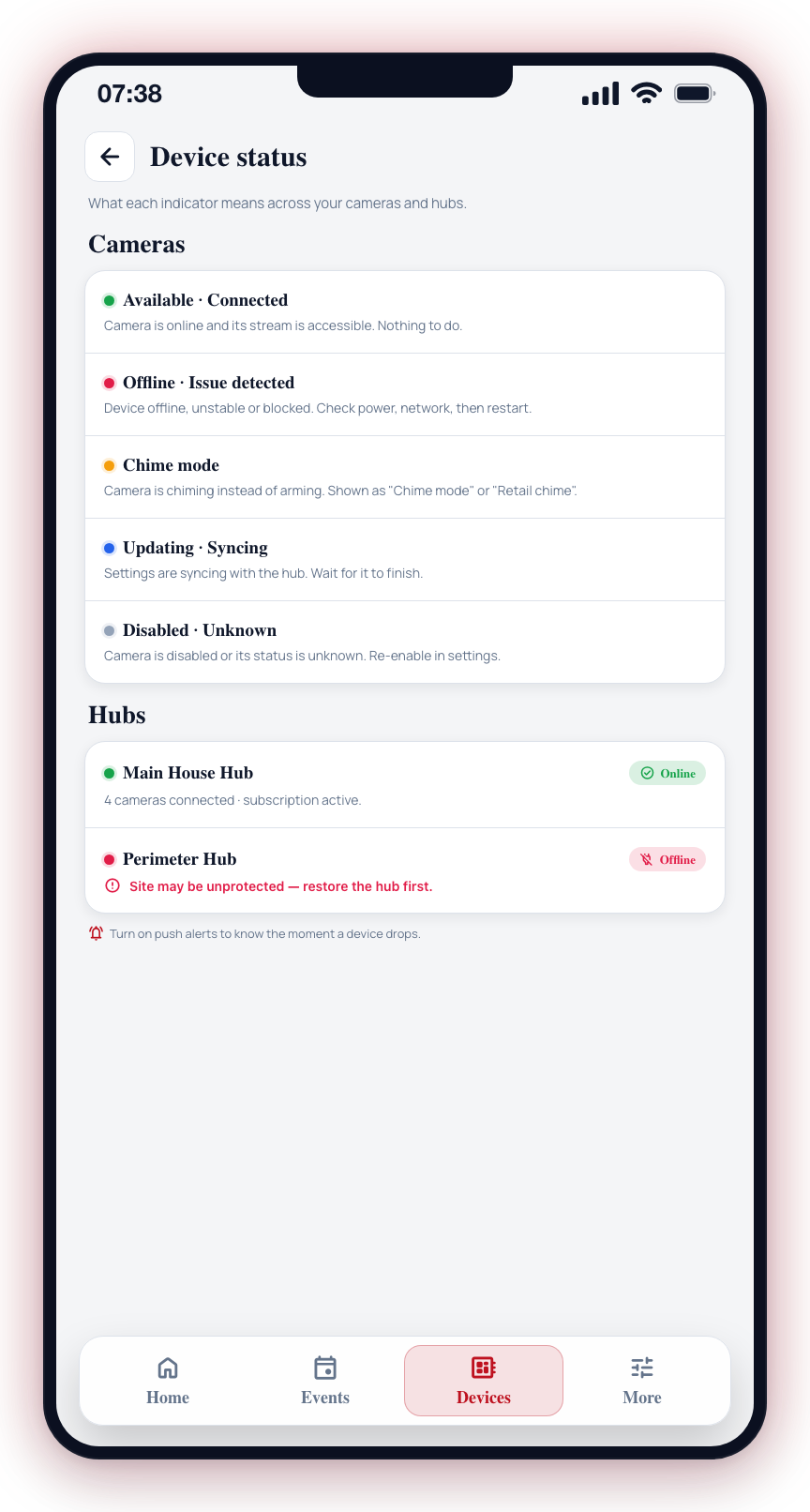
- Open the Devices tab.
- The camera should show a green "Available" or "Connected" status.
- Tap the camera to open the live view and confirm the stream is playing.
- If the camera shows an error, check:
- The IP address is correct and the camera is reachable on the network
- The port is correct (554 is the default, but some cameras use different ports)
- The username and password are correct
- The stream path matches your camera's model and firmware version
If you cannot find the correct stream address format for your camera, check the camera manufacturer's documentation or support website. You can also use the ONVIF discovery method, which retrieves the stream address automatically.
Avoid including passwords with special characters directly in the stream address, as some characters may not be interpreted correctly. Use the separate credential fields in the app where possible.