Tamper Detection
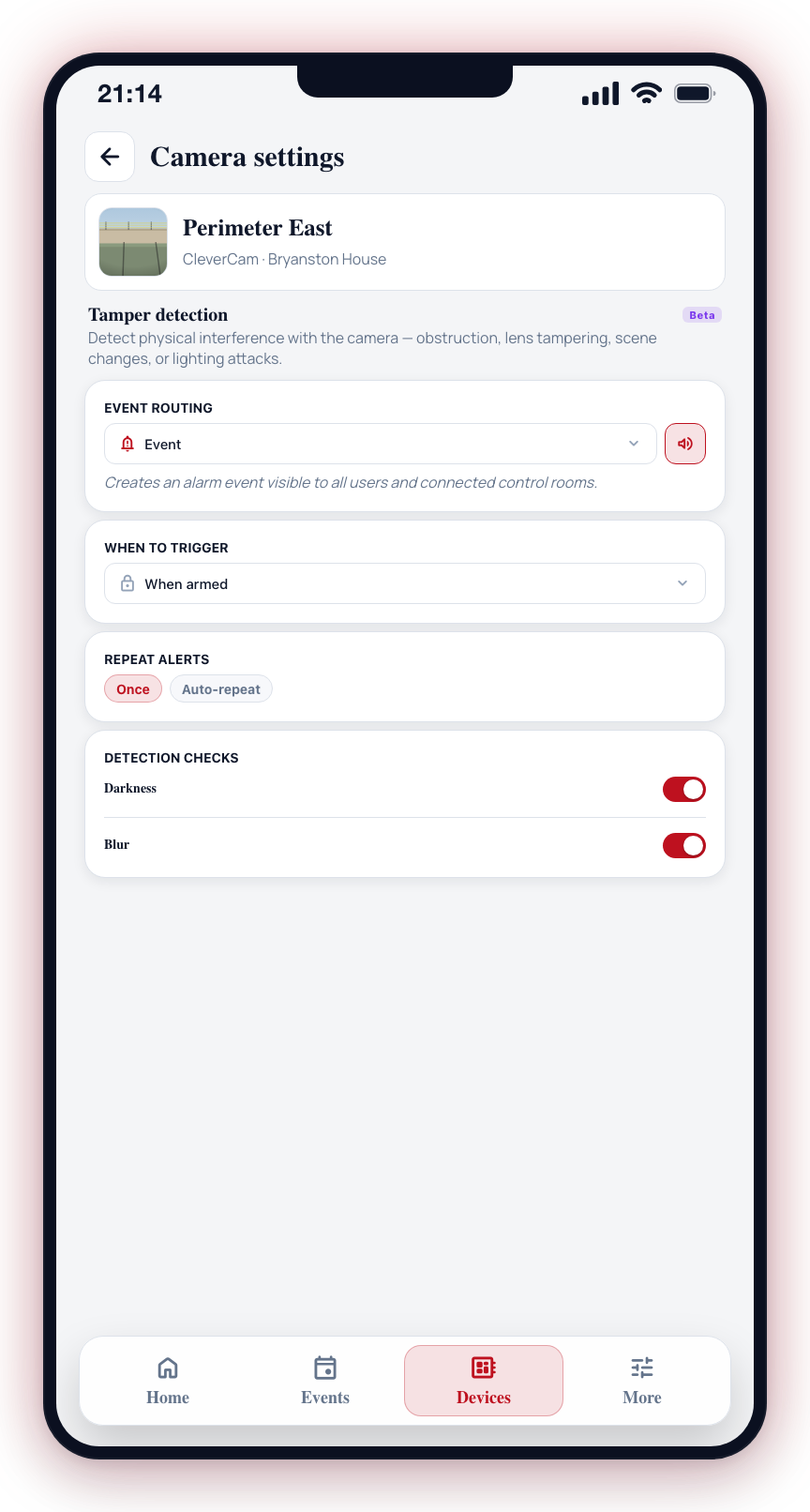
The camera's detection editor stopped offering a Tamper detection section in April 2026 — the code parks it "pending v2 routing integration" — and the standalone Tamper detection screen it used to open has had no way in since. Nothing on a camera's Settings leads here, so the walkthrough below describes a screen you cannot currently open.
A CleverCam camera is created with tamper routing set to skip, and there is no editor for it in CleverOps either, so tamper events are not raised for CleverCam cameras at present. Photo-verification cameras are the exception: a SpotBot or AVLytics camera routes its own tamper signal, set on the hub — see AVLytics setup.
Tamper detection watches for physical interference with a camera. When the camera notices something wrong -- someone blocking it, spraying the lens, moving it, shining a torch at it, or cutting the lights -- it can send an alert to the control room and your phone.
Tamper detection only works on cameras connected to a native CleverCam Clever Hub. If your camera is attached to a third-party device, this screen shows an unsupported message instead of the controls.
This feature is in beta. Settings are subject to change.
Getting There
- Open the Devices tab.
- Tap a camera to open its camera sheet.
- Tap Settings, then navigate to Tamper detection in the camera settings.
Event Routing
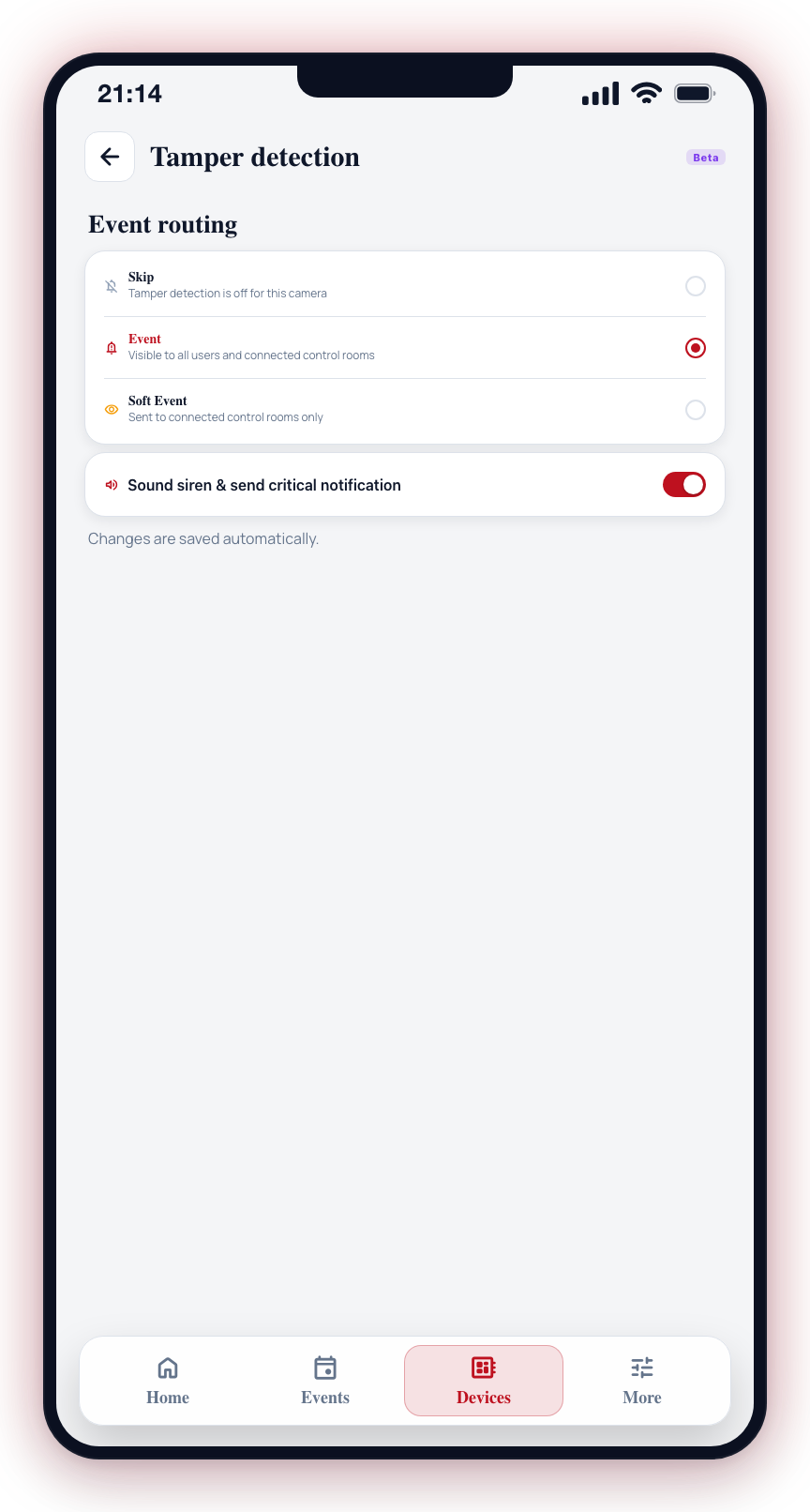
The Event routing option controls what happens when a tamper condition is detected:
| Option | What it does |
|---|---|
| Skip | Tamper detection is off for this camera. |
| Event | Creates an alarm event visible to all users and connected control rooms. |
| Soft Event | Sends tamper alerts to connected control rooms only -- not shown to app users. |
When Event is selected, a siren toggle appears next to the option. Enabling it activates the siren and sends a critical notification alongside the tamper alert.
When to Trigger
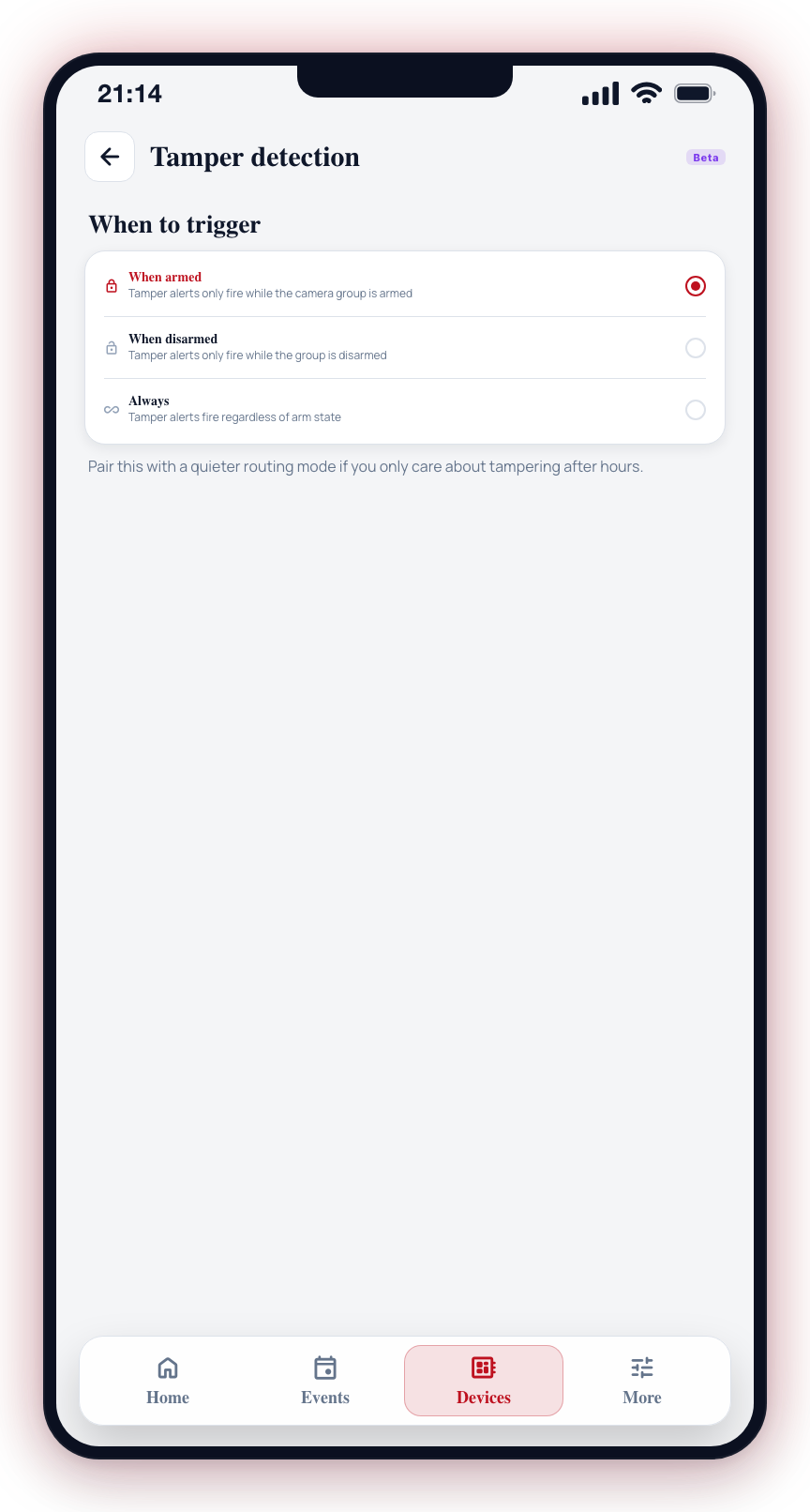
The When to trigger option sets when the camera reports tamper conditions:
| Option | Behavior |
|---|---|
| When armed | Tamper alerts only fire while the camera group is armed. |
| When disarmed | Tamper alerts only fire while the camera group is disarmed. |
| Always | Tamper alerts fire regardless of arm state. |
Repeat Alerts
By default, a tamper alert fires once and waits for manual acknowledgment (Once mode). Switch to Auto-repeat to re-send the alert at a fixed interval while the tamper condition continues.
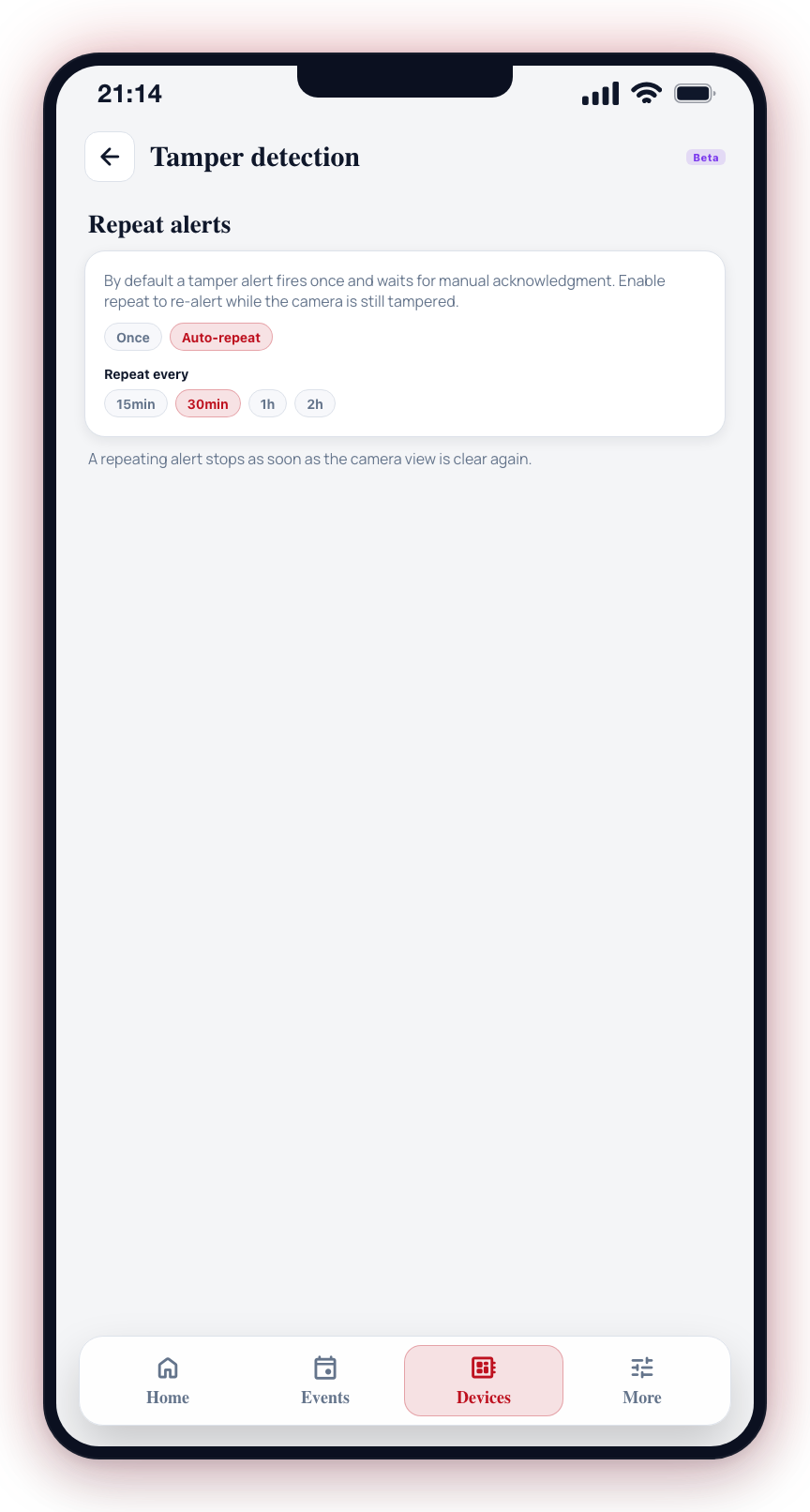
When auto-repeat is enabled, choose a repeat interval: 15 min, 30 min, 1h, or 2h.
Detection Checks
The Detection checks section lets you enable or disable individual tamper conditions per camera. All five are on by default:
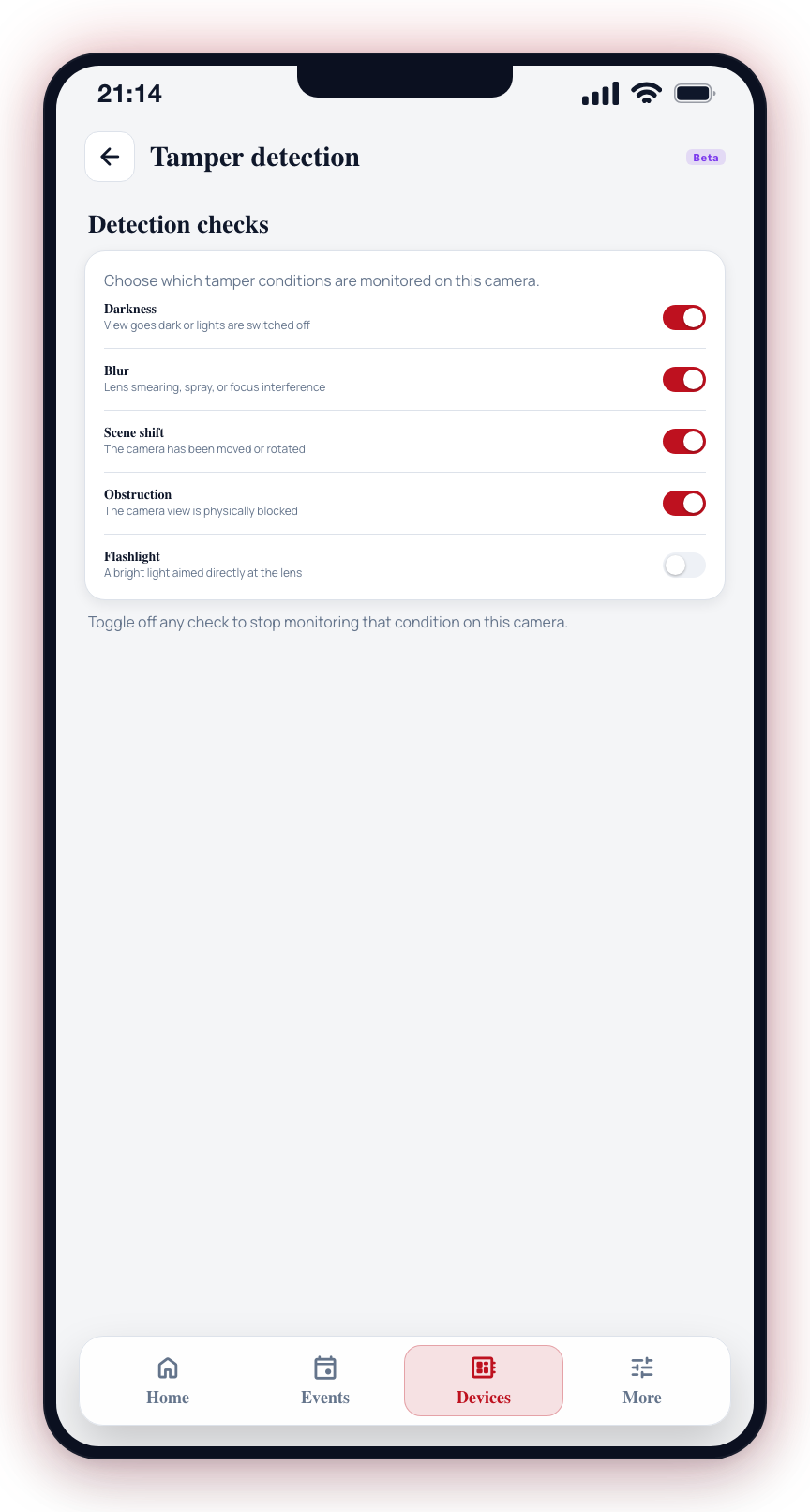
| Check | What it detects |
|---|---|
| Darkness | The camera view goes dark or lights are switched off. |
| Blur | Lens smearing, spray, or focus interference. |
| Scene shift | The camera has been moved or rotated. |
| Obstruction | The camera view is physically blocked. |
| Flashlight | A bright light aimed directly at the lens. |
Toggle off any check to stop monitoring that condition on this specific camera.