Common Issues
This page covers the most frequently encountered issues in CleverOps and provides step-by-step solutions. Before contacting support, work through the relevant troubleshooting steps below -- many issues can be resolved quickly with the tools available in the platform.
Clever Hub Not Showing Online
Symptoms: A Clever Hub appears as offline in the hub list even though you believe it should be connected.
Troubleshooting steps:
- Check the site's internet connection -- The Clever Hub requires a stable internet connection to communicate with the cloud. Confirm that the router or modem at the site is powered on and connected.
- Check the hub's power supply -- Verify that the hub is plugged in and receiving power. Look for power indicator lights on the device.
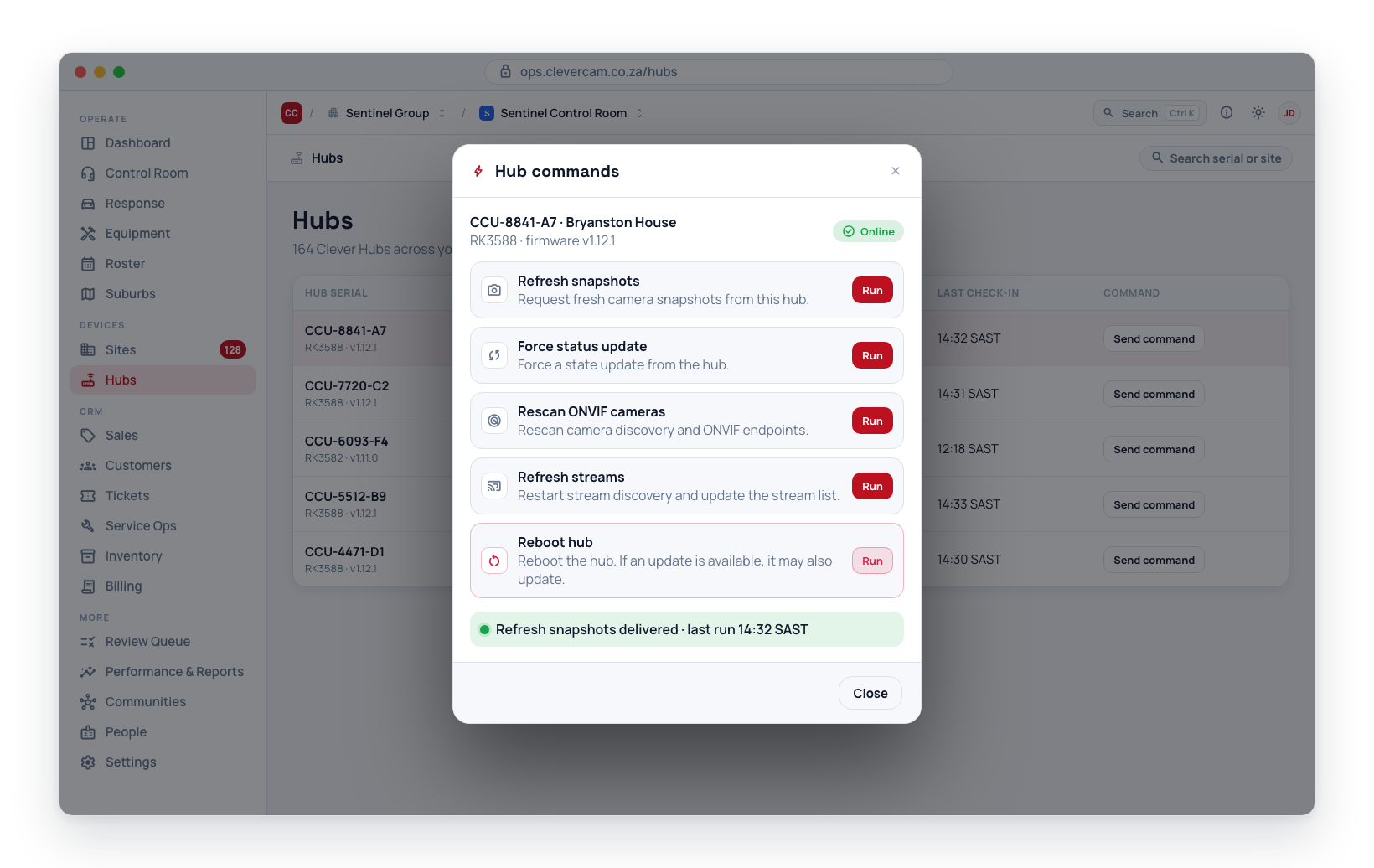
- Use Force Status Update -- Navigate to Hubs, select the hub, and click Force Status Update. This requests an immediate status report from the hub. Wait 30 seconds and check if the status changes.
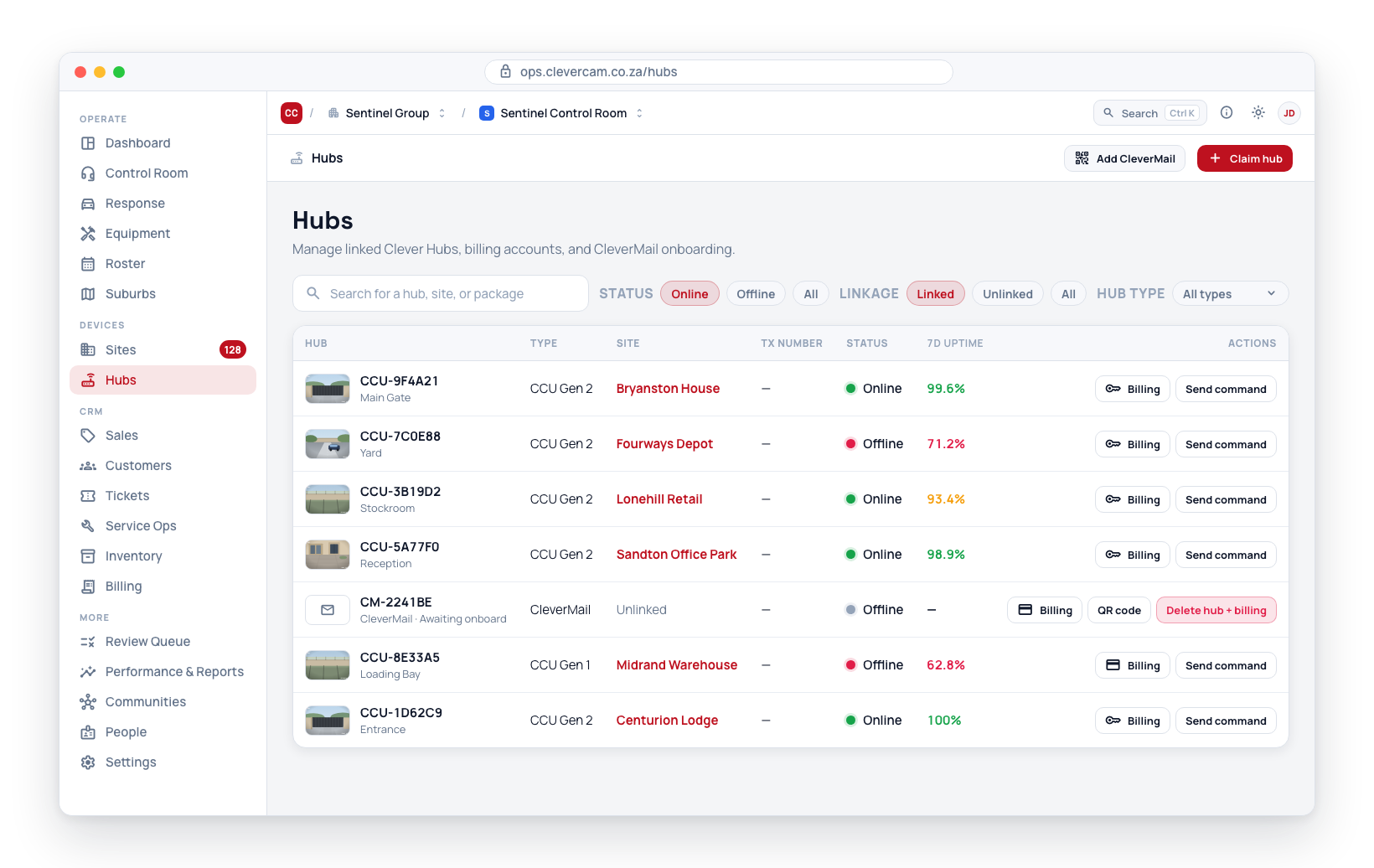
- Try Refresh Streams -- If the hub comes online but cameras are not streaming, click Refresh Streams to re-establish camera connections.
- Reboot the hub remotely -- If other commands are not working, try Reboot Hub from the hub commands menu. The hub will restart and attempt to reconnect. This takes 2--5 minutes.
- Check for regional outages -- If multiple hubs in the same suburb are offline simultaneously, there may be an internet service outage or widespread power failure affecting that suburb.
If the hub was recently installed, confirm that the technician completed the setup process and that the hub is linked to the correct Virtual Control Room and site.
Site Not Appearing in Connected Sites
Symptoms: A site that should be linked to your Virtual Control Room (VCR) does not appear in the Connected Sites list.
Troubleshooting steps:
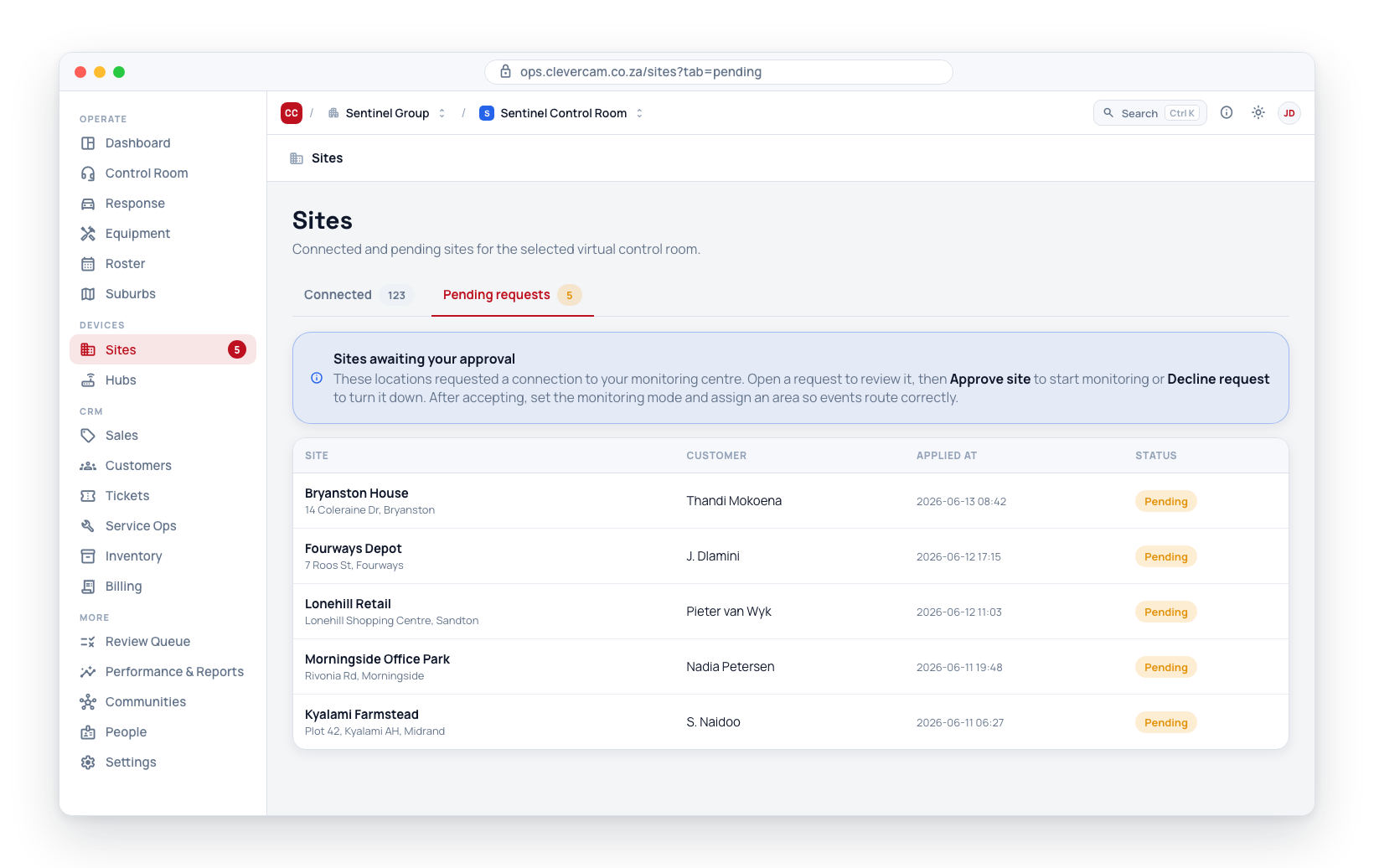
- Check Pending Sites -- The site may be in the pending queue waiting for approval. Navigate to Sites > Pending Sites and look for the site.
- Verify Virtual Control Room assignment -- The site may be linked to a different Virtual Control Room within your company. Switch to other Virtual Control Rooms to check.
- Confirm the connection was completed -- If the site was recently set up, confirm that the connection process was completed by the technician or site owner.
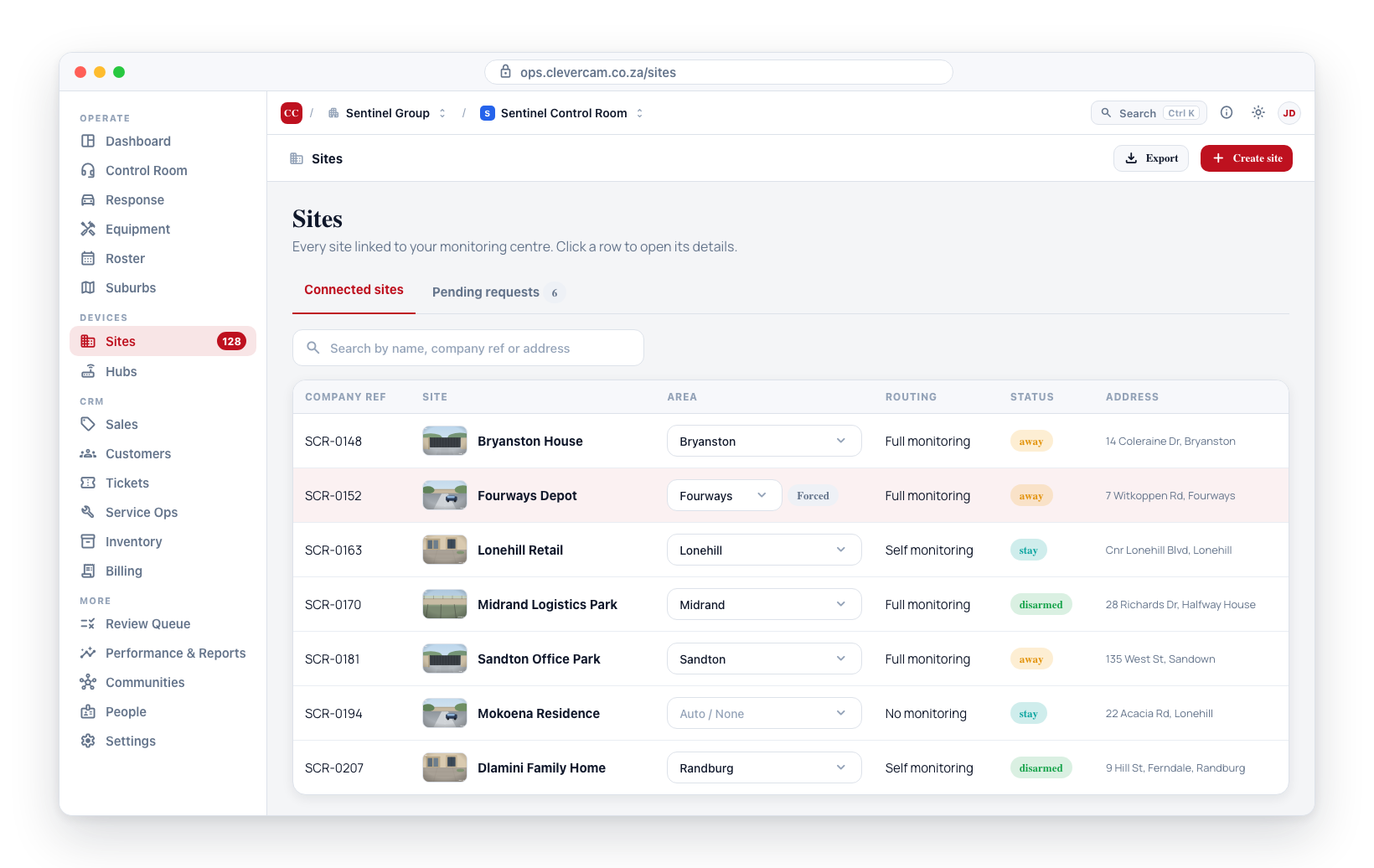
- Search by name -- Use the search bar in the Connected Sites list. The site may be listed under a slightly different name than expected.
- Check with the site owner -- The site owner may not have completed their part of the connection process, such as accepting terms or confirming the link from the app.
Dashboard Not Updating
Symptoms: Dashboard metrics, charts, or counts appear stale or frozen.
Troubleshooting steps:
- Refresh the browser -- Press F5 or click the refresh button in your browser. This forces the dashboard to reload the latest data.
- Check your internet connection -- If your browser has lost connectivity, the dashboard will stop receiving live updates. Verify your internet connection.
- Clear browser cache -- Old cached data can sometimes interfere with live updates. Clear your browser cache and reload the page.
- Try a different browser -- If the issue persists, open CleverOps in a different browser to rule out browser-specific problems.
- Check for system maintenance -- The CleverOps platform may be undergoing maintenance. Check for any maintenance notices or contact support.
Camera Streams Not Loading
Symptoms: Camera thumbnails are blank or live streams fail to play on the site details page.
Troubleshooting steps:
- Check hub status -- If the Clever Hub is offline, camera streams will not be available. Resolve the hub connectivity issue first.
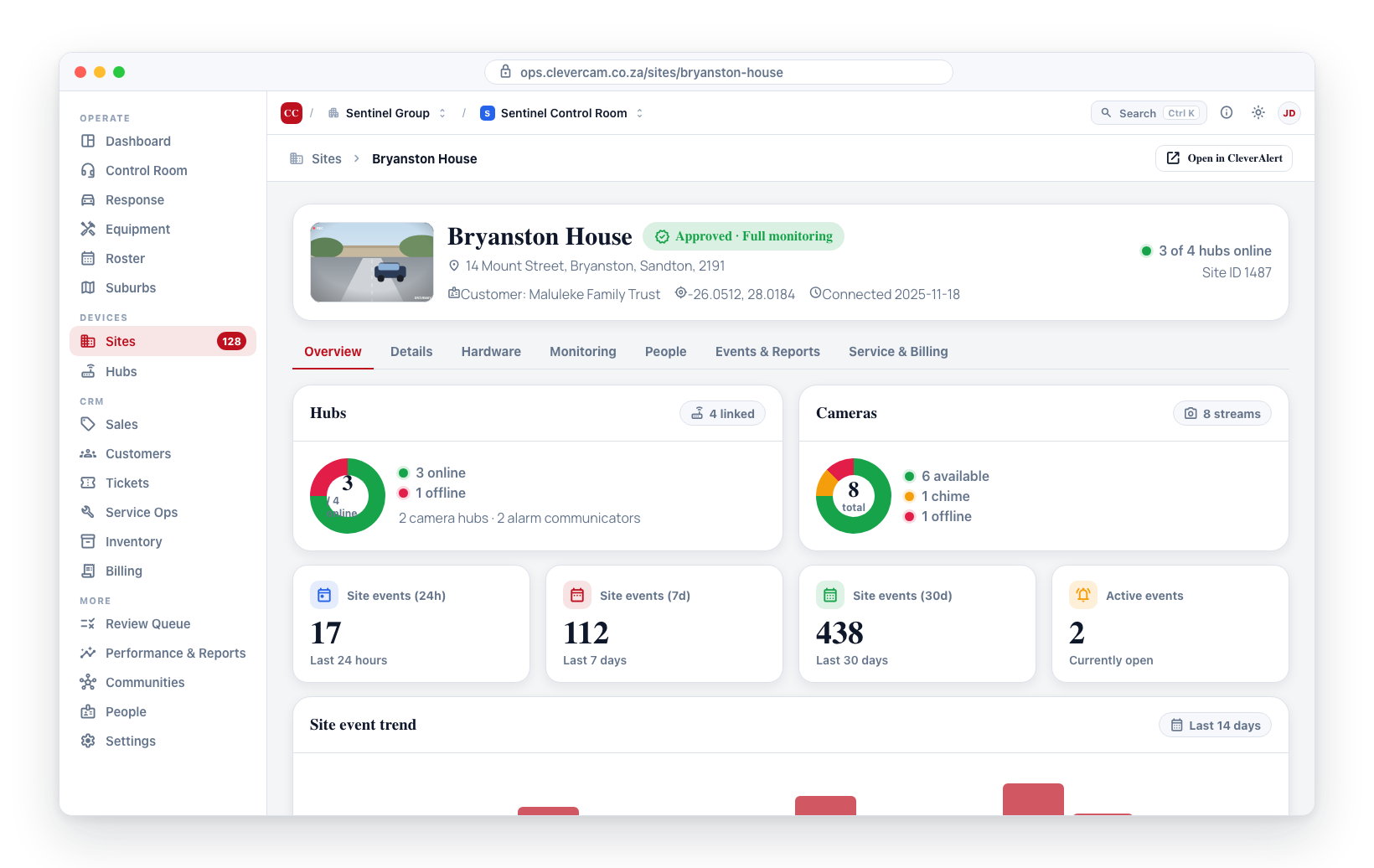
- Refresh Snapshots -- Use the Refresh Snapshots hub command to get fresh camera images.
- Refresh Streams -- Use the Refresh Streams hub command to re-establish stream connections.
- Verify the camera is online -- The camera itself may have lost power or network connectivity at the site.
- Check camera credentials -- If the camera's password was changed on the device, the hub may need to be reconfigured with the new credentials.
- Rescan ONVIF -- Run Rescan ONVIF Cameras to rediscover cameras on the local network.
Camera List Stops Updating While a Site Is Open
Symptoms: A site is open and its camera list has stopped keeping itself current — a camera you know was just added, renamed or re-grouped does not appear until you reopen the site. A message said "Live camera updates are off for this site — reopen it to see further changes."
What it means: While a site is open, CleverOps subscribes to a live feed for that site's cameras. The server refused it, CleverOps retried for about a minute, and then stopped and told you — rather than retrying invisibly for as long as the site stayed open. Everything else on the page is unaffected: hubs, groups, zones, schedules and every save still work normally, and the camera list was refreshed once at the moment it stopped, so it is accurate as of then.
Troubleshooting steps:
- Close the site and open it again -- this re-subscribes from scratch and resolves most cases.
- Check you still have access to the site -- the usual cause is that your access changed while you had the site open, for example if your role or Virtual Control Room membership was edited in another session, or the site's link to your control room was removed. Reopening after a permissions change picks up the new access.
- Sign out and sign back in -- if reopening the site does not help, your browser may still be holding the session it had before the change.
- Check the site still exists -- a site deleted or unlinked while you had it open cannot have a live feed. Go back to Sites > Connected Sites and confirm it is still listed.
- If the message appears every time you open the same site, report it -- that is an access problem on the account rather than a browser one.
This is not the same as a lost internet connection. If the browser goes offline, nothing on the page updates; here the connection is healthy and only this one site's camera feed was refused.
Cannot Add or Edit Operators
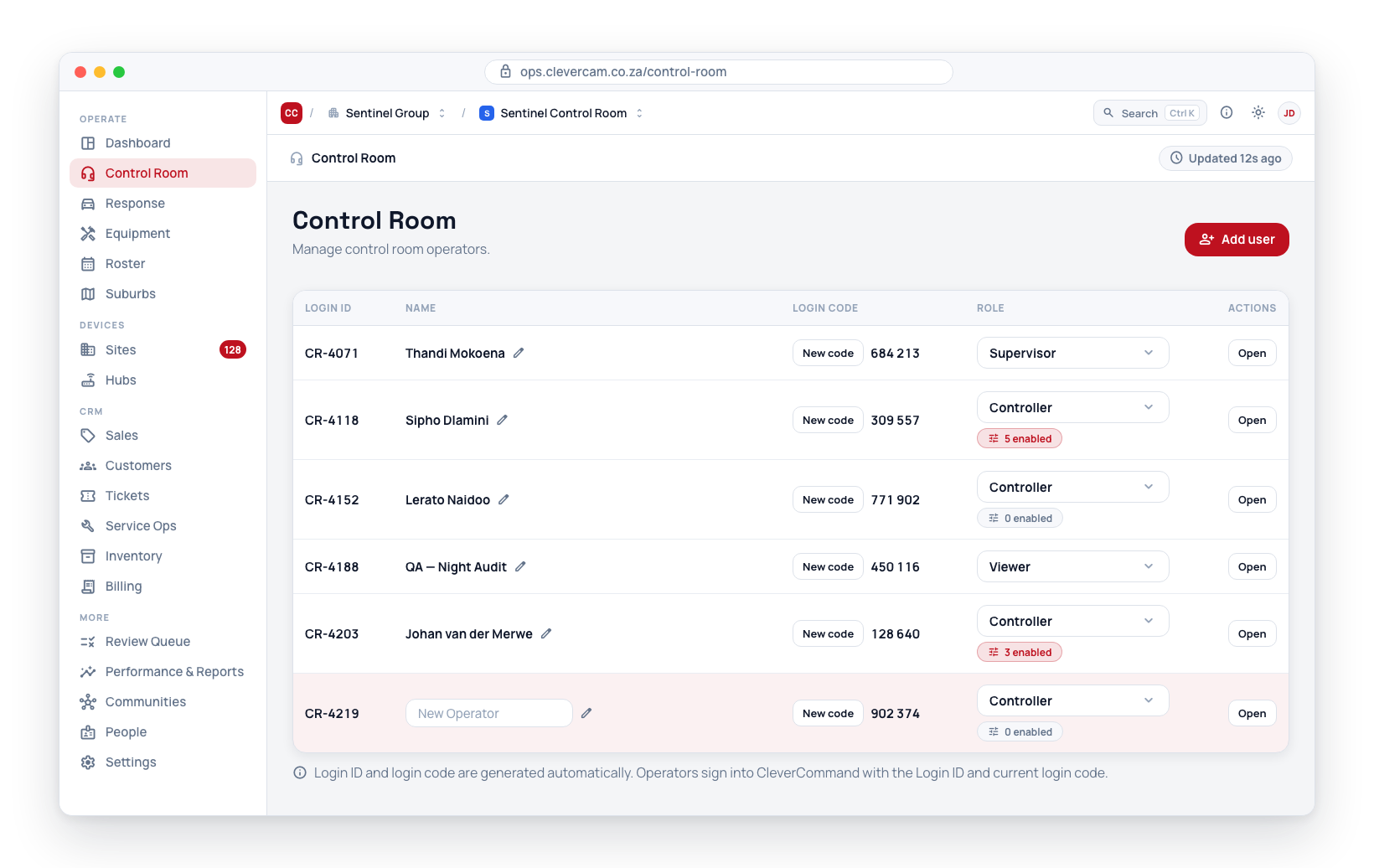
Symptoms: The Add Operator button is not available or changes to operators do not save.
Troubleshooting steps:
- Check your role -- Only users with appropriate administrative roles can manage operators. Verify you have the correct permissions.
- Verify Virtual Control Room selection -- Make sure you are in the correct Virtual Control Room. Operators are specific to each Virtual Control Room.
- Refresh the page -- A browser refresh may resolve temporary interface issues.
Response Unit Not Receiving Dispatches
Symptoms: A response unit is set to Available but does not receive dispatch assignments when events occur.
Troubleshooting steps:
- Check suburb assignment -- Verify that the unit is assigned to a suburb that contains the sites generating events.
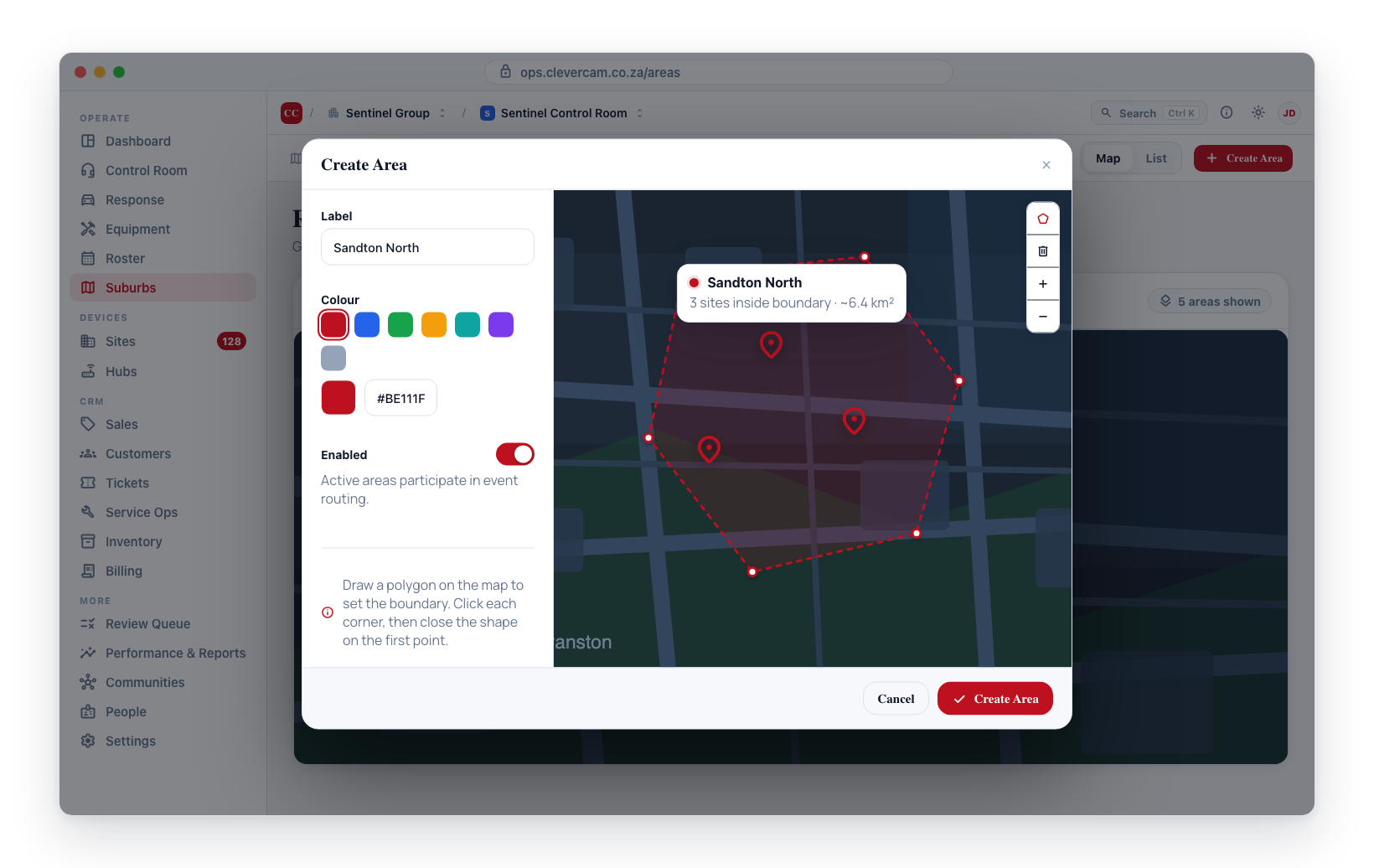
- Verify unit status -- Confirm the unit's status is set to Available, not Off Duty or another status.
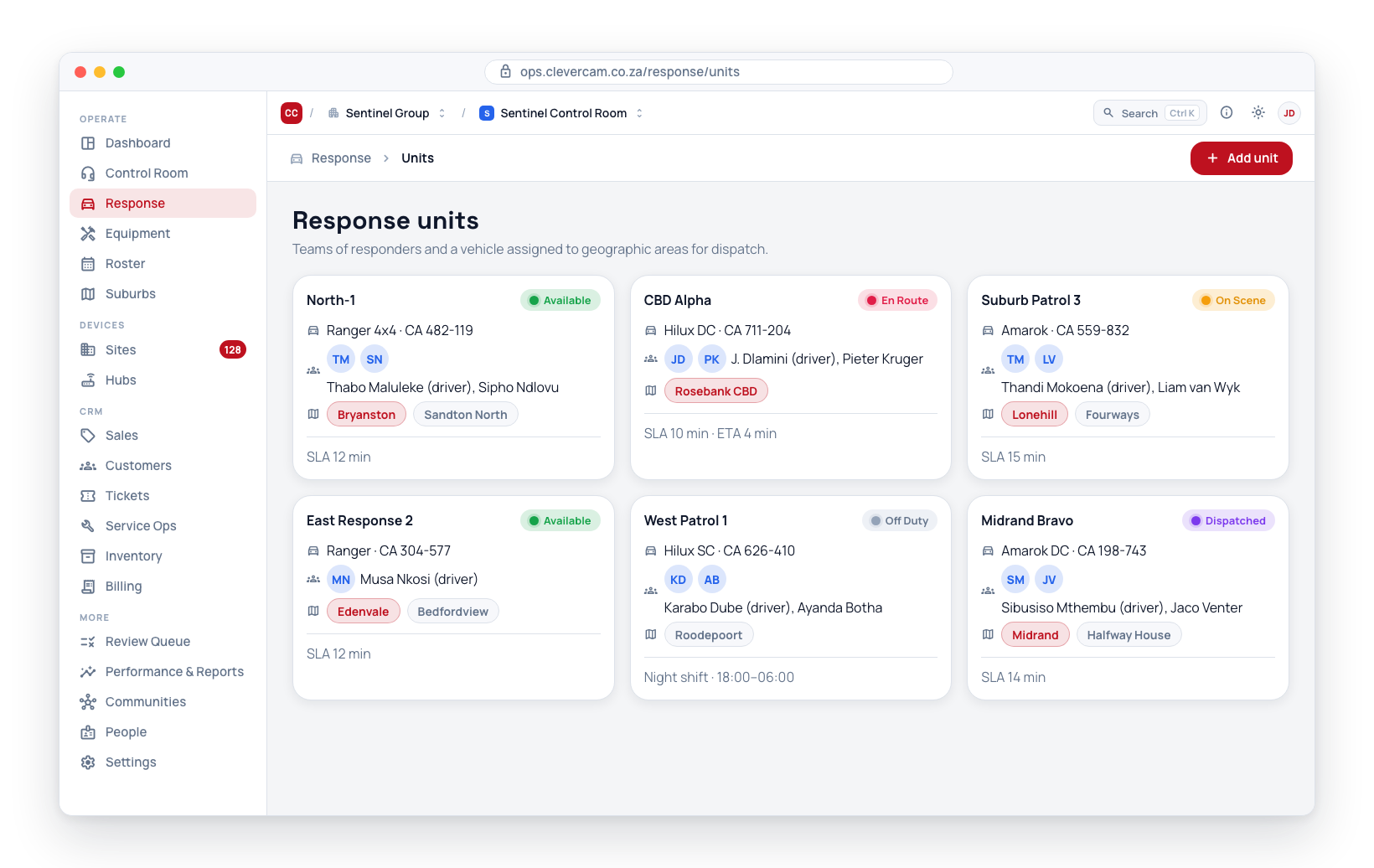
- Check site suburb assignment -- Verify that the site where the event occurred is assigned to the same suburb as the unit.
- Review SLA rules -- If SLA rules are configured, ensure there are no conflicts preventing dispatch.
If events are occurring in a suburb with no available units, dispatches will not be sent automatically. Ensure every active suburb has at least one available unit during operational hours.
Slow Performance or Loading Issues
Symptoms: Pages take a long time to load or the interface feels sluggish.
Troubleshooting steps:
- Check your internet speed -- A slow connection will affect page load times.
- Close unnecessary browser tabs -- Too many open tabs can consume memory and slow down the browser.
- Clear browser cache and cookies -- Accumulated cache data can slow performance.
- Update your browser -- Ensure you are running the latest version of your browser.
- Disable browser extensions -- Some extensions can interfere with web application performance. Try disabling them temporarily.