Dispatch Status
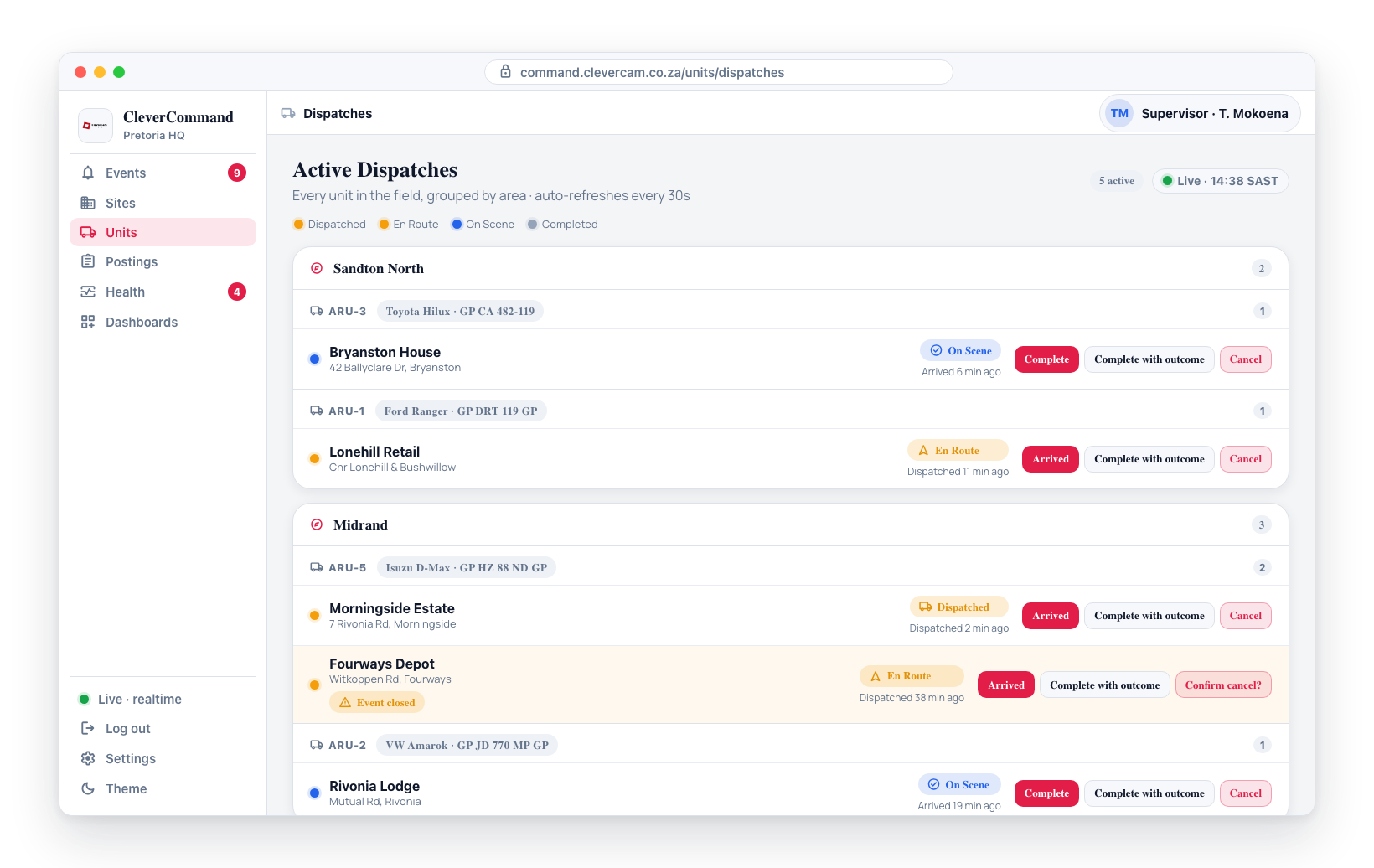
The Dispatch Status view provides a consolidated overview of all active dispatches across every response unit. Instead of checking individual events to see their dispatch status, operators can see every active dispatch in one place -- which units are dispatched, where they are going, and what stage they are in.
Accessing Dispatch Status
- Click Units in the left sidebar
- Navigate to the dispatch status view within the Units page
- All active dispatches are listed with their current status
Dispatch Overview
The dispatch status view shows:
| Field | Description |
|---|---|
| Unit | The response unit assigned to the dispatch |
| Event | The event that triggered the dispatch |
| Site | The destination site |
| Status | Current dispatch stage (Dispatched, En Route, On Scene, Completed) |
| Time | How long the dispatch has been active |
Status Color Indicators
Each dispatch has a color-coded status indicator for quick visual triage:
| Color | Status | Meaning |
|---|---|---|
| Blue | Dispatched | Unit assigned, not yet en route |
| Yellow | En Route | Unit traveling to the site |
| Green | On Scene | Unit has arrived at the site |
| Gray | Completed | Dispatch finished |
These colors allow operators to scan the dispatch list quickly and identify which dispatches need attention. A dispatch stuck in "Dispatched" (blue) for too long may indicate a unit that has not acknowledged the assignment.
Auto-Refresh
The dispatch status view updates every 30 seconds to keep the data current. Status changes made by field operators (e.g., marking themselves as On Scene) appear on the next refresh.
Monitoring Active Dispatches
A typical monitoring workflow:
- Open the dispatch status view
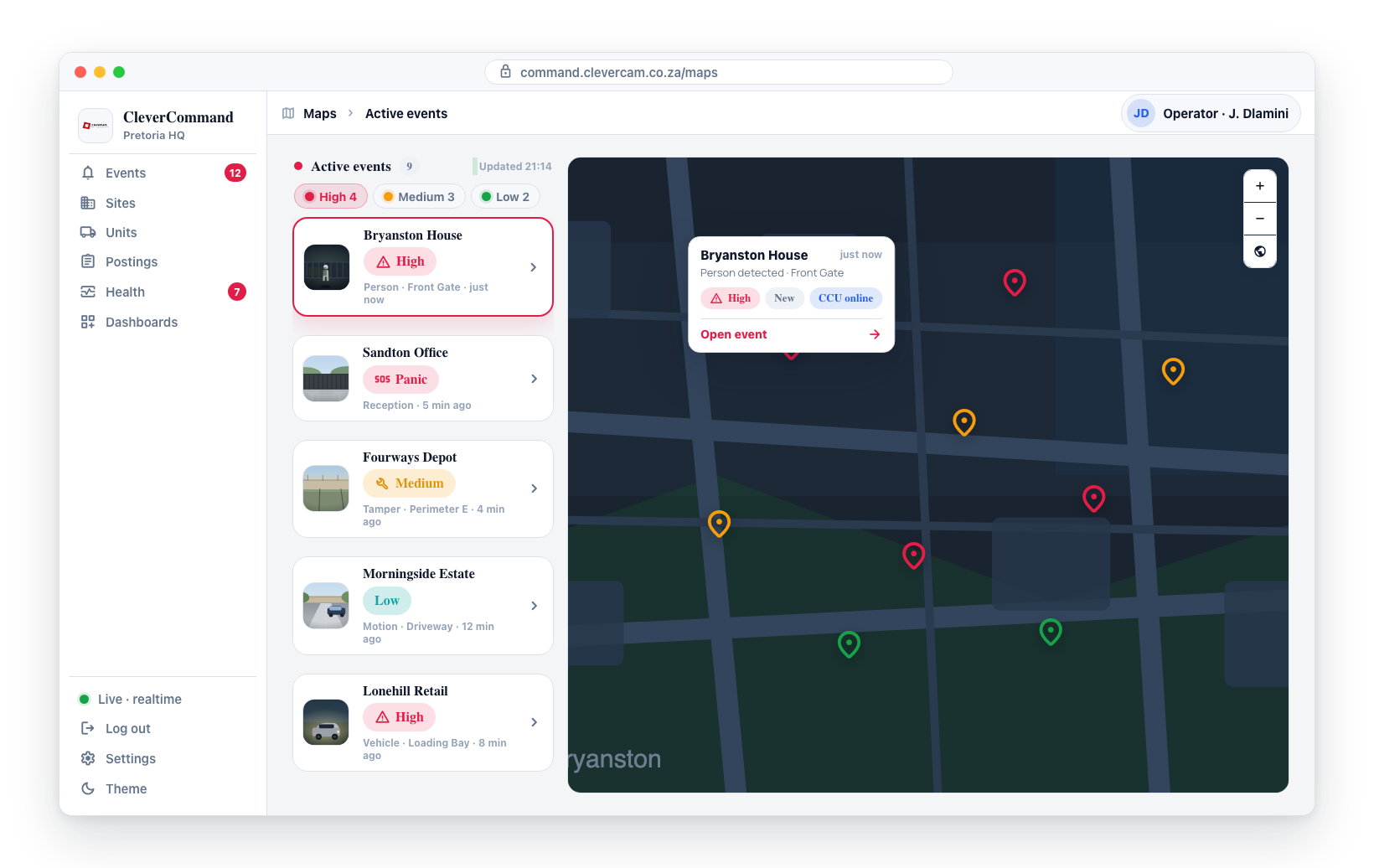
- Scan for any dispatches stuck in early stages (Dispatched or En Route for longer than expected)
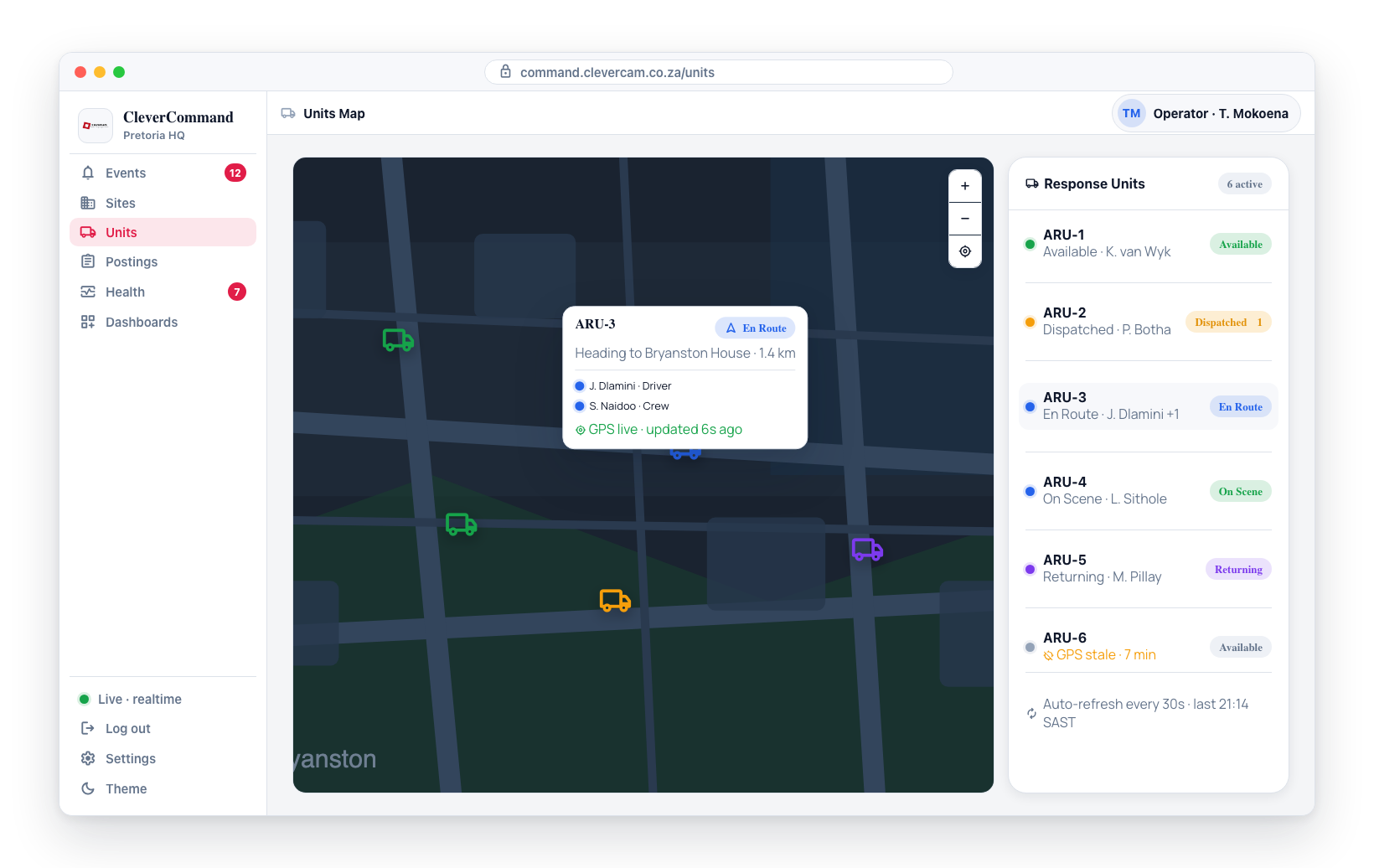
- Check that units marked as En Route are making progress (cross-reference with the GPS map)
- Verify that On Scene units are completing their inspections in a reasonable timeframe
- Follow up with units that appear stalled by contacting them directly
If a dispatch has been in "En Route" for significantly longer than the estimated arrival time, the unit may have encountered delays. Contact the unit to check their status and provide assistance if needed.
Dark Mode Support
The dispatch status view supports CleverCommand's dark mode theme. When dark mode is active:
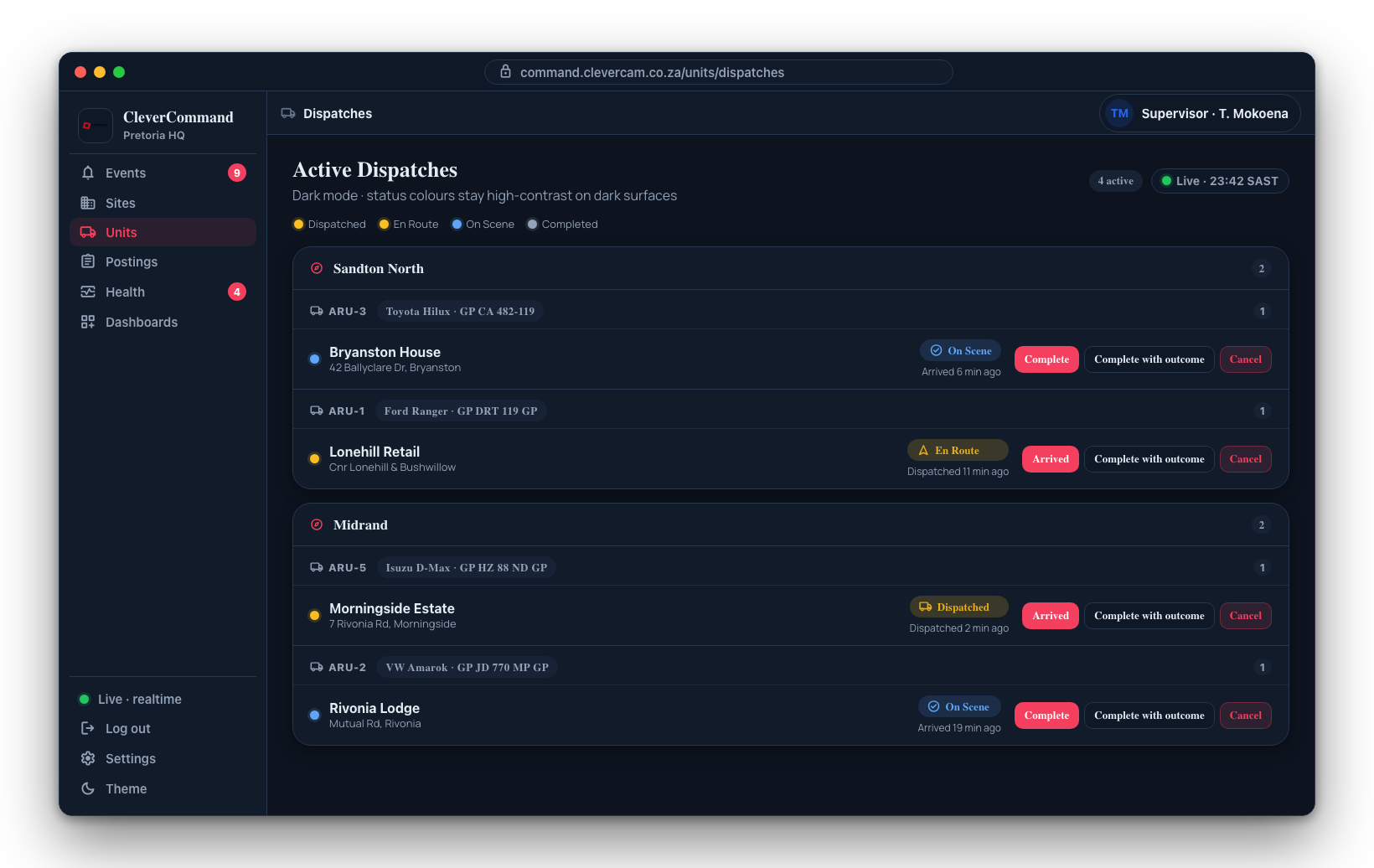
- The dispatch list uses dark backgrounds with high-contrast text
- Status color indicators remain clearly visible
- The associated map view (if displayed) uses dark map styling for reduced eye strain
Relationship to Event Details
The dispatch status view brings together information from individual event dispatches. Each entry corresponds to a dispatch that was initiated from an event's Dispatch Management panel. You can click on a dispatch entry to navigate directly to the associated event for more details.
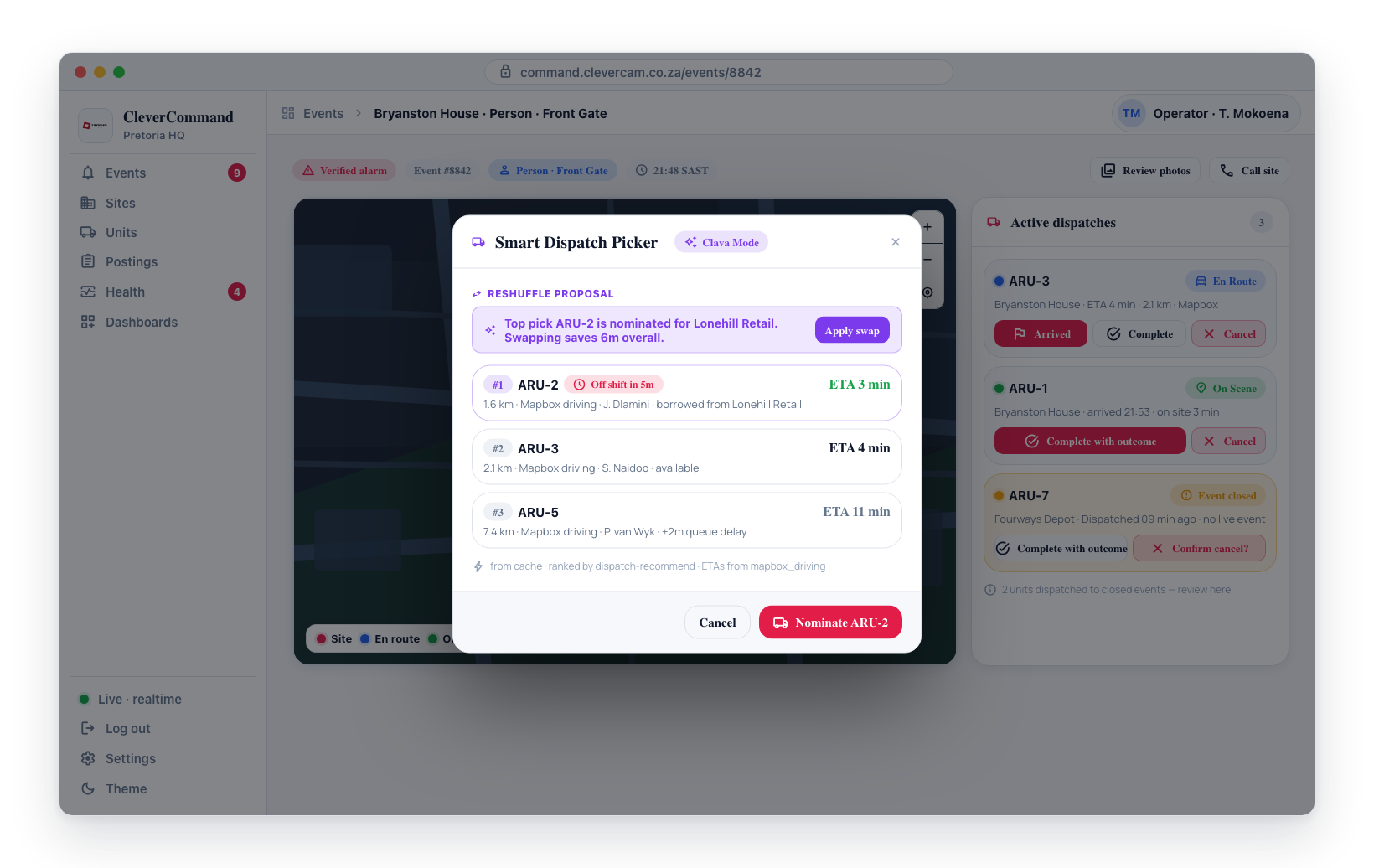
The Dispatch Status view is part of the Units Map feature. It provides a unified view that is particularly useful for supervisors managing multiple simultaneous dispatches across several response units.