Plan Board
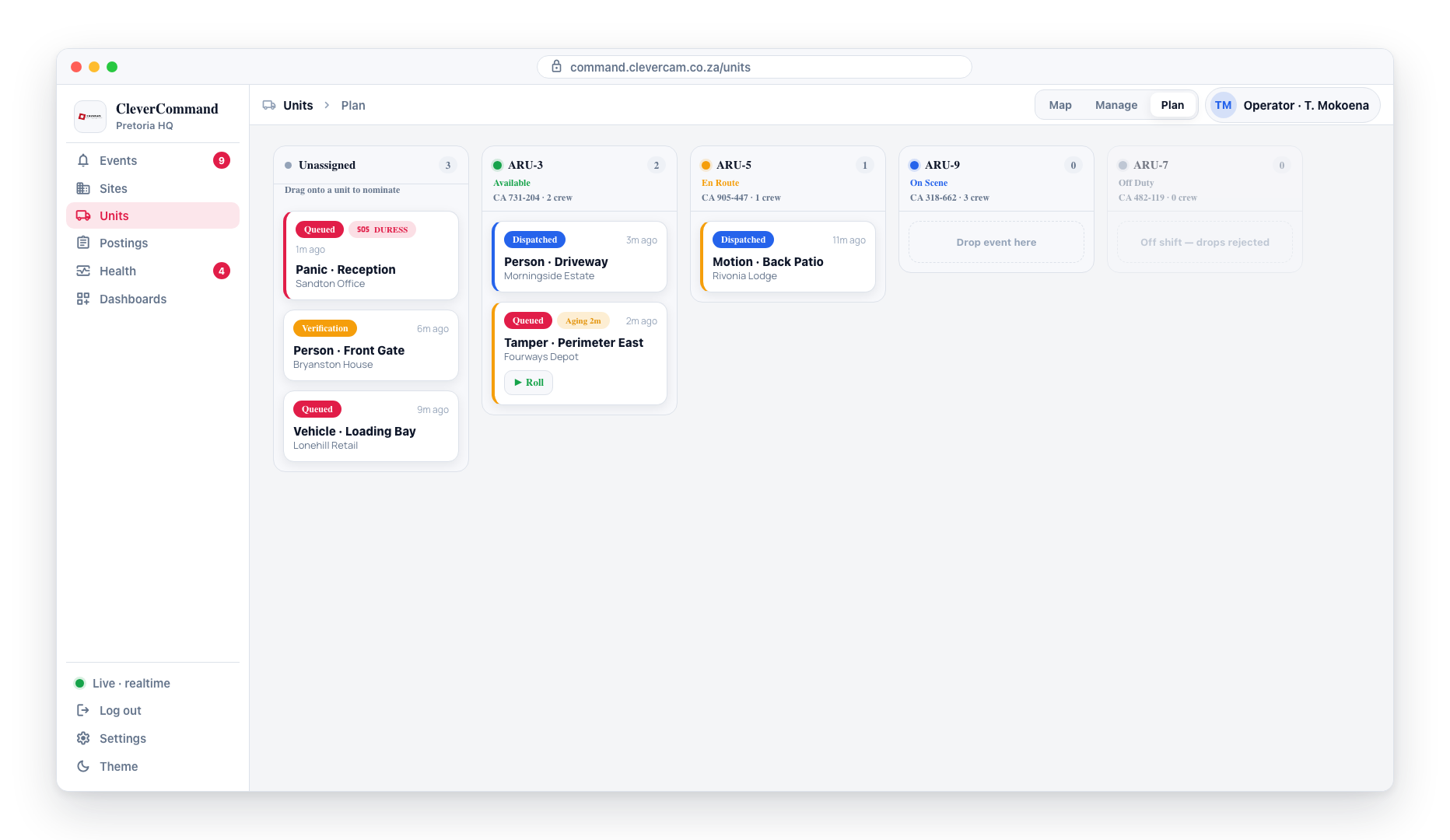
The Plan view is a kanban-style dispatch planner — one of the five views on the Units page (Map, Manage, Plan, Responders). Operators drag active events onto a unit's column to nominate that unit, drag back to the Unassigned column to cancel, or drag between unit columns to reassign. It is the fastest way to triage many events across many units side-by-side without leaving the Units page.
Accessing the Plan Board
- Click Units in the left sidebar
- Switch to the Plan view (the third toggle next to Map and Manage)
- The Plan board loads showing an Unassigned column followed by one column per active unit
Board Layout
Unassigned Column
The leftmost column lists every active event in the operator's queue that does not yet have a unit nominated or dispatched against it. Drag an event from here onto a unit column to nominate that unit.
The column is a rail of its own down the left of the board. It stays in place and scrolls on its own, and the unit columns beside it scroll separately — so however long the queue or however many units, the next event is still in reach to drag.
Unit Columns
Each remaining column represents a unit currently on shift. The header shows:
- Status dot and label -- Available, Dispatched, En Route, On Scene, Returning, or Off Duty
- Vehicle and crew line -- The vehicle label or registration plus the crew count
- Stop count -- Number of events currently nominated or dispatched to this unit
The body lists every active dispatch for that unit, sorted with rolling stops first (en route / on scene / dispatched) and nominated stops last.
Off-shift units still appear but are dimmed and reject drops.
Event Cards
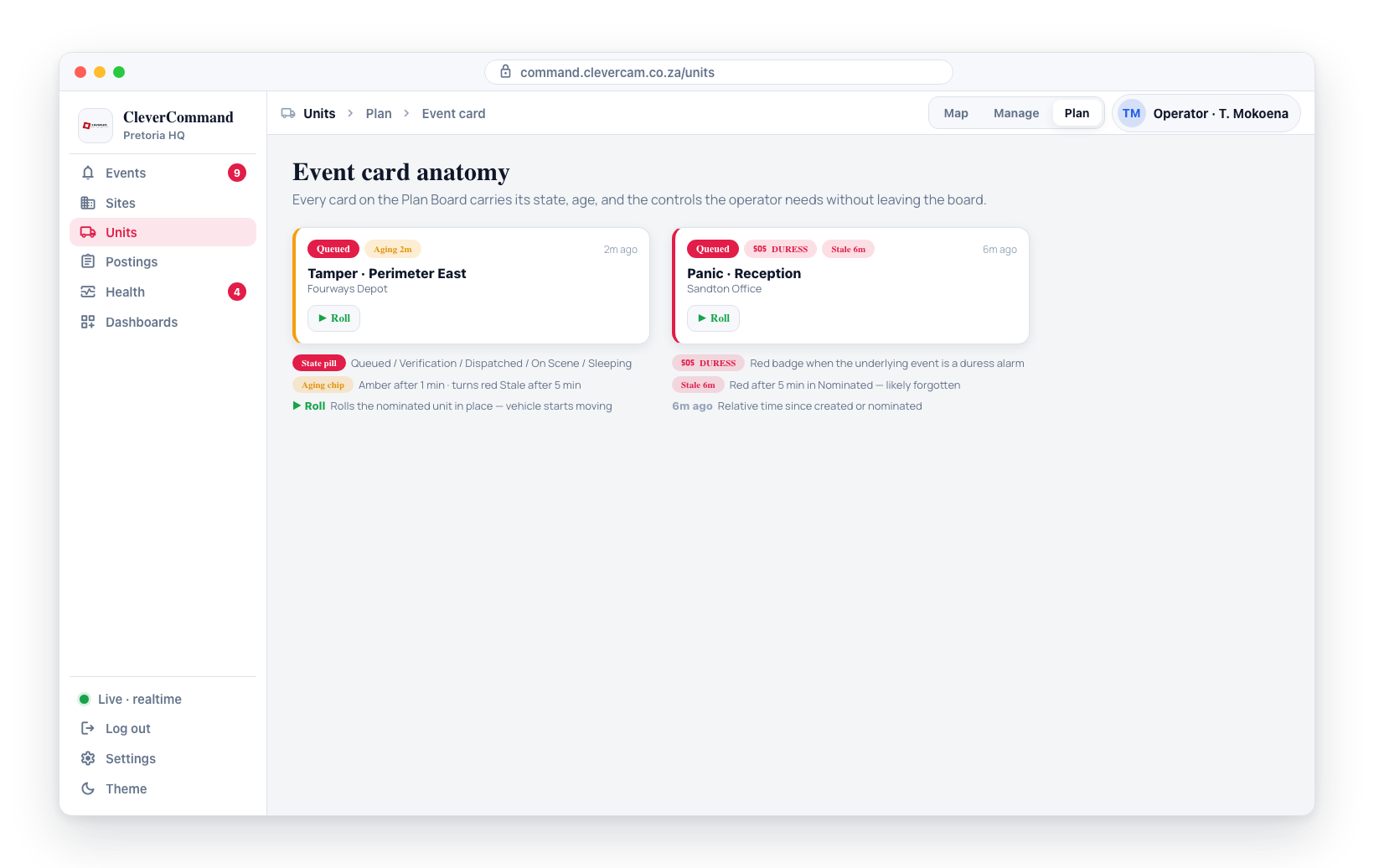
Each event card shows:
- State pill -- Queued, Verification, Dispatched, On Scene, or Sleeping (color matches the rest of CleverCommand)
- DURESS flag -- A red badge if the underlying event is a duress alarm
- Aging chip (Nominated lane only) -- An amber Aging Xm chip after 1 minute, switching to a red Stale Xm chip after 5 minutes. No chip in the first minute. The chip ticks over within ~15 seconds of crossing the threshold and disappears once the unit is rolled (status moves to dispatched / en_route).
- Nearest chip (Unassigned column only) -- A green chip (e.g. Nearest: Alpha 2 · 3.4 km) naming the closest unit and its straight-line distance from that unit's last GPS fix (a fix more than 24 hours old doesn't count — see Units that have gone silent). Units with an empty queue are preferred; when every unit is busy, the closest overall is shown with a busy marker. The chip is hidden when the event has no coordinates or no unit has a GPS fix.
- Roll → button (Nominated cards only) -- an amber button that rolls the nominated unit in place, promoting it to En Route. Nominating on this board does NOT make the vehicle move; Roll does. A success toast confirms ("Unit rolling"), a red toast ("Roll failed") surfaces any failure — no page-hop to the Events kanban needed. The button reads "Rolling…" and is disabled while the request is in flight.
- Age -- Relative time since the event was created or nominated (e.g. "12m ago")
- Title -- The event label or event type
- Site name -- The site the event came from
The aging chip is intentionally only on the Nominated column: a card sitting in Nominated for too long usually means the operator forgot to roll, so we surface it loudly. Cards in other states already have their own age display via the relative-time label.
The Nearest chip is a planning hint, not a route: distances are straight-line ("as the crow flies") from each unit's last GPS fix — there are no driving ETAs on this board. Free (unqueued) units are preferred so the suggestion is immediately actionable; only when every unit already has work does the chip fall back to the closest busy unit and say so.
Drag Operations
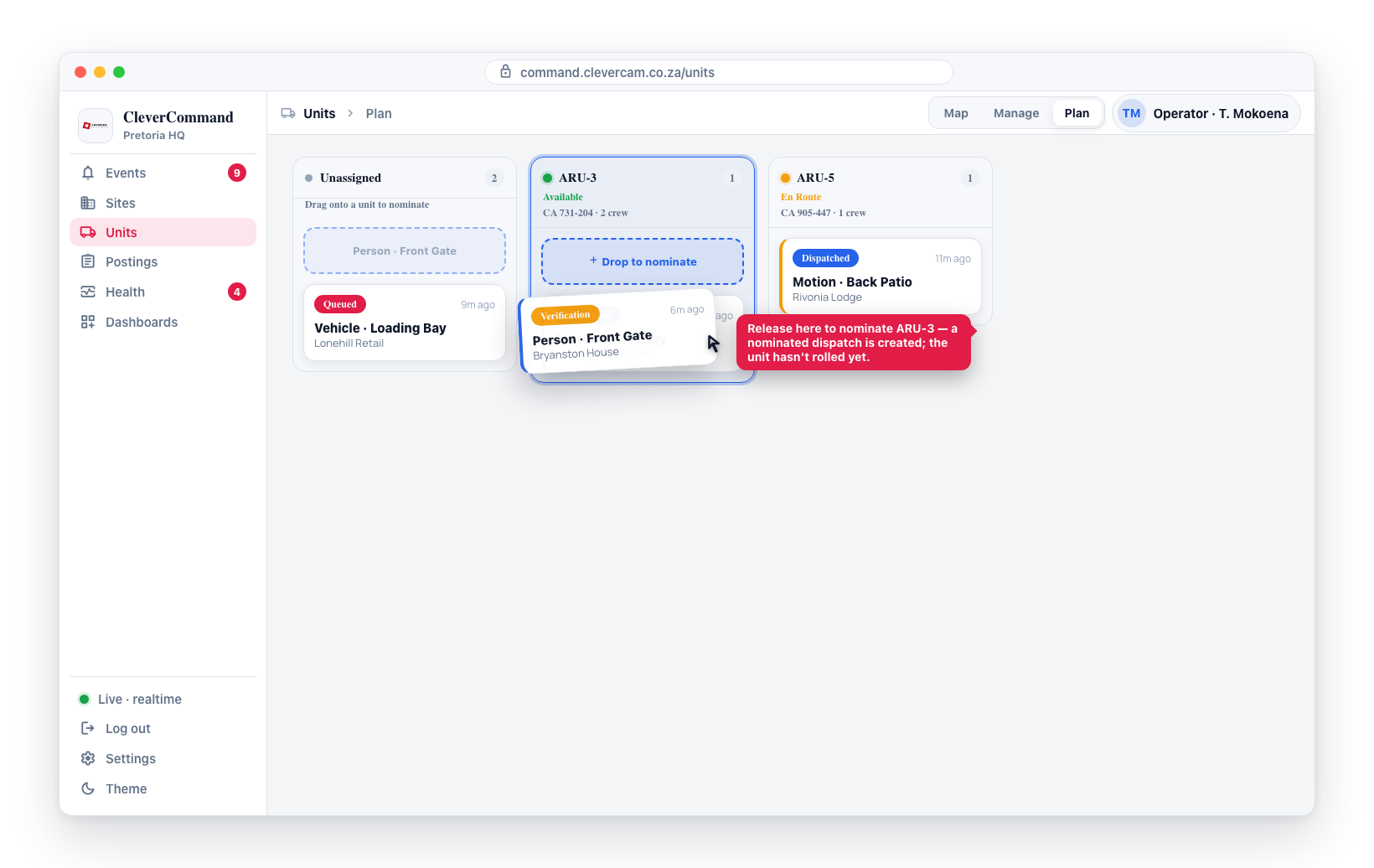
Three drag flows are supported:
- Unassigned → Unit -- Nominates the unit. Creates a
nominateddispatch row; the unit hasn't rolled yet. Cancel from this state is non-destructive. - Unit → Unassigned -- Cancels the dispatch. The event returns to the Unassigned pool for re-planning.
- Unit → another Unit -- Reassigns. The existing dispatch is cancelled and a new nomination is created on the target unit.
Reordering events within the same unit column is not supported in this view -- use the Map tab's per-unit queue if you need to inspect ordering.
Realtime Updates
The board subscribes to live changes. When another operator nominates, cancels, or reassigns a dispatch on the same VCR, the board refreshes automatically without you needing to reload.
Edge Cases
- No units configured -- The Unassigned column still shows all active events; a hint appears if no unit columns are present.
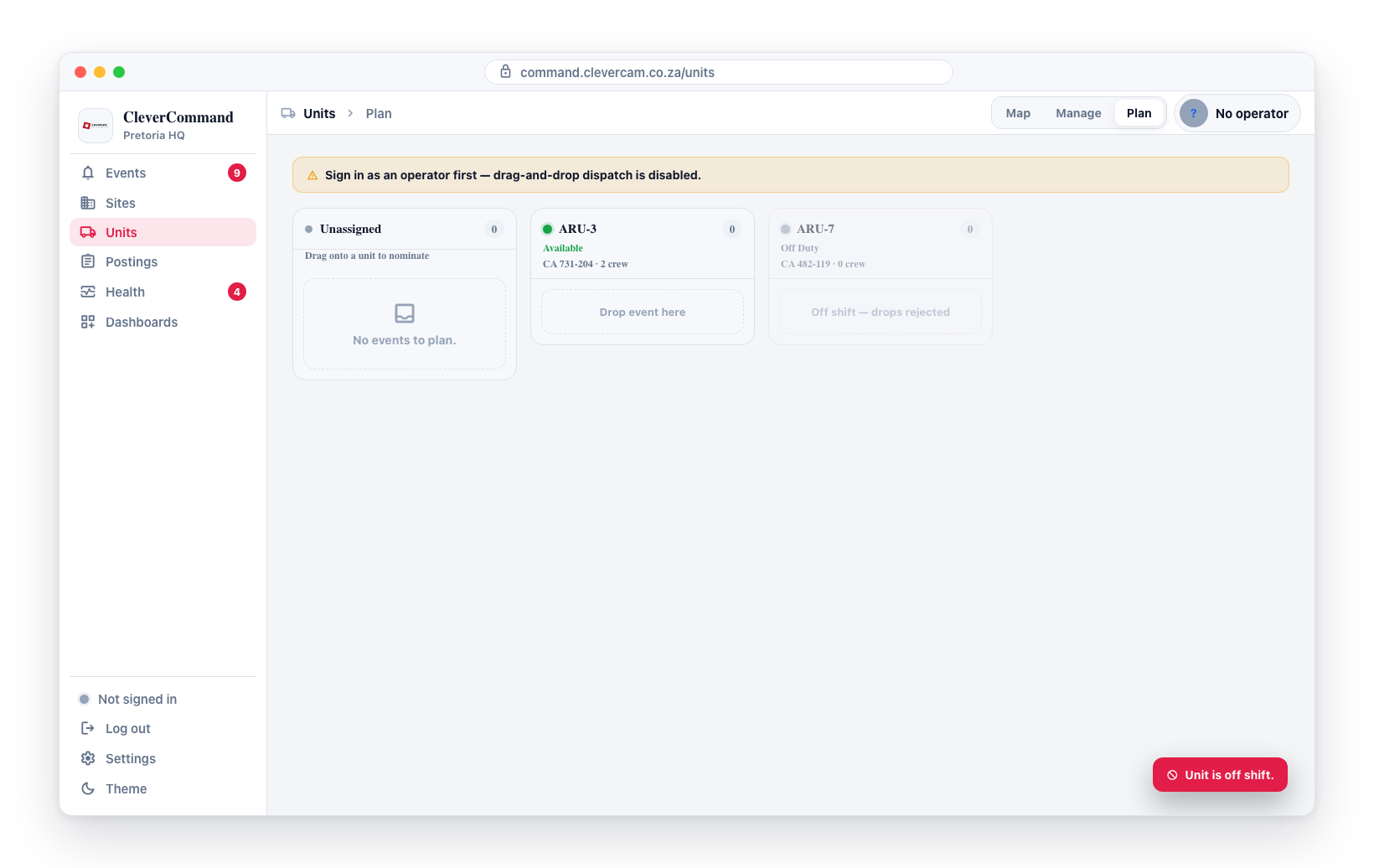
- No events -- The Unassigned column shows "No events to plan."
- Off-shift unit -- Drops are rejected and a toast explains the unit is off shift.
- Operator not signed in -- A banner appears at the top and drag-and-drop is disabled.
- Network failure -- The drag fails with a toast; the board refetches so it always reflects the database truth.
- Refresh fails -- The board stays as it was (a drag in progress included) with a note, Last refresh failed — showing the previous board., and a Retry button. It also retries by itself every 15 seconds until a refresh succeeds. If the very first load fails, the error shows with Retry in place of the board.
The Plan Board is part of the Units page, which is only offered to control rooms with the Advanced Alarm Handling module. If Units is not in your sidebar, your control room does not have the module — there is no switch to turn it on.
When to use Plan vs. Map vs. Manage
- Map -- Geographic situational awareness. See where units are, click to inspect.
- Manage -- Crew and vehicle assignment. Configure who's on which unit and on shift.
- Plan -- Event triage. Decide which unit handles which event(s).
The three views share data and update each other live.