Notification Preferences
CleverAlert lets you choose which types of alerts you receive for each site. The Notification Preferences screen provides toggle switches for individual alert categories, organized into sections.
Accessing Notification Preferences
- Open the More tab.
- Tap Notification preferences.
Notification Toggles
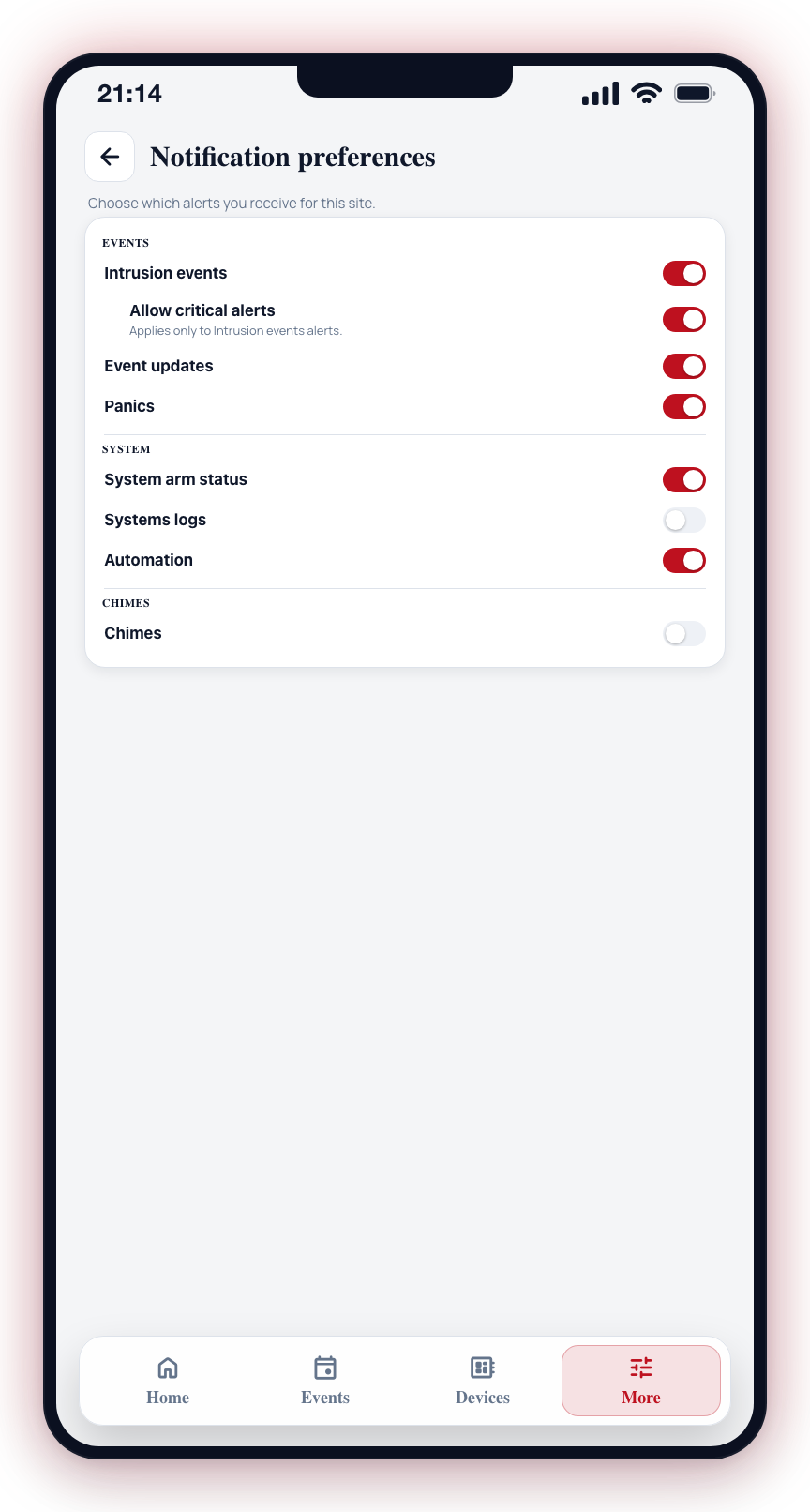
The preferences screen shows toggles organized into three sections:
Events
- Intrusion events — Receive notifications when an intrusion is detected.
- Allow critical alerts — (Sub-toggle, only available when intrusion events are enabled) Allows high-priority alerts that can bypass Do Not Disturb. Only you can change this toggle for your own account.
- Event updates — Receive notifications when events are updated (e.g., verification changes, notes added).
- Panics — Receive notifications for panic or emergency activations.
System
- System arm status — Receive notifications when the site is armed or disarmed.
- Systems logs — Receive notifications for system activity (e.g., device status changes).
- Automation — Receive notifications for actions triggered by schedules.
Chimes
- Chimes — Receive notifications when a chime event is triggered (e.g., a camera detects activity while chime mode is active).
Each toggle is independent. Turning off a category stops notifications of that type for the current site only.
Home warns you when intrusion alerts are off
If you turn off the master notification switch or Intrusion events for a site, the Home screen shows an amber notice for that site: Intrusion alerts are off for this site on your account. The site can still show as armed, because arming is separate from your own notifications, so the notice is there to make sure a silent phone is a choice and not a surprise. Tap the notice to open Notification Preferences; it disappears once intrusion alerts are back on.
Site Notification Label
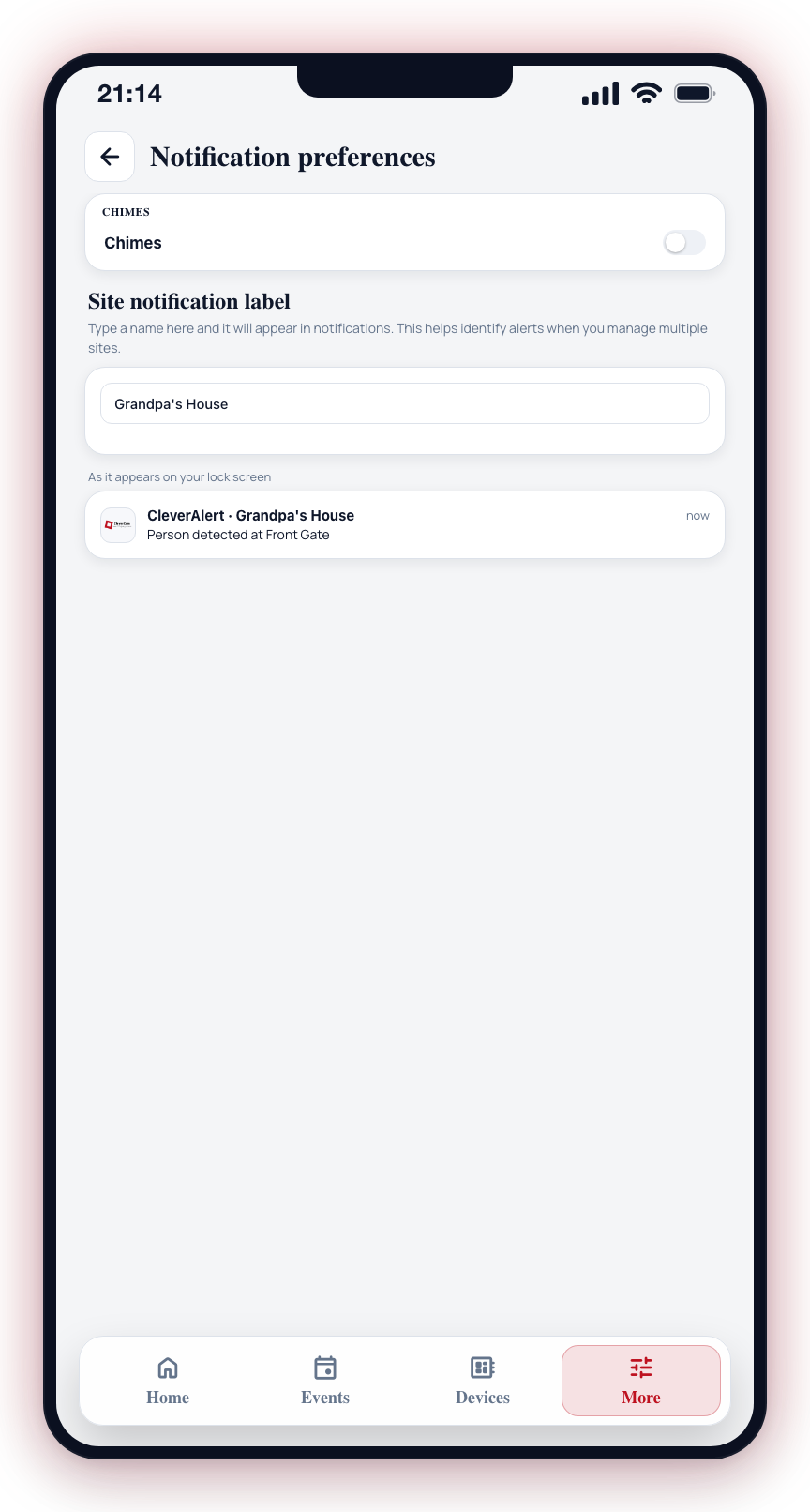
Below the toggles, there is a text field labeled Site notification label. Type a name here (e.g., "Grandpa's House") and it will appear in push notifications. This helps you identify which site an alert is from when you manage multiple sites.
The label is your own nickname for the site: it also leads the site name in the app header and in the site selector, and only you see it. It is the same field as My nickname for this site on the Site information screen. The site's actual name is set by your security company once they monitor the site, and cannot be changed from the app.
System Permission Prompt
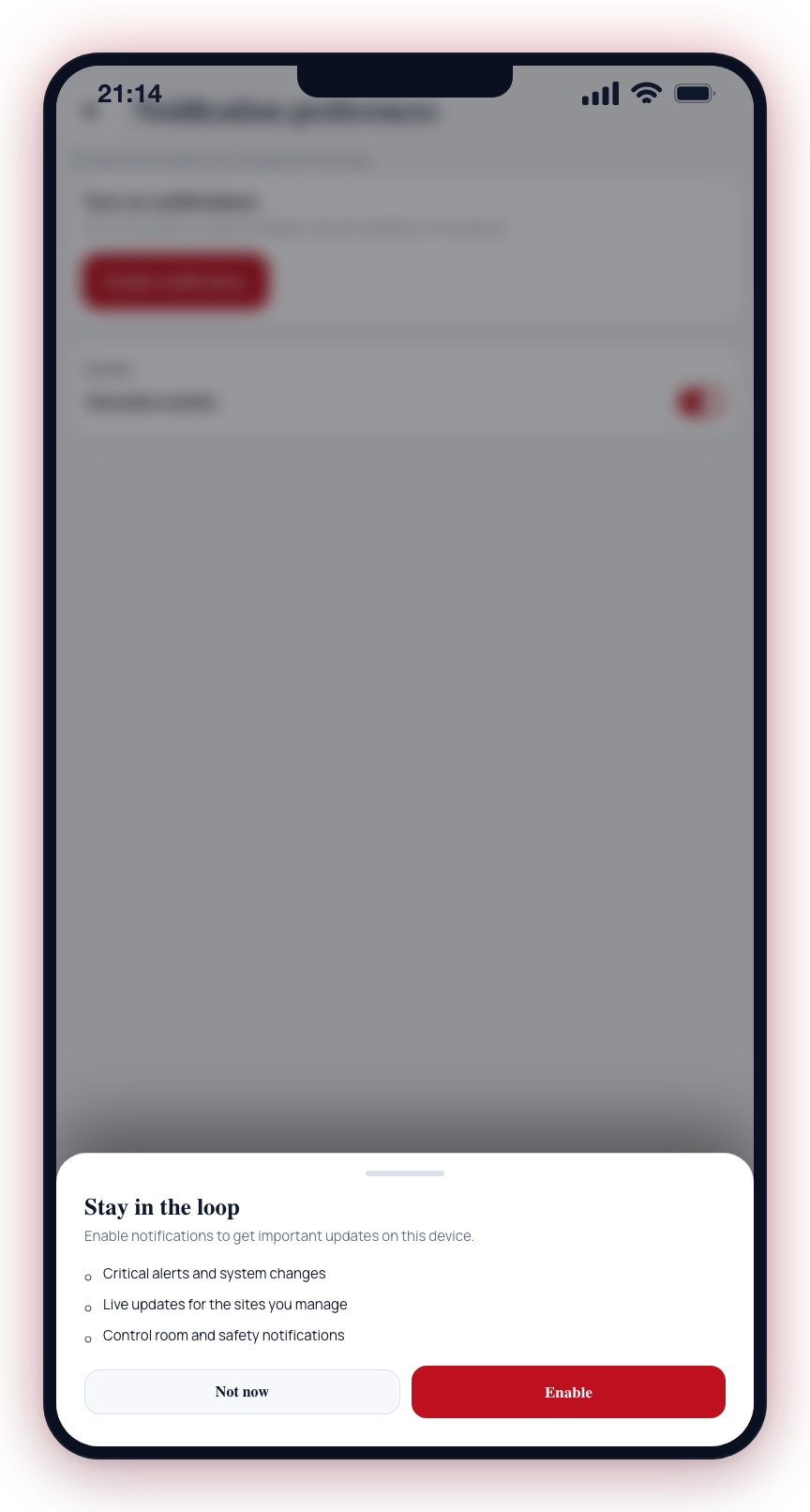
If your device has not yet granted notification permission to CleverAlert, a banner appears at the top of the screen with an Enable notifications button. Tapping this opens a prompt explaining why notifications are important, then requests the permission from your device.
Disabling notification categories means you will not receive those alerts. Be cautious about disabling intrusion events, as you may miss genuine security alarms.
The "Allow critical alerts" sub-toggle under intrusion events enables high-priority notifications that can bypass Do Not Disturb and Focus modes on your device. Enable this if you want to be alerted to confirmed security events even when your phone is silenced.