Notification Sounds
CleverAlert comes with built-in notification sounds that are automatically assigned to different alert types. The app does not include an in-app sound picker — sound customization is handled through your device's system notification settings.
Built-In Sounds
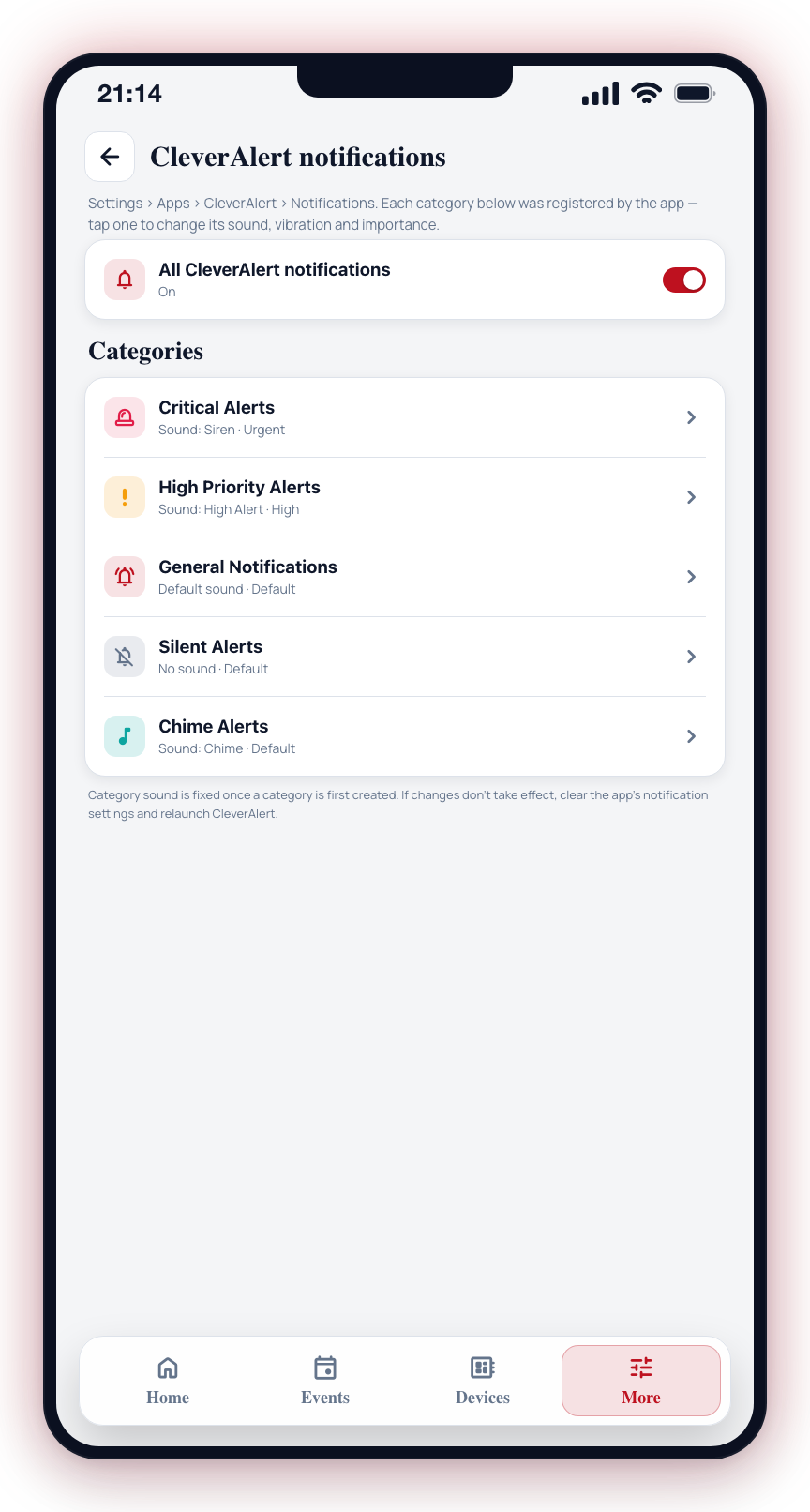
CleverAlert registers notification categories on your device with pre-assigned sounds. Different alert priorities use different tones, so you can tell the difference between a critical alarm and a routine notification by sound alone.
Customizing Sounds
To change notification sounds:
On Android
- Open your device Settings > Apps > CleverAlert > Notifications.
- You will see the notification categories registered by CleverAlert.
- Tap a category to change its sound, vibration, or priority level.
On iOS
- Open your device Settings > Notifications > CleverAlert.
- Adjust the alert style and sounds as permitted by iOS.
On Android, notification category settings (including sound) are locked once the category is first created. If your changes do not take effect, you may need to clear the app's notification settings in your device's system settings and let the app recreate them the next time it launches.