Network Tool
The Network Tool gives you a live view of your site's network as your Clever Hub sees it — every camera (connected or not), other Clever Hubs, the router, and other devices on the LAN. It can run an on-demand Network Doctor that tests the network segment by segment and tells you where a fault sits: inside your network (a camera cable, the router, the hub's own uplink) or outside it (your internet provider, DNS).
All tests run on the hub itself, not on your phone — so the results reflect the site's real line even when you are nowhere near the site.
Open the Network Tool
- Navigate to More > Network (shown on sites that have at least one camera hub), or
- Open a hub's detail page and tap Open network tool on its network card.
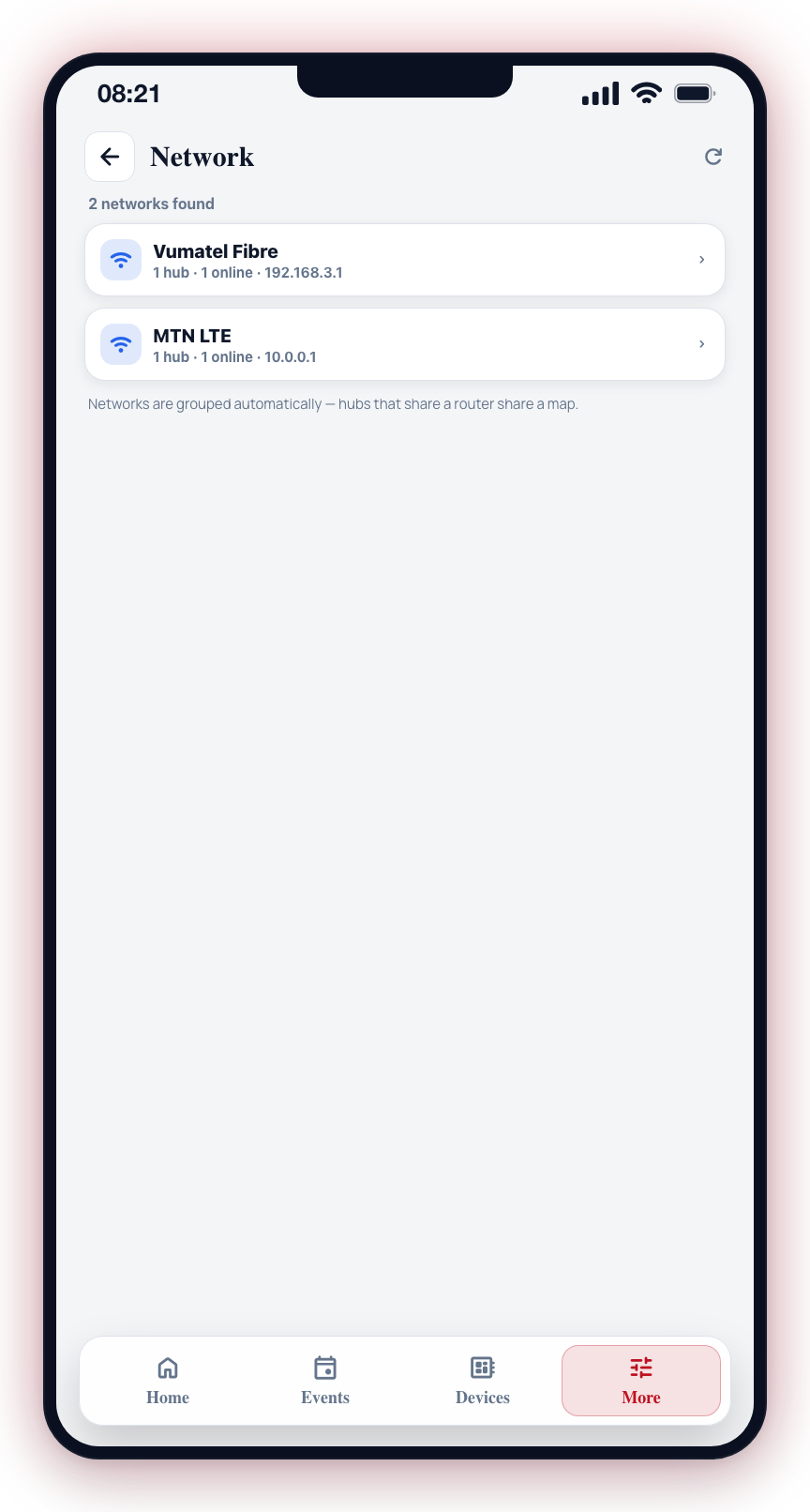
If the site has more than one network (for example a main building on fibre and a gate house on LTE, each with its own hub), you first see one card per network. Hubs that share a router share a map; tap a network card to open it. Sites with a single network go straight to the map.
Overview tab
A glanceable dashboard — no device list here, just the state of the network:
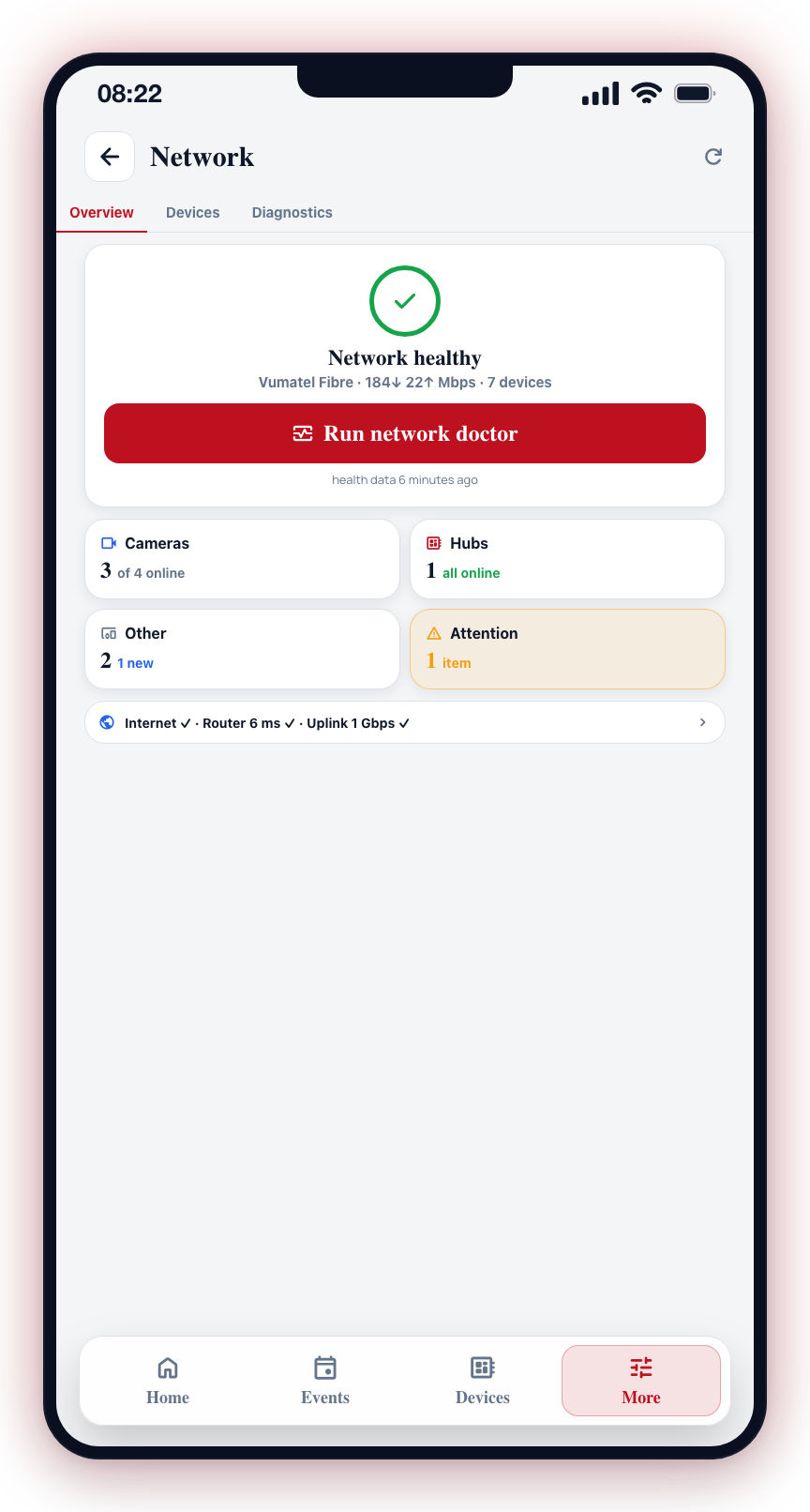
- Health hero — a status ring (green healthy / amber needs attention / red problems found) with the provider name, last measured speed and device count, the Run network doctor button, and how fresh the hub's health data is.
- Cluster tiles — four tappable tiles that jump to the Devices tab pre-filtered:
- Cameras — how many linked cameras are online (e.g. "3 of 4 online")
- Hubs — this hub plus any other Clever Hubs on the same network
- Other — everything else, with a count of newly discovered devices
- Attention — devices needing action (offline linked cameras, wrong-subnet devices); the tile highlights amber when the count is above zero
- Connection summary — one line covering Internet, Router latency and the hub's uplink speed; tap it to open the Diagnostics tab.
Pull down (or tap the refresh icon) to ask the hub for a fresh scan.
Devices tab
The full inventory as a flat list with filters: All, Cameras, Hubs, New (discovered cameras that haven't been added plus unrecognised recent devices) and Attention (offline linked cameras and wrong-subnet devices).
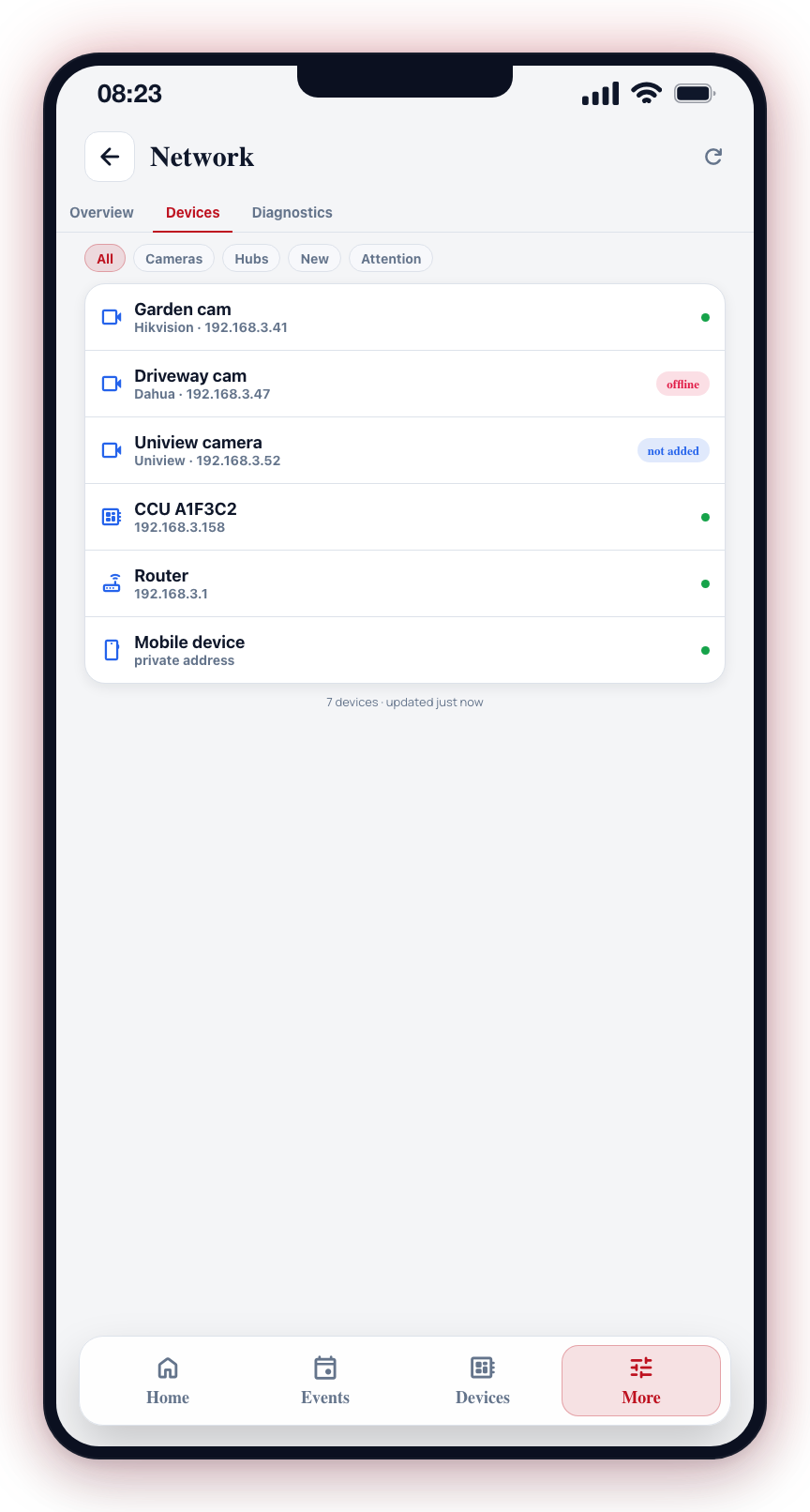
Linked cameras are matched against your configured streams (by the camera's hardware MAC first, then IP) and shown under their stream name — for example "Garden cam" rather than a bare brand and IP. Cameras the hub discovered that aren't linked to any stream show a not added badge.
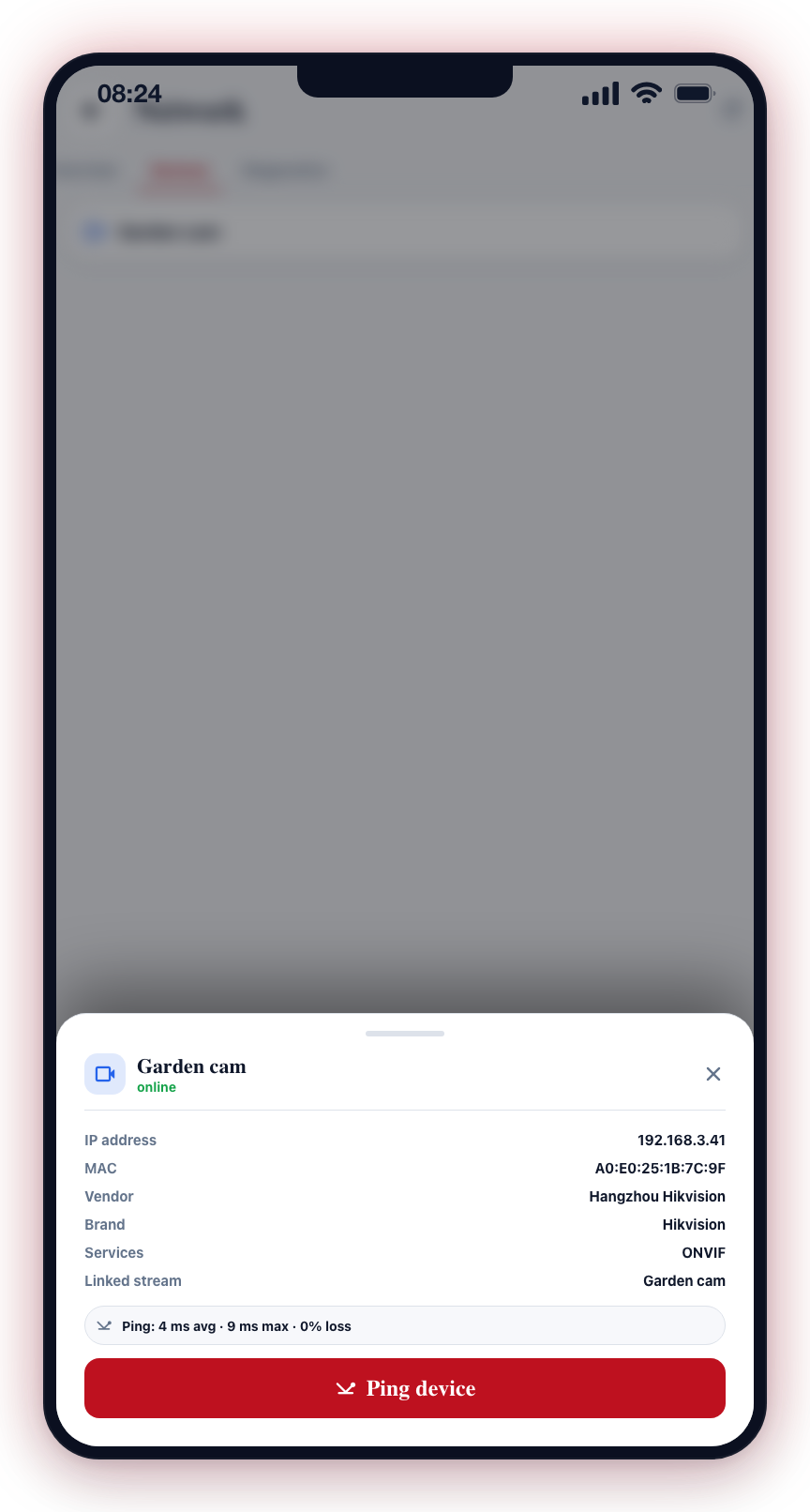
Tap any device to open its detail sheet: IP, MAC address, vendor, brand and model (for cameras), ONVIF support, the linked stream name, and a Ping device button that pings it from the hub and shows average/maximum latency and packet loss.
Diagnostics tab
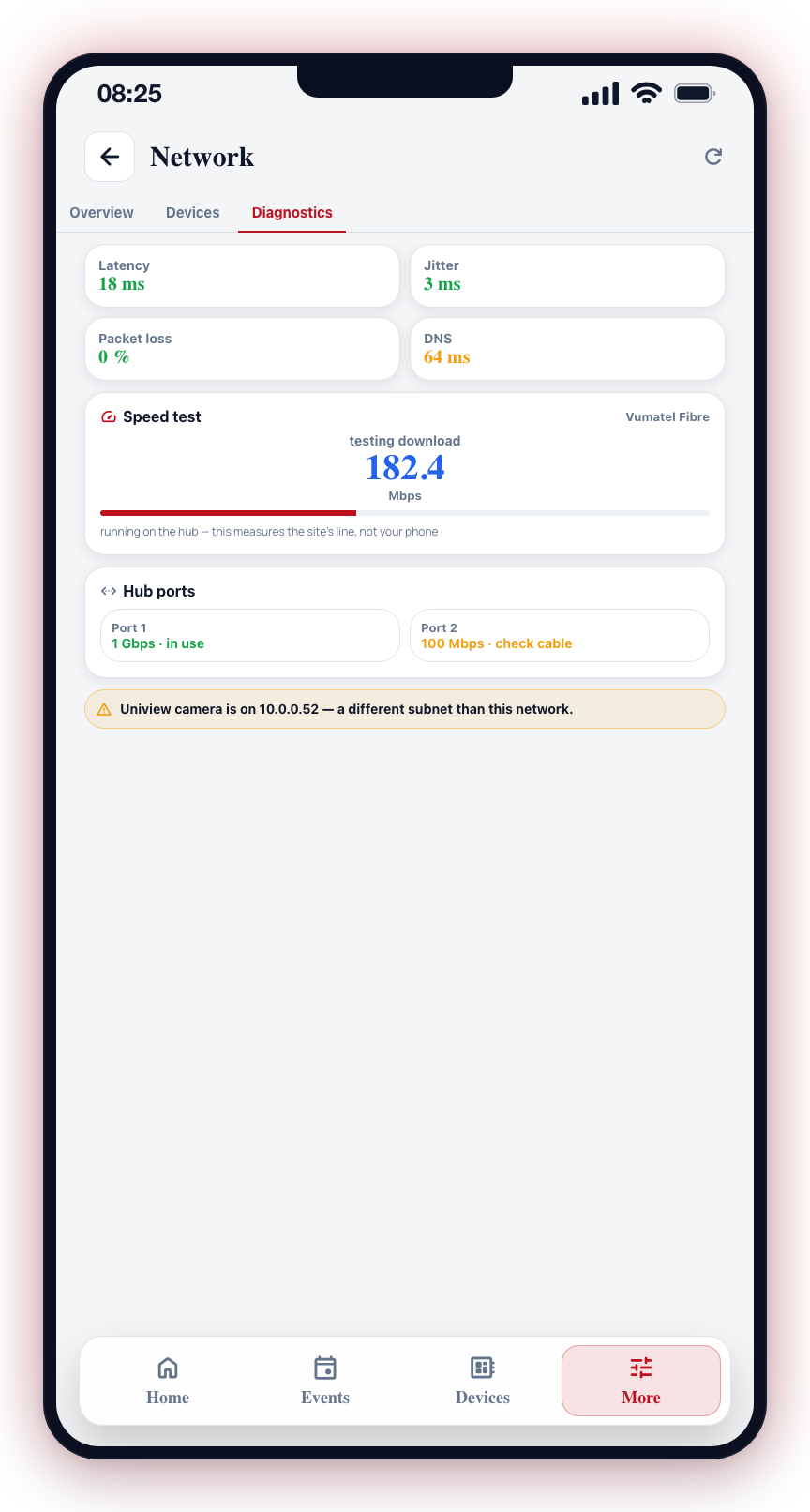
- Metric cards — internet latency, jitter, packet loss and DNS lookup time, coloured green/amber/red. These are measured fresh by the hub every time the network is scanned (falling back to the hub's last scheduled health report).
- Speed test — the last measured download/upload/ping and a Run speed test button. The test runs on the hub (about 20 seconds) and streams live readings once a second — you watch the Mbps number move through the ping, download and upload phases with a progress bar.
- Hub ports — each physical ethernet port with its negotiated speed. A gigabit port linked at 100 Mbps shows check cable, which usually means a damaged cable or bad crimp.
- Warnings — for example a camera sitting on the wrong subnet.
Network Doctor
Tap Run network doctor on the Overview tab. The hub runs a test ladder (about 30 seconds) and streams each step to your phone live:
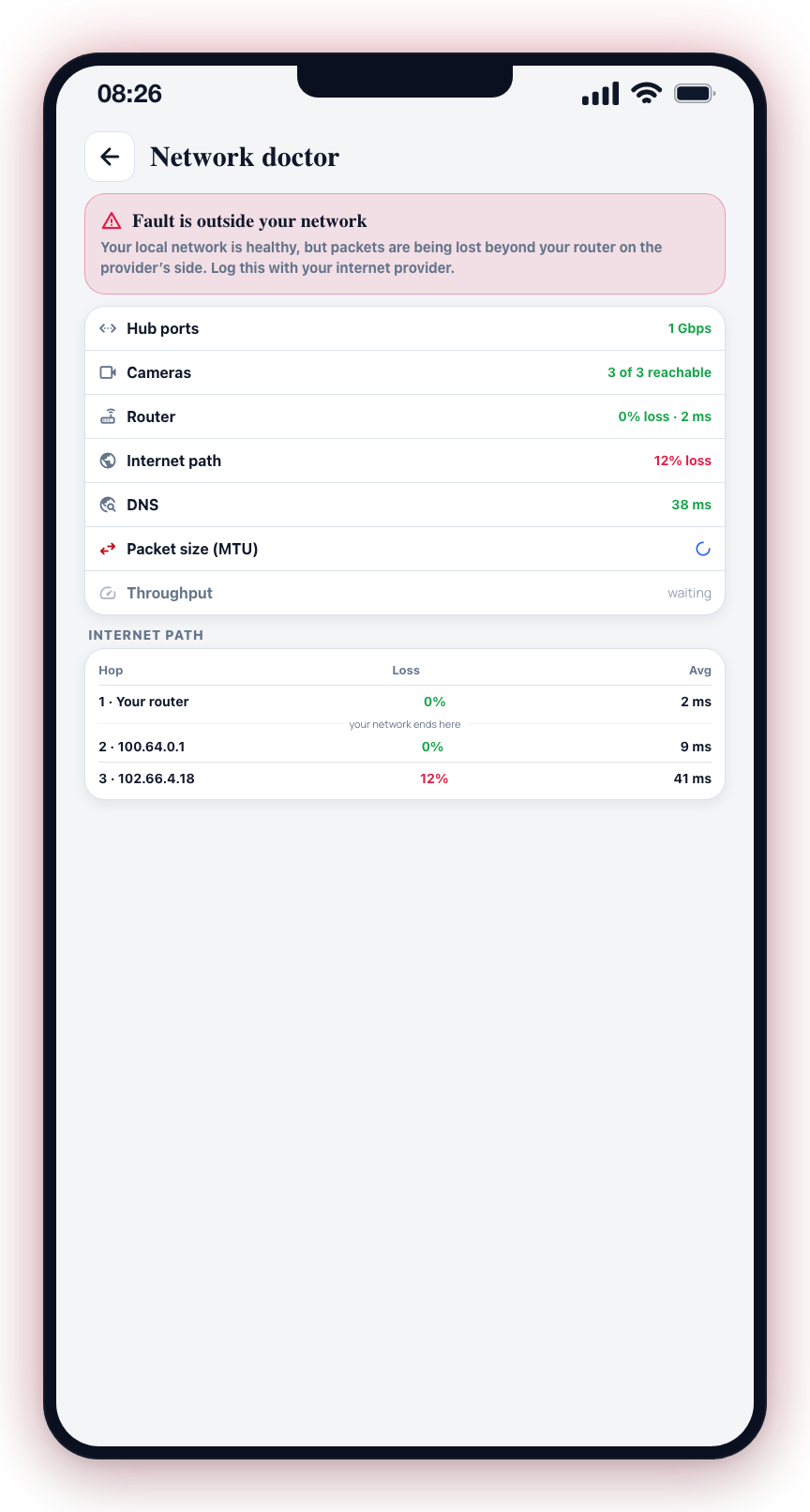
- Hub ports — link state and negotiated speed
- Cameras — pings every linked camera
- Router — packet loss and latency to the gateway
- Internet path — a per-hop trace to the internet
- DNS — name lookup time
- Packet size (MTU) — detects silently dropped large packets
- Throughput — a quick bandwidth sample
When it finishes, the doctor names the fault in plain language:
- Fault is inside your network — the router is not responding properly from the hub
- Fault is the CCU's own cable — the hub's uplink negotiated below gigabit speed
- Fault is outside your network — the local network is healthy but packets are lost beyond the router on the provider's side
- DNS problem — the internet path is fine but name lookups are slow or failing
- Large packets are being dropped — a path MTU problem; clamp MSS on the router
- Line is saturated or very slow — no packet loss but throughput is far below what cameras need
- Network looks healthy — all segments tested clean
Below the verdict you get the evidence (the measured numbers behind the conclusion), any secondary findings (for example one unreachable camera, independent of the main verdict), and the internet path — a hop-by-hop table with a "your network ends here" divider after your router, so loss below that line is provably on the provider's side.
Copy report puts the verdict, evidence and hop table on your clipboard — useful when logging a fault with your internet provider or an installer.
Notes and limits
- The hub can only see devices on its own network segment. Devices the router isolates (for example a guest Wi-Fi) won't appear.
- Phones with private (randomised) addresses appear as "Mobile device" without a name.
- Unmanaged switches are invisible to the network — the tool can see the devices behind them, but not the switch itself.