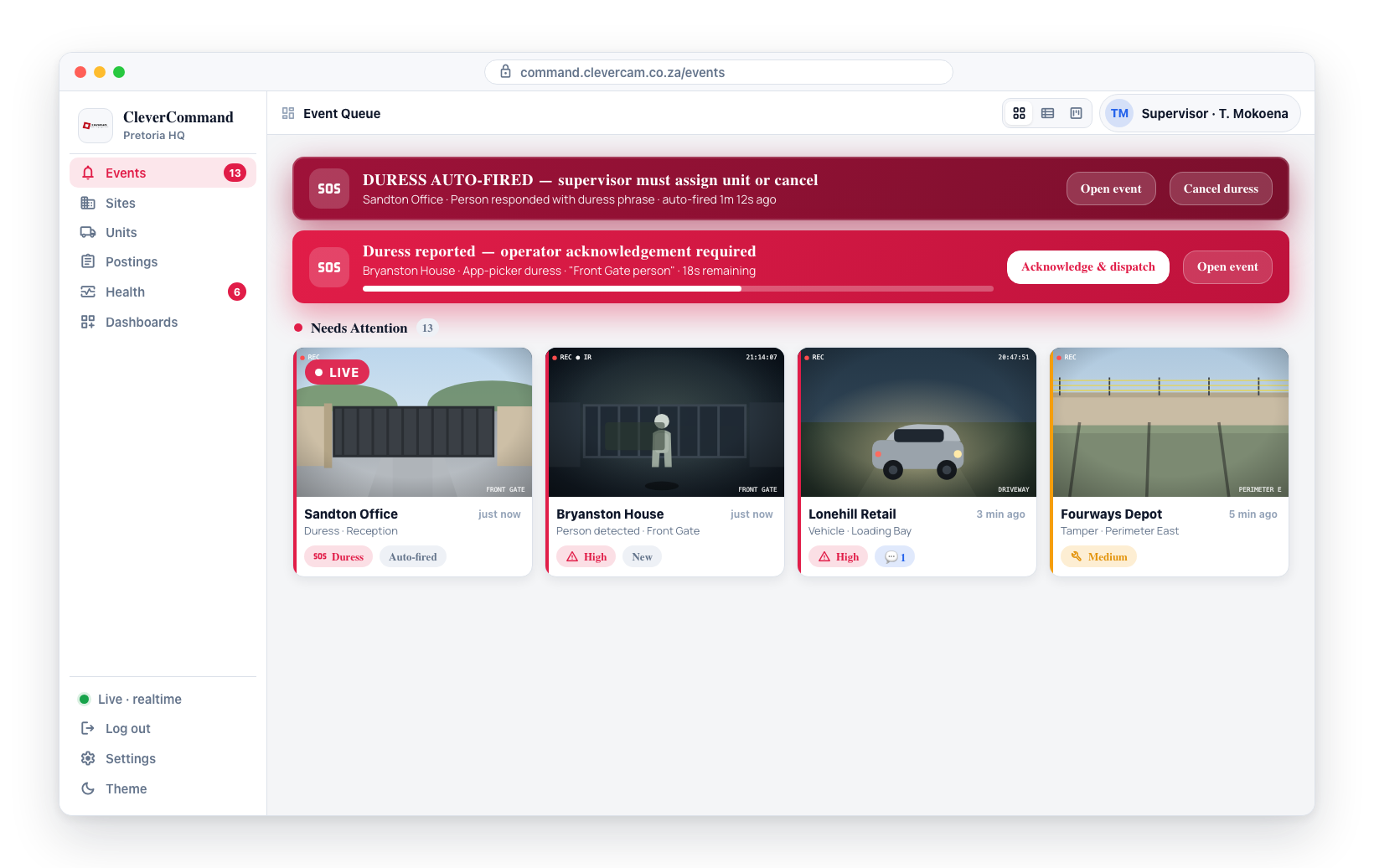
Alert Sounds
Alert sounds ensure that operators hear incoming events even when focused on other tasks or screens. CleverCommand provides configurable audio alerts that play when new events arrive in the queue. Operators can choose the sound type, toggle looping, and test sounds before committing to a configuration.
Accessing Alert Sound Settings
- Click Settings in the left sidebar (or use the settings shortcut at the bottom of the sidebar)
- Navigate to the Alert Sounds section
- Configure your preferred alert sound options
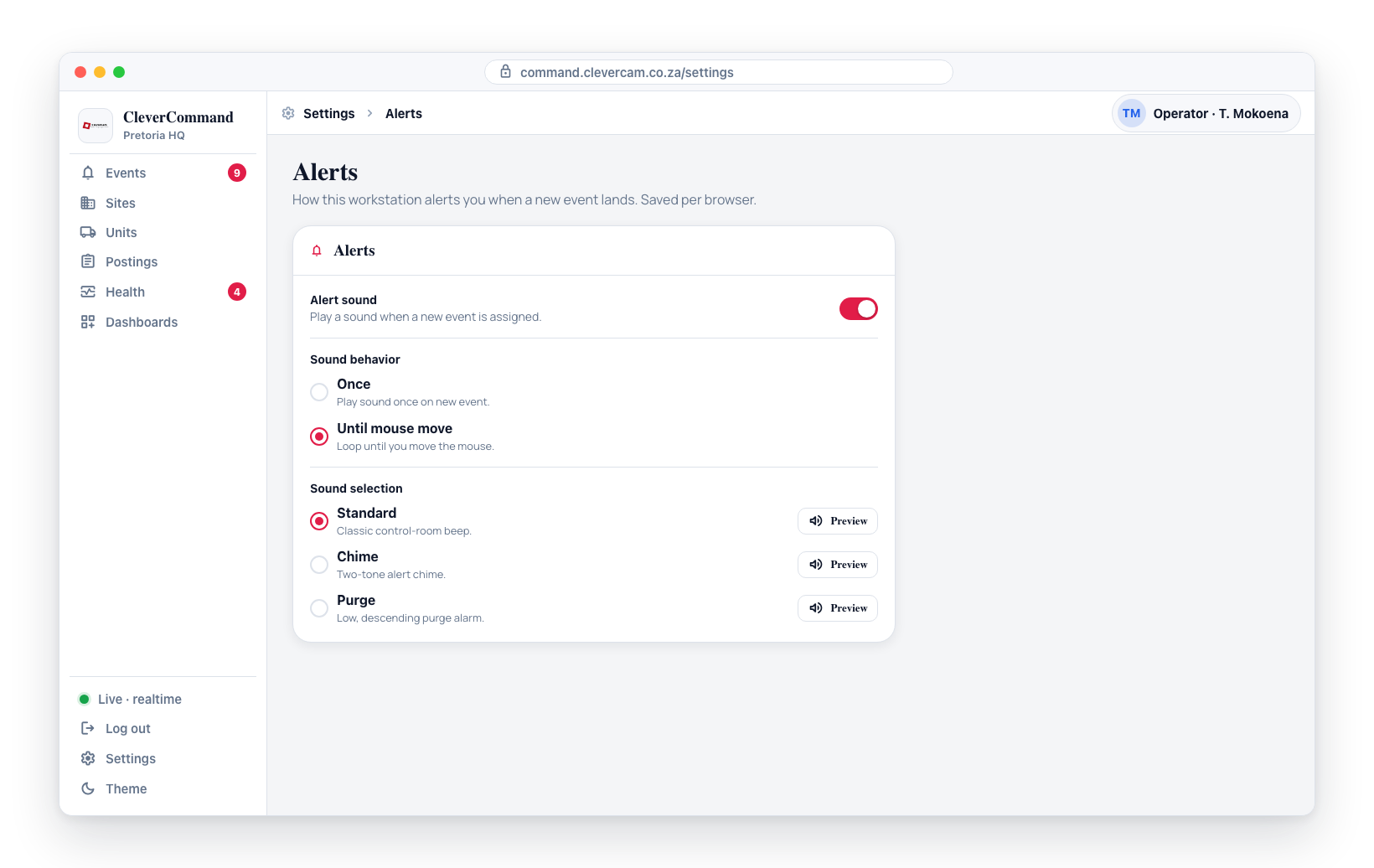
Sound Toggle
The master sound toggle enables or disables all alert sounds:
- On -- Alert sounds play when new events arrive
- Off -- All alert sounds are silenced
Turning off alert sounds in a control room environment is not recommended. Audible alerts are a critical safety net that ensures operators are aware of incoming events even when their attention is elsewhere. Only disable sounds if your environment has alternative alerting mechanisms.
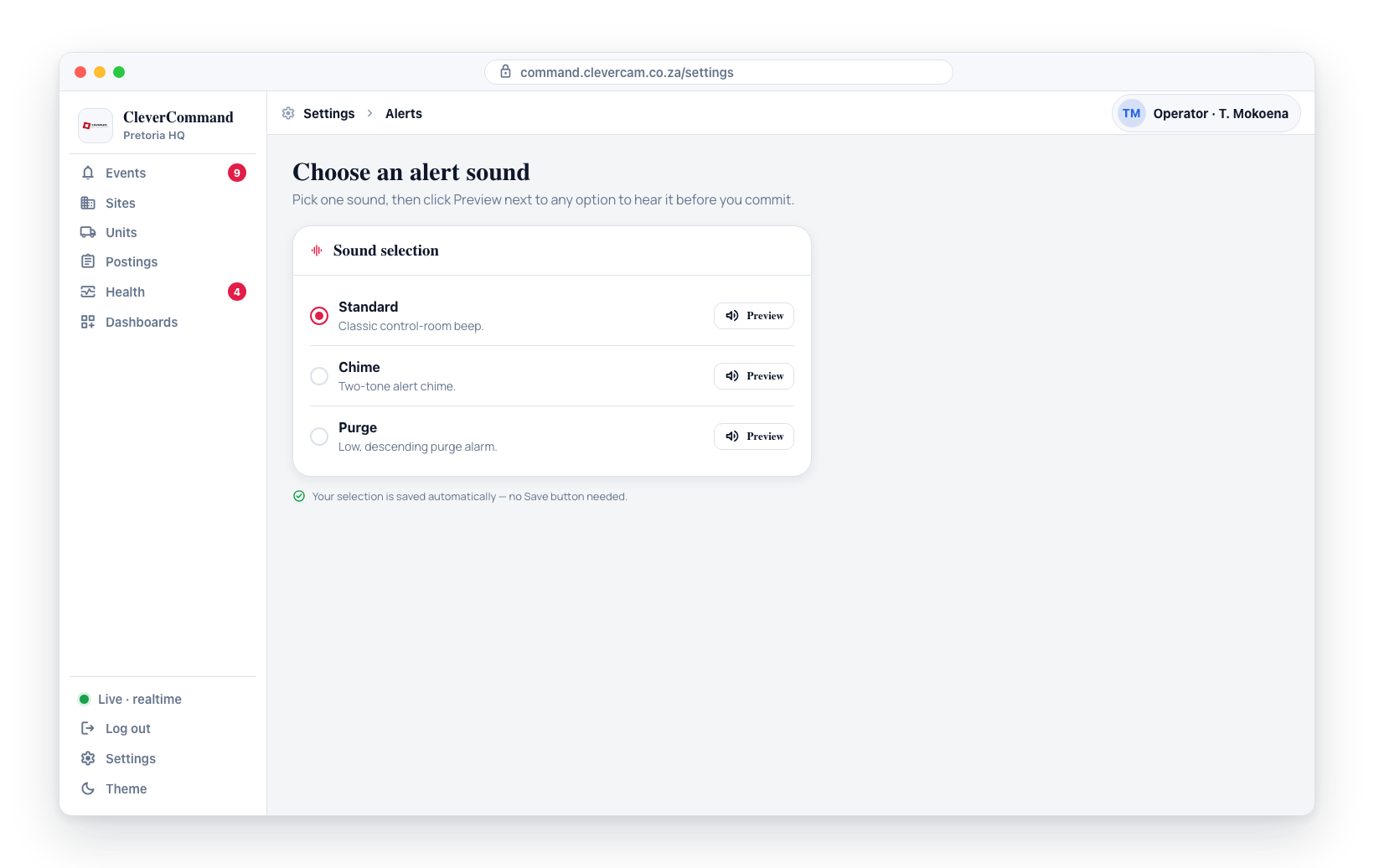
Sound Selection
Choose from the following alert sound options:
| Sound | Description |
|---|---|
| Standard | A classic control-room beep |
| Chime | A two-tone alert chime |
| Purge | A low, descending alarm sound (the default) |
Selecting a Sound
- Open the Alert Sounds settings
- Select your preferred sound from the list
- Click the Preview button next to any sound to hear it
- The selection is saved automatically
Sound Behavior
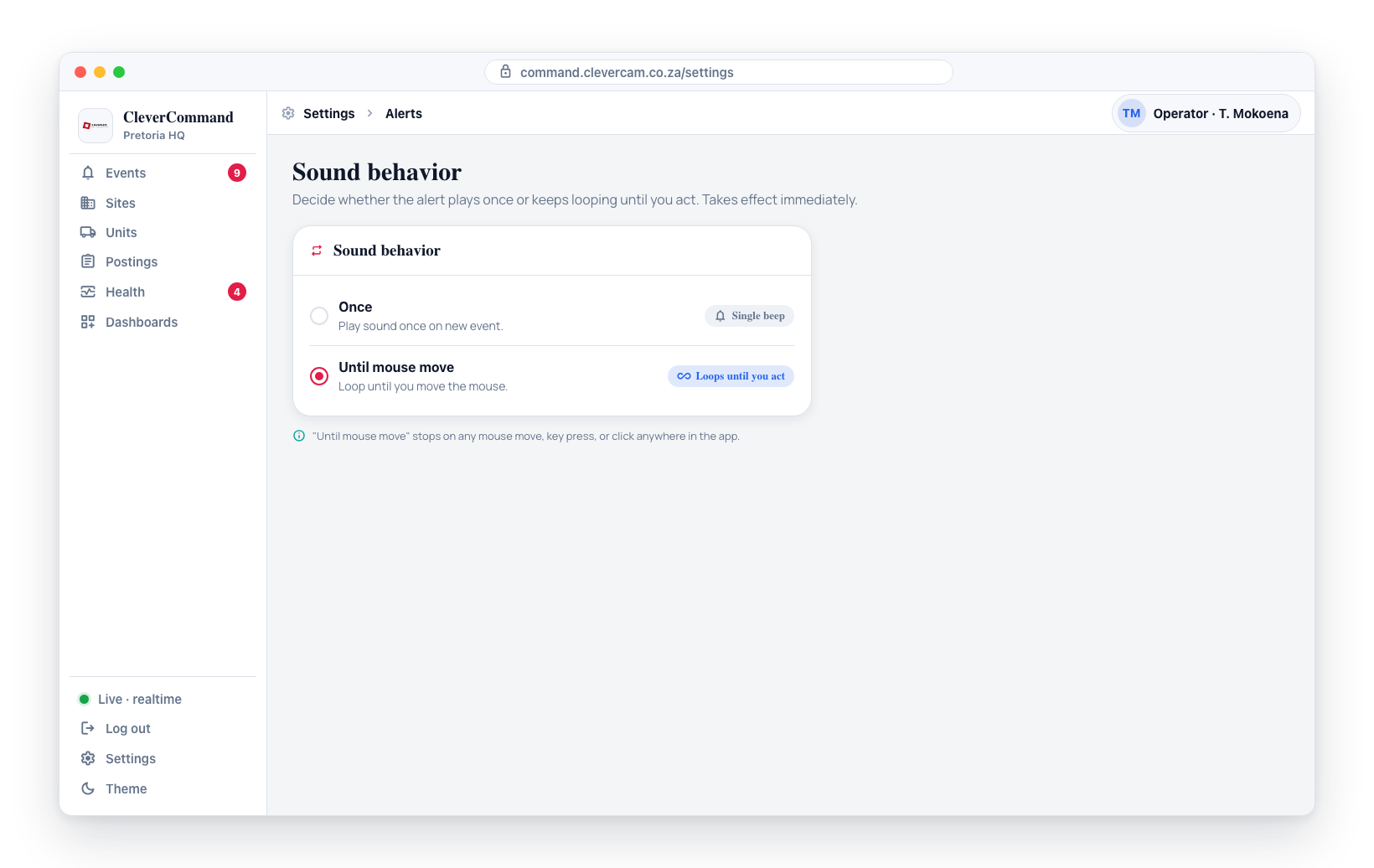
Two sound modes control what happens when a new event arrives:
- Once -- The alert sound plays a single time when a new event arrives
- Until mouse move -- The alert sound loops repeatedly until the operator moves the mouse, presses a key, or clicks anywhere in the application
Changing Sound Behavior
- Open the Alert Sounds settings
- Select either Once or Until mouse move from the options
- The change takes effect immediately
In a dedicated control room, use "Until mouse move" with the Purge sound for maximum alerting. In a shared office environment, use the Chime with "Once" mode for a less disruptive approach.
What does and doesn't make a sound
Only three things ever play a sound:
- A new event arrives awake on your queue. Real alarms (panic, duress, fire, medical, burglary) play your configured alert sound at full volume. Technical signals that arrive already parked — AC fail, comms, battery, supervision — play a quieter soft tone instead.
- An event goes to Sleeping. When Maven parks a fresh event to message the customer, any siren already playing for it stops immediately and the quiet soft tone plays instead — the event is handled for now, so the alarm sound must not keep going over a card sitting in Sleeping.
- A parked event wakes on its own. When a sleep window expires without the situation resolving — the customer never replied, the fault never cleared — the event wakes itself and plays your full configured alert sound, the same as a brand-new alarm. That one means this needs a look now.
Everything else is silent — an event closing, an event being reassigned, a parked event quietly auto-closing, and any sleep or wake you triggered yourself. Clicking Wake now, dragging a card into or out of Sleeping, snoozing from the event header, or sending a customer message (which auto-parks the card) does not play a sound: it would only be telling you about something you just did. This holds across all your CleverCommand windows, so clearing a long Sleeping column stays quiet.
Browser Permissions
For alert sounds to work, your browser must allow audio playback for the CleverCommand site:
- Most browsers block auto-playing audio until the user has interacted with the page
- After your first click or keypress in CleverCommand, sounds are enabled
- If sounds are not playing, check your browser's site settings to ensure audio is allowed
"Enable sound alerts" indicator
If the dashboard is loaded but audio has not been unlocked yet -- for example after a page reload, a PWA relaunch, or a fresh login on a screen that has been left untouched -- a red 🔇 Enable sound alerts chip appears in the bottom-left corner.
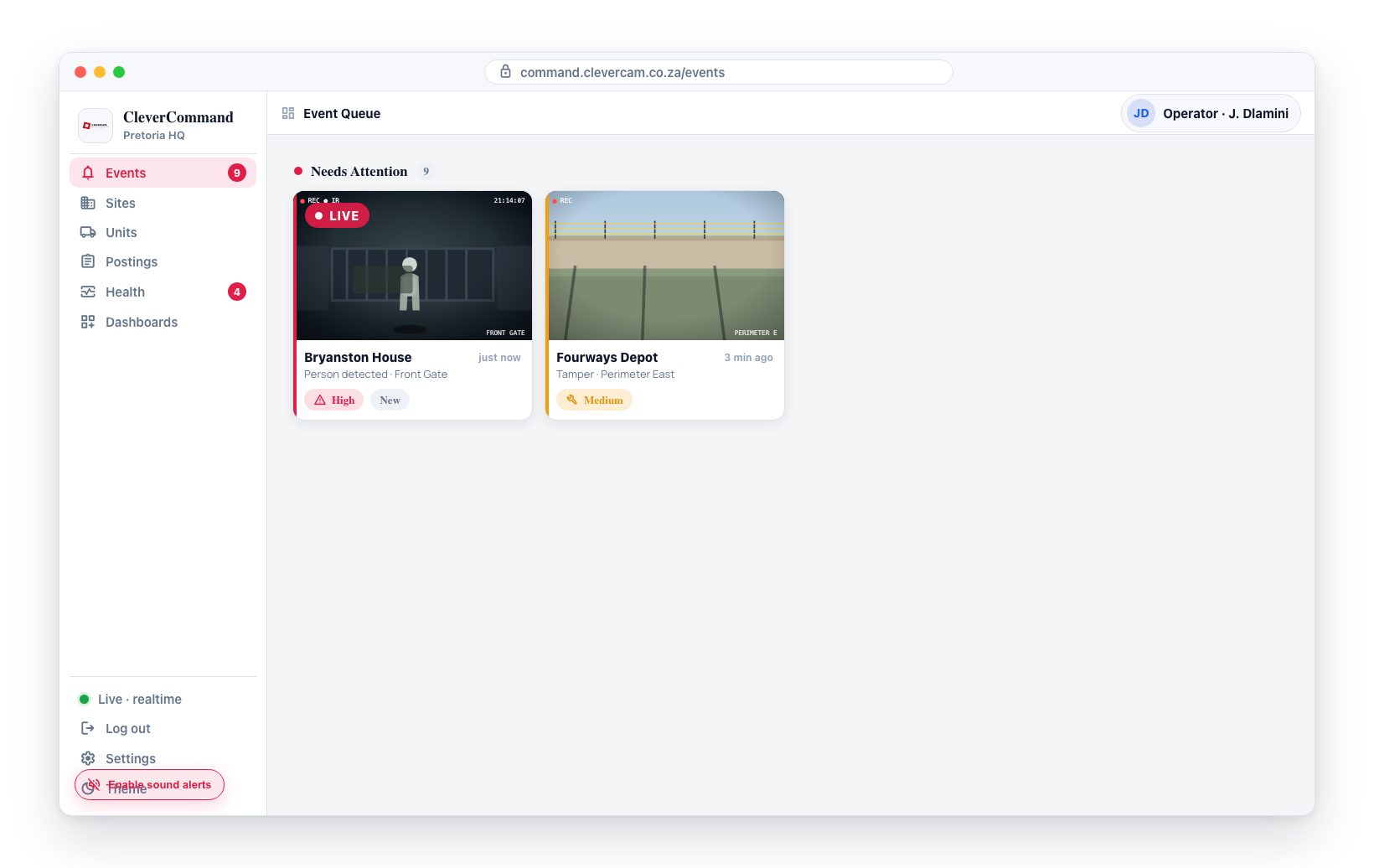
- The chip means the browser has not yet unlocked audio, so the next event could arrive without a sound.
- Click it once to unlock audio (and grant native notification permission). The chip then disappears.
- Because any click or keypress also unlocks audio, simply working in the app clears it -- the chip is there for screens that would otherwise sit idle.
On unattended control-room screens (video walls, a workstation just logged in), click the dashboard once at the start of a shift so the Enable sound alerts chip is cleared. Until it is, the first event of the shift may not play a sound.
Alert sound preferences are saved per browser. If you use CleverCommand on multiple workstations, you need to configure the sound settings on each one.
Multiple windows — one siren
On multi-monitor desks running several CleverCommand windows, alert audio is coordinated across them:
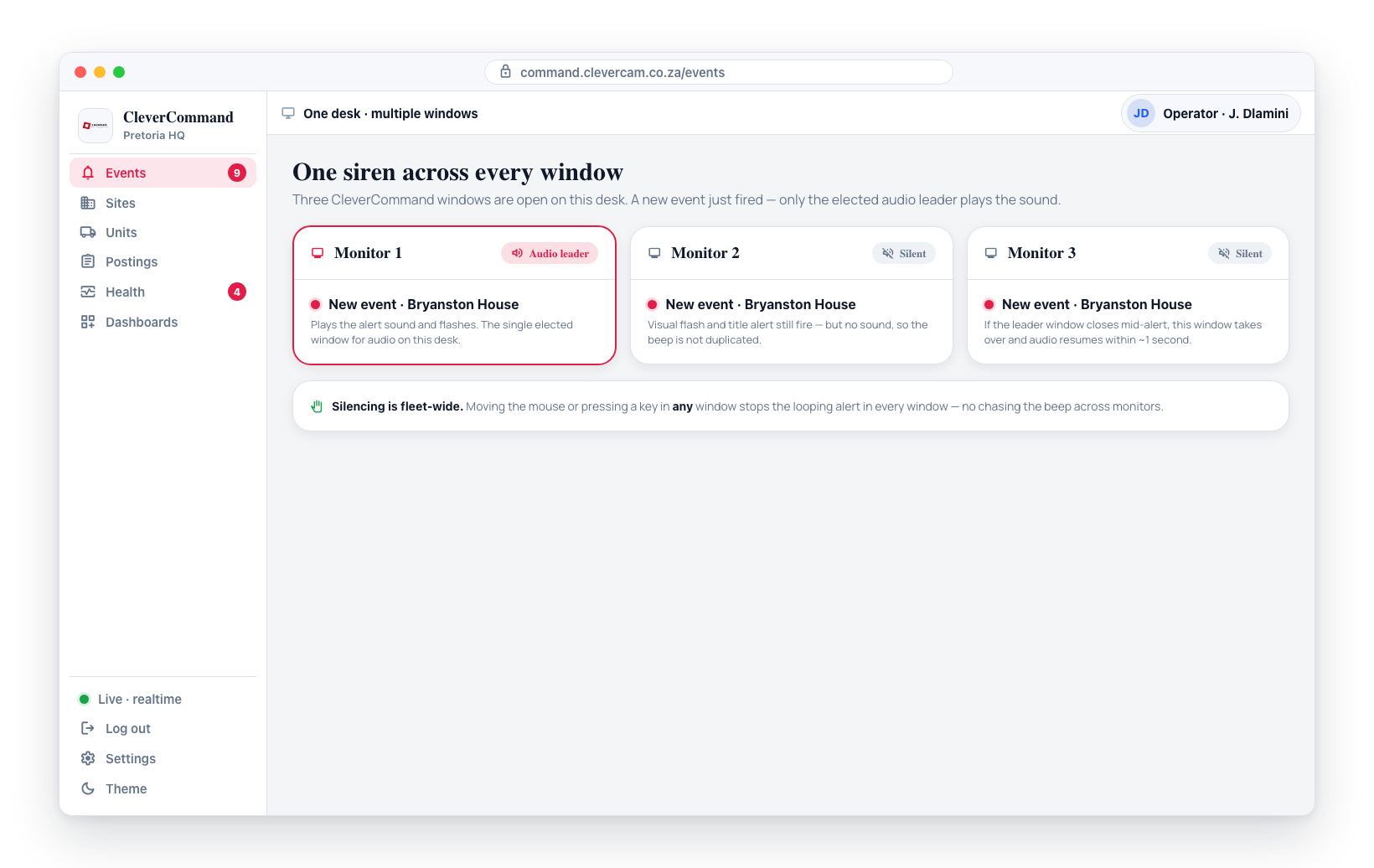
- Only one window plays the sound. The browser elects a single "audio leader" window; the others stay silent (their visual flash and title alerts still fire). If the leader window closes mid-alert, another window takes over and the sound resumes within about a second.
- Windows that can actually play get priority. A window that has never been clicked (its audio is still locked by the browser — the red 🔇 chip) stands back and lets an unlocked window carry the siren, so an untouched wall display can no longer claim the sound and leave the whole desk silent.
- Silencing is fleet-wide. Moving the mouse or pressing a key in ANY CleverCommand window stops the looping alert in every window — no more chasing the beep across monitors.
Duress overrides these settings
The duress banner plays its own urgent looping warble that ignores the sound toggle and sound mode: it does not stop on mouse movement and keeps looping until the duress strip is acknowledged, cancelled, or resolved by another operator. Duress has a 30-second acknowledgement deadline and must never be missable, so it cannot be silenced through this settings page.