Notifications
CleverCommand supports two types of notifications: native browser notifications that appear outside the application, and in-app pop-up notifications that appear within the CleverCommand interface. Together, they ensure operators are informed of new events regardless of what they are currently looking at.
Native Browser Notifications
Native notifications appear in your operating system's notification area (the system tray on Windows, notification center on Mac). They are visible even when the CleverCommand window is hidden behind other applications or minimized.
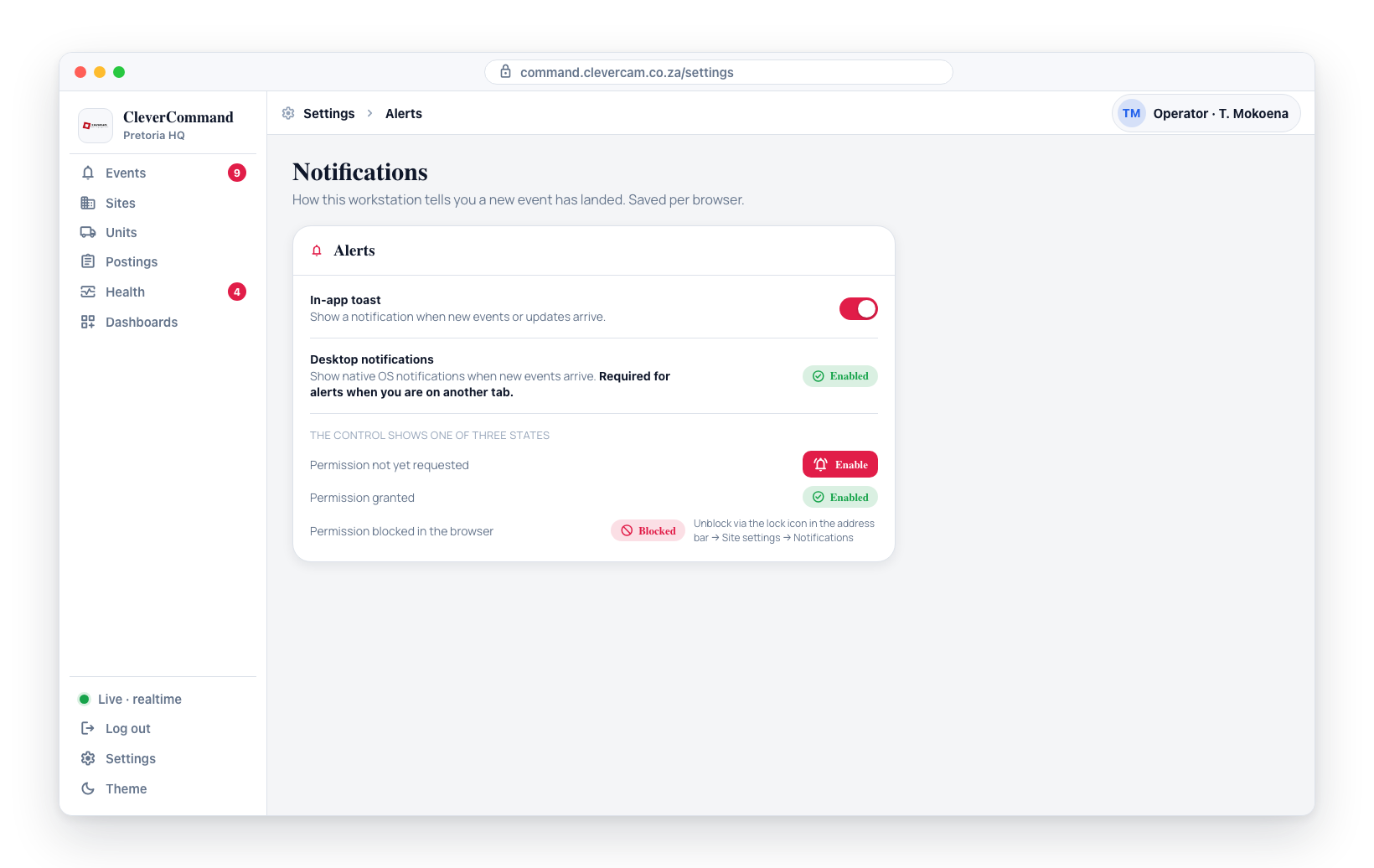
Enabling Browser Notifications
The desktop notifications setting in the Settings page shows one of three states:
- Enable button -- Click the Enable button to request browser permission. The browser will display a permission dialog asking you to Allow or Block notifications.
- Enabled badge -- If permission has been granted, a green "Enabled" badge is shown. Notifications are active.
- Blocked badge -- If permission was previously blocked, a "Blocked" badge is shown with instructions on how to unblock.
Browser Permission
Native notifications require explicit browser permission. When you click Enable, the browser displays a permission dialog:
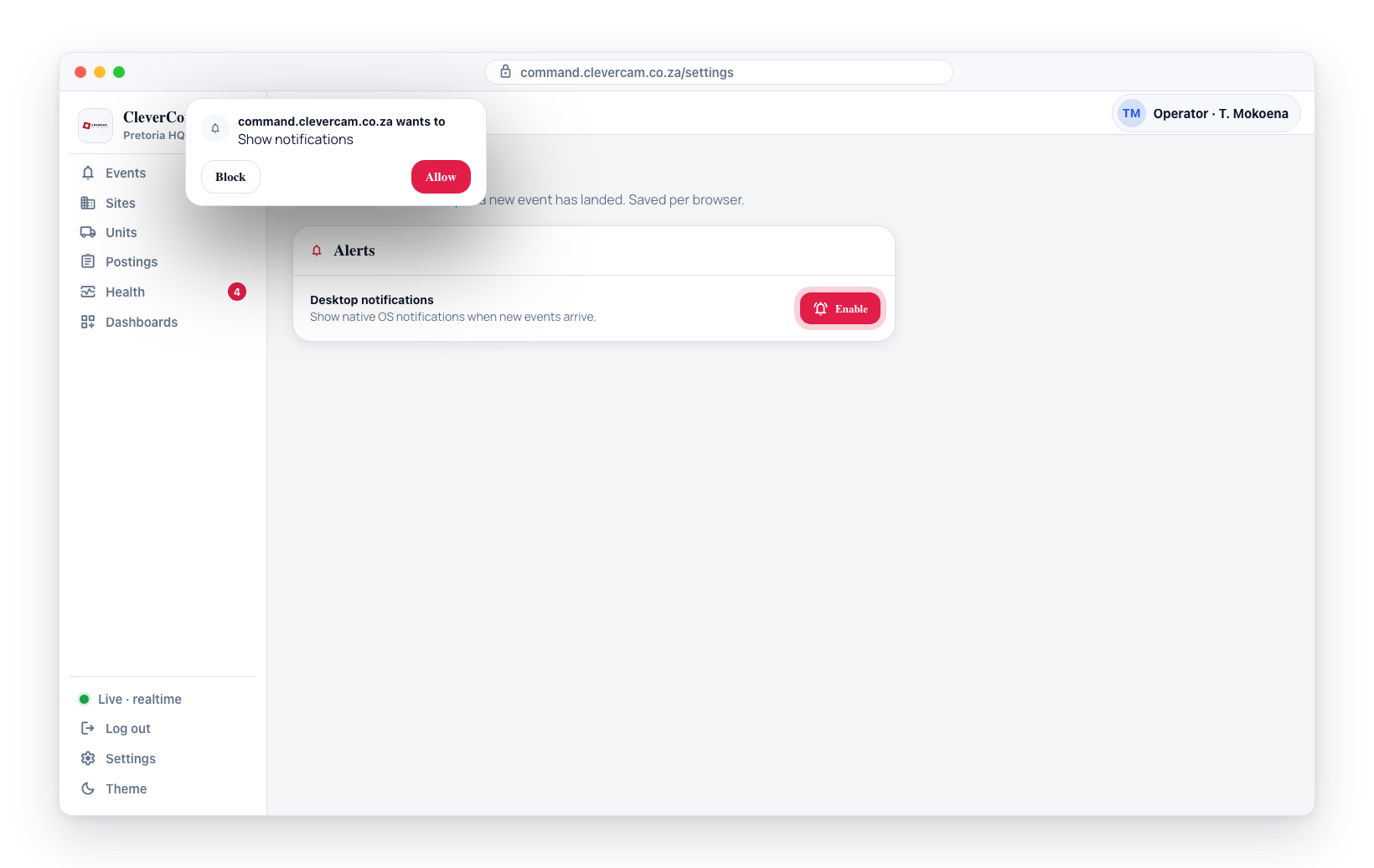
- Allow -- Notifications will appear in your system notification area
- Block -- Notifications are blocked and cannot be re-enabled from within CleverCommand
If you accidentally blocked notifications, you need to change the permission in your browser settings. In Chrome, click the lock icon in the address bar, then go to Site settings, then Notifications, and change the setting to Allow.
What Browser Notifications Show
Each notification displays:
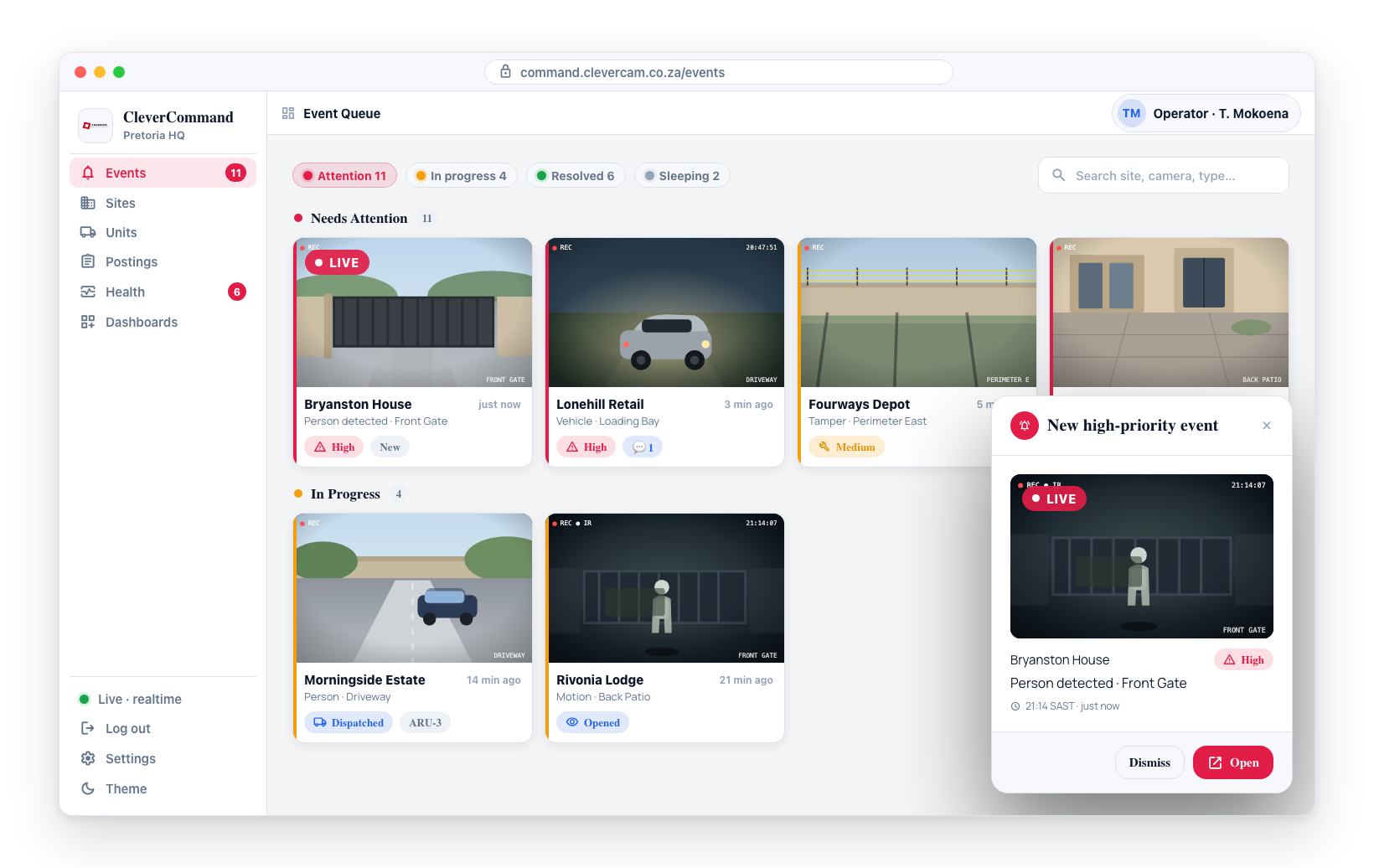
- The event type and severity
- The site name where the event was detected
- The time the event was created
- Click the notification to bring CleverCommand to the foreground
Background Awareness
Native notifications are especially important when:
- CleverCommand is running in a background tab
- The browser window is minimized or behind other applications
- The operator is working in another application on the same workstation
When Alerts Fire
The sound, native notification, and in-app pop-up fire whenever an event becomes yours -- not only when a brand-new event is created and assigned to you, but also when an existing event is reassigned or handed to you (for example by queue routing or a supervisor hand-off). This ensures an event routed to you after it was created cannot sit in your queue silently.
To avoid repeat noise, a card that has already alerted will not alert again on later edits within a short window; an event reassigned away and then back to you after that window will alert again.
In-App Pop-Up Notifications
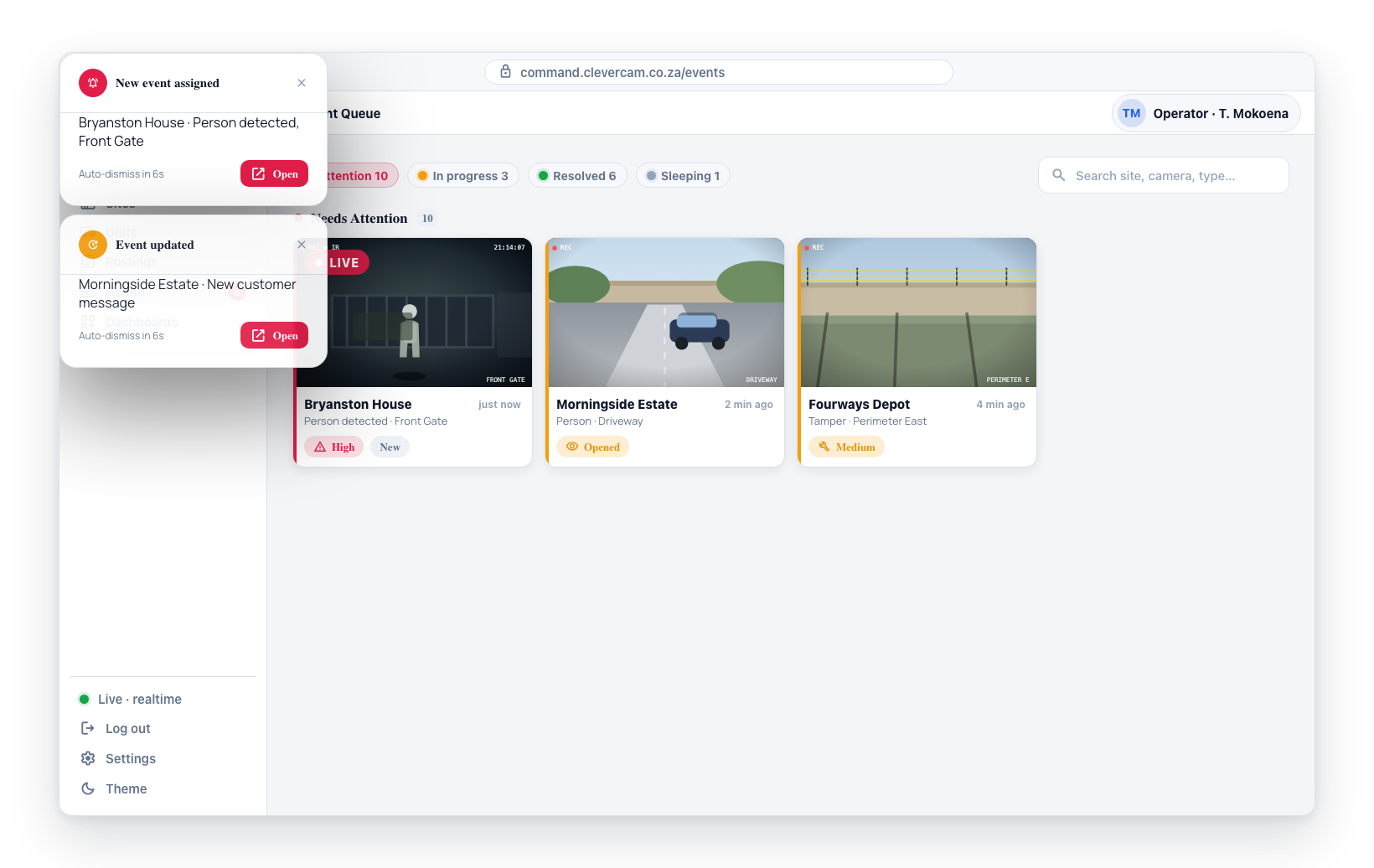
Pop-up notifications appear within the CleverCommand interface, stacked in a corner of the screen. They provide a brief visual alert without requiring the operator to switch context.
Configuring Pop-Up Notifications
- Open Settings from the sidebar
- Navigate to the Alerts section
- Toggle In-app toast on or off
Pop-ups display the event title and a brief message, and auto-dismiss after about 6 seconds (or when dismissed with the close (X) button). Event pop-ups ("New event assigned" and event-update toasts) include an Open button that jumps straight to that event's details page -- no need to hunt the queue for it. A missed pop-up is never the only signal: the event itself is in your queue, and the sound / native notification / title badge fire on the same trigger.
Notification Strategy
Choose a notification configuration based on your monitoring environment:
| Environment | Recommended Configuration |
|---|---|
| Dedicated control room (single-purpose workstation) | Pop-up notifications on, browser notifications off (CleverCommand is always visible) |
| Multi-application workstation | Browser notifications on, pop-up notifications on (covers both foreground and background scenarios) |
| Multi-monitor setup | Browser notifications off, pop-up notifications on (CleverCommand visible on a dedicated monitor) |
Enable browser notifications if you ever have CleverCommand running in the background. They are your only alert mechanism when the application window is not visible.
Notification preferences are saved per browser. If you use CleverCommand on multiple workstations, configure notifications on each one.