Notification Issues
If you are not receiving push notifications from CleverAlert, your security system is essentially silent — events could be occurring without you knowing about them. This guide covers the most common reasons for missing notifications and how to fix each one.
Not Receiving Any Notifications
If you are not receiving any push notifications at all:
Step 1: Check App Notification Permissions
On iOS:
- Open Settings > Notifications > CleverAlert.
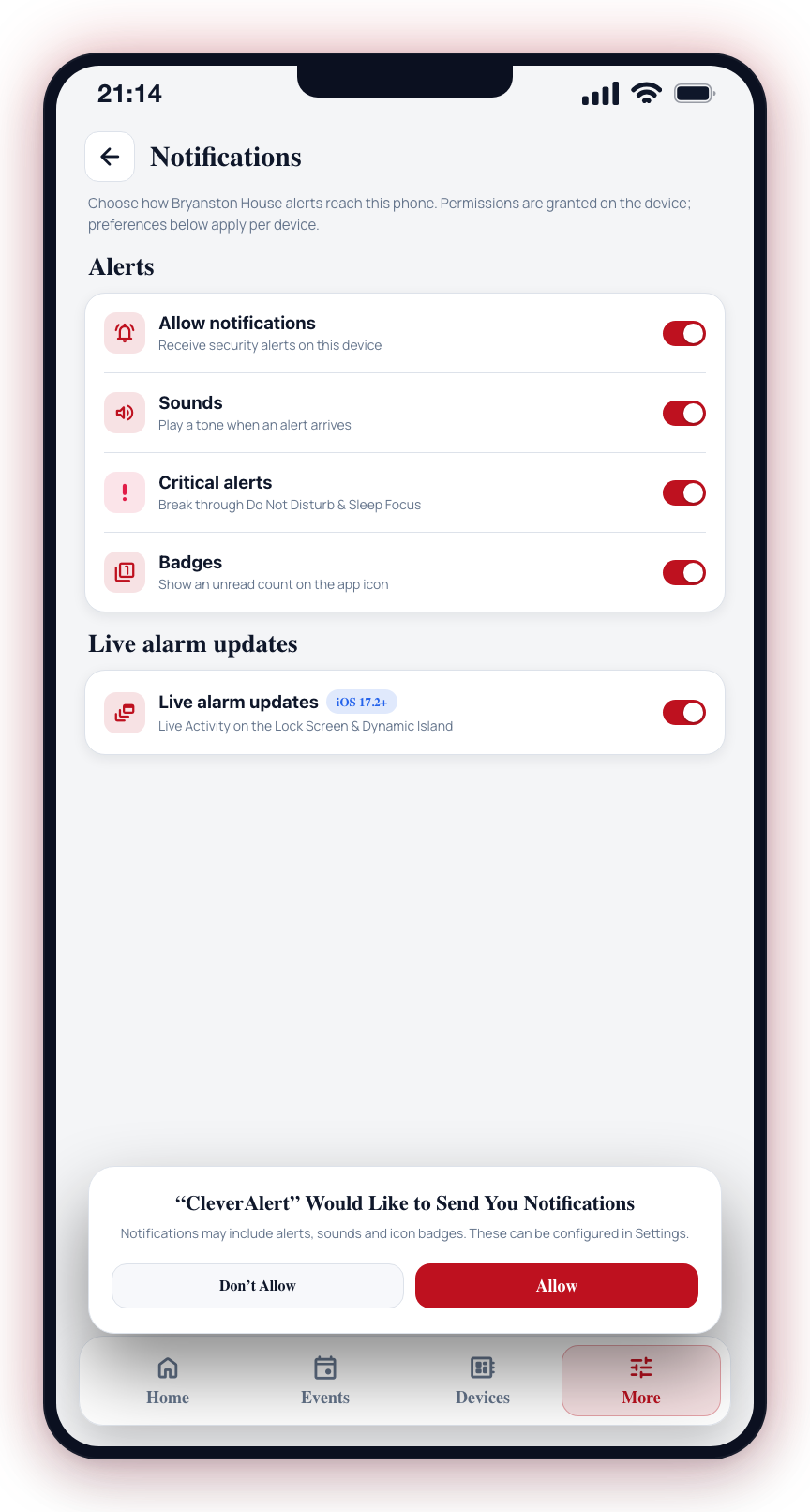
- Ensure Allow Notifications is toggled on.
- Ensure Alerts, Sounds, and Badges are all enabled.
- Check that Notification Grouping is not hiding your alerts.
On Android:
- Open Settings > Apps > CleverAlert > Notifications.
- Ensure notifications are enabled.
- Check that all notification categories (Critical, High, General) are enabled.
- Tap each category to verify it is not set to "Silent" or "Minimized."
Step 2: Check Do Not Disturb / Focus Mode
On iOS:
- Check if Focus or Do Not Disturb is active (look for the crescent moon or Focus icon in the status bar).
- If active, either disable it or add CleverAlert to the allowed apps list for that Focus mode.
- For critical alerts, enable Critical Alerts in Settings > Notifications > CleverAlert. Critical alerts bypass Focus modes.
On Android:
- Check if Do Not Disturb is active (look for the DND icon in the status bar).
- If active, either disable it or add CleverAlert as an exception.
- Go to Settings > Sound > Do Not Disturb > Apps > Add CleverAlert.
Step 3: Check Battery Optimization (Android)
Many Android manufacturers use aggressive battery management that can stop background processes and block notifications.
- Go to Settings > Apps > CleverAlert > Battery.
- Select Unrestricted (or No Restrictions or Don't Optimize).
- On Samsung devices: Also check Settings > Battery > Background Usage Limits and make sure CleverAlert is not in the "Sleeping Apps" or "Deep Sleeping Apps" lists.
- On Xiaomi/MIUI: Go to Settings > Battery > App Battery Saver > CleverAlert > No Restrictions. Also enable Auto Start for CleverAlert.
- On Huawei/EMUI: Go to Settings > Battery > App Launch > CleverAlert > Manage Manually and enable all three toggles (Auto-launch, Secondary Launch, Run in Background).
Step 4: Check Notification Preferences in CleverAlert
- Open CleverAlert > More > Account > Notification Preferences.
- Verify that the relevant categories are enabled (Intrusion events, Event updates, Panics, System arm status, Systems logs, Automation, Chimes).
- If intrusion events are enabled, check whether Allow critical alerts is also enabled.
Receiving Some But Not All Notifications
If you get some notifications but miss others:
- Check which category is affected. If you receive critical alerts but miss general ones, the general category may be disabled or silenced.
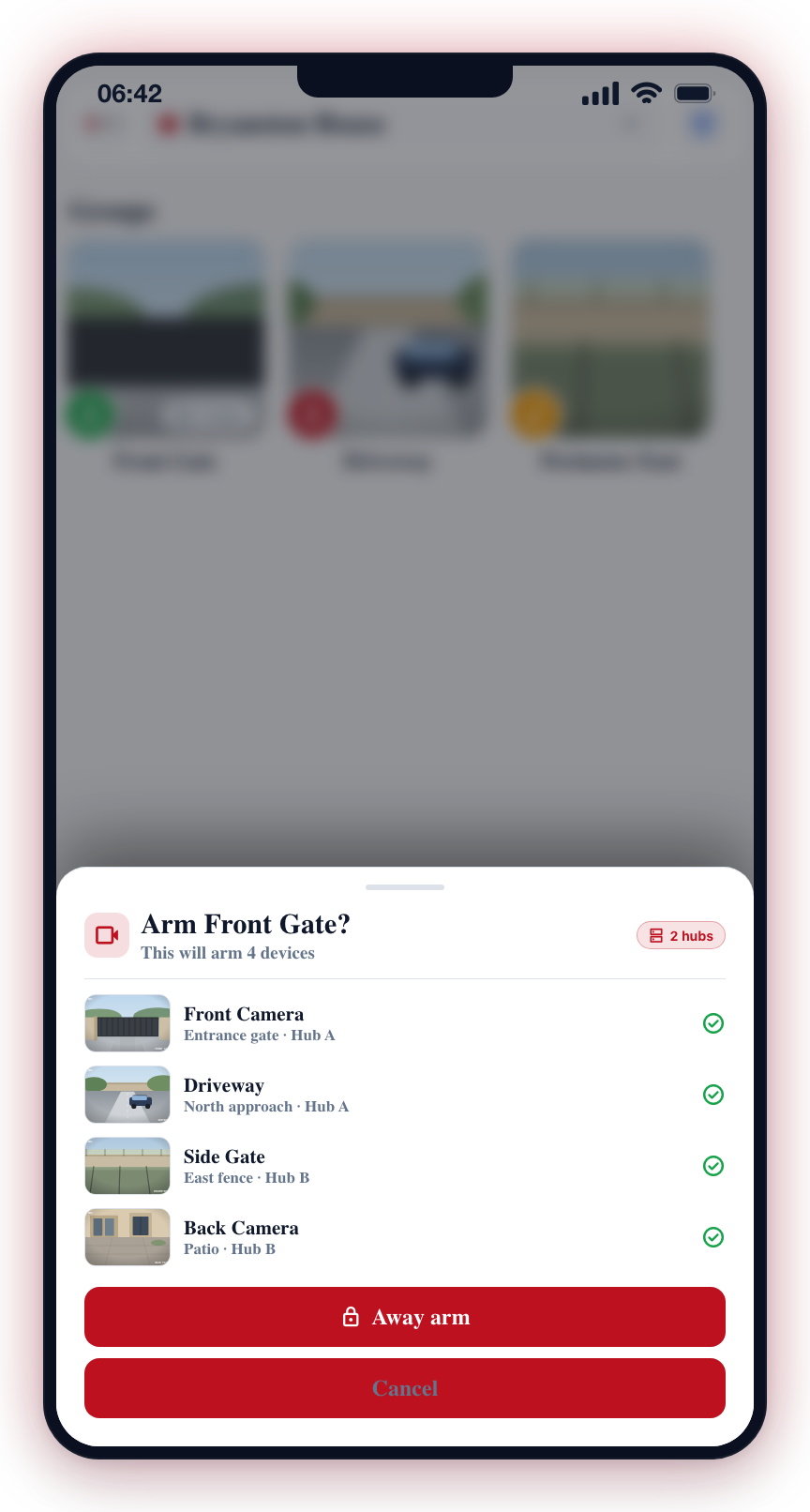
- Check your arming status. Notifications are only generated for cameras in armed groups. If a group is disarmed, its cameras will not generate alert notifications.
Notifications Are Delayed
If notifications arrive late (minutes or hours after the event):
- Check your internet connection. A slow or intermittent connection can delay notification delivery.
- Check battery optimization. Background restrictions can delay notification processing on Android.
- Restart the app. Close and reopen CleverAlert to re-establish the push notification connection.
- Restart your phone. A device restart can resolve persistent push notification delivery issues.
Unreliable notifications mean you could miss a genuine security event. If you cannot resolve notification issues using the steps above, contact CleverAlert support for assistance.
Test your notification setup regularly. There is no built-in test notification feature, but you can ask someone to trigger a test event (e.g., walk in front of an armed camera) while you verify that you receive the notification promptly.