Connection Issues
Connection problems between the app, your Clever Hub, and the cloud can prevent you from receiving alerts, viewing live feeds, and managing your security system. This guide covers the most common connection issues and provides step-by-step solutions to get everything back online.
Hub Shows Offline
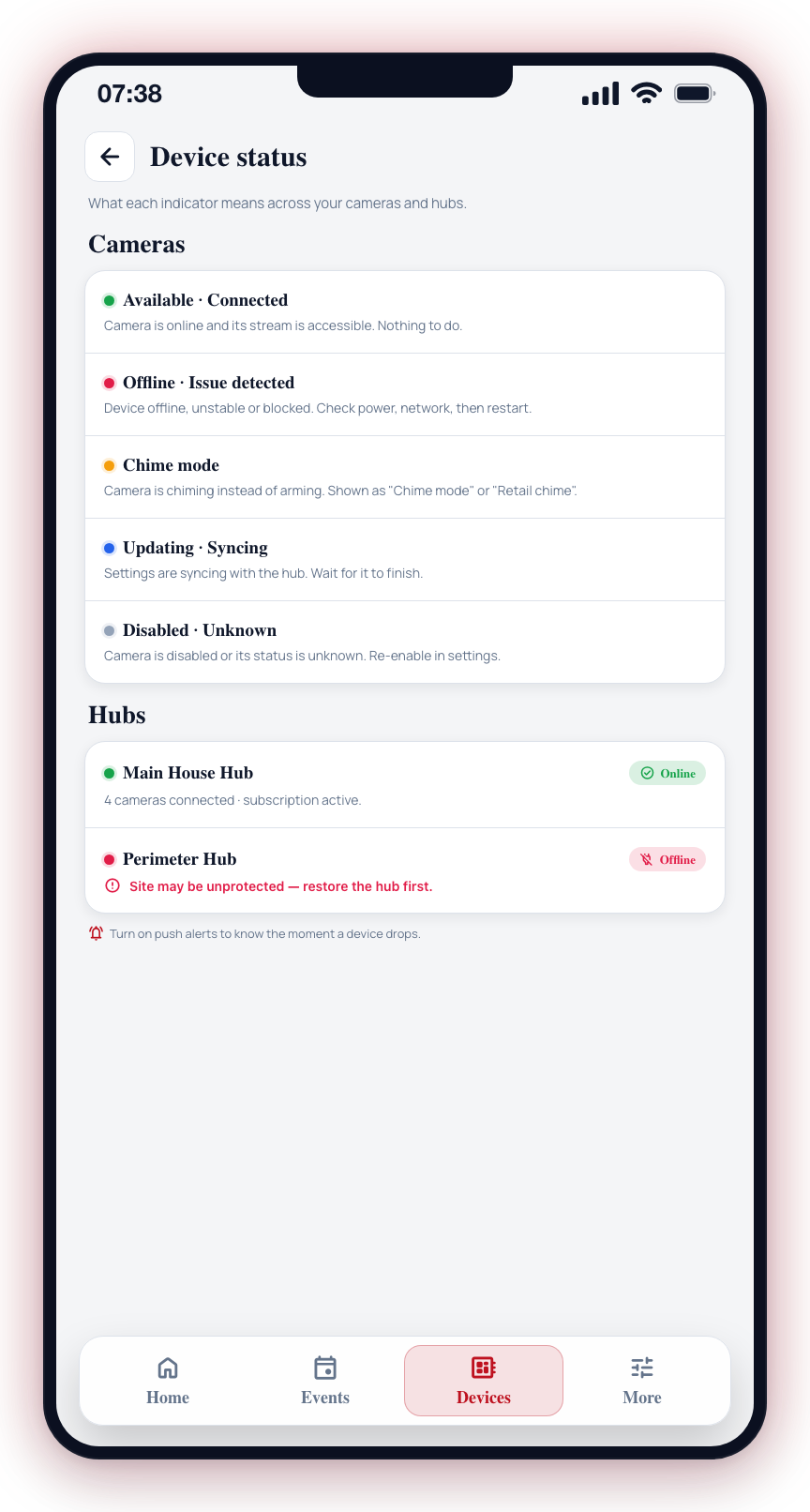
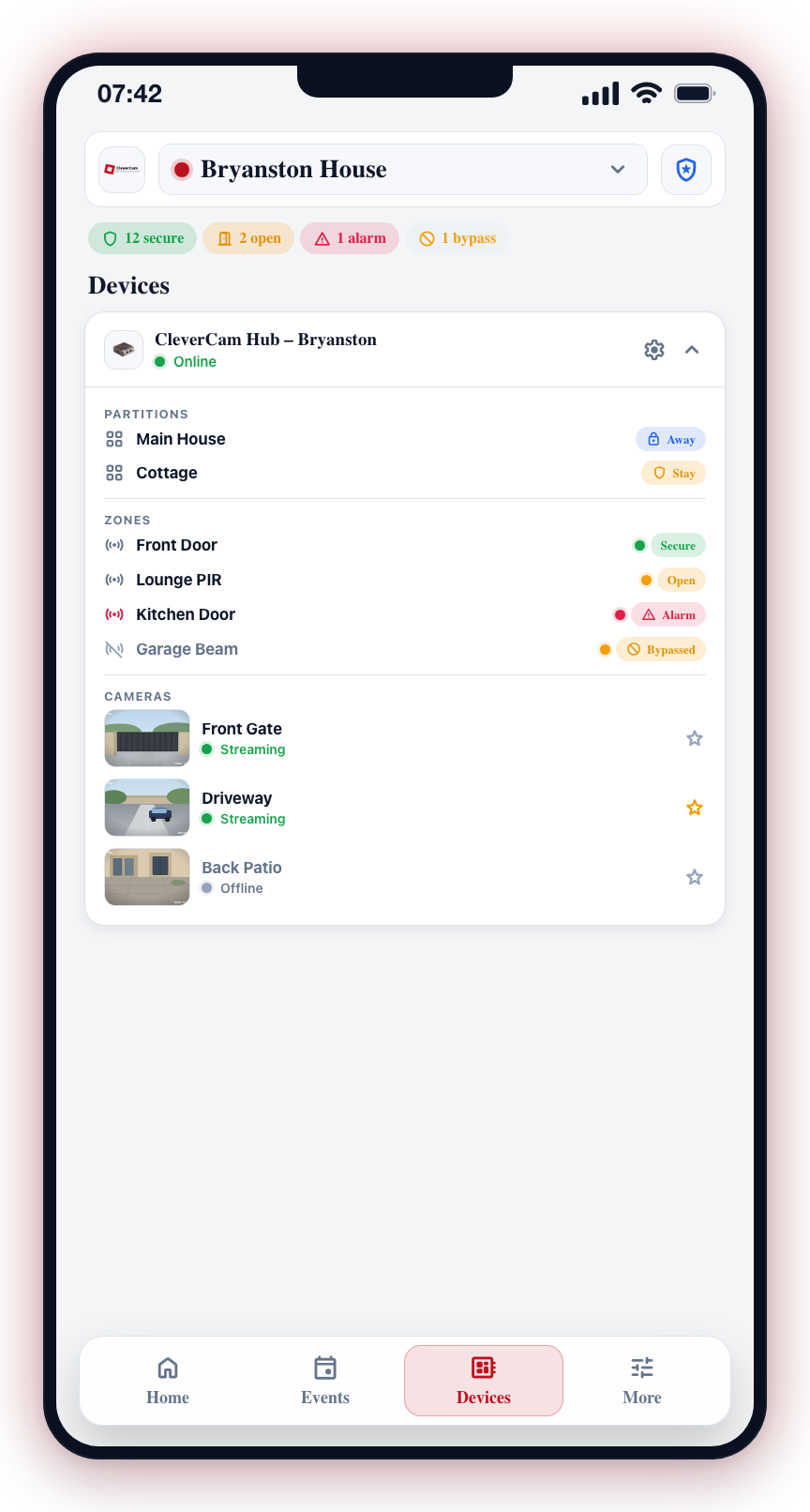
If your hub appears with a red status indicator or shows as "Offline" in the Devices tab, it means the hub is not communicating with the CleverAlert cloud.
Possible Causes
- The hub has lost power
- The internet connection at the site is down
- The hub's network cable is disconnected
- The router or modem has been restarted and the hub has not reconnected
- A network configuration change has blocked the hub's access
Steps to Resolve
-
Check power supply
- Verify that the hub's power adapter is plugged in securely at both ends.
- Check that the power outlet is working (try plugging in another device).
- Look for any indicator lights on the hub. If no lights are on, the hub may have no power.
-
Check internet connection
- Verify that other devices at the site have internet access.
- Check the router and modem. Restart them if necessary (unplug for 30 seconds, then plug back in).
- If using a wired connection, ensure the network cable from the hub to the router is securely connected at both ends.
-
Restart the hub
- If the hub has power but is still offline, try a power cycle.
- Unplug the hub's power adapter, wait 30 seconds, and plug it back in.
- Wait 2 to 5 minutes for the hub to boot up and reconnect.
- Check the Devices tab to see if the hub comes back online.
- Check for network changes
- If the site's internet provider or router was recently changed, the hub may need to be reconnected to the new network.
- Contact your installer if the network setup has changed significantly.
App Will Not Connect
If the app shows errors when loading data, cannot refresh, or displays "Connection Error" messages:
Steps to Resolve
-
Check your internet connection
- Ensure your phone has an active Wi-Fi or mobile data connection.
- Try opening a website in your browser to confirm internet access.
- Switch between Wi-Fi and mobile data to see if one works better.
-
Force close and reopen the app
- On iOS: Swipe up from the bottom (or double-press the home button), find CleverAlert, and swipe it up to close. Then reopen the app.
- On Android: Go to Settings > Apps > CleverAlert > Force Stop. Then reopen the app.
-
Check for app updates
- An outdated app version may have connectivity issues that have been resolved in a newer release.
- Open the App Store or Play Store and check for updates to CleverAlert.
-
Clear app cache (Android only)
- Go to Settings > Apps > CleverAlert > Storage > Clear Cache.
- Reopen the app and sign in again.
-
Reinstall the app
- As a last resort, delete the app and reinstall it from the App Store or Play Store.
- Sign in with your existing credentials after reinstalling.
"Unable to load" on Home or Devices
If the app cannot reach the server when it opens — no signal, airplane mode, or a network that is not passing traffic — the screens that show your site cannot fill in. Instead of a loading animation that never finishes, they tell you:
- Home shows Unable to load your site. or Unable to load your groups.
- The Devices tab shows Unable to load your devices.
- The top bar shows Offline where the site name normally appears.
Each message has a Try again button. The app also keeps trying on its own, and your site replaces the message as soon as the connection comes back. When your phone itself has no connection, the red No internet connection banner shows at the top of the screen as well.
The app remembers the name and picture of the site you last viewed, so the top bar can still show them when you open the app with no connection. It does not remember whether that site was armed: an old arm status could be wrong, so the status dot stays blank until the app is back online.
Steps to Resolve
- Check your phone's connection — turn airplane mode off, or switch between Wi-Fi and mobile data.
- Tap Try again.
- If the message stays after your connection is working, follow the steps under App Will Not Connect.
Live Updates Stop but the App Keeps Working
Camera tiles, hub status, zones and events normally update the instant they change, because the app holds a live feed for the site you are viewing. Occasionally the server refuses that feed — almost always because your access to the site changed while the app was open, or the site was removed from your account.
When that happens the app tries again a few times over about a minute and then stops asking, instead of retrying in the background for as long as the app stays open.
The app keeps working. Nothing is lost and nothing is hidden — updates simply arrive on the app's own refresh rather than instantly:
- Hub status, camera tiles, zones and groups refresh about every 30 seconds while the app is open on your screen.
- Event lists refresh on their own faster timer while you are looking at them.
These refreshes pause while the app is in the background — alerts still reach you as notifications — and the app re-syncs everything as soon as you come back to it.
Steps to Resolve
- Pull to refresh on the Home screen to force an immediate sync.
- Switch to another site and back again — this re-establishes the live feed for the site.
- Force close and reopen the app if switching sites does not restore it.
- Check the site is still on your account — if it has disappeared from your site list, your access to it was removed. Contact your control room.
This is different from being offline. When the phone loses its connection, nothing refreshes at all; here the connection is healthy and only the live feed for one site was refused, so everything still updates — just a little later.
Intermittent Connectivity
If the app works sometimes but frequently shows connection errors or data fails to load:
- Check your network stability — Run a speed test to confirm you have consistent bandwidth. CleverAlert needs at least 1 Mbps for reliable operation.
- Avoid congested networks — Public Wi-Fi networks or heavily loaded home networks can cause intermittent issues.
- Check hub connectivity — If the hub itself has intermittent connectivity, the issue is at the site's network level. Check the router, modem, and network cables.
A hub that remains offline for an extended period means your site is not protected. If you cannot resolve the issue remotely, arrange a physical visit to the site or contact your installer for on-site support.
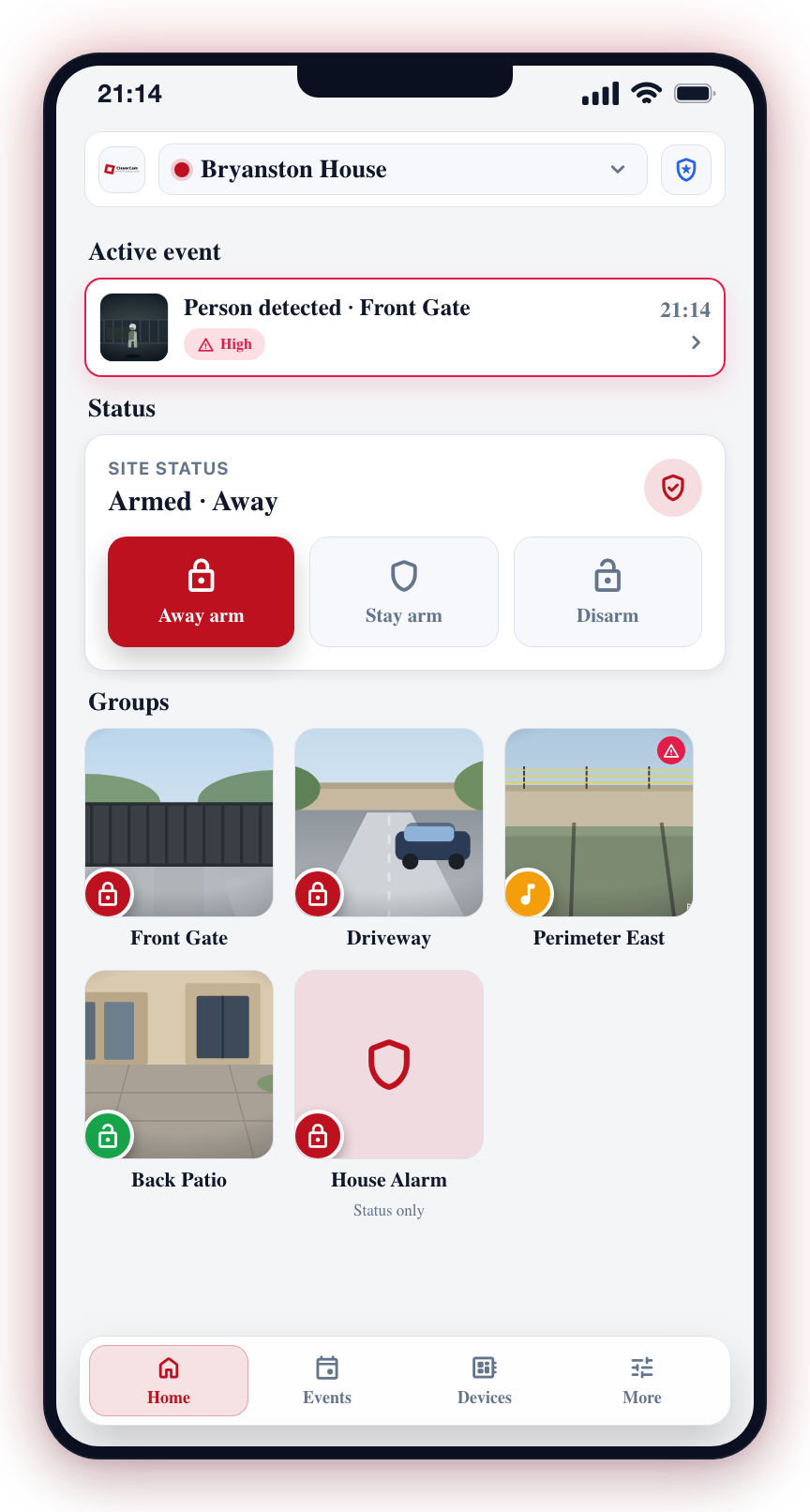
After resolving a connection issue, pull to refresh on the Home screen to force the app to sync the latest data.