Manual Event Creation
Not every security incident is captured by a camera. Site owners may call in to report suspicious activity, security guards may observe something during a patrol, or you may receive reports through other channels. CleverCommand allows operators to create manual events for these situations, ensuring they are tracked and handled through the same workflow as camera-detected events.
When to Create a Manual Event
Manual events are appropriate for:
- Phone-reported incidents -- A site owner calls to report suspicious activity
- Guard observations -- A security guard or patrol reports something they observed
- Third-party reports -- Police, neighbors, or other parties report activity at a site
- Maintenance follow-ups -- A hub or camera issue requires a documented event for tracking
- Testing -- Verifying that the dispatch and event workflow is functioning correctly
Creating a Manual Event
- Navigate to the Sites page from the sidebar
- Search for and select the site where the incident occurred
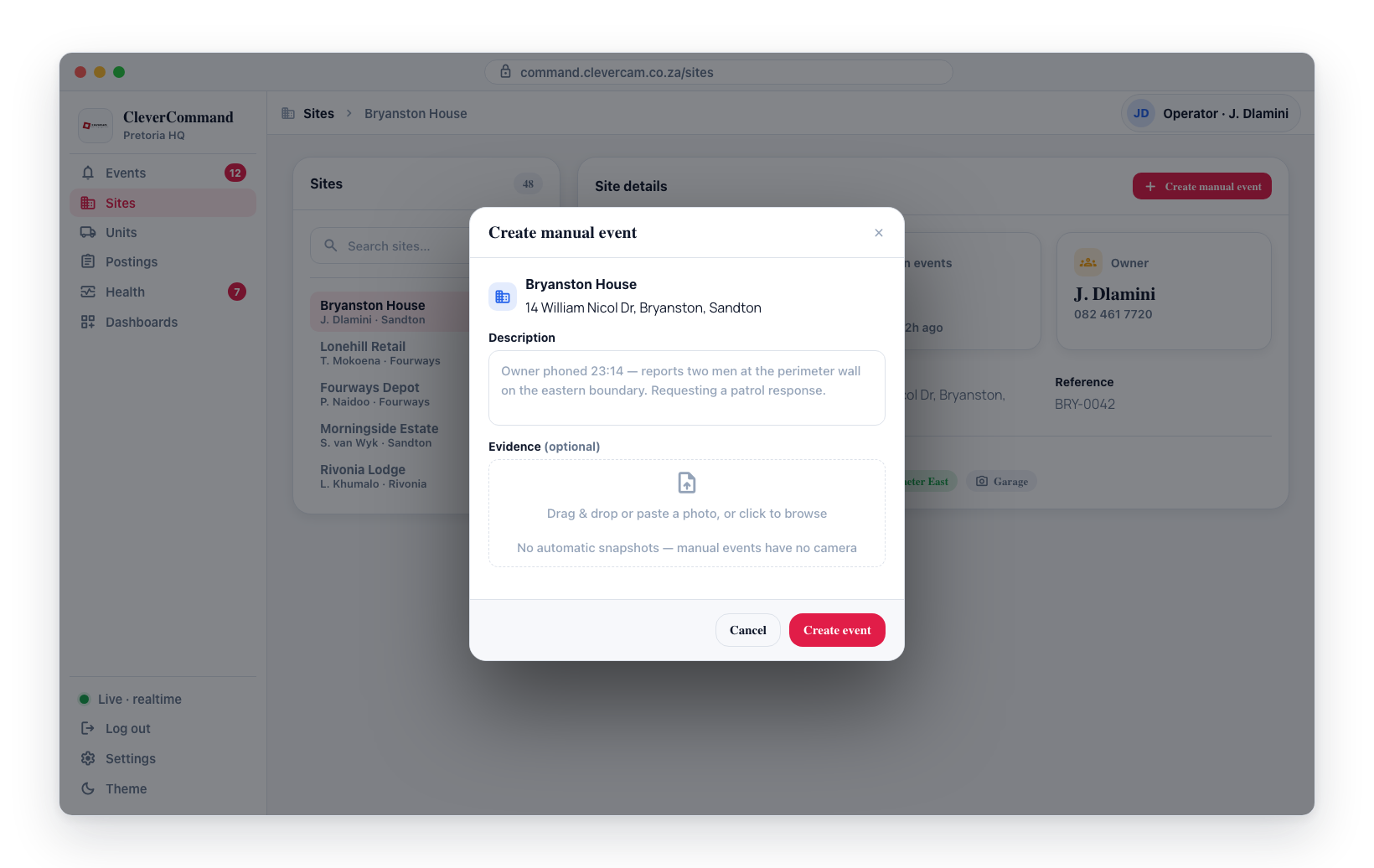
- Click the Create Manual Event button in the site details
- Enter a description of the incident (be specific and include relevant details)
- Click Create to generate the event
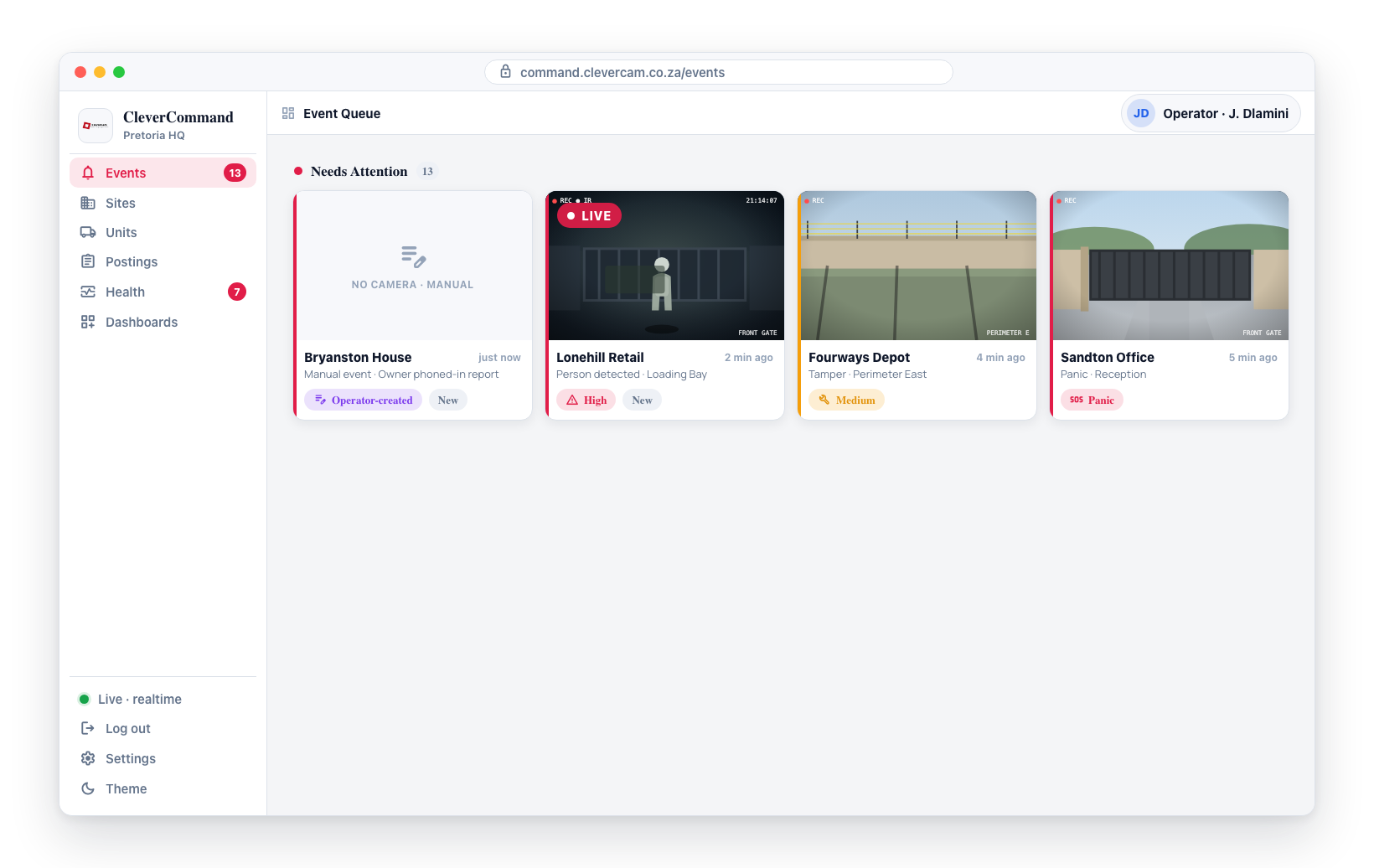
The manual event appears in the active event queue just like a camera-detected event. It follows the same lifecycle: it can be claimed, verified, dispatched on, and closed.
Log a phone-in
Next to Create Manual Event is a Log phone-in button — a structured shortcut for the most common manual event: an inbound client call. Instead of free-typing everything into one description, it captures the caller and reason in dedicated fields and tags the event as a phone-in.
- Search for and select the site the caller is reporting about.
- Click Log phone-in.
- Tap who called. The site's keyholders are listed as buttons — picking one fills in their name and number straight from the record, so there's nothing to type and no risk of a mistyped number in the audit trail. If the caller isn't a keyholder, tap Someone else… and enter their name plus an optional number (the phone field has a country-code selector, South Africa by default, and only records a complete number, stored as +27…).
- Pick a reason chip or type the reason yourself.
- Click Log & open event.
CleverCommand creates the event (tagged as a phone-in, with the caller and reason recorded in the event metadata and a "Client phoned in" timeline entry) and opens it so you can keep working the call.
Log phone-in and Create Manual Event both require the Create manual event permission. To log an inbound call on an event you already have open — rather than creating a new one — use Client phoned in on the event's action row.
Adding a ticket
Not everything that comes up needs a full event — a keyholder asking to update their contact number, a call-in about billing, a note to follow up on next week. For those, use New ticket instead of creating an event.
- Search for and select the site the ticket is about.
- Click New ticket, next to Create event in the Site details header.
- Pick a category (Call-in, Observation, Follow-up, Reminder, Task).
- Write what it's about and click Create ticket.
The ticket is filed against the site and appears on CleverOps' Tickets board (CRM → Tickets) for triage — it can be picked up, snoozed, or converted into a service job or quote from there.
New ticket only appears when the control room has the CRM module enabled (see Modules & capabilities in CleverOps). Without it, tickets aren't part of the control room's workflow and the button is hidden.
Manual Event Details
Manual events differ from camera-detected events in a few ways:
| Aspect | Camera-Detected Event | Manual Event |
|---|---|---|
| Photos | Automatic snapshots from camera | No automatic photos (can upload manually) |
| Trigger | Camera detection | Operator-created |
| Camera | Specific camera identified | No camera associated |
| Description | System-generated type and details | Operator-written description |
Adding Evidence to Manual Events
Since manual events do not have automatic camera snapshots, operators should attach any available evidence:
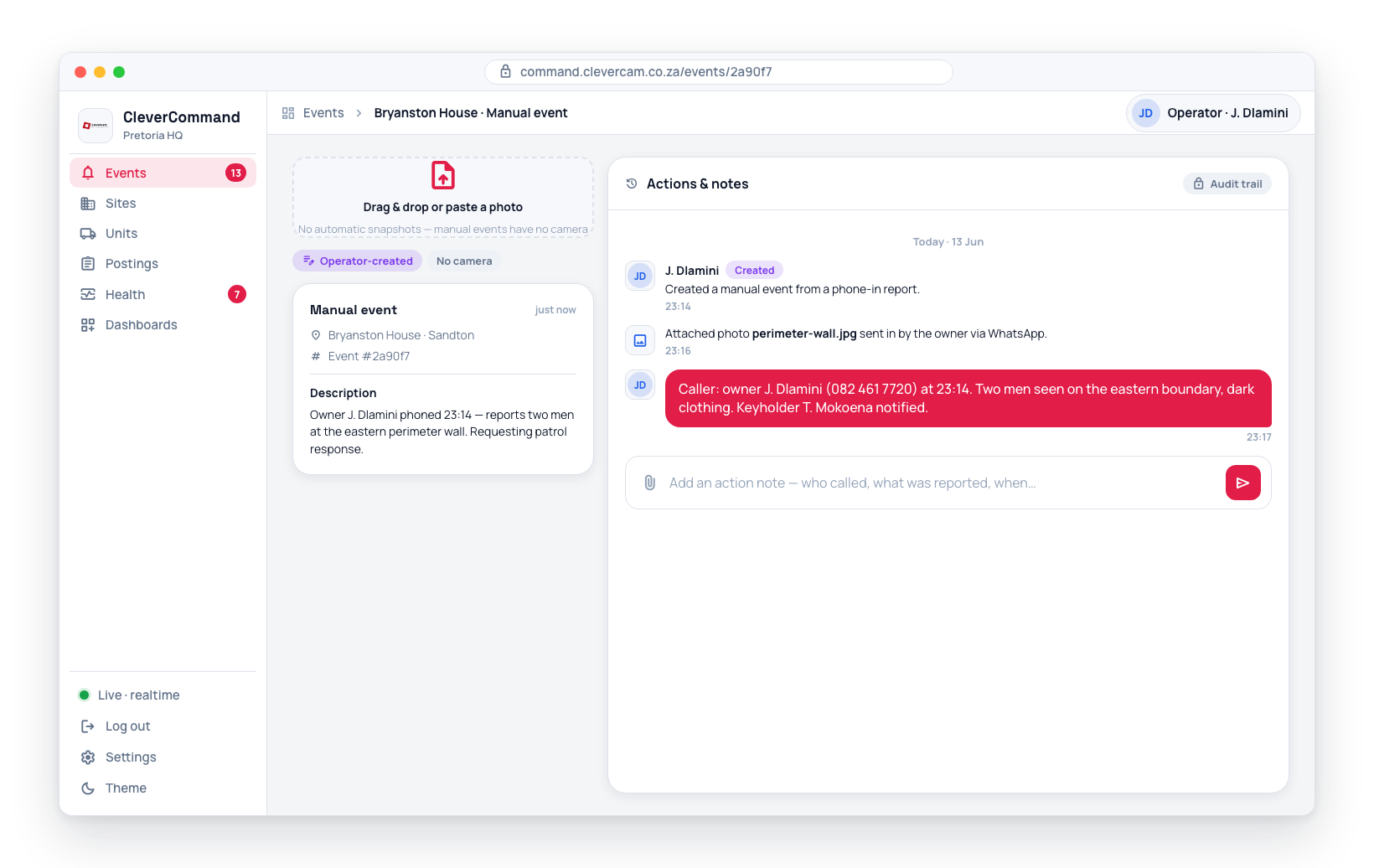
- After creating the manual event, open it from the queue
- Use drag-and-drop or clipboard paste to upload photos or screenshots
- Add detailed action notes describing the reported incident
- Document the source of the report (who called, what was reported, when)
When creating a manual event from a phone call, include the caller's name, the time of the call, what they reported, and any specific details (location within the site, description of persons or vehicles). This information becomes part of the permanent event record.
Processing Manual Events
Manual events follow the same workflow as camera-detected events:
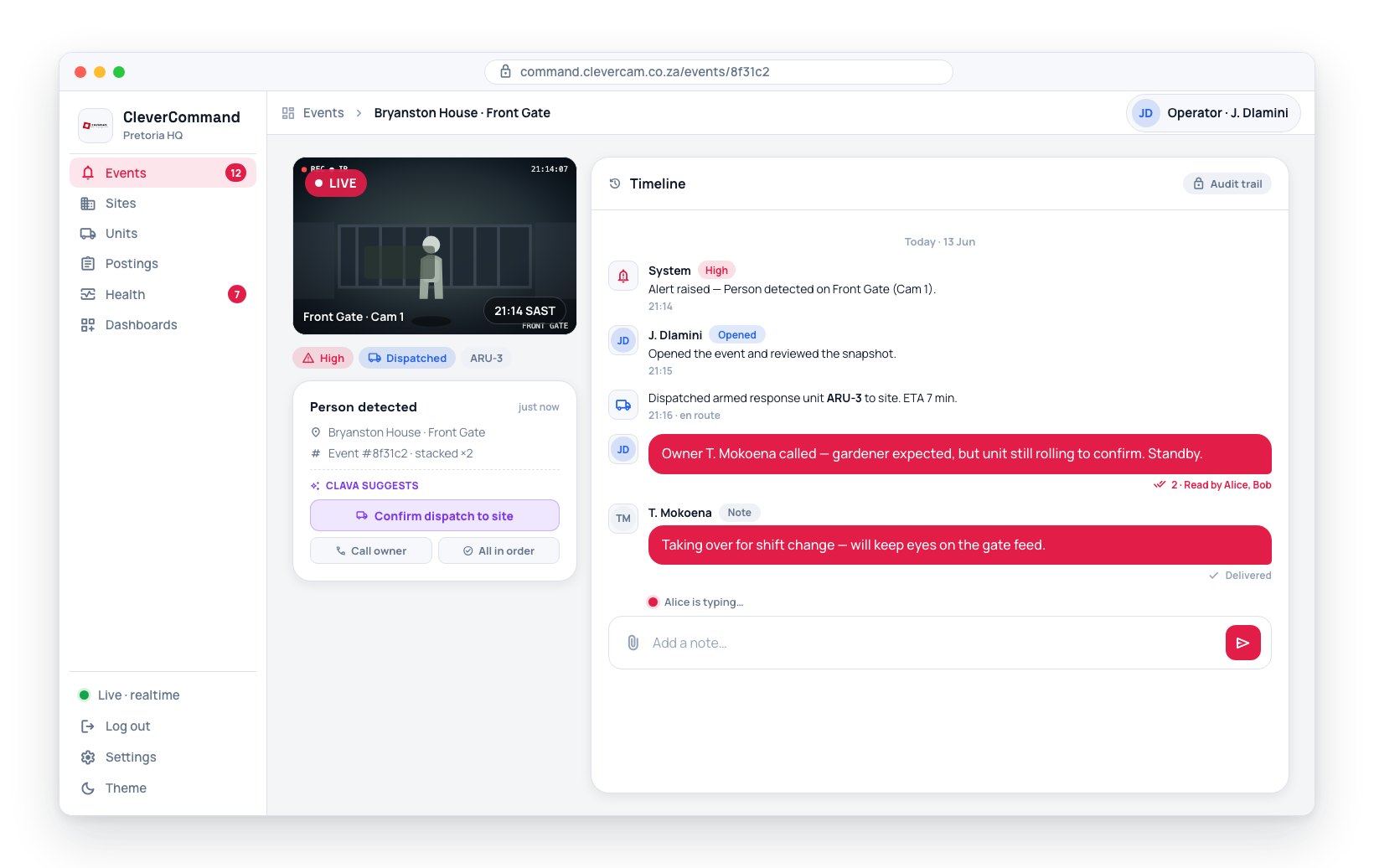
- The event appears in the active queue
- An operator claims and reviews it
- Actions, notes, and verification decisions are recorded
- Response units can be dispatched if needed
- The event is closed when resolved
Manual events should be used for genuine incidents that need tracking. Do not create manual events for routine communications or non-security matters. Every event in the system is a permanent record.