Site Trackers
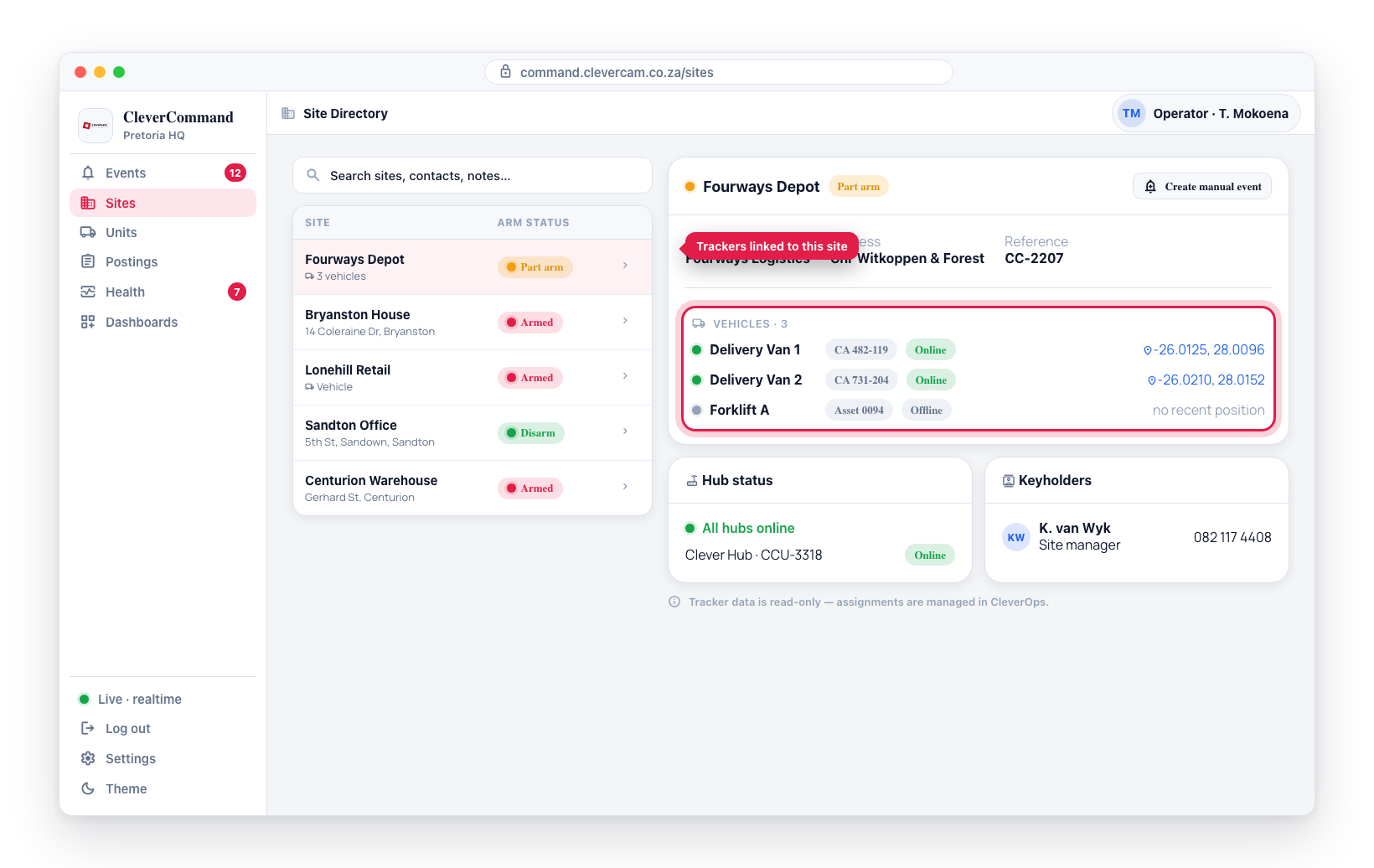
Some sites have vehicle or asset trackers associated with them. These trackers provide real-time position data for vehicles, equipment, or other assets linked to the site. Operators can view tracker information directly from the site details in CleverCommand, adding another layer of context when handling events.
Accessing Site Trackers
- Navigate to the Sites page from the sidebar
- Search for and select the site you want to review
- In the site details panel, look for the Trackers section
- If the site has associated trackers, they are listed with their current status
Tracker Information
Each tracker entry shows:
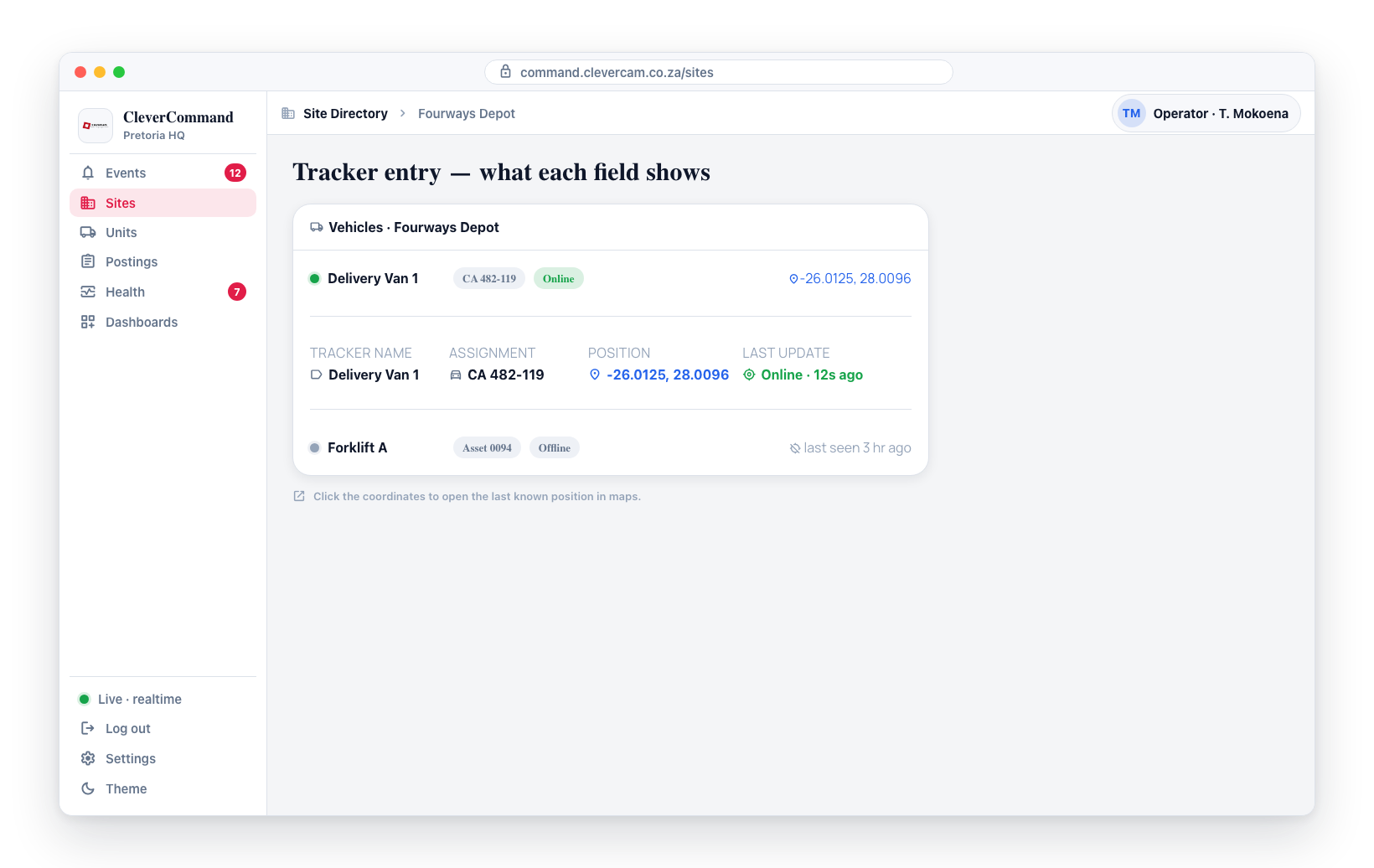
| Field | Description |
|---|---|
| Tracker name | Identifier for the tracked vehicle or asset |
| Position | Last known GPS position |
| Assignment | Which vehicle or asset the tracker is attached to |
| Last update | When the tracker last reported its position |
How Trackers Help Operators
Tracker data provides additional context during event handling:
- Verifying vehicle presence -- If an event is detected at a site and a company vehicle tracker shows the vehicle is on-site, the activity may be expected
- Asset monitoring -- Track whether valuable assets are in their expected locations
- Response coordination -- Know which assets or vehicles are near a site when dispatching
Tracker configuration and assignment are managed by the company administrator in CleverOps. CleverCommand provides read-only access to tracker data for operational context.
Trackers and Events
When reviewing an event, you can cross-reference the tracker data:
- Open the event to see the detection details
- Navigate to the site's tracker information
- Check whether any tracked vehicles or assets are near or at the site
- Use this information to help verify whether the activity is authorized
If a site has a fleet of tracked vehicles and an event occurs during normal business hours, checking whether a company vehicle is on-site can quickly help determine if the activity is legitimate.
Limitations
- Tracker positions are based on GPS data and may not update in real time if the tracker has poor signal
- Indoor tracker accuracy may be limited
- Not all sites have trackers -- this feature only appears for sites with configured tracker associations