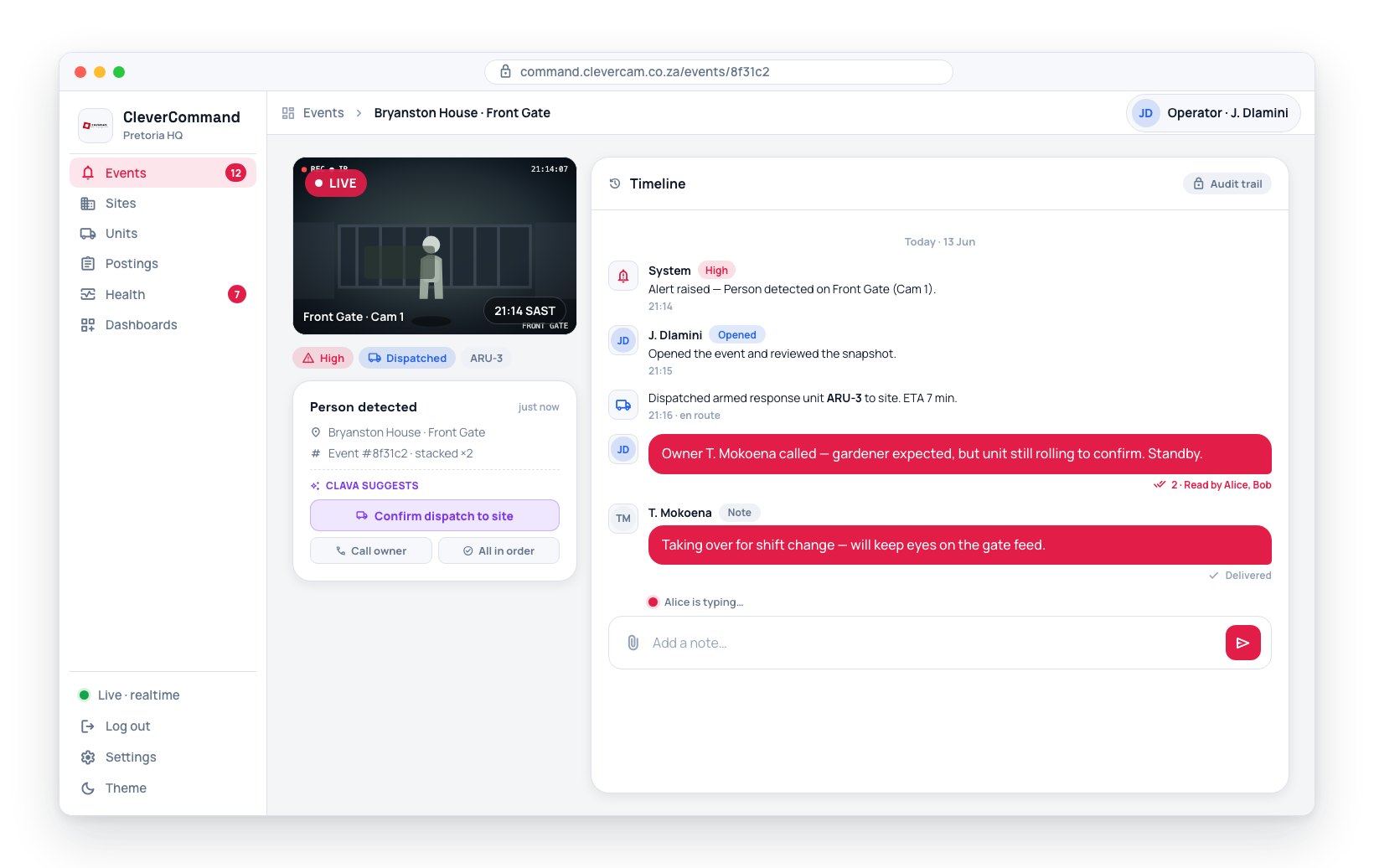
Site History
Every site in CleverCommand maintains a history of detected events. Reviewing site history helps operators understand patterns, assess whether current activity is normal for the site, and make better verification decisions. By default, the history shows events from the last 24 hours, with an option to view an extended range.
Accessing Site History
- Navigate to the Sites page from the sidebar
- Use the Search sites, contacts, notes... box to find and select the site you want to review
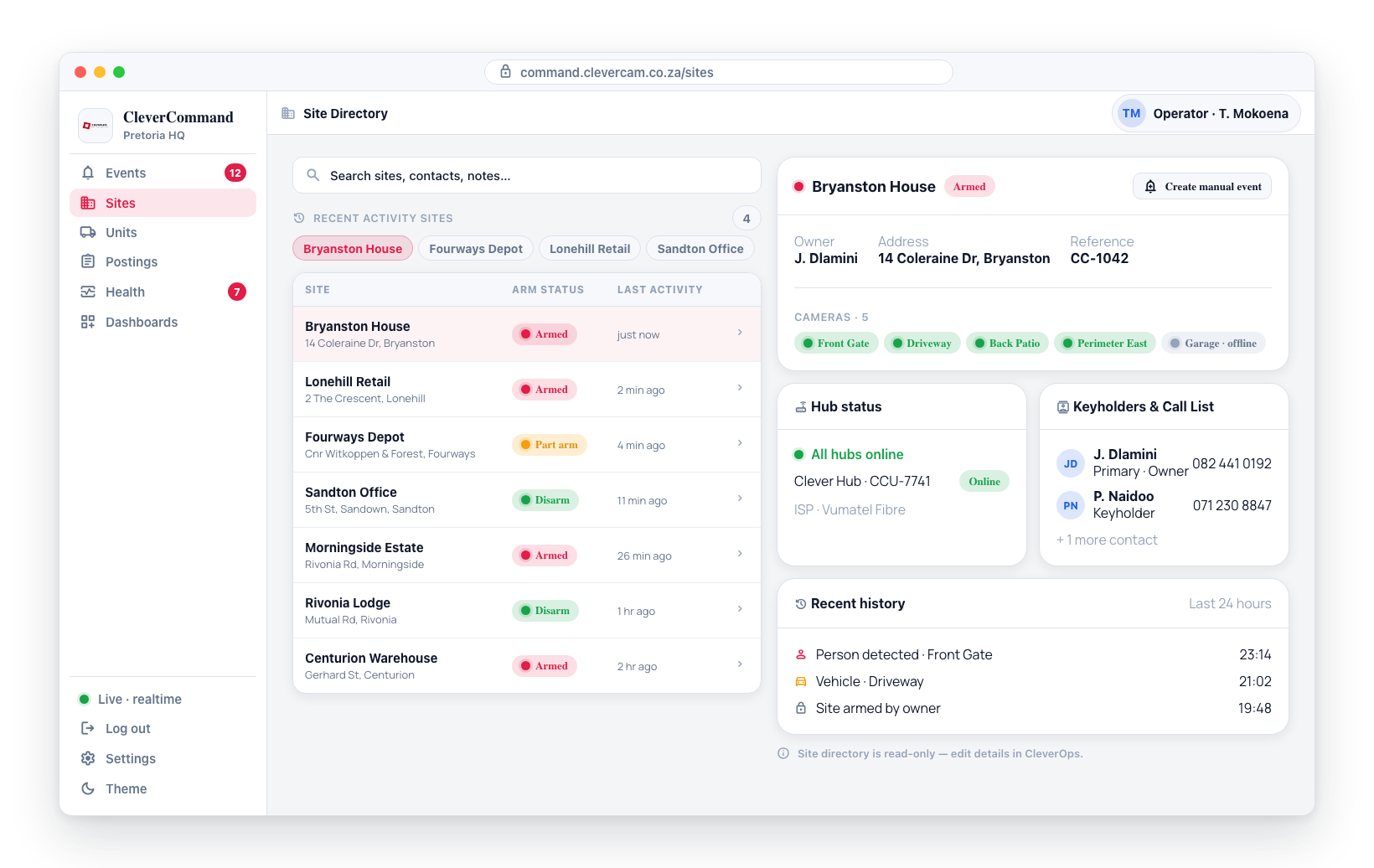
- In the site details panel, find the Recent history section (labeled Last 24 hours)
- Recent events are displayed in reverse chronological order (newest first)
24-Hour Default View
By default, the Recent history panel shows the first three events from the last 24 hours. This covers a full daily cycle and is typically sufficient for understanding current site activity patterns. If there are more than three events in the window, a Load more button expands the list to show all of them.
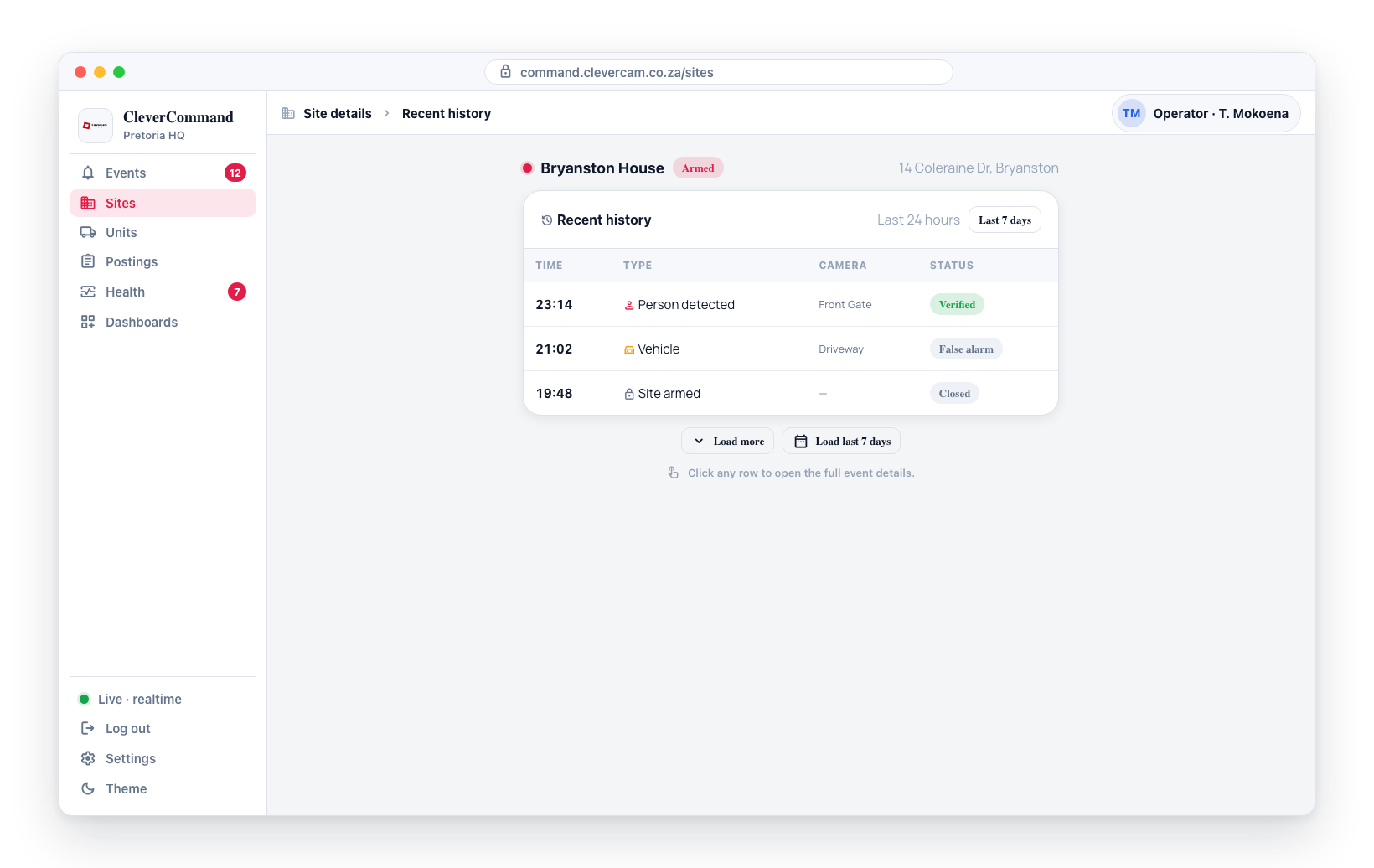
Each history row shows:
| Field | Description |
|---|---|
| Icon | A glyph indicating the kind of event |
| Time | The date and time the event was detected, for example 3 Sept, 05:50. Never relative ("22 minutes ago") — a history row has to still mean the same thing when it is read back or written into a report. Hover for the weekday, the year and the second |
| Event | The event title (for example, the detection or alarm description) |
The year appears only for events outside the current year, so a week of ordinary traffic stays compact.
Click any row to open the full event. (Rows for event types that have no standalone detail view are shown but not clickable.)
Extended History
To view events beyond the 24-hour window:
- Within the 24-hour panel, click Load more to expand from the first three events to every event in the last 24 hours
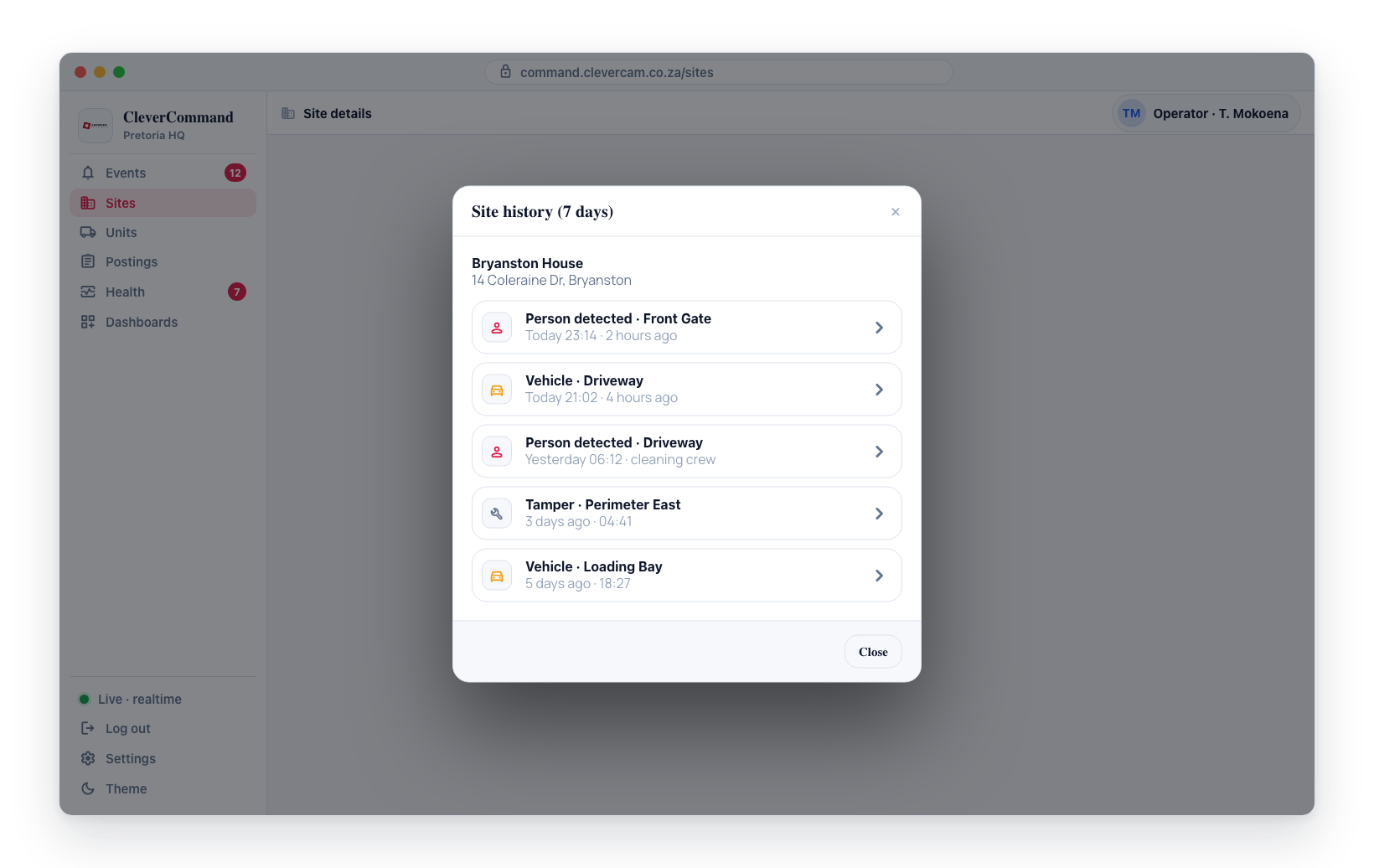
- Click Last 7 days (in the panel header) or Load last 7 days (at the bottom of the panel) to open the Site history (7 days) window
- The window lists every event from the past 7 days, newest first, each stamped with its date and time; click any row to open the full event, or Close to return
The Last 7 days / Load last 7 days buttons are disabled when the site has no events in the past week.
Scoping History
Site history is scoped by time window only — there is no event-type filter. The available views are:
- Last 24 hours -- the default Recent history panel (first three events, plus Load more)
- Last 7 days -- the wider window opened from the Last 7 days / Load last 7 days buttons
The Search sites, contacts, notes... box at the top of the Sites page filters which site you are viewing (by site name, contact, or notes); it does not filter the event types within a site's history.
Using History for Context
Site history is a valuable tool for making verification decisions:
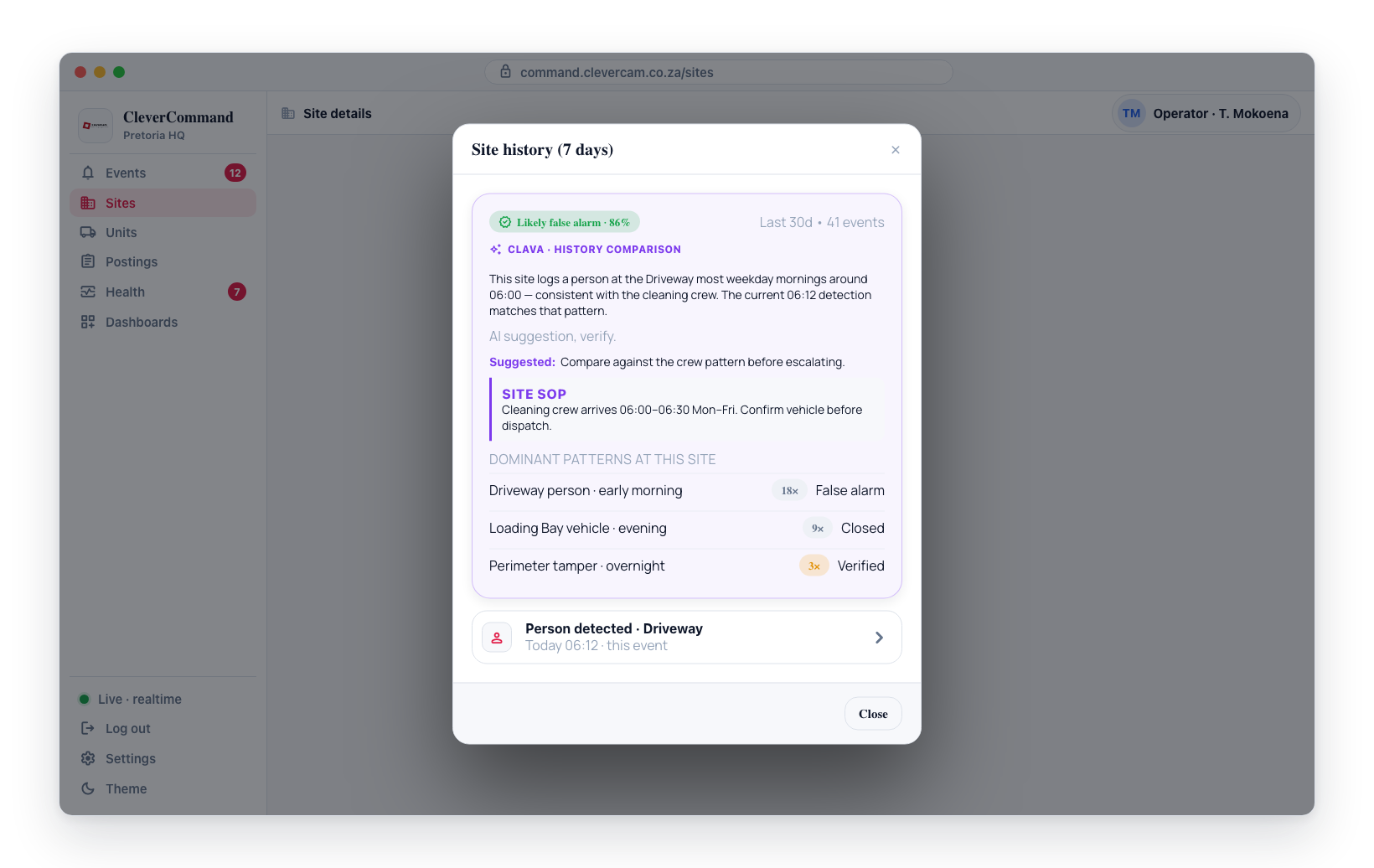
- Pattern recognition -- If a site generates many false alarms at 6 AM every morning (e.g., from a cleaning crew), a new event at that time is likely the same
- Escalation indicators -- If a site that normally has zero events suddenly shows multiple detections, the situation may warrant elevated attention
- Response planning -- Knowing how many events a site typically generates helps with resource allocation
Before verifying a new event at an unfamiliar site, check the site history. Understanding whether the site frequently generates false alarms or has a history of genuine incidents helps you make more accurate verification decisions.
History and Event Details
Click on any event in the site history to view its full details, including photos, timeline, actions, and dispatch records. This allows you to review how past events were handled, which is useful for maintaining consistency in your response approach.