Schedule Management
Beyond creating and editing schedules, CleverAlert provides tools for day-to-day schedule management. You can enable or disable schedules without deleting them, and delete schedules you no longer need.
Enable and Disable Schedules
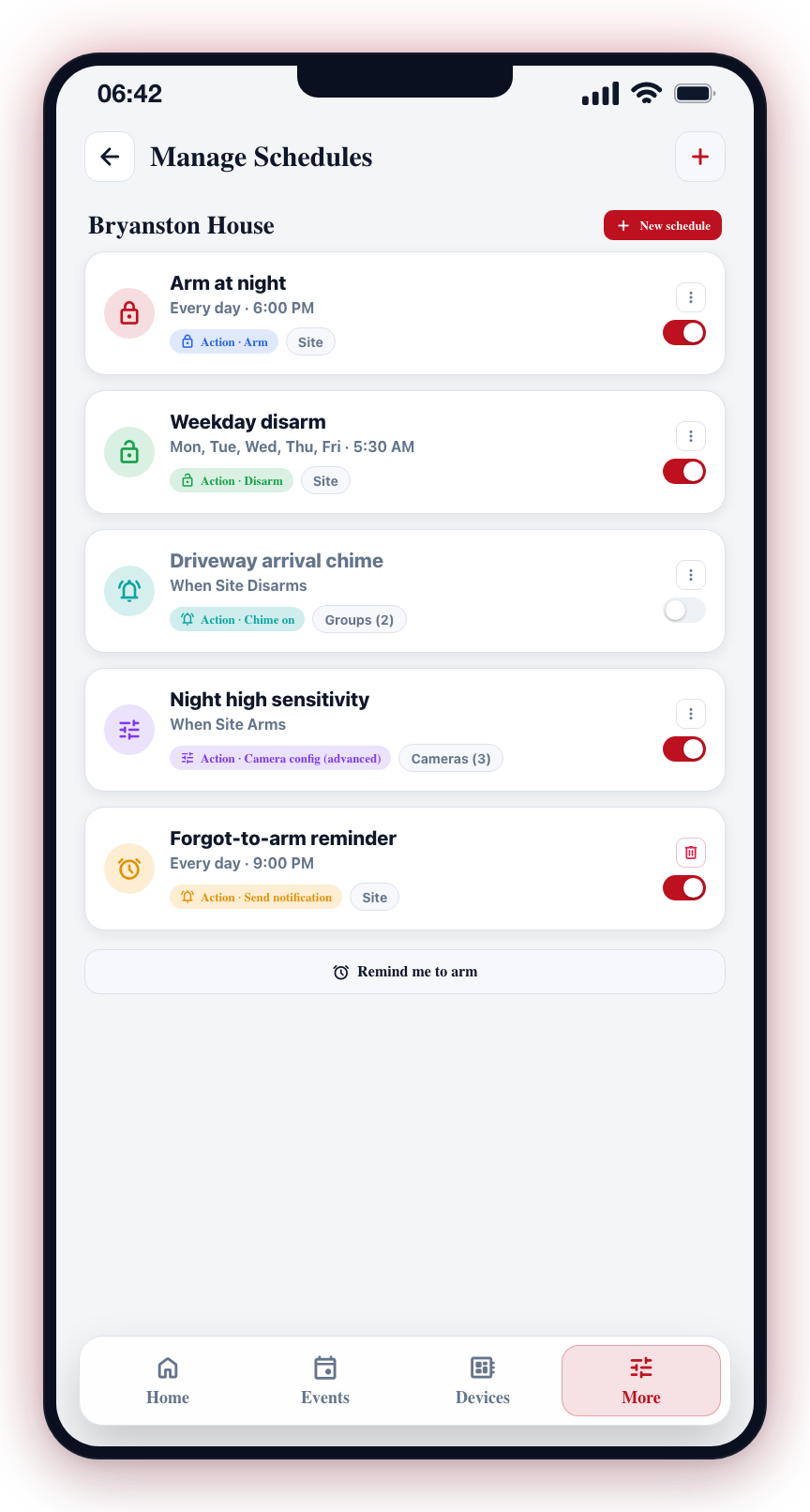
Sometimes you need to pause a schedule temporarily without losing its configuration. Each schedule card has a toggle switch that controls whether the schedule is active.
To Disable a Schedule
- Open the More tab.
- Under My site, tap Schedules.
- Find the schedule you want to disable.
- Toggle the switch on the schedule card to off.
- The schedule is now paused and will not run until re-enabled.
To Re-Enable a Schedule
- Open Schedules.
- Find the disabled schedule.
- Toggle the switch on the schedule card to on.
- The schedule resumes and will run at its next scheduled occurrence.
Disable schedules instead of deleting them when you need a temporary pause, such as during renovations, extended vacations, or maintenance periods. This saves you from having to recreate the schedule later.
Remind Me to Arm
At the bottom of the Schedules screen, the Remind me to arm button creates a daily "forgot to arm" nudge:
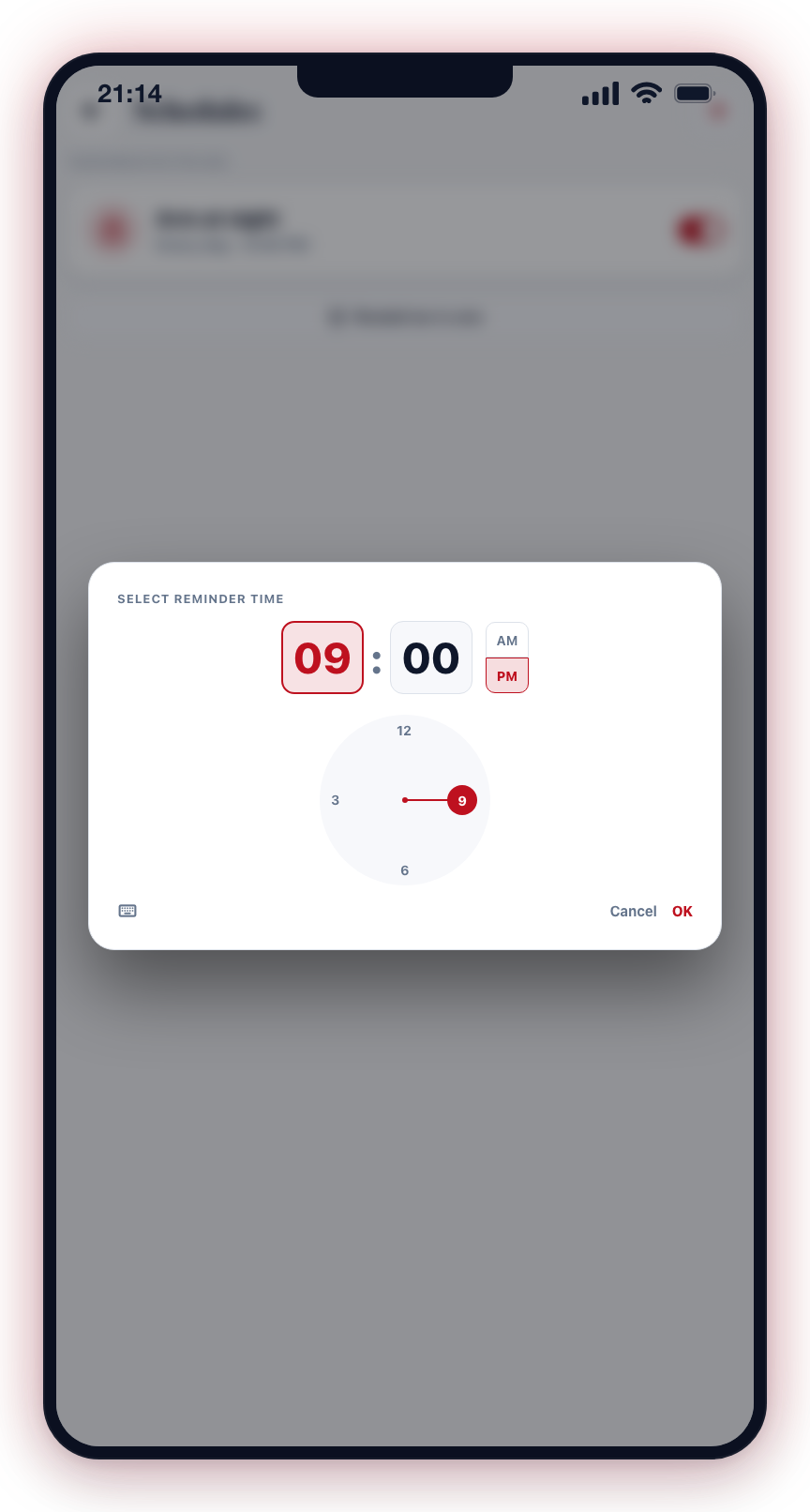
- Tap Remind me to arm and pick a time (for example 21:00). The schedule is created as "Remind to arm site every day at 21:00".
- Every day at that time, CleverAlert checks whether the site is armed.
- If the site is still disarmed, a push notification is sent — "Reminder: your site is not armed." If the site is already armed, nothing is sent.
The reminder never arms anything itself — it is purely a nudge. It appears in the schedule list like any other schedule, so you can disable or delete it the same way.
The reminder is delivered to users on the site who have arm-status notifications enabled in their notification settings.
Deleting a Schedule
To permanently remove a schedule:
- Open Schedules.
- Tap the schedule to open the schedule wizard.
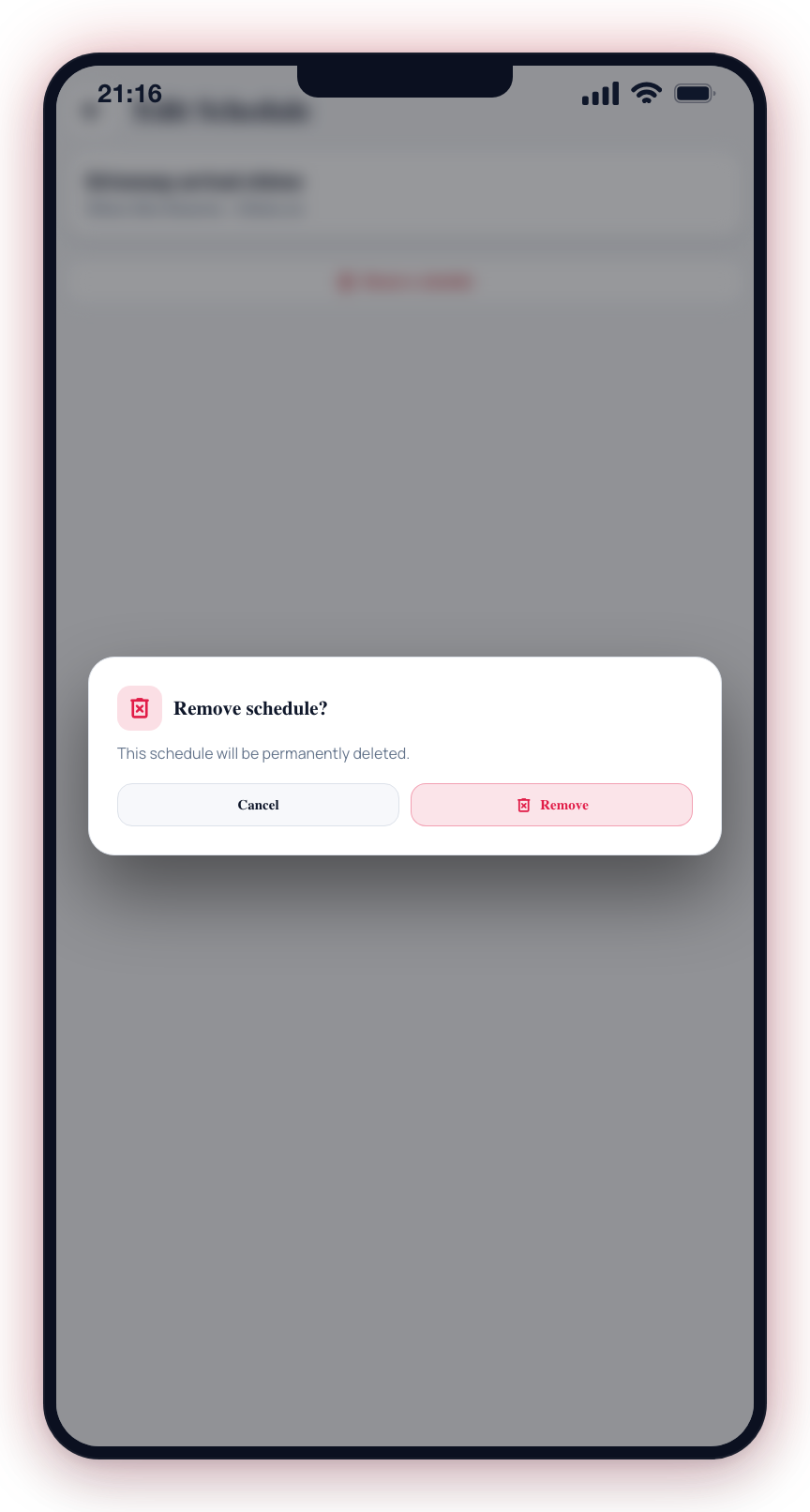
- Use the delete option to remove the schedule.
Deleting a schedule is permanent and cannot be undone.
Schedule List
The Schedules screen shows all schedules for the current site. Each schedule card displays:
- Schedule name — The label (auto-generated or custom).
- Trigger info — For time-based schedules: the repeat pattern and time, separated by a middle dot (e.g., "Every day · 18:00"). For arm-state-change schedules: the trigger event (e.g., "When Site Arms").
- Action — The action type (e.g., "Arm", "Disarm", "Chime on", "Send notification", "Camera settings").
- Scope — Shows whether the action targets the whole site, specific groups, or specific cameras.
- Enable/disable toggle — Controls whether the schedule is active.