Edit Schedule
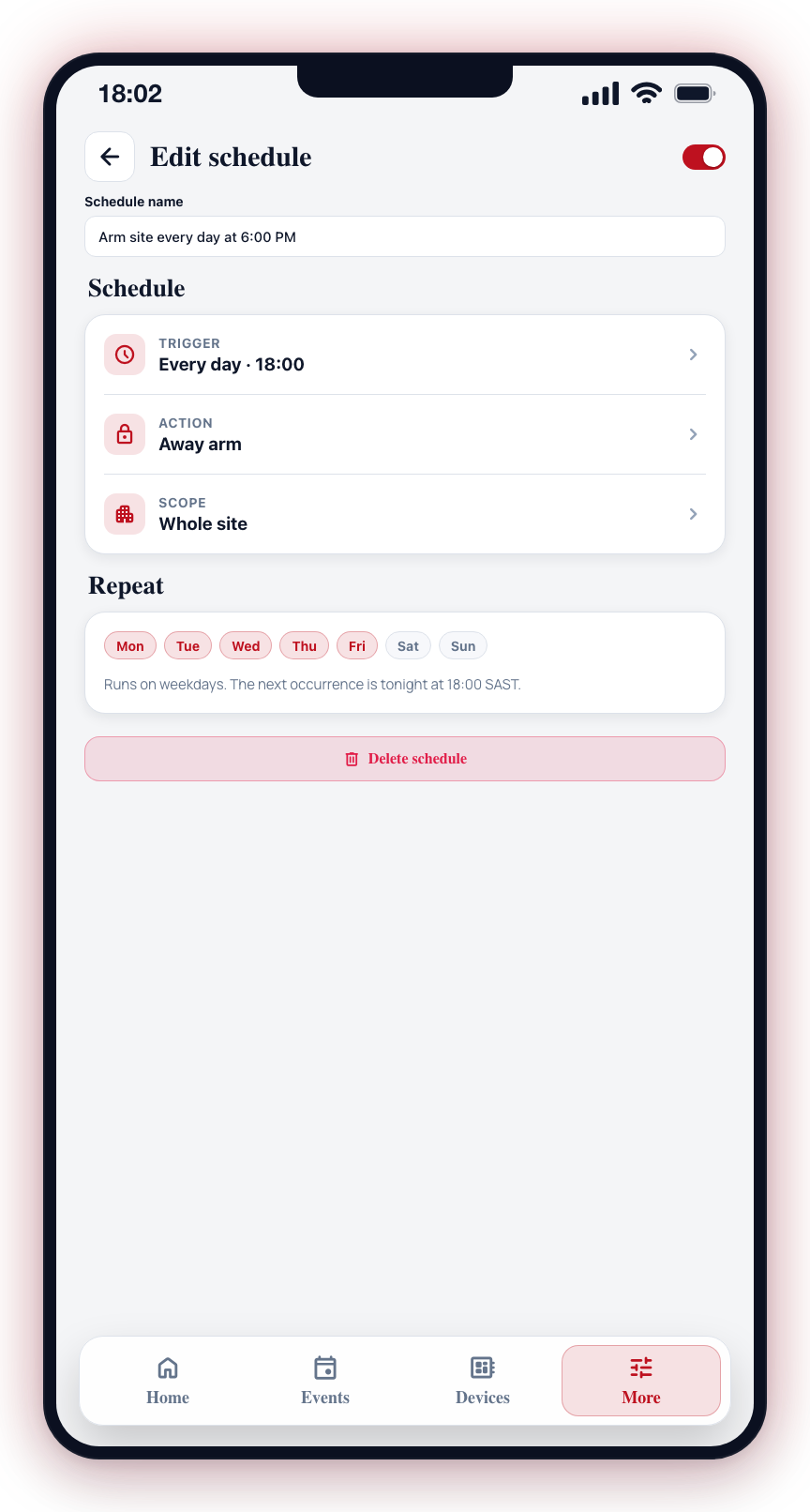
Your routine changes, and your schedules should change with it. Tapping an existing schedule opens the same 5-step wizard used during creation, allowing you to change any aspect of the schedule.
How to Edit a Schedule
- Open the More tab.
- Under My site, tap Schedules.
- Tap the schedule you want to modify. This opens the schedule wizard.
- Navigate through the wizard steps (Trigger, Details, Action, Configure, Summary) and change any settings.
- Changes are saved automatically as you progress through the steps.
The updated schedule takes effect immediately. The next scheduled occurrence will use the new settings.
What You Can Change
- Trigger type — Switch between time-based and arm-state-change triggers.
- Time and repeat pattern — Adjust the time, change from weekdays to every day, switch to a one-time run, and more.
- Action category — Change from arm/disarm to chime, notification, or camera settings.
- Scope and targets — Change which groups or cameras the schedule acts on.
- Schedule name — Edit the label. If you clear the name, the app will auto-generate a descriptive name based on your current settings.
Duplicating a Schedule for Another Group
Schedules are configured per group. To set the same schedule up on a second group without rebuilding it:
- Open the schedule from Schedules.
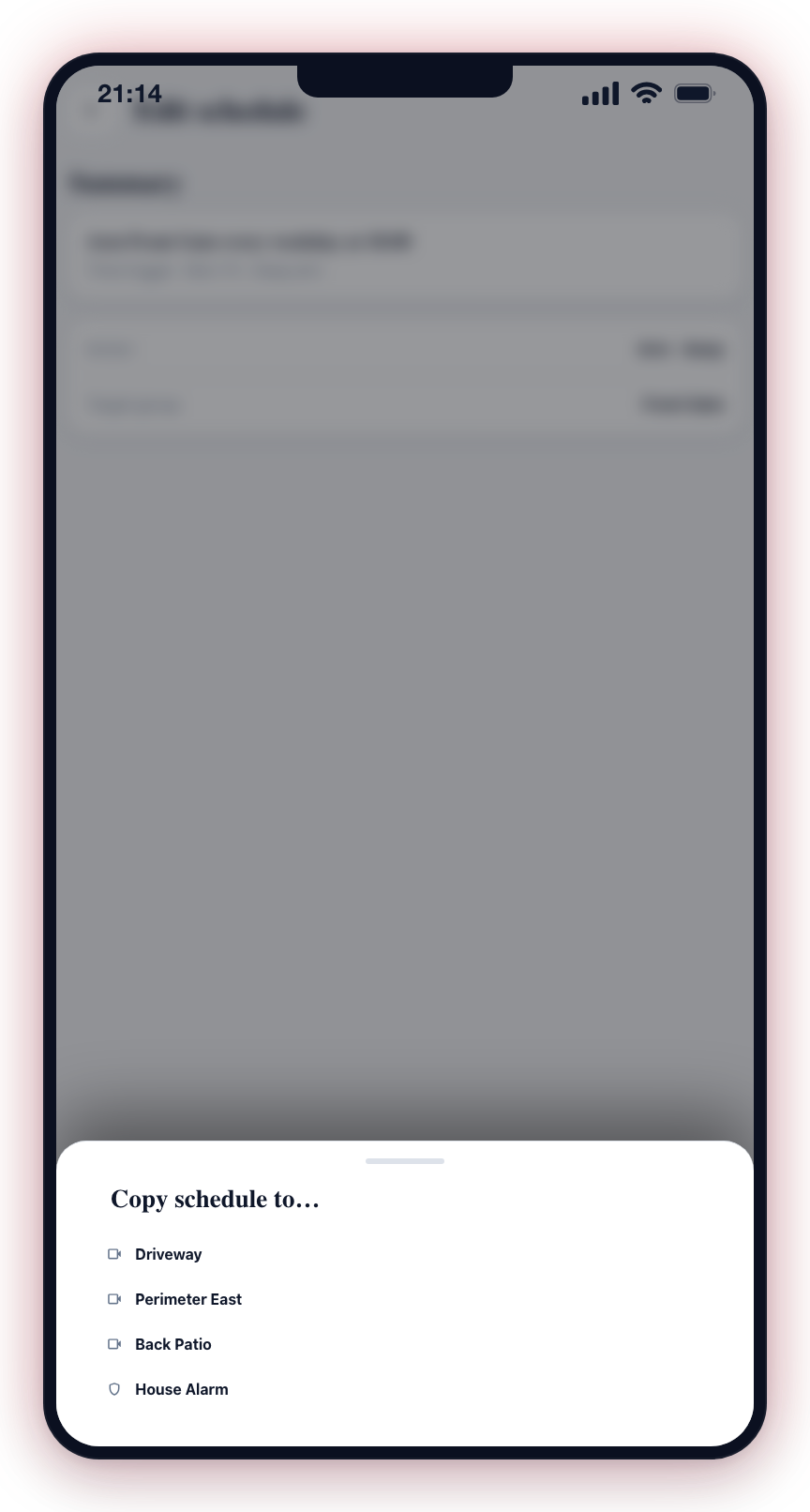
- Scroll to the bottom and tap Duplicate for another group.
- A "Copy schedule to…" panel lists the other groups at this site. Tap the destination group.
- A copy is created with the same trigger time, repeat pattern, and action, targeting the chosen group. The group name in the schedule label is swapped automatically.
Auto-Generated Names
The app generates a descriptive schedule name based on your configuration (e.g., "Arm site every day at 6:00 PM" or "Turn chime on weekdays at 8:00 AM"). If the auto-generated name is active and you change settings, the name updates automatically. If you manually edit the name, auto-naming is disabled for that schedule.
Editing a schedule does not affect any actions that have already run. Only future occurrences will use the updated settings.
When making significant changes to your schedule setup, review all of your schedules to make sure there are no conflicts or gaps.