Recurring Rules
Recurring rules define which days of the week a time-based schedule runs. They determine on which days the schedule's action will fire. These patterns apply only to schedules with a Time based trigger; arm-state-change schedules fire whenever the triggering event occurs, regardless of the day.
Repeat Patterns
The schedule wizard offers five repeat pattern options in the Details step:
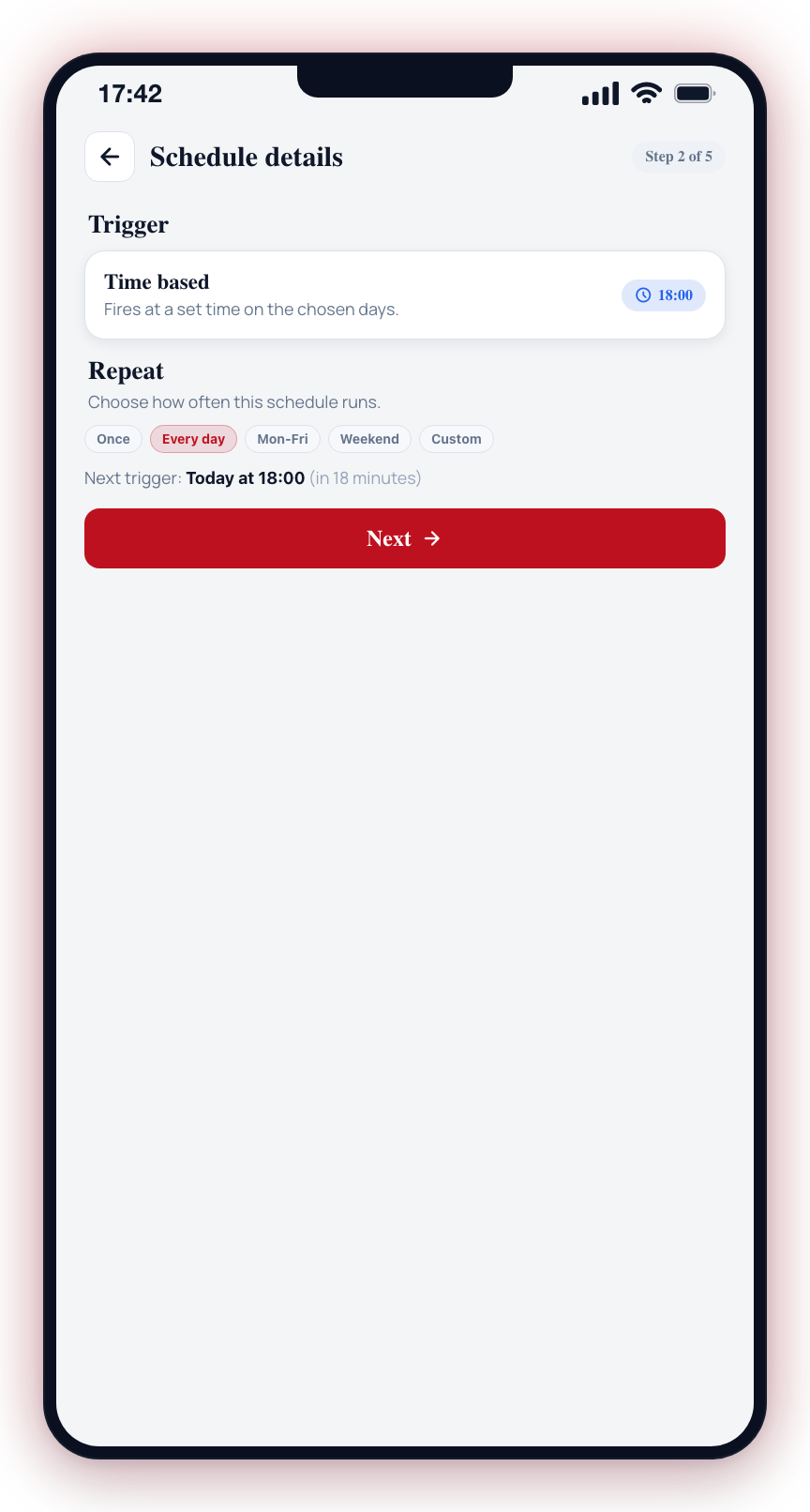
Once
The schedule fires once on the next matching day and then expires automatically.
Use case: A one-off arm override for tonight only.
Every Day
The schedule fires every single day of the week, including weekends.
Use case: Arm your perimeter cameras every evening at sundown.
Mon-Fri (Weekdays)
The schedule fires only on business days (Monday through Friday).
Use case: Disarm your office cameras every morning, but leave them armed all weekend.
Weekend
The schedule fires only on Saturday and Sunday.
Use case: Arm all cameras at a retail store at noon on weekends when the store closes early.
Custom
Choose any combination of individual days. Selecting custom reveals day-of-week toggles for Monday through Sunday.
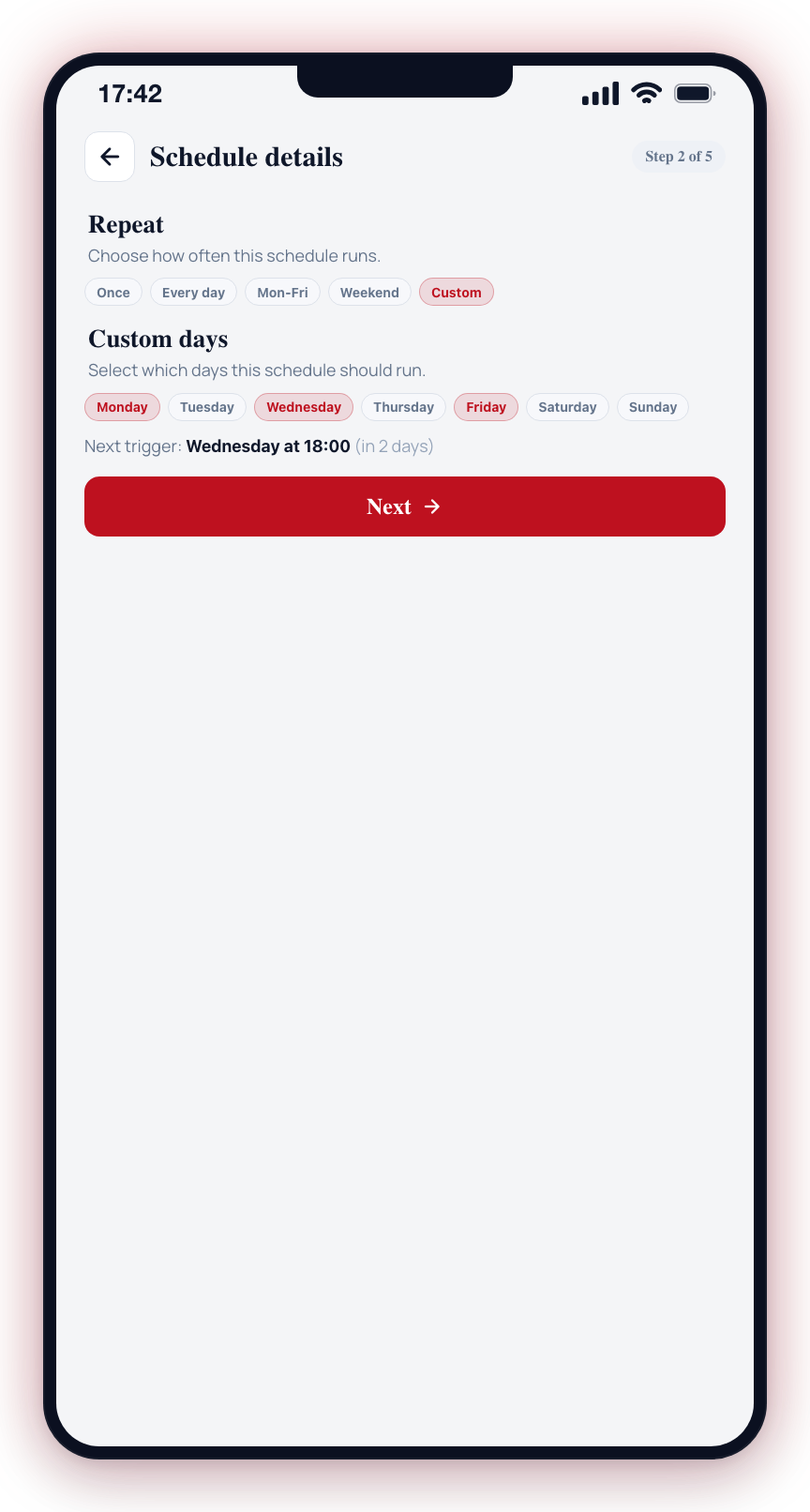
Use case: Your office is open Monday, Wednesday, and Friday only.
How Time-Based Scheduling Works
When a time-based schedule is enabled:
- The app calculates the next trigger date and time based on the current time and the selected repeat pattern.
- At the scheduled time, the configured action is carried out (arm, disarm, chime, camera settings, or notification).
- For recurring patterns, the next occurrence is calculated and the cycle repeats.
- For one-time schedules, the schedule expires after a single run.
The schedule editor shows a preview of the next trigger time (e.g., "Next trigger: Today at 18:00 (in 3h 20m)."). The date reads Today or Tomorrow where it can, and otherwise as Fri 12 Sep.
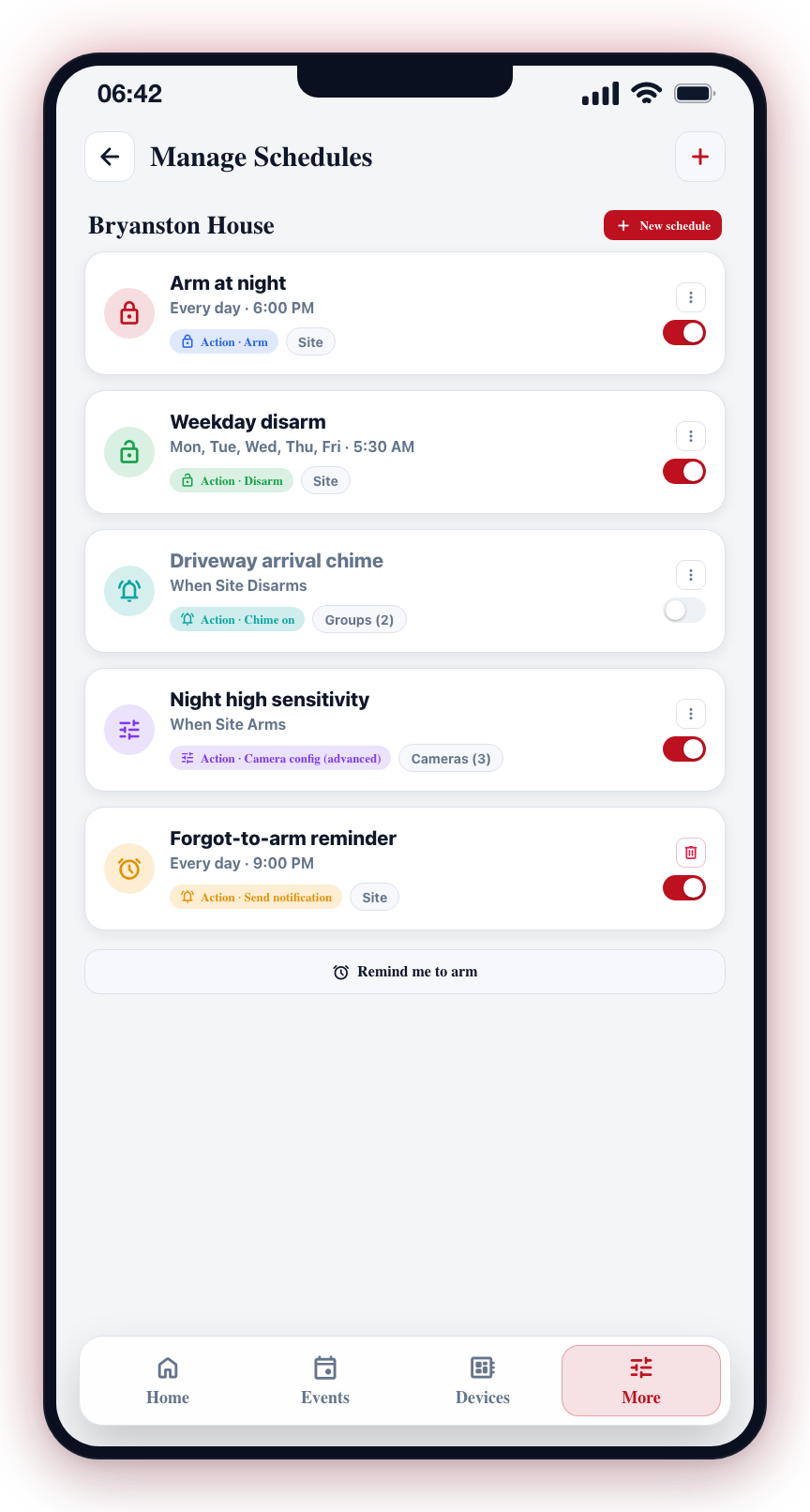
For arm and disarm schedules, create matching pairs. For every arm schedule, you typically need a corresponding disarm schedule to prevent false alarms when people arrive at the site.
Schedules do not currently support calendar-based exceptions (e.g., public holidays). If you need to skip a schedule on a specific day, disable the schedule temporarily.