Delete Group
If you no longer need a camera group, you can delete it from the app. You can either delete it manually from the Edit Group screen (which is blocked while cameras are still assigned), or accept the Delete empty group? prompt that appears automatically once the last camera is removed.
How to Delete a Group
- Open the More tab.
- Under My site, tap Advanced setup, then Manage Groups.
- Tap the group you want to delete to open the Edit Group screen.
- Tap the Delete button at the bottom of the screen.
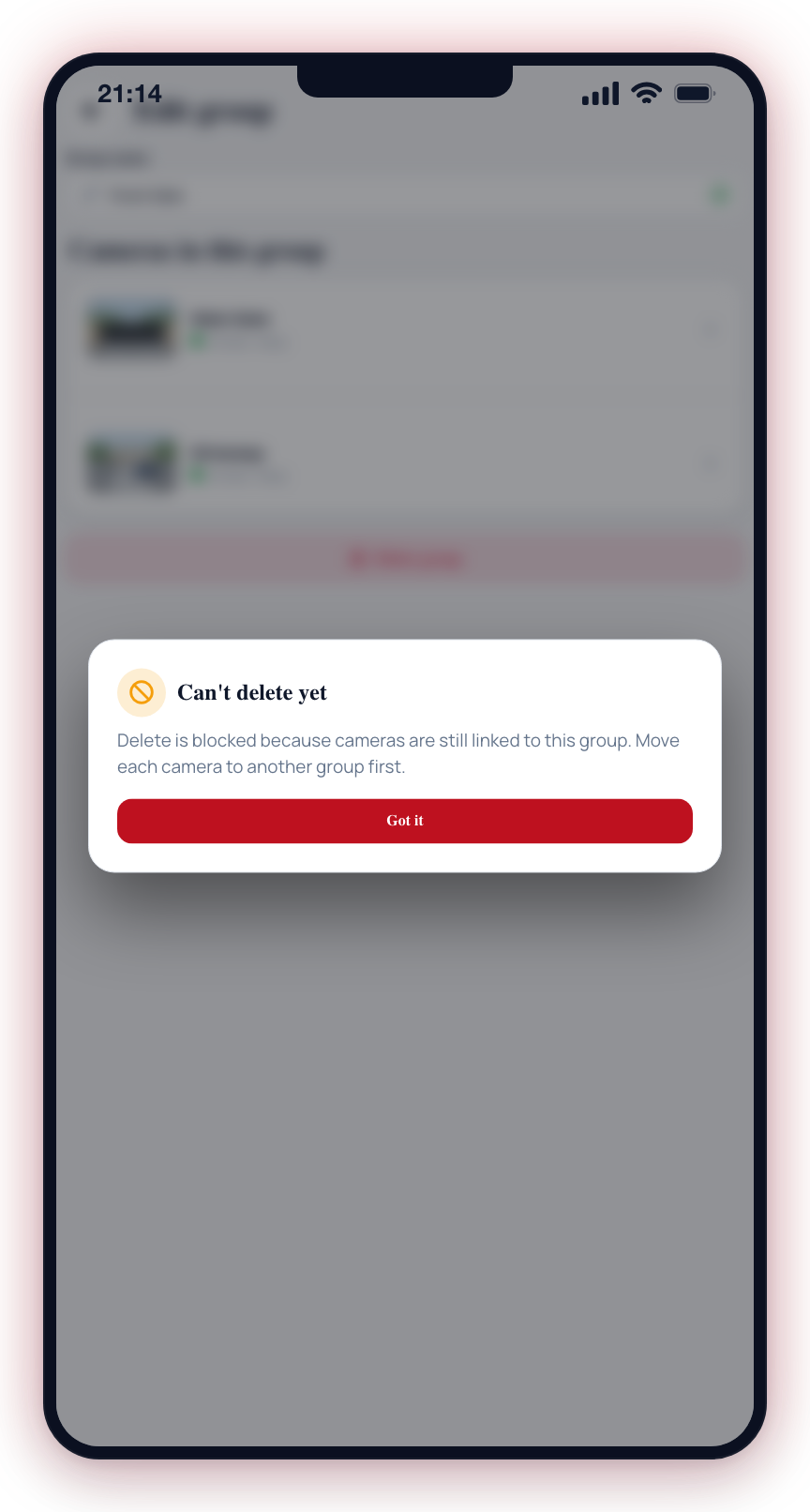
- If cameras are still assigned to this group, the app will display: "Delete is blocked because cameras are still linked to this group. Move each camera to another group first."
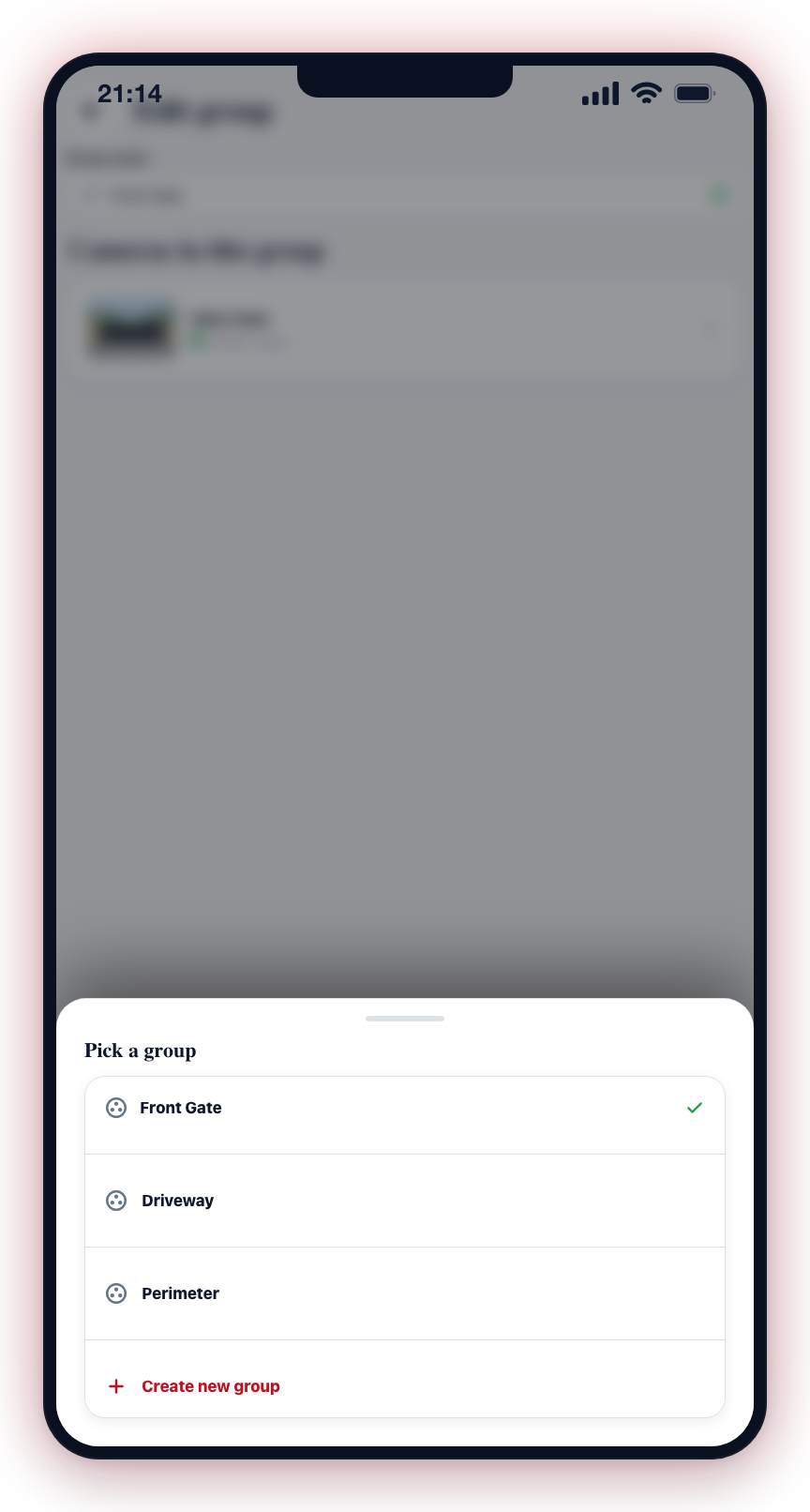
- Tap a camera in the group to open a "Move camera to" panel, then select the destination group.
- Repeat for each camera until the group is empty.
- Once no cameras are assigned, tap Delete again.
- A confirmation dialog appears with a reminder that schedules set up for this group will not automatically move. Tap Delete to confirm.
Auto-Prompt When the Last Camera is Removed
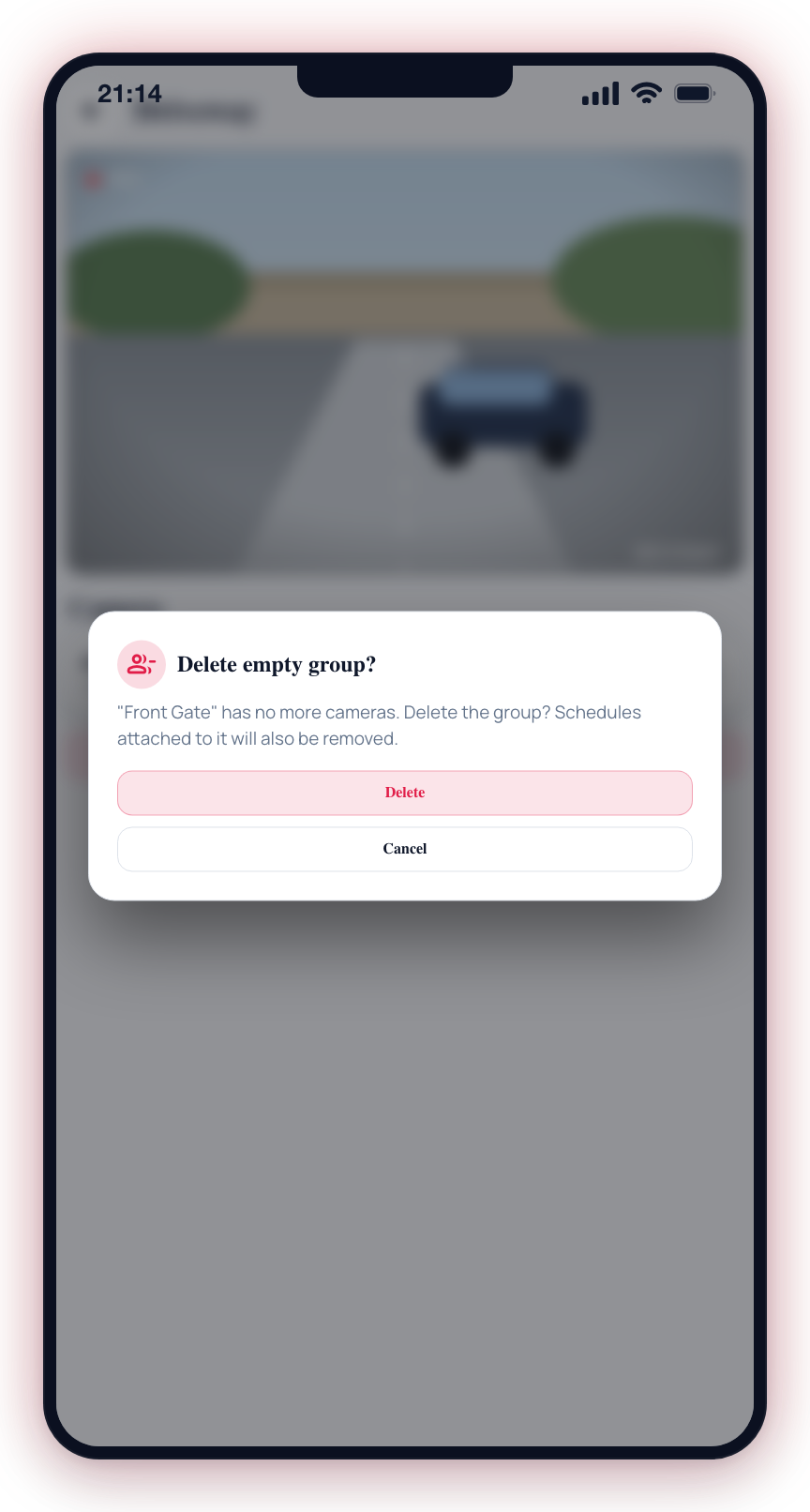
As soon as you remove the last camera from a camera group, the app asks "Delete empty group?" and shows what will be removed (the group and any schedules attached to it). Tapping Delete removes the group; tapping Cancel leaves the empty group in place so you can reuse it later.
This happens in three places:
- Deleting a camera from the View Camera screen — if it was the only camera in its group.
- Moving a camera to a different group from the Edit Group screen — if the source group is now empty.
- Removing a camera through the hub management flow — the same empty-group check runs automatically.
Only camera groups trigger this prompt. Alarm panel areas (created when you link an alarm communicator) are never automatically deleted — they belong to the physical alarm panel and are managed separately.
What Happens When You Delete a Group
- Cameras must be moved first. The app does not allow deleting a group that still has cameras assigned to it.
- Schedules are not migrated. The app warns: "Schedules are configured per group. Deleting this group does not move schedules to other groups. If you create a replacement group, create schedules for that group again."
- Event history is preserved. Events generated by cameras that were in the group remain in your event history.
Deleting a group cannot be undone. If you accidentally delete a group, you will need to recreate it, reassign cameras, and create new schedules.
If you only need to temporarily disable a group, consider disarming it and disabling its schedules instead. This preserves the group configuration for future use.