Frequently Asked Questions
Common questions operators and administrators ask about CleverCommand.
General
Can I use CleverCommand on mobile?
Yes, CleverCommand works in mobile browsers. However, it is designed primarily for desktop use in control room environments. The interface is optimized for larger screens, and features like the Kanban board and multi-column snapshot wall are best experienced on a desktop monitor. For mobile security monitoring, consider using CleverAlert instead.
Can I use CleverCommand on a tablet?
CleverCommand works on tablets through the browser, but the same desktop-optimized design applies. If your control room uses tablets as secondary displays, CleverCommand will function but may require more scrolling and zooming than on a desktop monitor.
What browsers are supported?
CleverCommand supports the latest versions of:
- Google Chrome (recommended)
- Microsoft Edge
- Mozilla Firefox
Other Chrome-based browsers (Brave, Vivaldi, Opera) may work but are not officially supported.
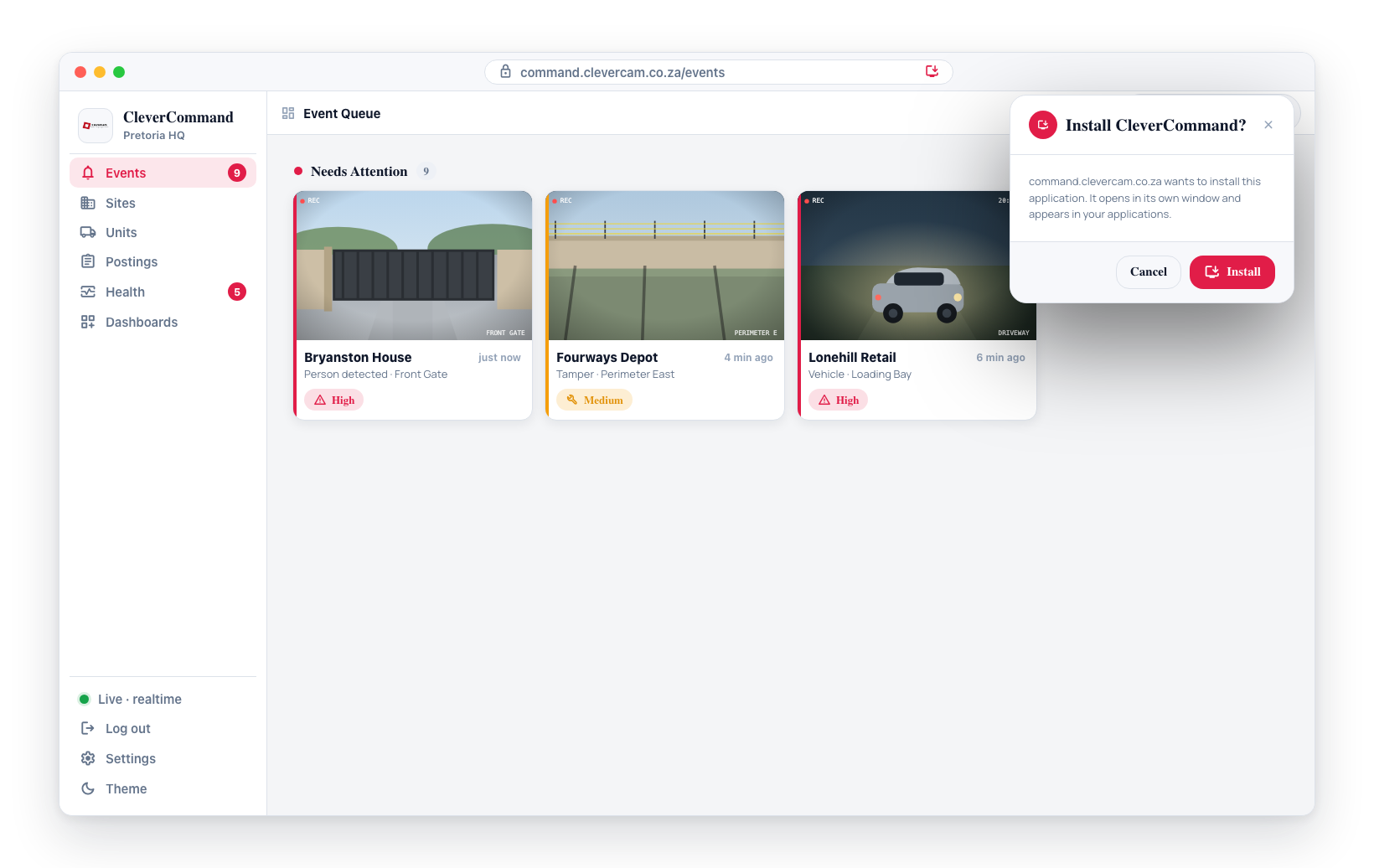
How do I install CleverCommand as a desktop app?
- Open CleverCommand in Chrome or Edge
- Look for the install icon in the browser address bar, or open the browser menu
- Select Install CleverCommand (or "Install app")
- CleverCommand opens in its own window and appears in your system applications
- You can pin it to your taskbar or dock for quick access
Events and Monitoring
What happens if I lose my internet connection?
If your connection drops, the connection indicator in the sidebar turns red. Events will stop updating in real time. When the connection is restored, CleverCommand automatically reconnects and catches up with any events that arrived while you were offline. No events are lost -- they are held on the server and delivered when the connection resumes.
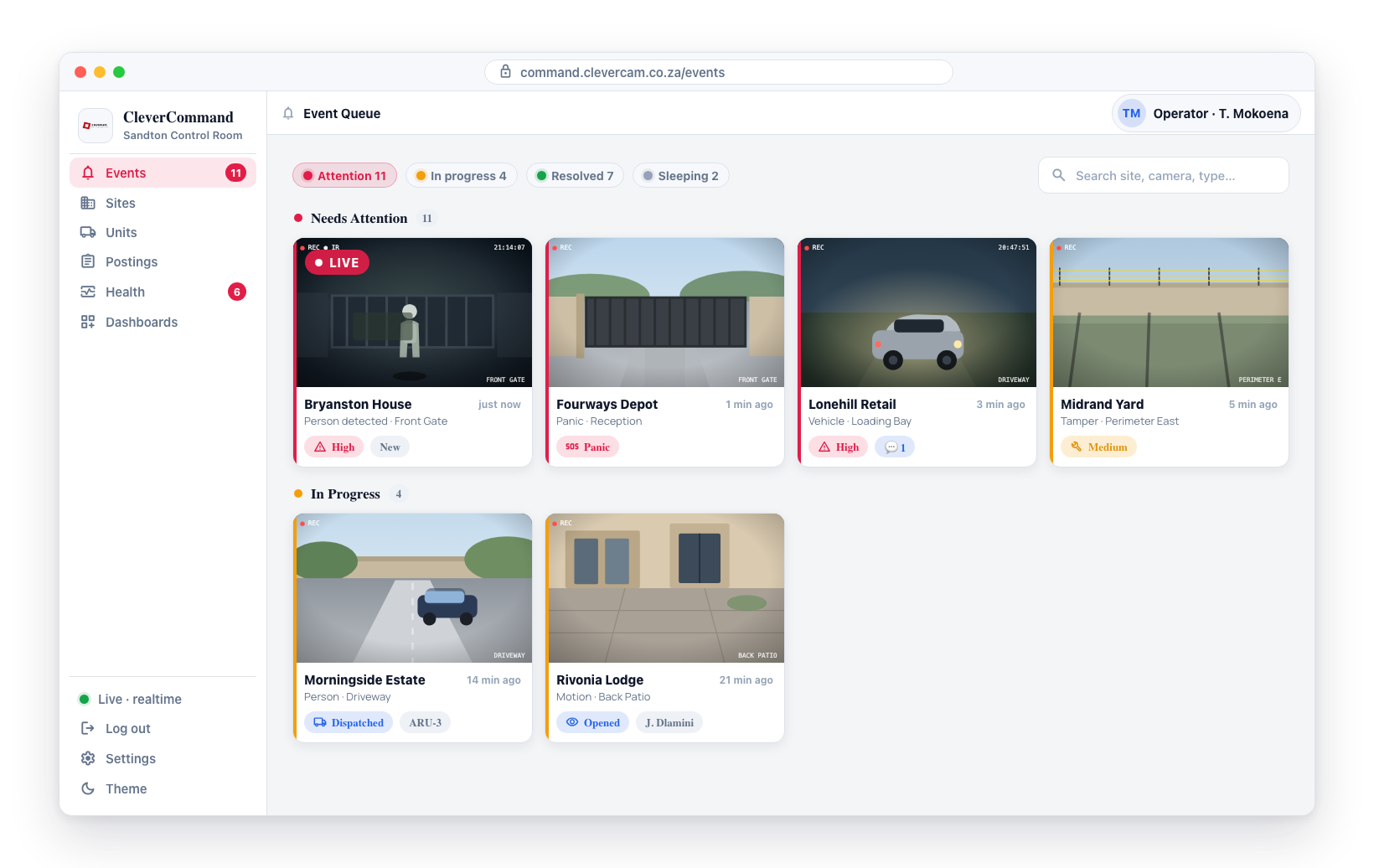
Can multiple operators work on the same event?
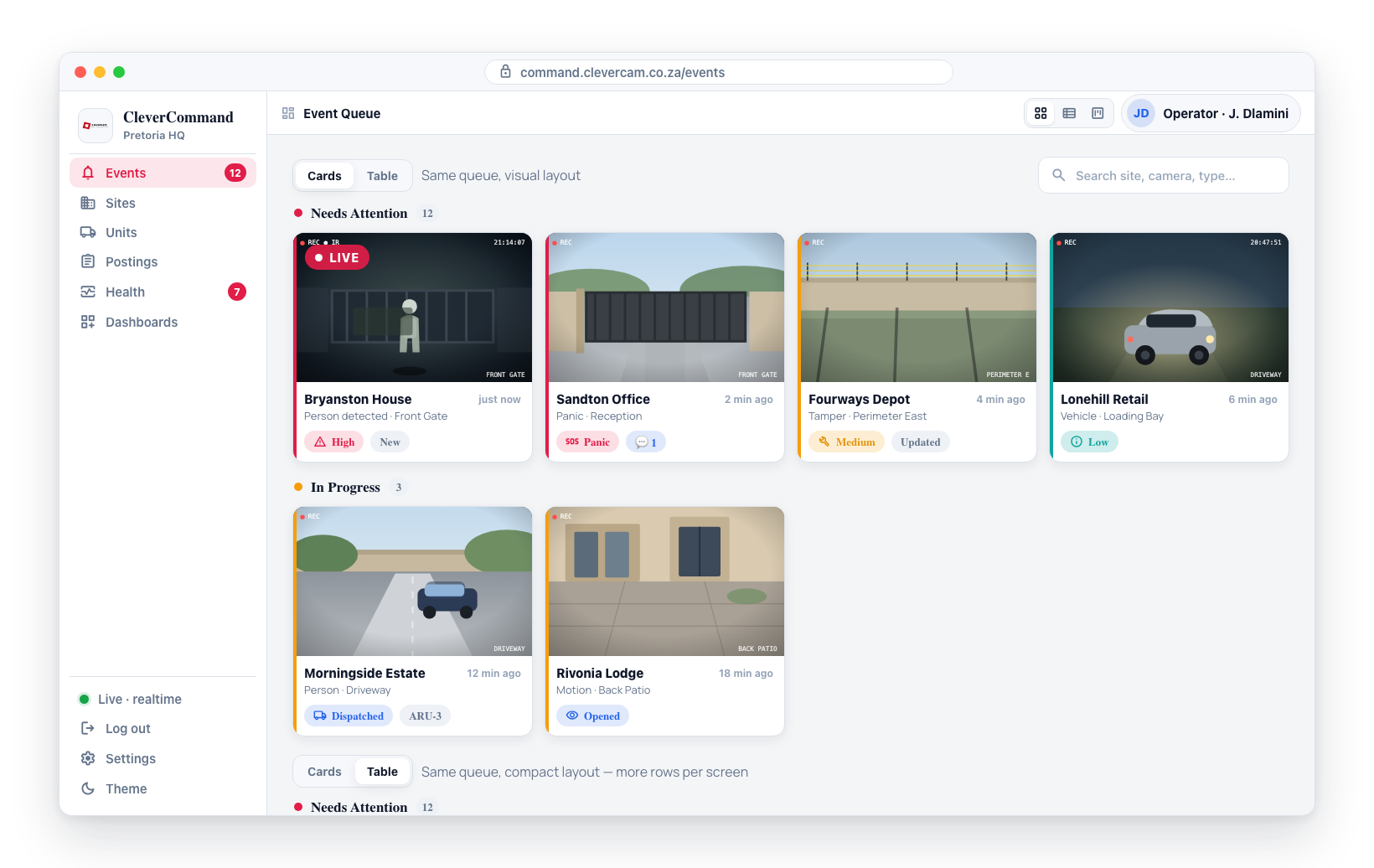
Yes. CleverCommand keeps all tabs and operators synchronized. Multiple operators connected to the same control room can see the same events. When one operator claims or closes an event, the change is reflected for all operators in real time.
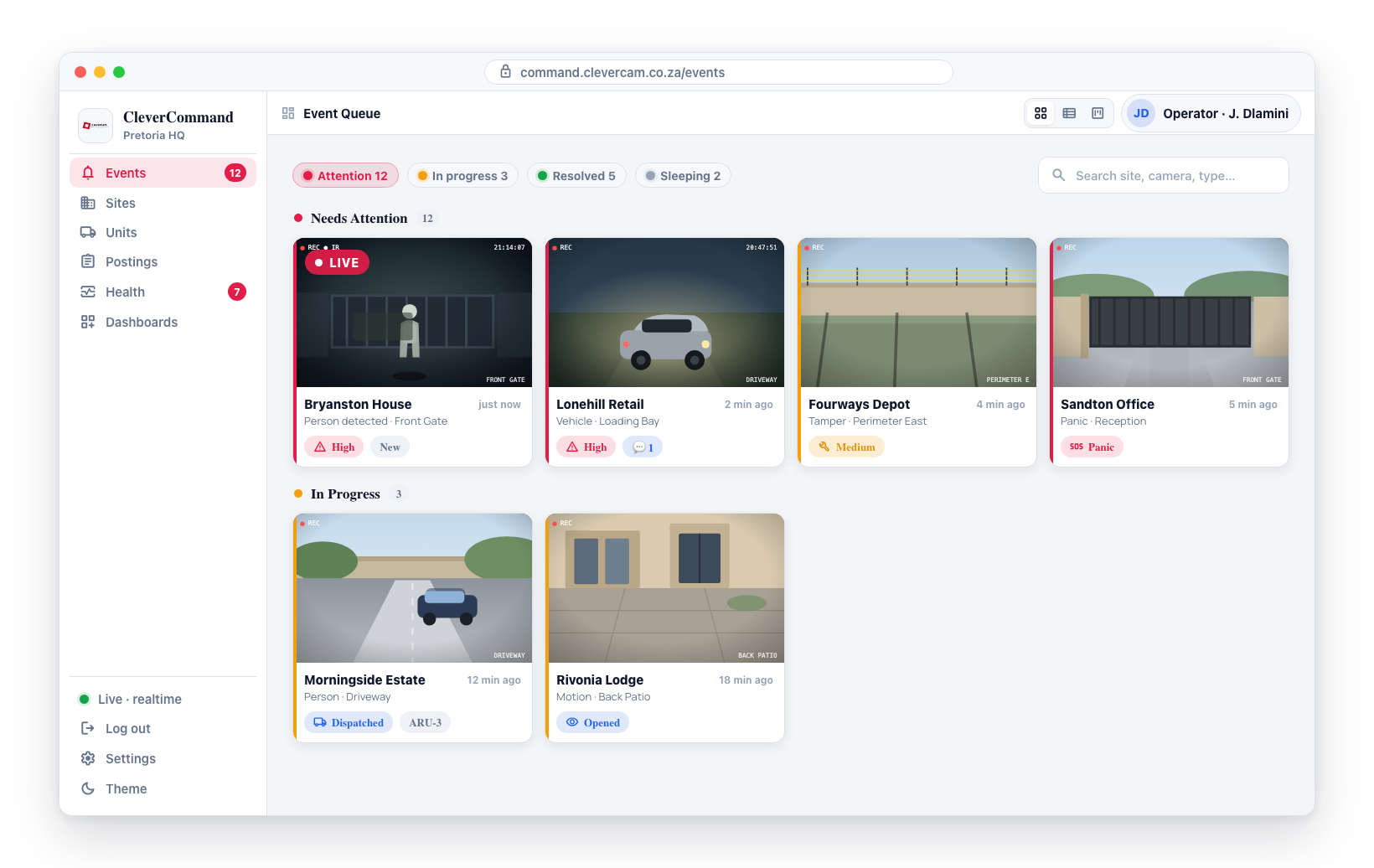
How are all my tabs kept in sync?
CleverCommand uses a browser feature that allows a single live connection to be shared across multiple tabs. This means opening multiple CleverCommand tabs does not create multiple server connections. All tabs stay synchronized, and signing in on one tab authenticates all tabs.
How long do events stay in the queue?
Events remain in the active queue until they are closed by an operator. There is no automatic timeout -- events must be explicitly resolved. This ensures that no event is missed due to inaction.
Can I reopen a closed event?
Closed events are moved to the site history and are available for review, but they cannot be reopened. If a new incident occurs at the same site, a new event is created. If you need to add information to a closed event, contact your administrator.
Dispatch and Response
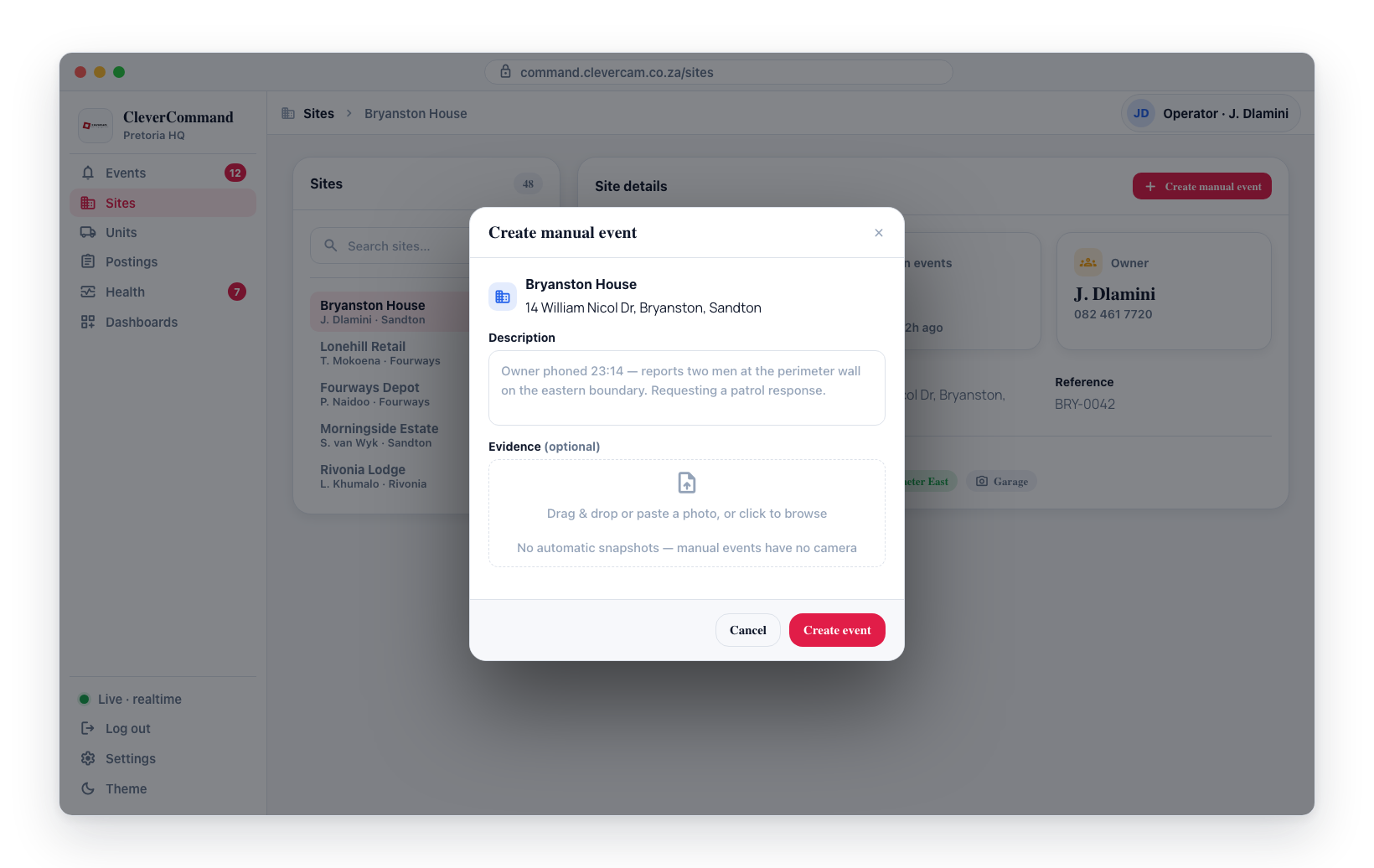
Can I dispatch to a site without an active event?
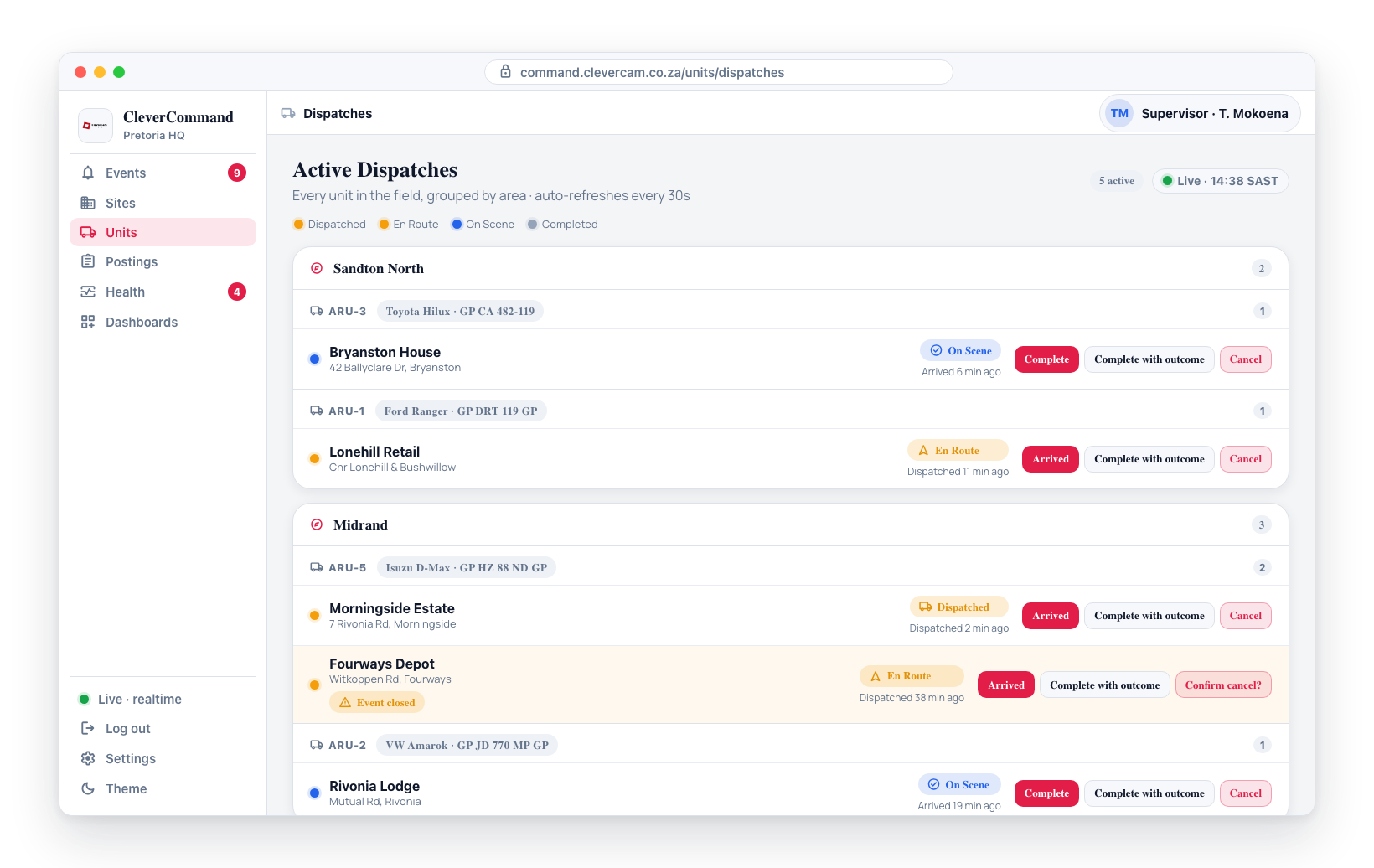
The dispatch workflow is initiated from an event. To dispatch to a site without a camera-detected event, first create a manual event for the site, then dispatch from that event.
What if a response unit does not acknowledge the dispatch?
Monitor the dispatch status. If a unit stays in "Dispatched" status without moving to "En Route," contact the unit directly by phone. The dispatch does not automatically expire, so manual follow-up is needed.
Settings and Configuration
Do my settings sync across devices?
No. Settings (alert sounds, visual alerts, notifications, optional features, view preferences) are saved locally in the browser on each device. If you use CleverCommand on multiple workstations, you need to configure settings on each one.
Can I customize the sidebar or dashboard layout?
The sidebar navigation and page layouts are fixed by design to ensure consistency across all operators. You can customize your experience through:
- View mode (Cards vs Table) on the Events page
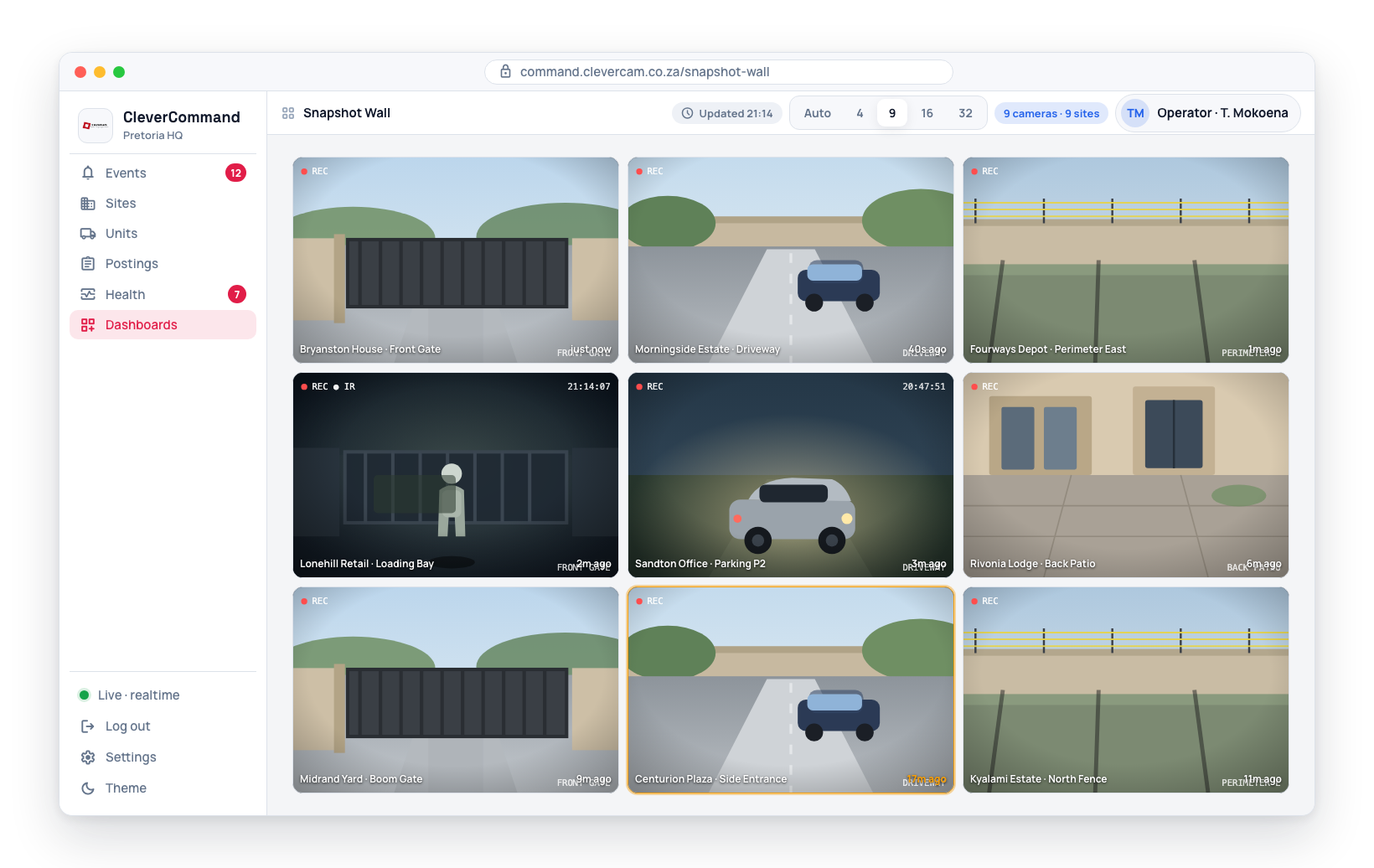
- Grid column count on the Snapshot Wall
- Alert and notification preferences in Settings
- Light/dark theme toggle
Who creates login codes for operators?
Login codes are created and managed by company administrators in CleverOps. Contact your company admin to create, modify, or deactivate operator credentials.
Technical
What are the system requirements?
| Requirement | Details |
|---|---|
| Browser | Chrome, Edge, or Firefox (latest version) |
| Internet | Stable broadband connection |
| Display | Desktop monitor recommended (1920x1080 or higher) |
| Memory | 4 GB RAM minimum for smooth operation |
Does CleverCommand work offline?
CleverCommand requires an internet connection to function. It relies on a live connection to receive events and communicate with the server. Without internet, no events can be received. When installed as a desktop app, the application shell can load offline, but no live data will be available until the connection is restored.
How secure is CleverCommand?
CleverCommand uses:
- One-time password authentication for operator login
- Encrypted connections for real-time data
- Sessions that end when all tabs are closed
- Operator-attributed actions for accountability
For additional questions not covered here, contact your company administrator or reach out to the CleverCam support team.