Common Issues
This page covers the most frequently encountered issues in CleverCommand and their solutions. If you experience a problem, start here before escalating to your supervisor or technical support.
Connection Status Shows "Offline"
Symptoms: The connection indicator in the bottom-left corner of the sidebar shows red. Events are not updating in the queue.
Possible Causes and Solutions:
-
Internet connection lost
- Check your network connection (try opening another website)
- If your internet is down, contact your IT team
- CleverCommand will automatically reconnect when the connection is restored
-
Browser running in the background
- Some browsers reduce resources for background tabs to save power
- If CleverCommand is in a background tab, bring it to the foreground
- Install CleverCommand as a desktop app for a dedicated window that is not affected by tab management
-
Server maintenance
- Occasionally, the server may undergo brief maintenance
- Wait a few minutes and the connection should restore automatically
-
Firewall or network restriction
- Your network may be blocking the connection
- Contact your IT team to ensure the CleverCommand site is fully accessible
Quick fix: Refresh the page. If the issue persists after refresh, check your internet connection.
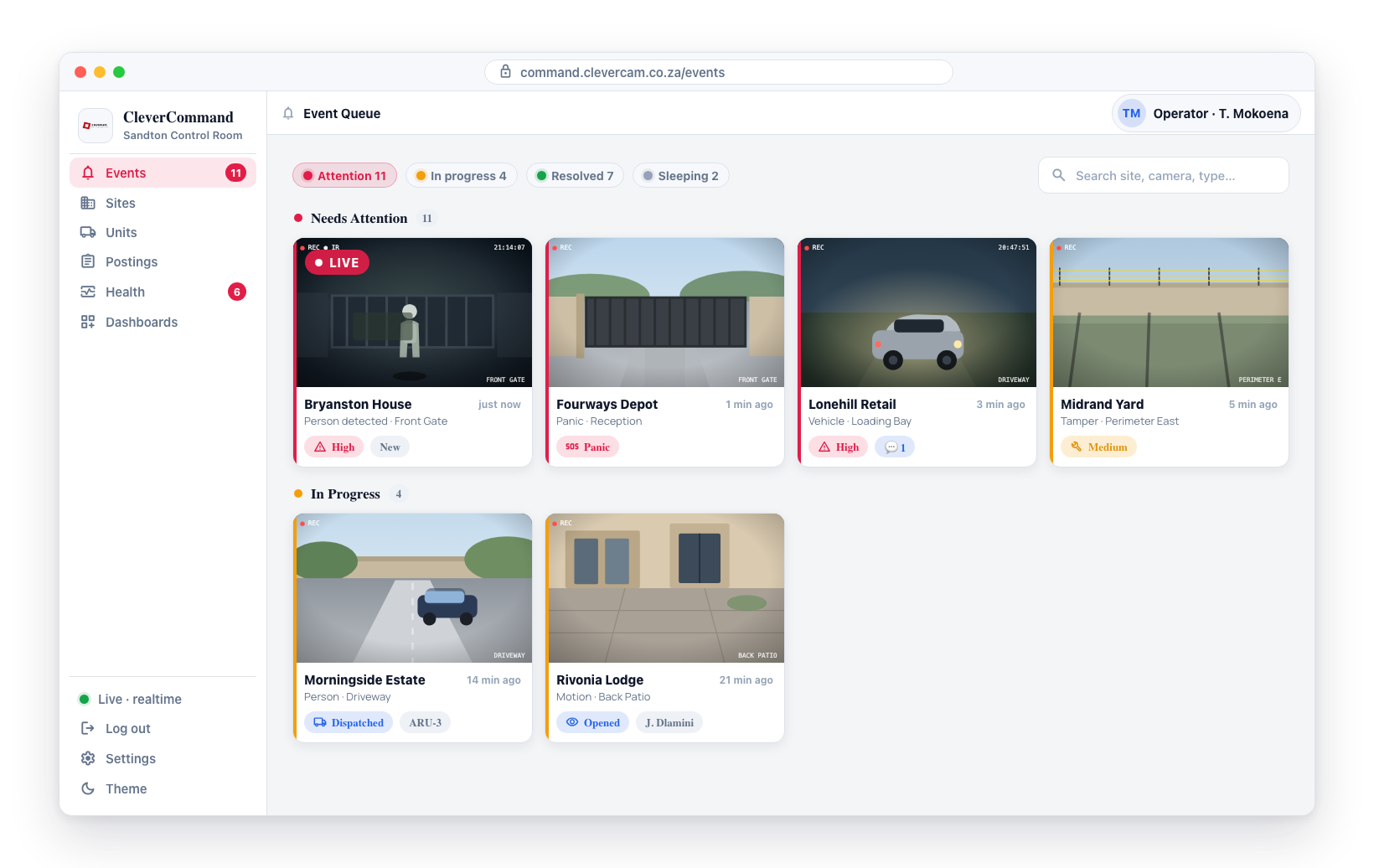
Events Not Updating
Symptoms: The event queue appears frozen. No new events are appearing even though you expect activity.
Solutions:
- Check the connection status indicator in the sidebar -- if it shows disconnected, see the section above; if it shows Poll, see the section below
- Click into the queue tab -- if the tab was in the background or another browser window was focused, CleverCommand will auto-pull any missed events the moment you return to it (see note below)
- Try a page reload (F5 or Ctrl+R)
- Check the Health page -- Clever Hubs may be offline, meaning sites are not generating events
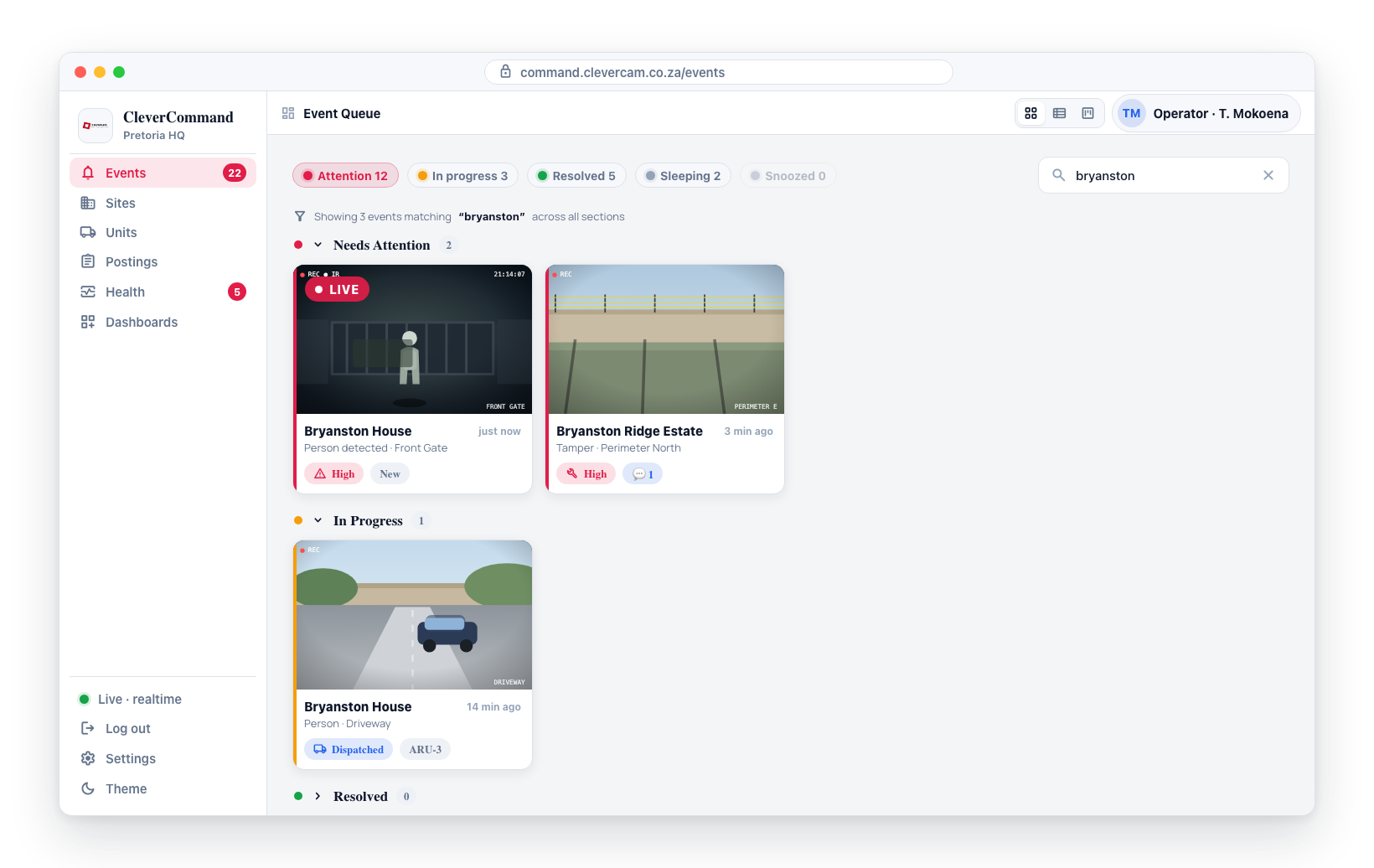
- Verify your filters are not hiding events -- clear all severity and type filters
- Check if the queue is genuinely empty (no active events at this time)
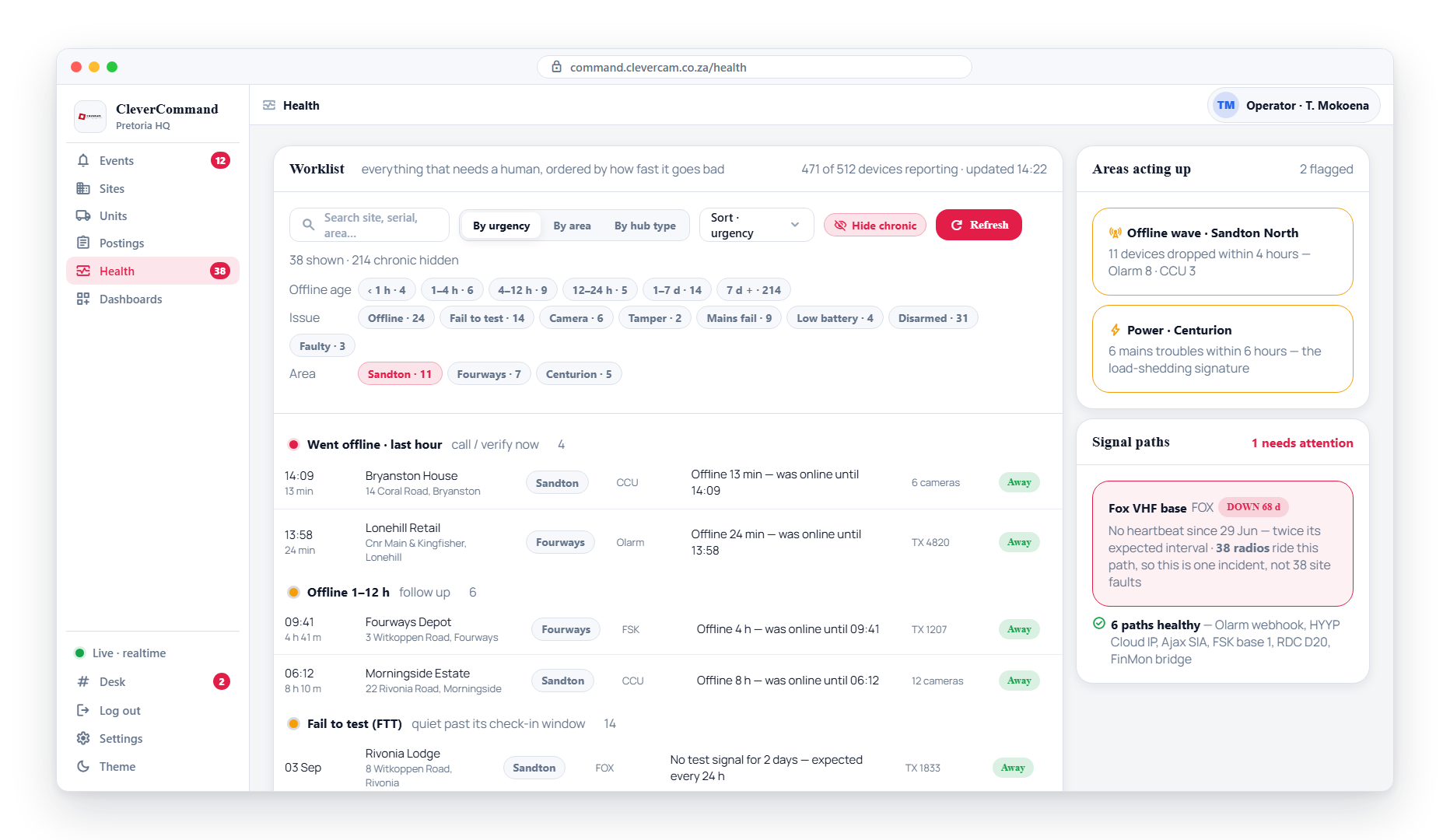
If events stop appearing from a specific site, check the Health page for that site's hub status. The site may be quiet because its hub is offline, not because nothing is happening.
The queue now refreshes itself automatically when you return focus to the CleverCommand tab after a long idle period, or when you switch back from another browser window. You should rarely need a manual reload to recover missed events. If the queue still looks stale after you click into the tab and wait 2–3 seconds, that's a real signal something is wrong -- escalate to your supervisor.
Connection Status Shows "Poll"
Symptoms: The connection indicator shows a yellow Poll. The queue and the units map still update, but sluggishly -- new events take up to half a minute to appear, and a dispatch you know has happened does not show straight away. Nothing looks broken.
What it means: The connection to the server is healthy, but the server has refused to send this browser one particular live feed -- usually your own event queue. CleverCommand has stopped asking for it and fallen back to refreshing on a timer, roughly every 30 seconds. Nothing is lost; it just arrives late.
Solutions:
- Hover the indicator -- the tooltip names the feed that was refused
- Sign out and sign back in. This resolves almost every case, and is the fix whenever a different operator used this browser before you
- If Poll returns immediately after a fresh sign-in, report it to your supervisor -- your login may not be linked to the operator record it is trying to use, which is an account problem rather than a browser one
The most common cause is a tab left open across a shift handover. When you take over a desk, sign out of the previous operator's session and sign in as yourself rather than carrying on in their open tab -- otherwise the board keeps trying to fetch their queue with your login, and the server refuses it every time.
Sounds Not Playing
Symptoms: New events arrive but no alert sound plays.
Solutions:
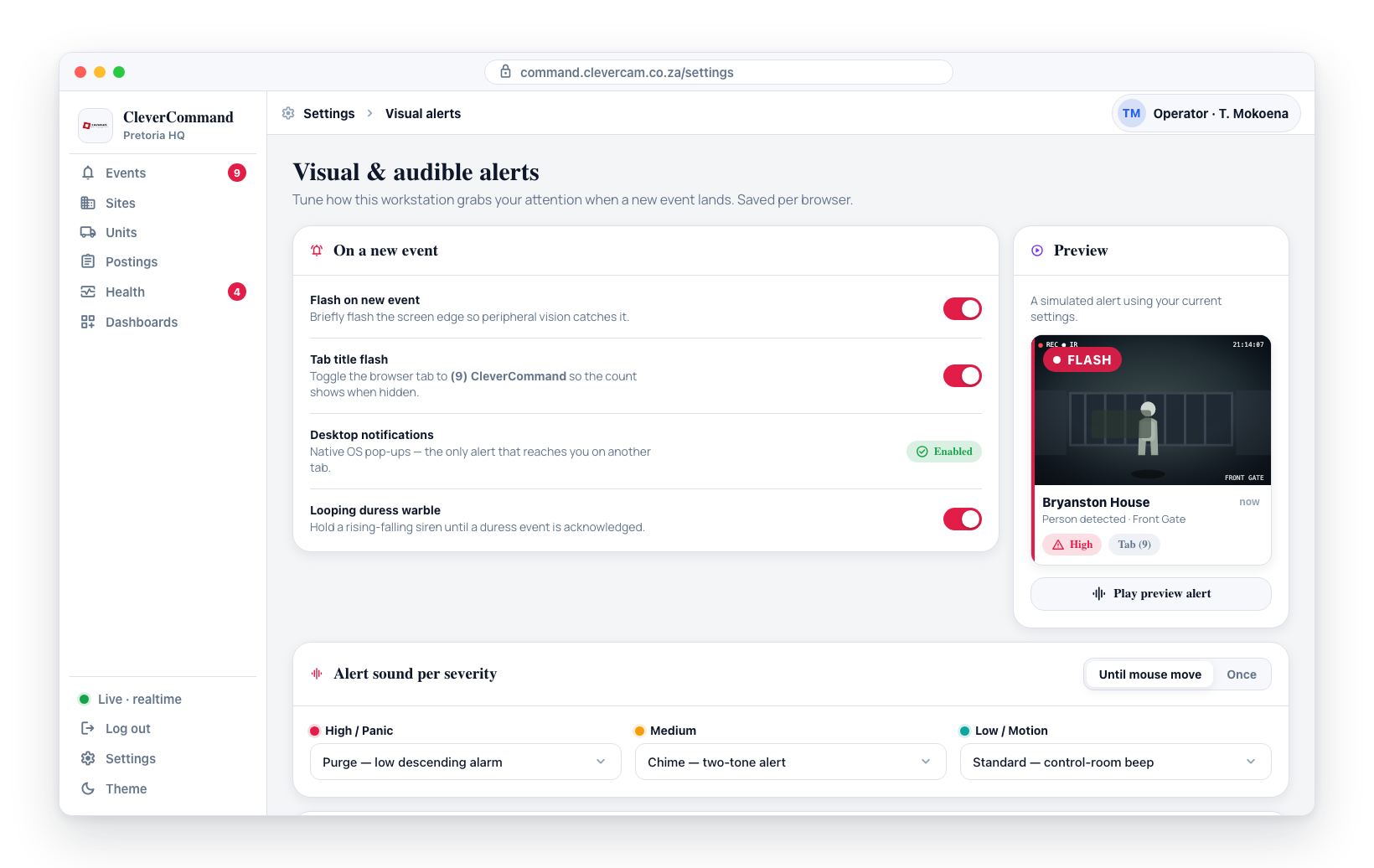
- Check Settings > Alert Sounds -- make sure sounds are toggled on
- Check your computer volume -- ensure it is not muted or set to zero
- Check browser audio permissions -- the browser may be blocking audio for the site
- In Chrome: click the lock icon in the address bar > Site Settings > Sound > Allow
- Interact with the page first -- browsers require a user interaction (click or keypress) before allowing audio playback
- Try the Test button in Alert Sounds settings to verify sounds work
Login Issues
Symptoms: Unable to sign in with your login code and one-time password.
Solutions:
- Verify your login code -- confirm the exact code with your company administrator in CleverOps
- Check the OTP -- one-time passwords are time-sensitive and may expire; request a fresh one
- Clear browser cache -- old cached data may interfere with sign-in
- In Chrome: Settings > Privacy > Clear Browsing Data > Cached images and files
- Try a different browser -- if the issue is browser-specific, use Chrome, Edge, or Firefox
- Contact your admin -- your login code may have been deactivated or expired
If you cannot sign in at the start of a shift, immediately notify your supervisor so another operator can cover while the issue is resolved. Do not leave the control room unmonitored.
Slow Performance
Symptoms: CleverCommand feels sluggish, pages take long to load, or the interface is unresponsive.
Solutions:
- Close unnecessary browser tabs -- each tab consumes memory
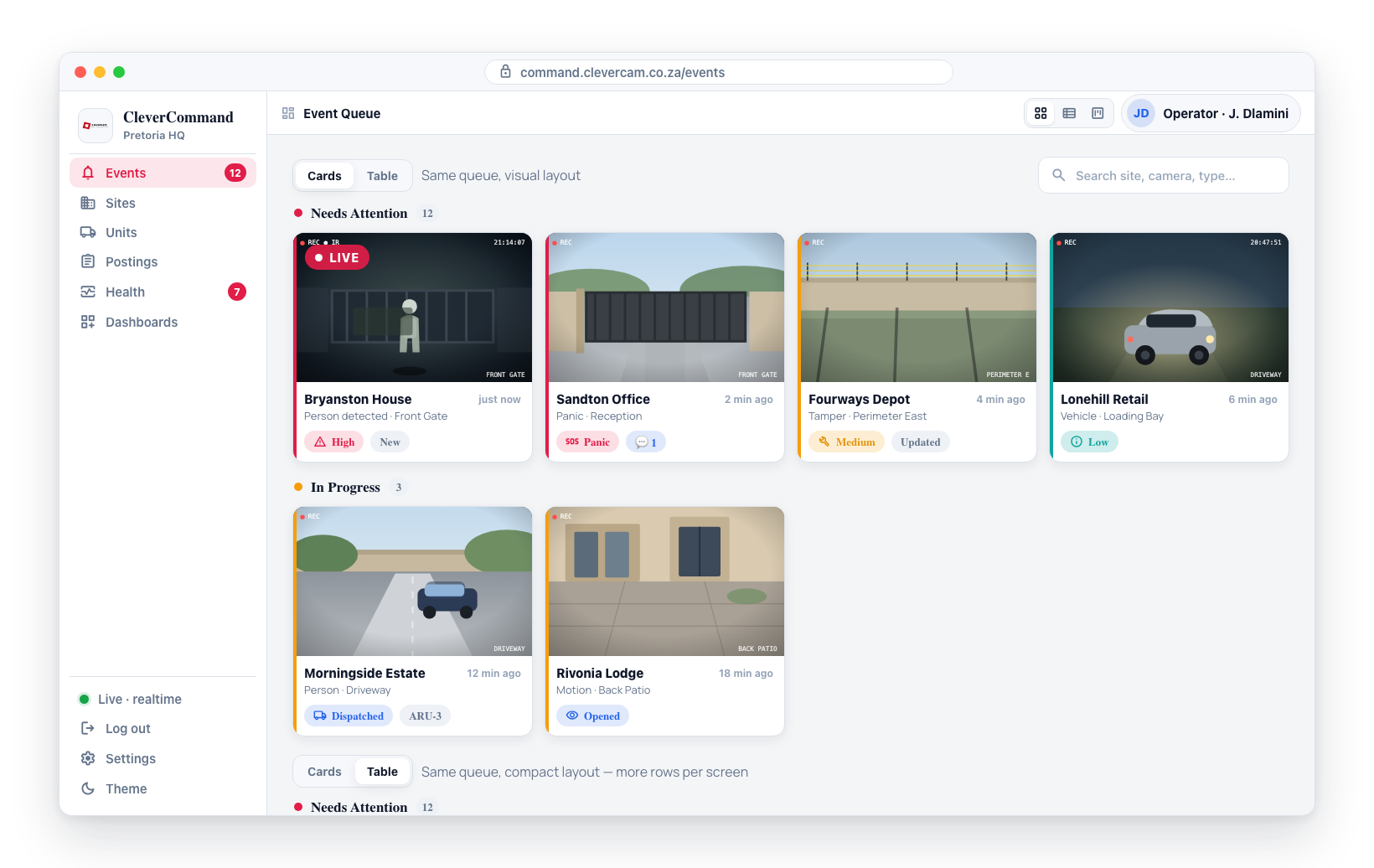
- Switch to Table view -- Cards view uses more resources due to image rendering
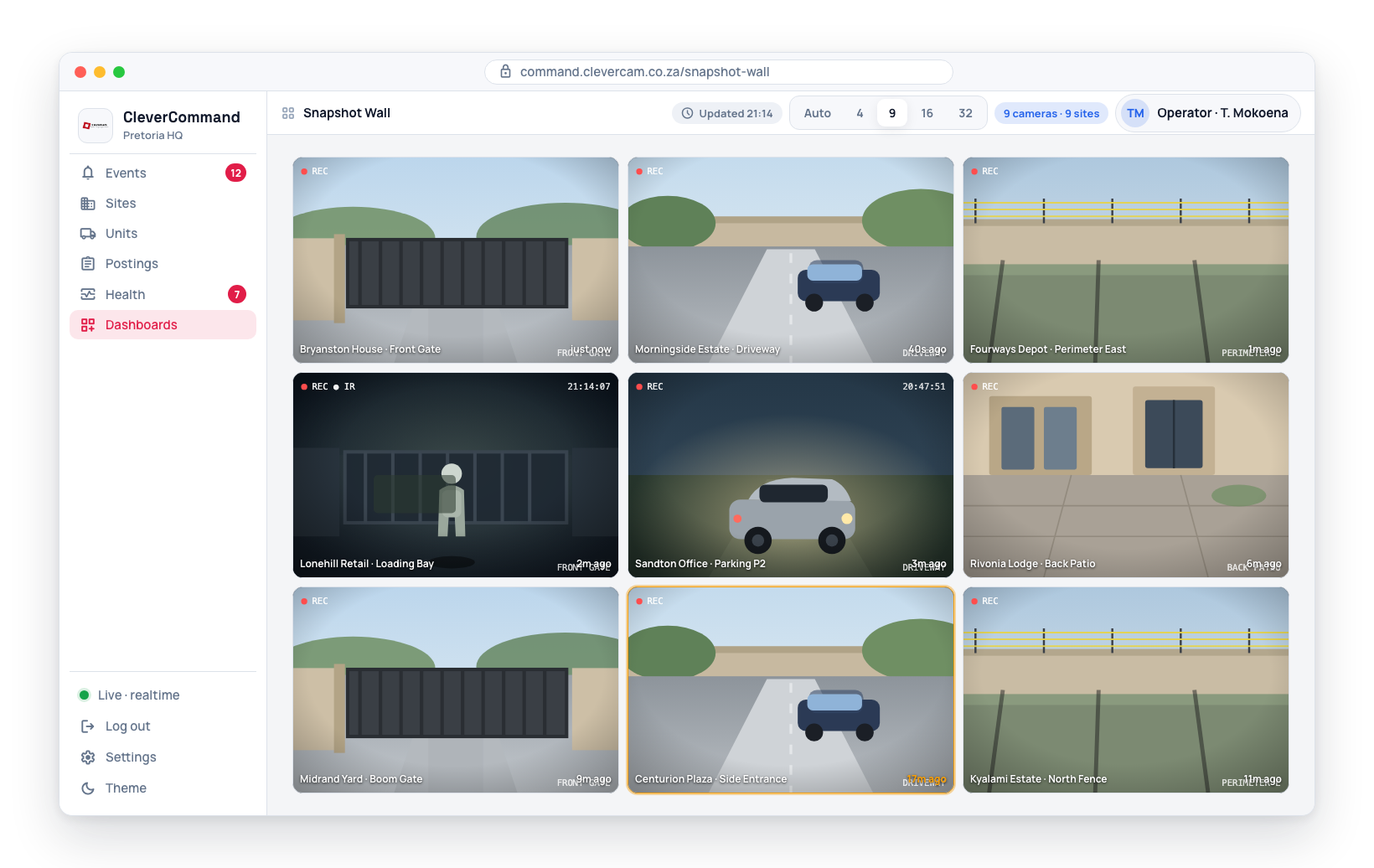
- Reduce Snapshot Wall columns -- use a smaller grid layout
- Clear browser cache -- accumulated cached data may slow things down
- Restart the browser -- a fresh browser session clears memory
- Check your computer -- ensure your workstation meets the minimum requirements
Notifications Not Appearing
Symptoms: Browser notifications are enabled in settings but not appearing.
Solutions:
- Check browser notification permissions for the CleverCommand site
- On Windows, check Focus Assist / Do Not Disturb settings -- they may be suppressing notifications
- On Mac, check Notification Center settings for your browser
- Ensure CleverCommand has been granted notification permission in the browser prompt
- Try toggling notifications off and on again in CleverCommand settings
A Sidebar Page Sends You Back to Events
Symptoms: Units, Postings or the supervisor toolbox is in the sidebar, but clicking it puts the Events board back on screen instead of opening the page. No error appears.
Cause: These pages belong to modules your control room either has or does not have (Units and the supervisor toolbox need Advanced Alarm Handling; Postings needs Roster). CleverCommand reads those switches once, just after sign-in. If the read happened before your session was fully live, the page could end up disagreeing with the sidebar — the sidebar offered a link the page itself refused.
Solutions:
- Hard refresh (Ctrl+Shift+R). This re-reads the modules and is enough on its own.
- If it still happens after a refresh, sign out and back in.
- If a page tells you the module isn't switched on, that is the real answer: your control room does not have it, and your company administrator arranges it in CleverOps.
Page Not Loading
Symptoms: CleverCommand shows a blank page or loading spinner that never completes.
Solutions:
- Refresh the page (F5 or Ctrl+R)
- Hard refresh (Ctrl+Shift+R) to bypass the cache
- Clear browser cache and cookies for the CleverCommand site
- Check your internet connection
- Try a different browser to rule out browser-specific issues
- If installed as a desktop app, try uninstalling and reinstalling the application