Supervisor Settings & Quit PIN
Supervisors configure desktop-app behaviour for the whole control room under Settings → Desktop app. These settings are stored per control room and apply to every desktop workstation after its next sign-in.
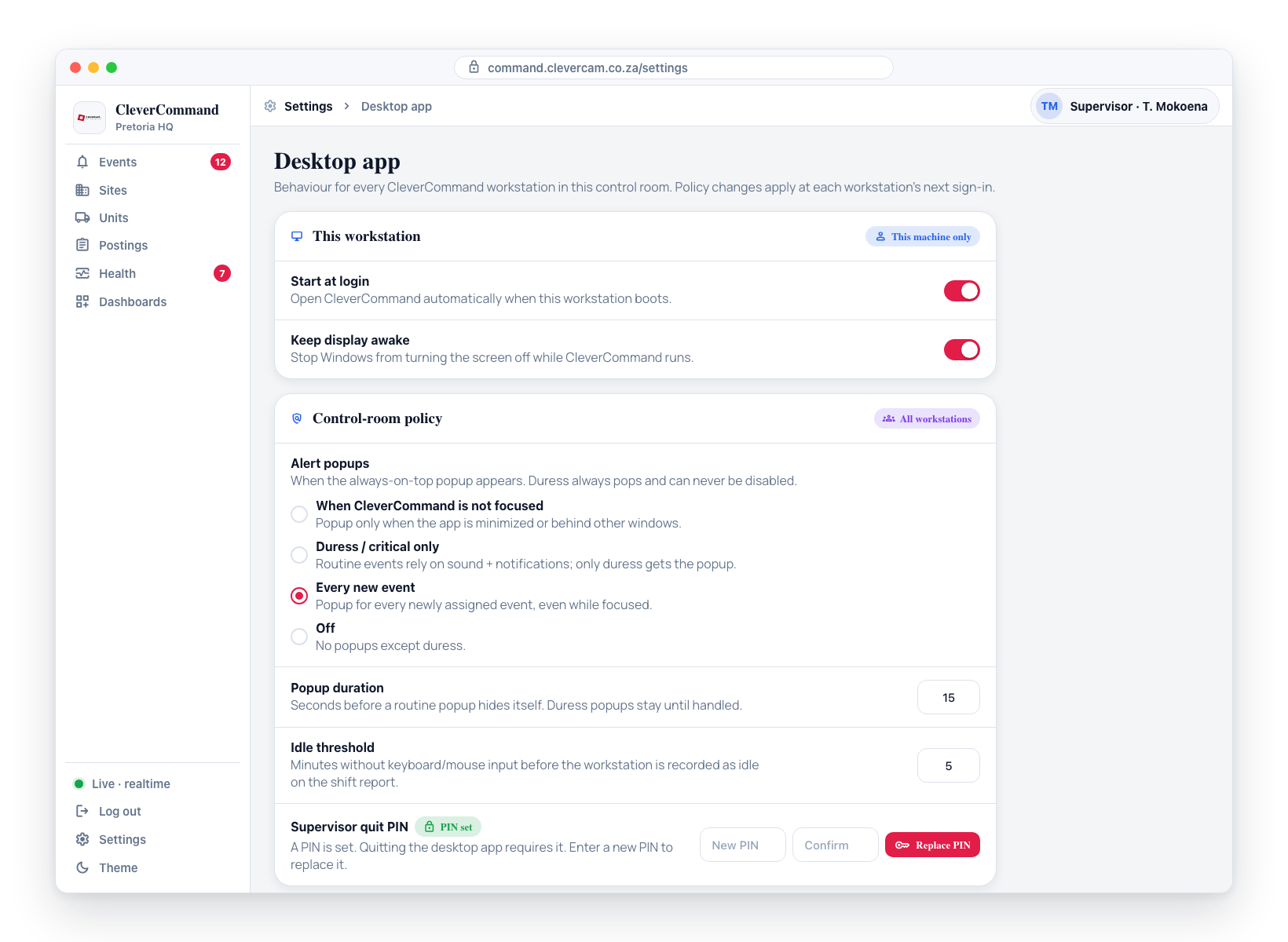
Per-workstation toggles
Visible only when CleverCommand runs as the desktop app (not in a browser):
- Start at login — open CleverCommand automatically when the workstation boots.
- Keep display awake — stop Windows from turning the screen off while CleverCommand runs.
Control-room policy (requires the Team permission)
- Alert popups — when the always-on-top popup appears (see Alert Popups).
- Popup duration — seconds before a routine popup hides itself.
- Idle threshold — minutes without keyboard or mouse input before the workstation is recorded as idle on the shift report (default 5).
- Supervisor quit PIN — a 4–8 digit PIN required to quit the desktop app.
How the quit PIN works
While no PIN is set, quitting from the tray only asks for confirmation. Once a supervisor sets a PIN:
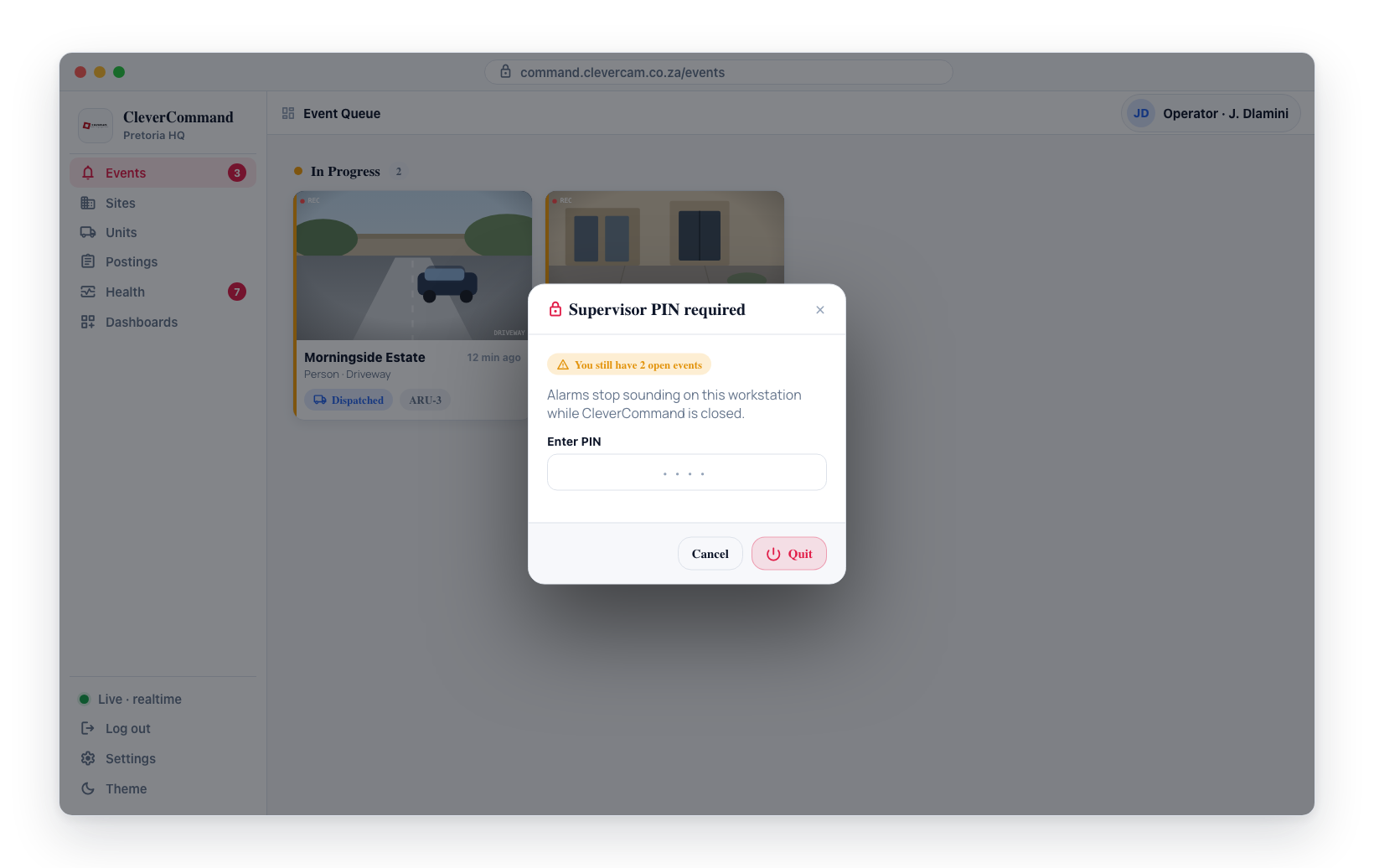
- Closing the window never quits — the app hides to the tray and alarms keep working.
- Quit CleverCommand in the tray menu opens a PIN prompt. The PIN is required even when the workstation is offline or logged out.
- If the operator has open events, the prompt warns about them first.
info
The PIN itself is never stored anywhere — only a salted hash is saved, and workstations cache that hash at sign-in so the gate also works offline. Replace the PIN at any time from Settings → Desktop app; workstations pick the new PIN up at their next sign-in.