Alert Popups
On the desktop app, new events can raise a small always-on-top popup in the bottom-right corner of the screen — visible over any application, even fullscreen video on another monitor. Clicking the popup brings CleverCommand to the front and opens the event; the ✕ dismisses it without opening.
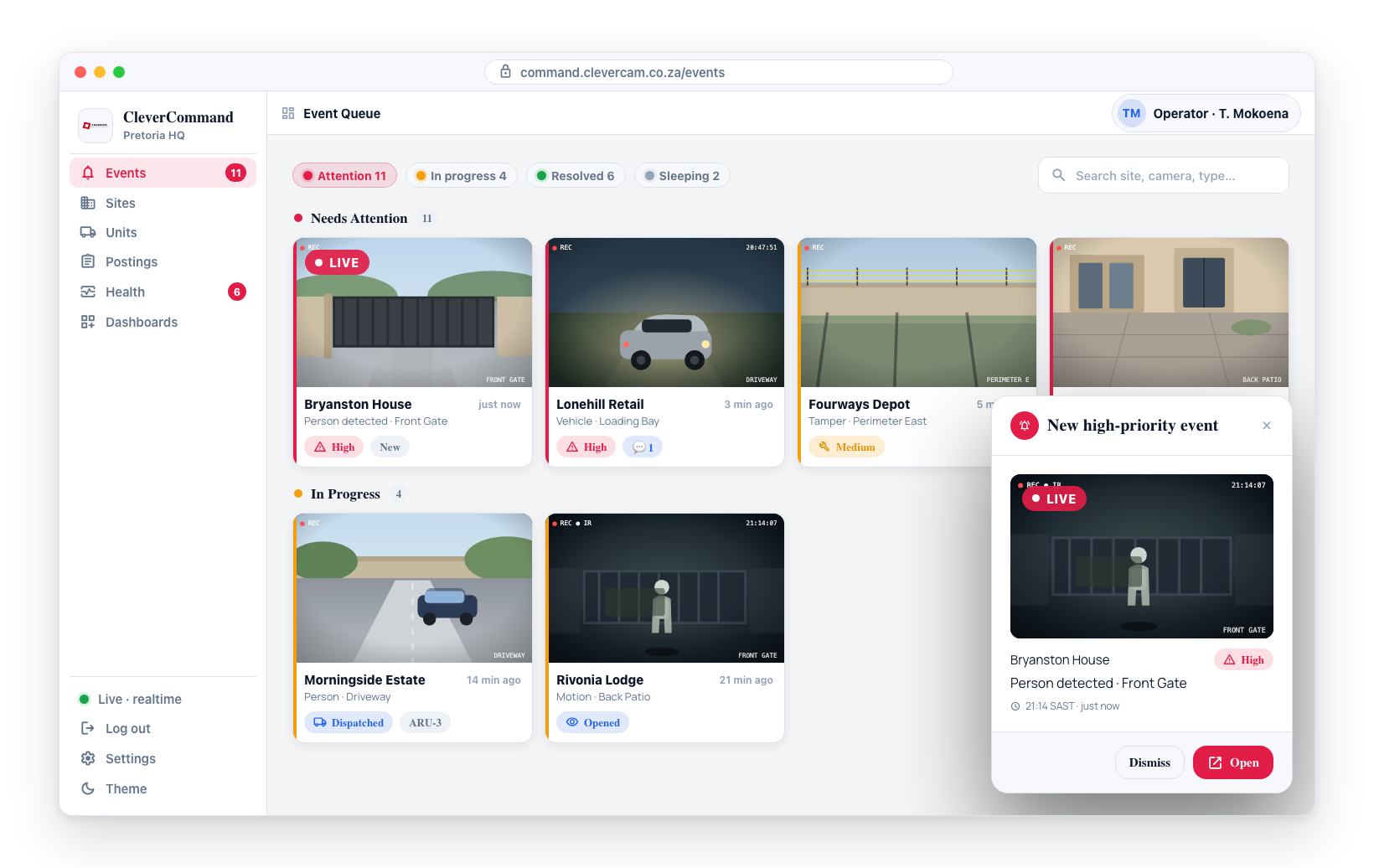
Routine popups hide themselves after the configured duration (default 15 seconds). Duress popups are different: they pulse red, ignore the popup settings below, and stay on screen until the duress strip is handled in the app.
When popups appear
A supervisor chooses the behaviour for all desktop workstations in the control room under Settings → Desktop app → Alert popups:
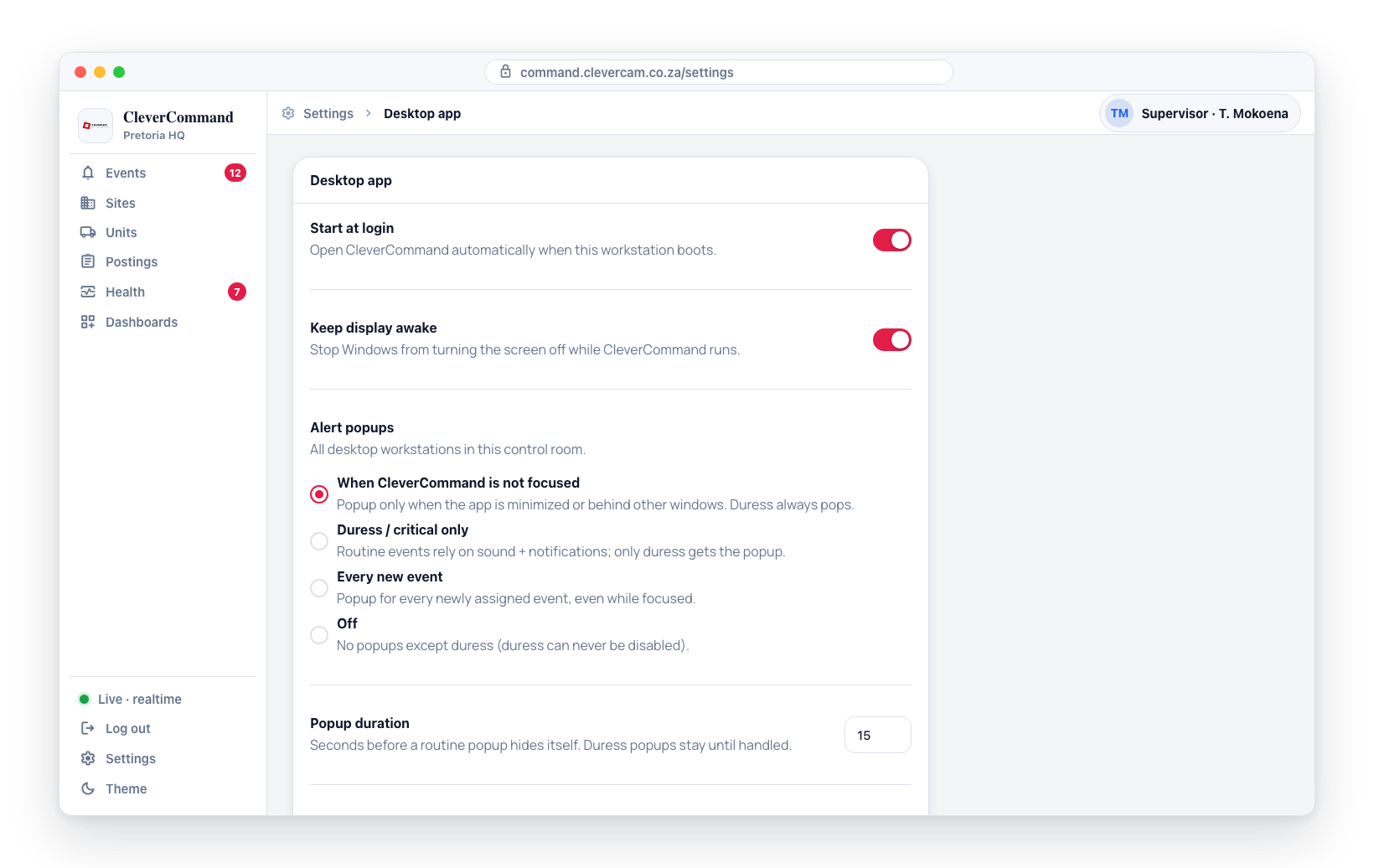
| Option | Behaviour |
|---|---|
| When CleverCommand is not focused (default) | Popup only when the app is minimized or behind other windows. Duress always pops. |
| Duress / critical only | Routine events rely on sound, taskbar flash and Windows notifications; only duress gets the popup. |
| Every new event | Popup for every newly assigned event, even while the app is focused. |
| Off | No popups — except duress, which can never be disabled. |
Popups also appear for missed events found after the connection recovers (for example, right after the workstation wakes from sleep).