Real-Time Updates
The Snapshot Wall is not a static display -- it updates in real time as new snapshots arrive from cameras with active events. The update mechanism is carefully managed to balance freshness with performance, ensuring operators always see current images without overloading the browser.
How Updates Work
When a camera on the wall captures a new snapshot, the wall doesn't wait for you to refresh:
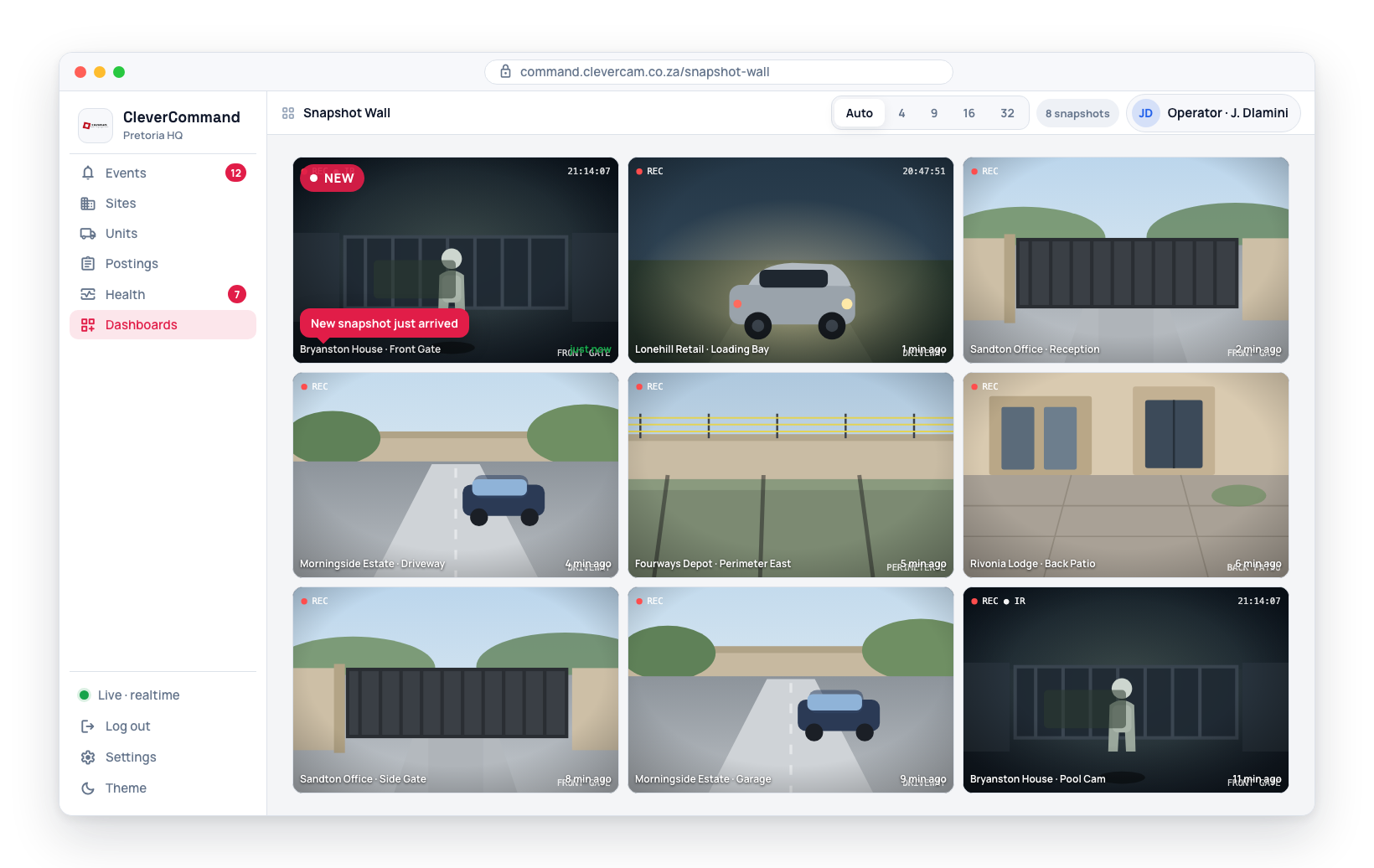
- A lightweight signal reaches the wall for that camera's site -- or, for a new or closed event, the same live event feed used elsewhere in CleverCommand
- The wall re-fetches its snapshot data (at most once every 3 seconds -- see Update Throttling below)
- Any cell whose image or details changed re-renders with the new snapshot
- That cell's relative timestamp reflects the new capture time
Update Throttling
To prevent the browser from being overwhelmed during high-activity periods, the wall limits itself to one refresh of the whole grid every 3 seconds. This means:
- If several cameras send new snapshots in rapid succession, they arrive together on the next refresh instead of each triggering a separate reload
- A signal that lands inside those 3 seconds is held, not dropped — the wall refreshes as soon as the 3 seconds are up, so a new frame is never left waiting for the 30-second poll
- This ensures smooth performance even with many active cameras
- You always see the most recent snapshots, but the grid does not flicker with every individual update
The 3-second limit applies to the wall as a whole, not per cell -- it is a minimum gap between one grid refresh and the next, however many cameras triggered it.
Loading States
While the wall is loading for the first time:
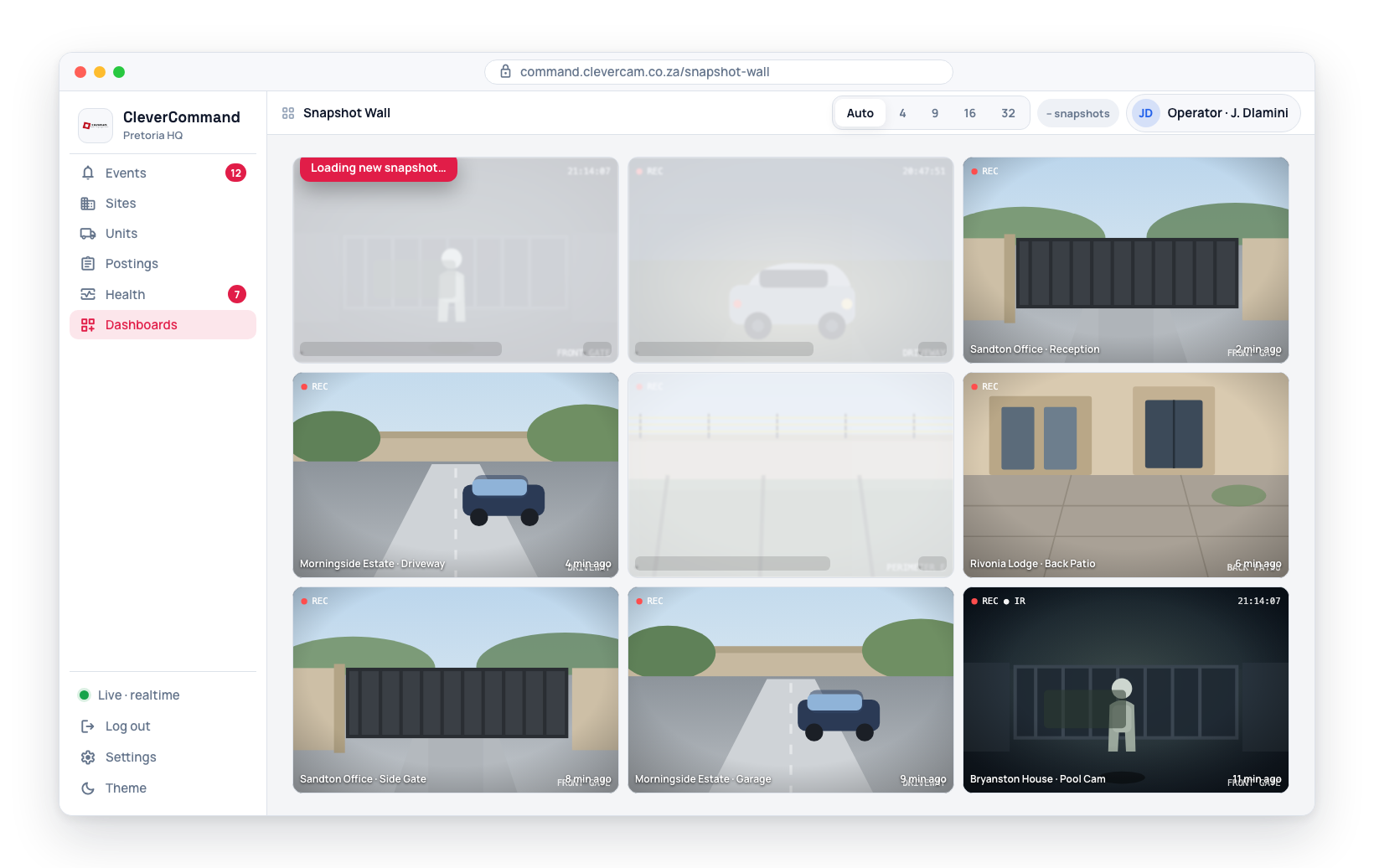
- Animated skeleton placeholders hold each cell's position until the first batch of snapshots has loaded
- Once loaded, the real grid replaces the skeletons
- After that first load, later updates swap a cell's image in place -- there is no loading placeholder for individual refreshes
- Each tile shows a soft blurred preview of its camera underneath the picture, so a tile whose image is still arriving (for instance just after a page turn) is never a blank box
When the wall loses touch
A refresh that fails -- a dropped connection, a server hiccup -- leaves the wall exactly as it was. The tiles stay up and the wall keeps trying every 30 seconds, and again the moment the computer comes back online.
If no refresh has succeeded for about 75 seconds, the wall says so rather than looking live while showing an old room:
- The live dot in the bar turns amber and stops pulsing
- Reconnecting · last update 14:02 appears in the bar, with the time of the last good refresh
- The relative times on the tiles keep counting up, so nothing on a stalled wall still claims to be "this minute"
It clears by itself on the next successful refresh. Only a wall that has never managed to load shows a message in place of the tiles.
Connection and Updates
Two different things keep the wall current, and they don't share a single on/off switch:
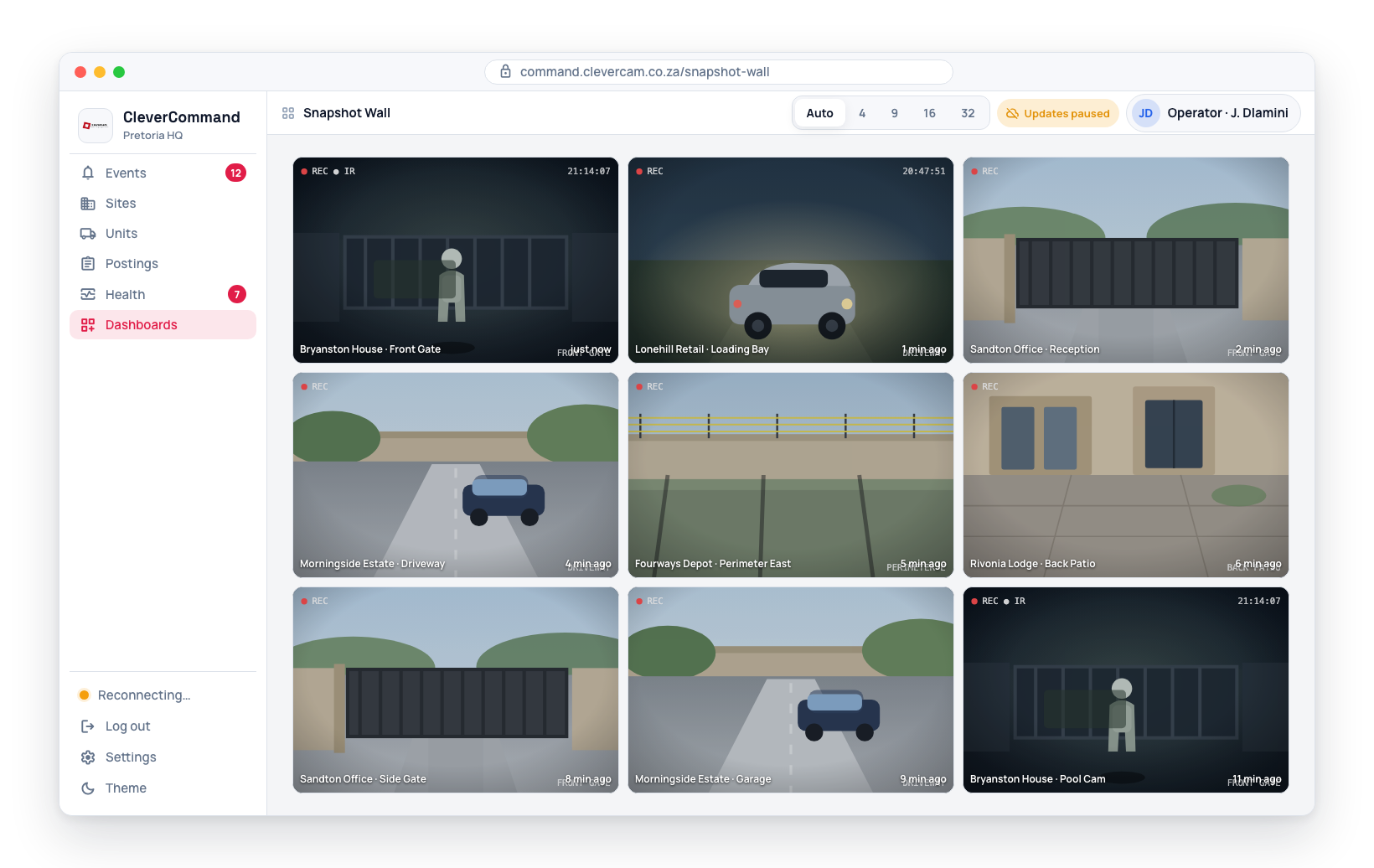
- Which cameras appear on the wall (a new event adding a tile, a closed event removing one) rides the same live connection as the rest of CleverCommand
- How fresh each tile's image is comes from the wall's own live feed, opened per site for every site currently on the wall -- but only when the wall has 40 sites or fewer. Past that, the wall relies on the poll alone for every tile's image. These feeds open only while the Snapshot Wall is on screen and close the moment you navigate away, then reopen the next time you open the wall
- If one site's feed can't connect, that site quietly falls back to the poll on its own -- the sidebar shows a Poll state rather than "disconnected," and the rest of the wall is unaffected
- A 30-second poll refreshes the whole wall regardless of what the live feeds are doing -- the self-heal for reconnects, dropped messages, and cameras added or removed. It only runs while the wall's tab or window is visible, and switching back to a hidden wall tab also triggers an immediate refresh
- A site with an open event but no cameras puts nothing on the wall and opens no live feed
Relative Timestamps
The "X minutes ago" label on each tile reflects when that camera's snapshot was captured, rounded to the nearest minute. The labels run on the wall's own clock, re-counted every 20 seconds, so they keep moving between refreshes -- and keep moving even if the wall has lost touch.
A camera that has never captured an image shows no time at all, rather than a misleading one.
Stale tiles
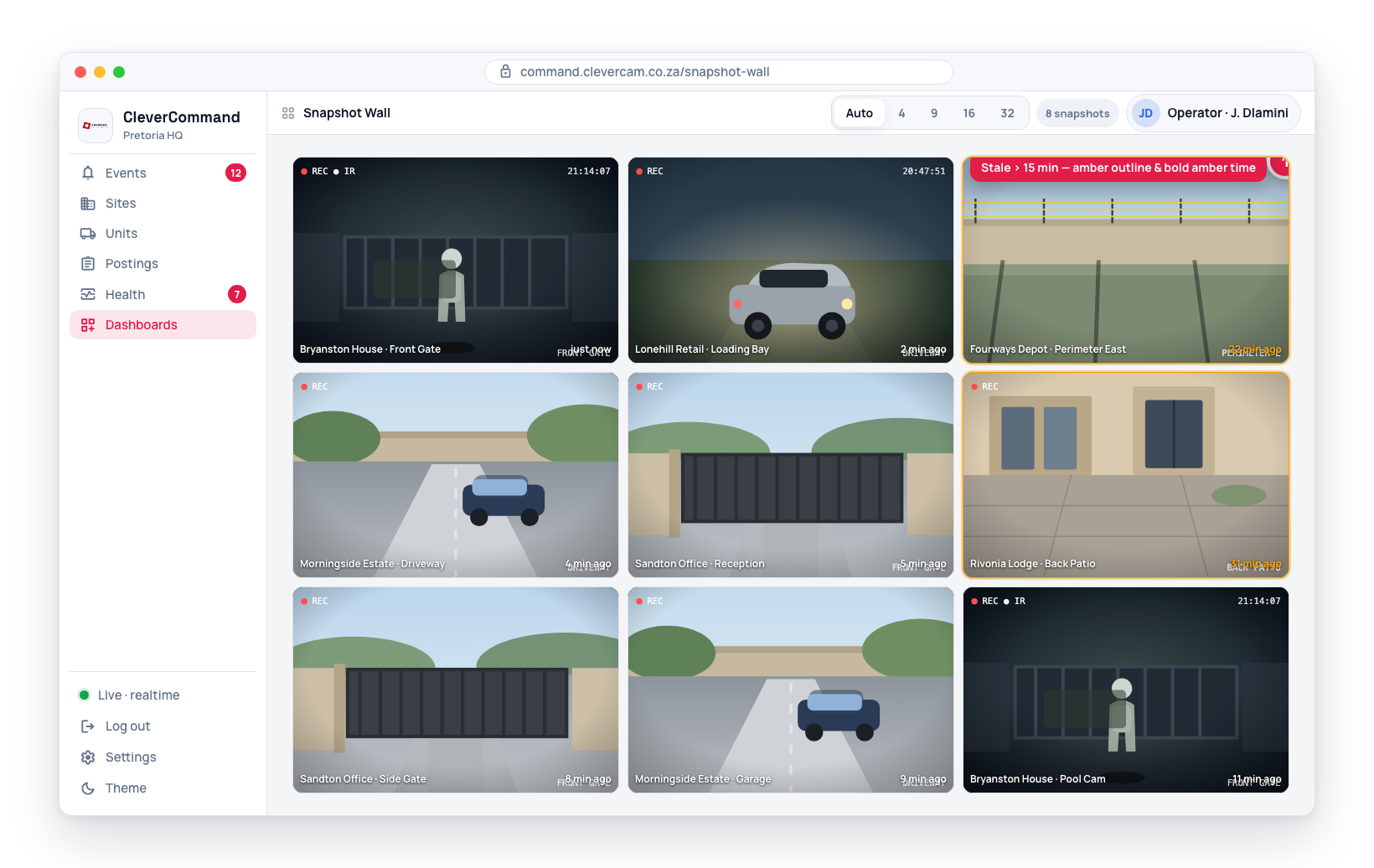
Cameras report in about hourly when nothing is happening, so a frame more than three hours old means the camera has missed several turns -- it is down, not quiet. The wall marks such a tile so an old picture is never mistaken for the present:
- The picture is dimmed and drained of colour
- Its age -- "5 hours ago", "yesterday" -- is shown in a solid amber pill
The tile goes back to normal by itself as soon as the camera sends a fresh snapshot. Disabled cameras are not marked stale; they already carry their Disabled badge.
Event-Filtered Updates
Snapshots on the wall are filtered by your assigned events:
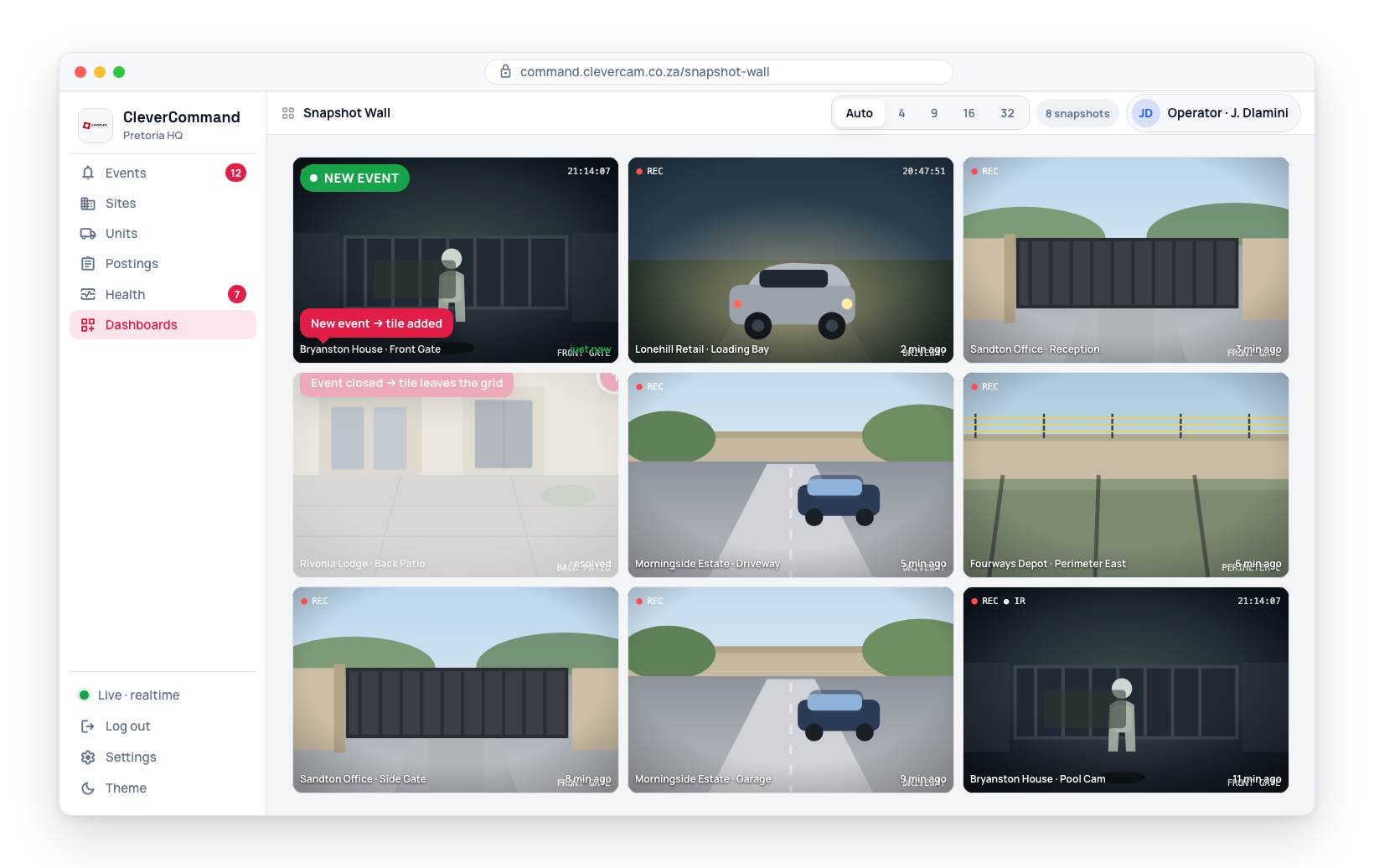
- Only cameras associated with active events in your control room are displayed
- When an event is closed, its camera snapshot is removed from the grid
- When a new event is created, its camera snapshot is added to the grid
- The grid composition changes dynamically as events come and go
Performance Considerations
The Snapshot Wall is designed to handle many simultaneous camera feeds efficiently:
- Only one page of images is on screen at a time, however many cameras are on the wall -- the rest load as their page comes up, a few seconds ahead of the turn
- Each refresh reads only what a tile shows (camera name, picture, capture time), not the full camera records
- Update throttling limits the wall to one refresh every 3 seconds, however many cameras change in that window
- The wall's own per-site feeds are lightweight -- they only carry a signal to refetch, not the images themselves
If you notice the Snapshot Wall feeling slow on a lower-powered workstation, pick a smaller fixed grid size such as 9. Fewer images are on screen at once, and the wall turns pages to show the rest.
Using the Snapshot Wall Effectively
The Snapshot Wall is most effective as a passive monitoring tool:
- Keep it open on a secondary monitor while working in the event queue on your primary screen
- Use it for quick visual scanning of all active cameras
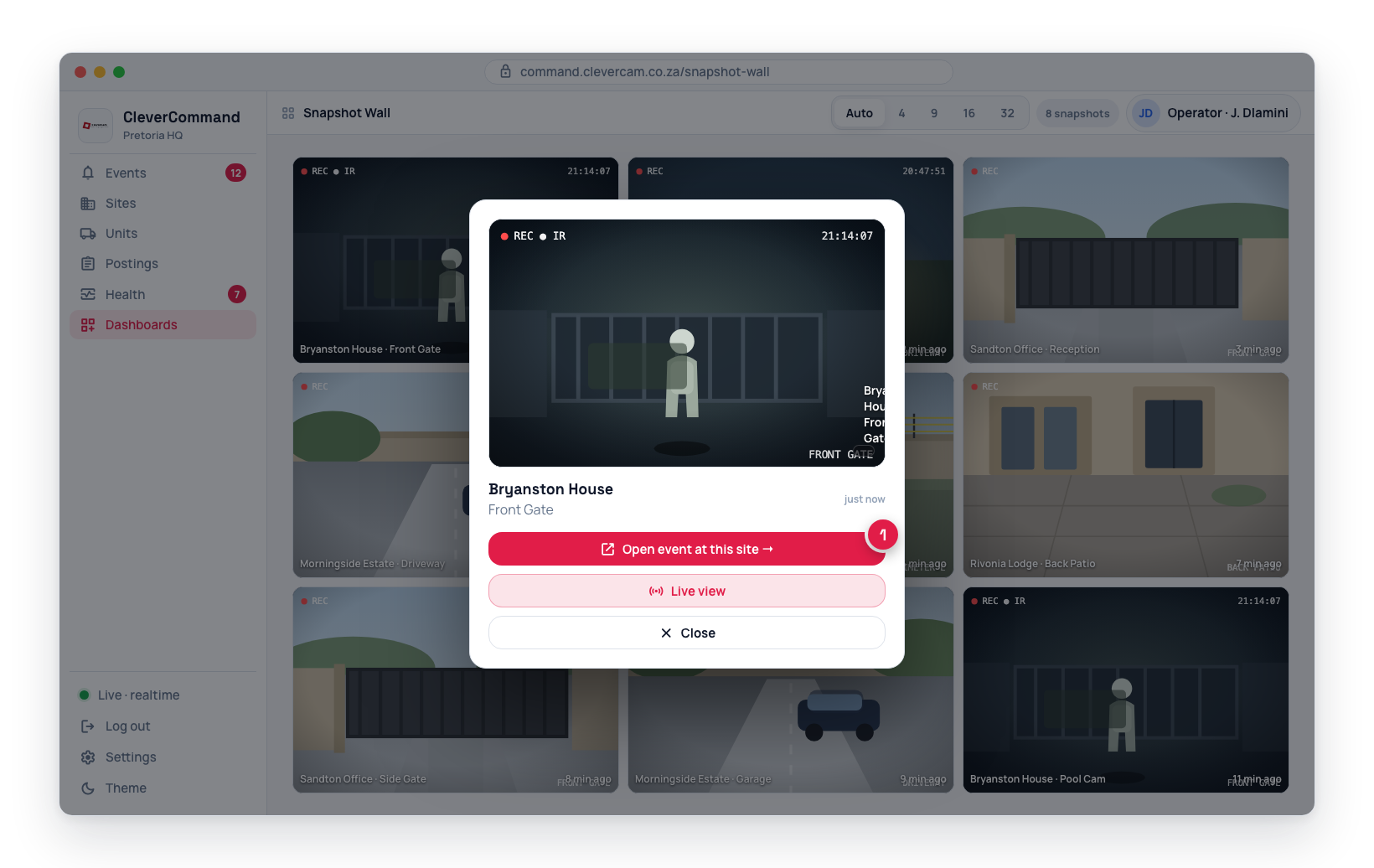
- Click any snapshot to view it enlarged for a closer look -- click outside the image, press Esc, or click Close to return to the grid
- Combine with sound alerts to know when new events arrive without watching the wall constantly